Filters in Assets and Vulnerabilities Details
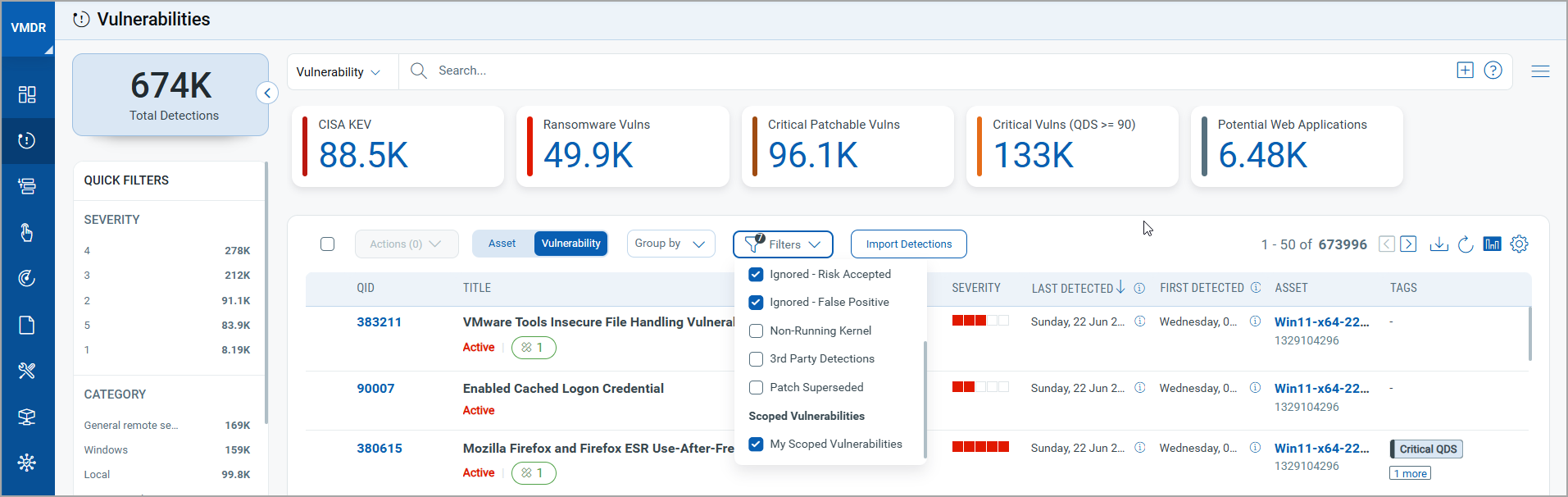
The filters in the Asset and Vulnerability field of the Vulnerabilities tab help you generate vulnerability findings based on your search criteria. The Filters for these fields are divided into Excluded Vulnerabilities and Scoped Vulnerabilities. The list of Filters in the Asset and Vulnerability field are the same.
The following screenshot is an example of the Filters in the Asset field:
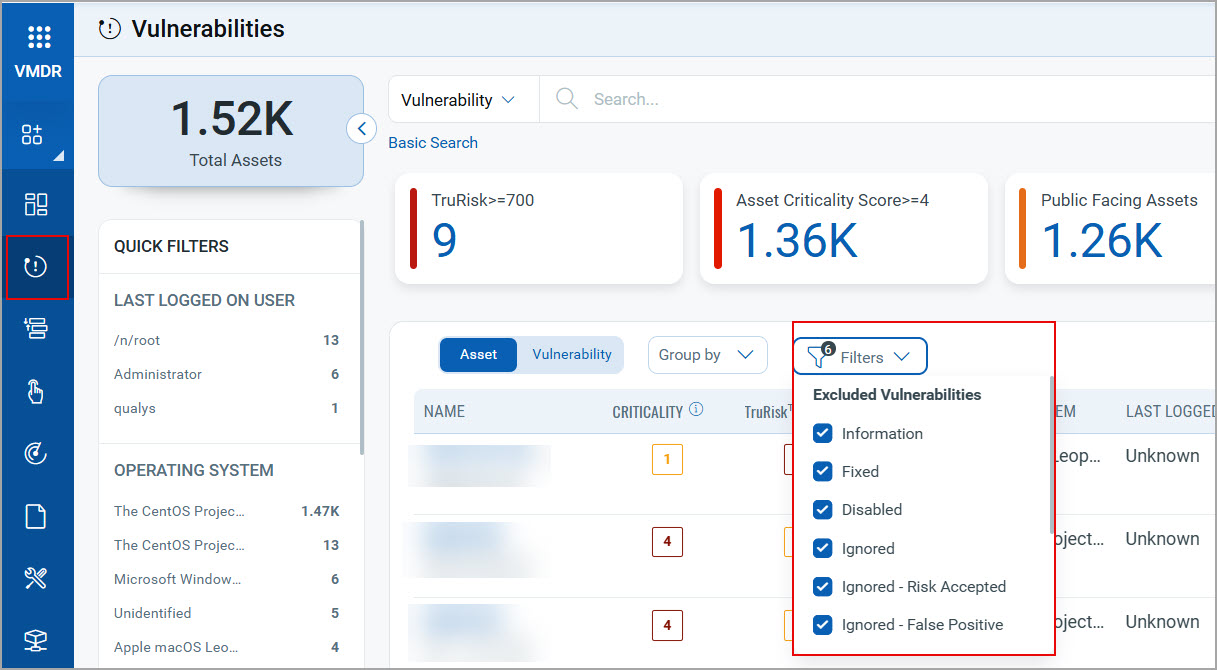
Excluded Vulnerabilities
The excluded vulnerabilities filter excludes the assets, so they do not appear as actionable issues in your vulnerability management program. The Excluded Vulnerabilities have the following types of vulnerabilities:
Information
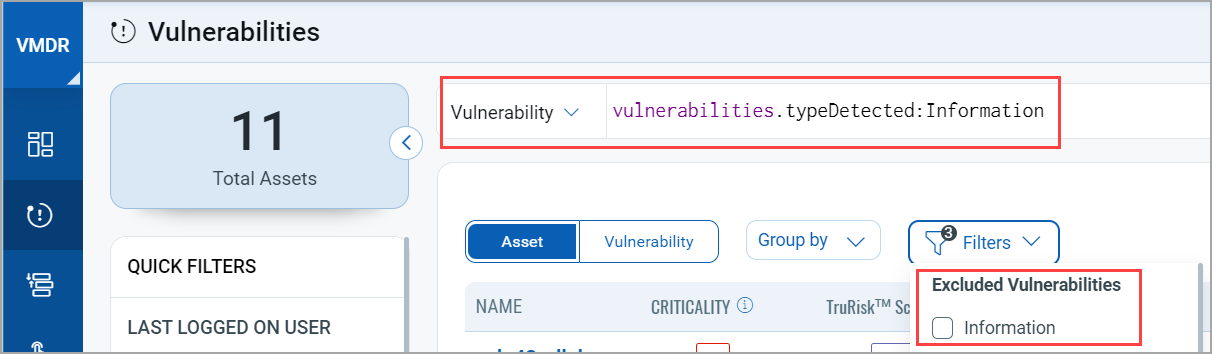
The Information vulnerabilities are, by default, excluded because they are informative and do not cause any harm to the asset. To view and identify the list of Informative vulnerabilities, clear the Information checkbox in the Filters list, and use the token: vulnerabilities.typeDetected: Information
The following screenshot is an example that highlights the vulnerabilities.typeDetected: Information token and the disabled Information filter:
Fixed
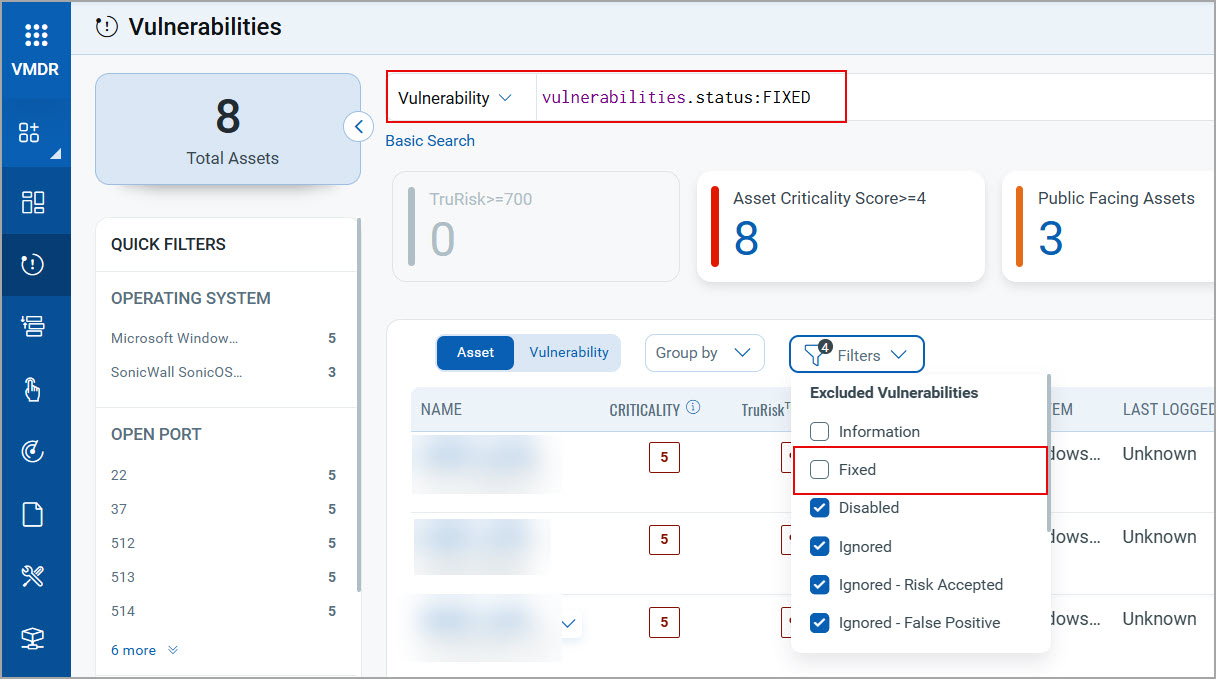
The Fixed vulnerabilities are, by default, excluded as these include the list of fixed vulnerabilities. To view the list of fixed vulnerabilities, clear the Fixed checkbox in the Filters list, and use the token: vulnerabilities.status: Fixed
To get the list of vulnerabilities fixed during a particular span, use a date range or specific date to define when findings were last fixed. For example: vulnerabilities.lastFixed:[2016-01-01 ... now-1M]
The following screenshot is an example that highlights the vulnerabilities.status: Fixed token and the Fixed filter disabled:
Disabled
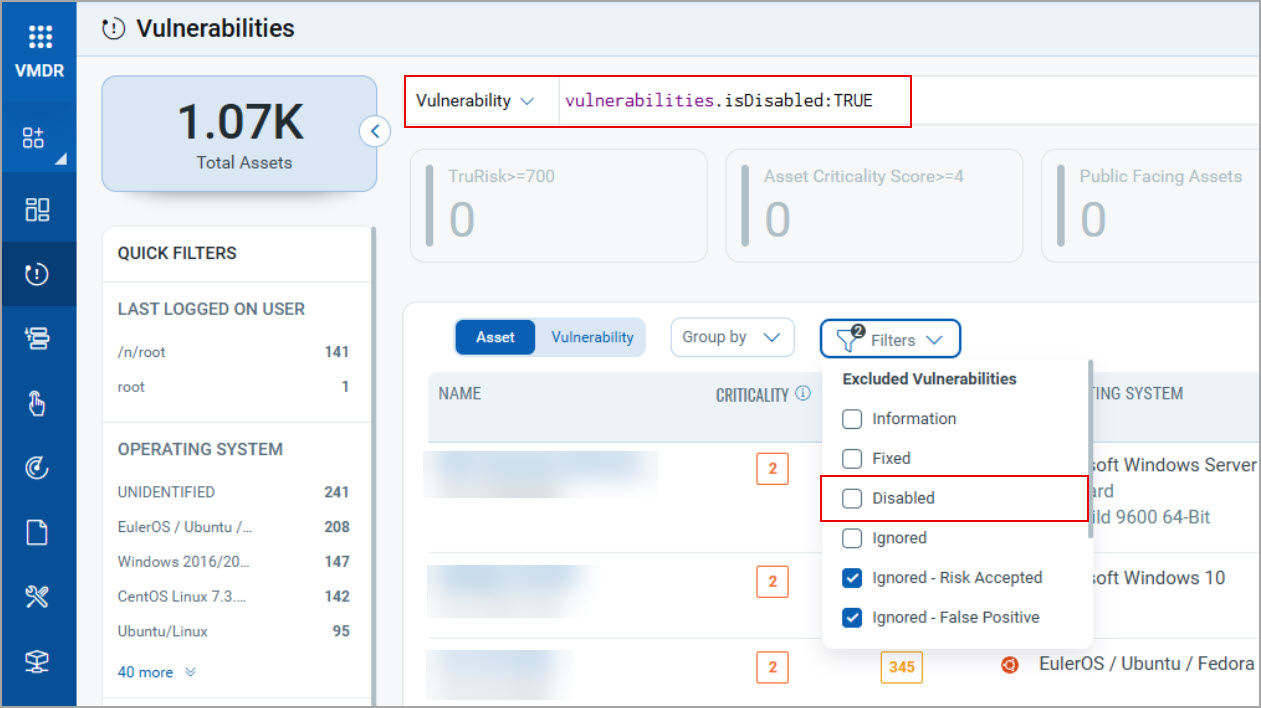
The Disabled vulnerabilities are, by default, excluded, as they are included in the list of Disabled vulnerabilities.
To view the list of Disabled vulnerabilities, clear the Disabled checkbox in the Filters list, and use the token: vulnerabilities.disabled: True
The following screenshot is an example that highlights the vulnerabilities.disabled: True token and the Disabled filter:
Ignored
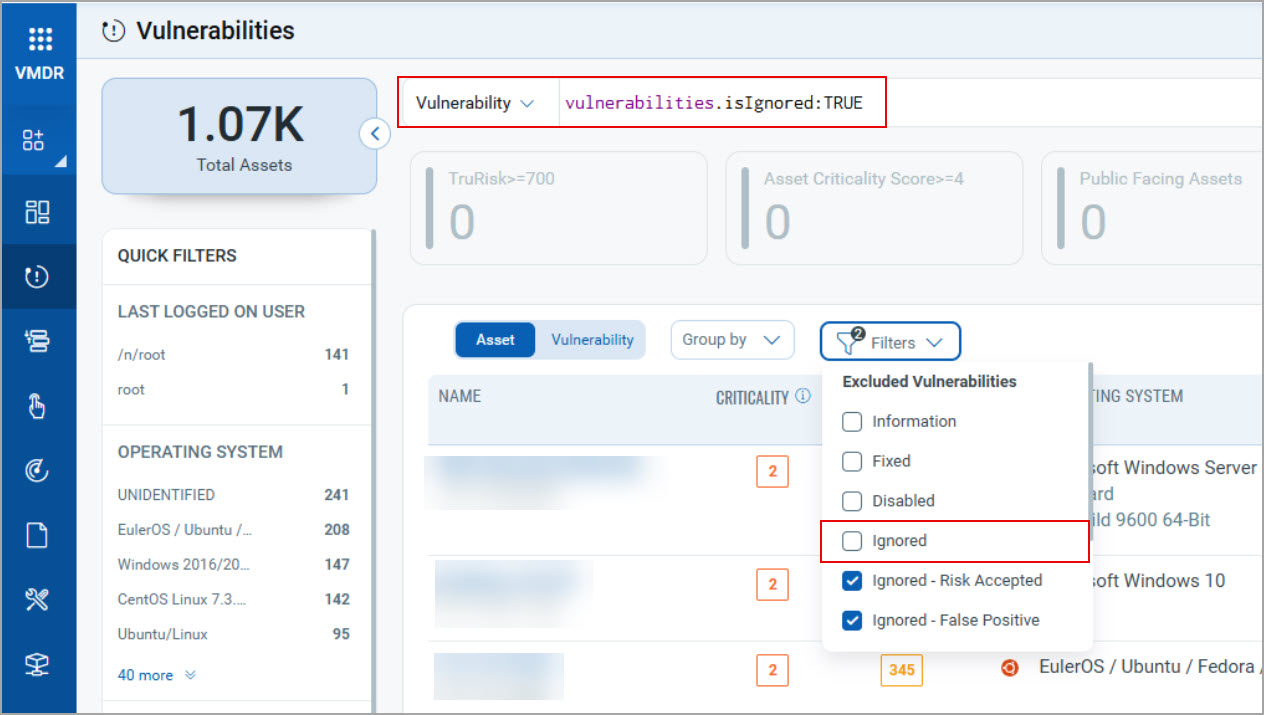
The Ignored vulnerabilities are, by default, excluded and do not appear as actionable issues in the asset or vulnerability list. These vulnerabilities do not appear in dashboard reports. To view the list of Ignored vulnerabilities, clear the Ignored checkbox in the Filters list, and use the token: vulnerabilities.ignored: True
The following screenshot is an example that highlights the vulnerabilities.ignored: True token and the Ignored filter disabled:
Non-Running Kernel
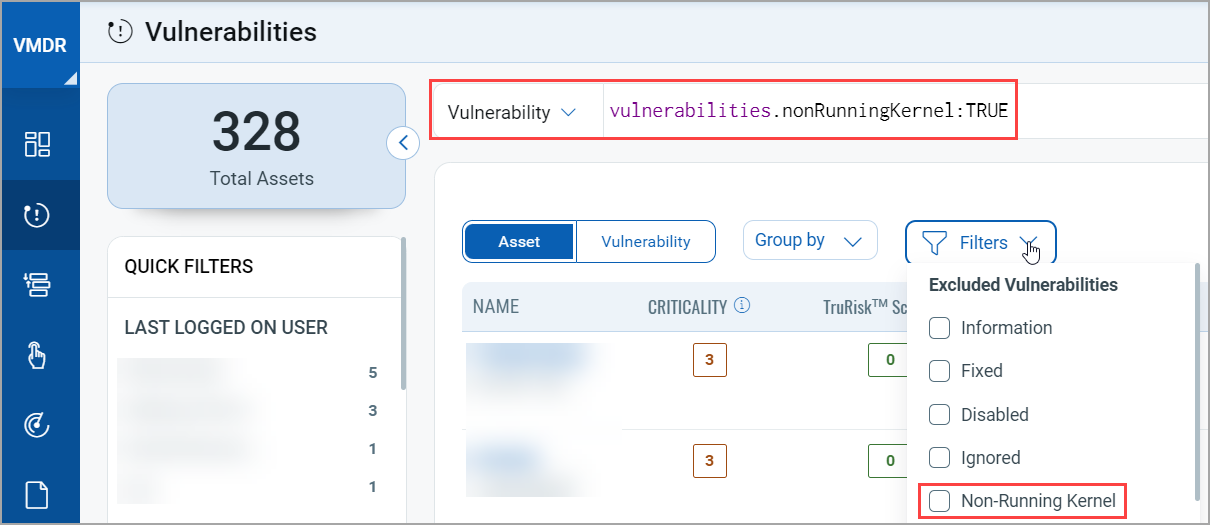
The Non-Running Kernel vulnerabilities exclude the vulnerabilities on the actual Linux kernel.
To view the list of Non-Running Kernel vulnerabilities, deselect the Non-Running Kernel in the Filters list, and use the token - vulnerabilities.nonRunningKernel: True
The following screenshot is an example that highlights the vulnerabilities.nonRunningKernel: True token and the Non-Running Kernel filter disabled:
Patch Superseded
If a patch similar to the previously released patch is released, the superseding patch replaces the earlier patch based on the patch-related QIDs. For example, if QID 2 is patched on a given target host and fixes any instances of QID 1 on the same target host, then QID 2 supersedes QID 1. This filter is applicable only for Microsoft Windows OS and Oracle Java.
When you use the Patch Supersedence token, the vulnerabilities found on the host are analyzed. The token results include the QIDs that are flagged on hosts, rather than indicating whether the patches are installed or missing on the host.
The Patch Superseded filter is also available for widgets in the Unified Dashboard application. The filter is available for only the Vulnerability Management application.
On selecting Patch Superseded when executing the QQL with other filters, the QIDs that have the patchSupersedence flag set as true would be excluded.
Benefits
- Since the superseding patch replaces all the previous versions, you have a manageable set of vulnerabilities to patch.
- Endless vulnerability patch cycles can be avoided, thus saving time in patching multiple vulnerabilities individually.
Prerequisites
- VMDR version: 3.16.2
- VMSP should be enabled. Contact Qualys Support or TAM for more information.
- TruRisk™ should be enabled.
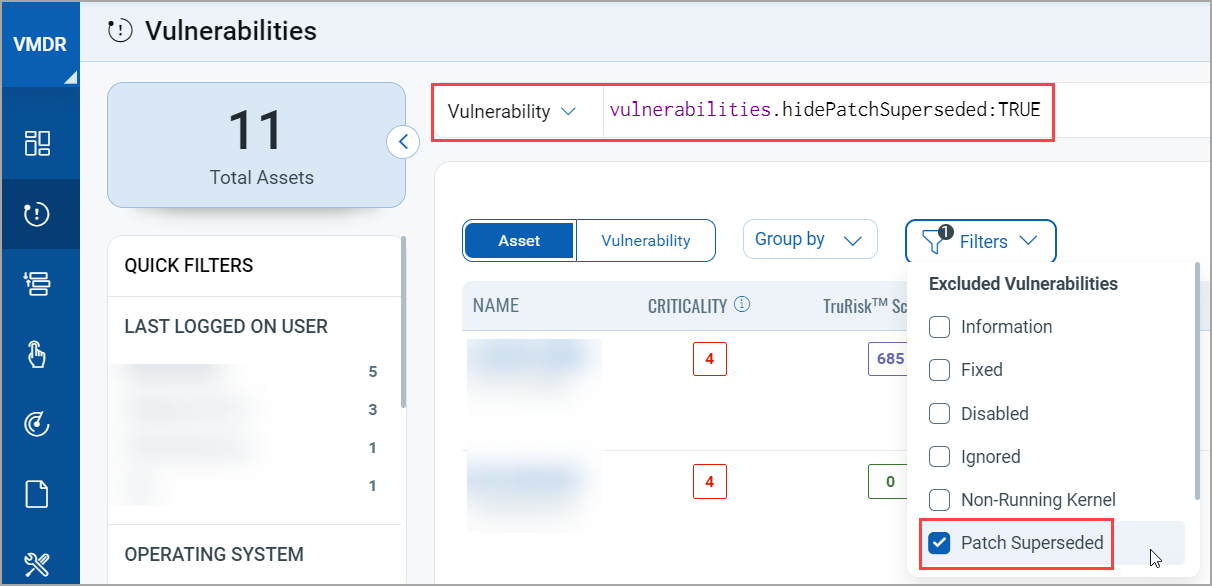
You can also exclude vulnerabilities by clearing the Patch Superseded checkbox under Filters.
To view the list of excluded Patch Superseded vulnerabilities, clear the Patch Superseded checkbox in the Filters list, and use the token: vulnerabilities.hidePatchSuperseded: True
The following screenshot is an example that highlights the vulnerabilities.hidePatchSuperseded: True token and the disabled Patch Superseded filter:
Additional Resource
KB article: Patch Supercedence: How it works in detail
Scoped Vulnerabilities
My Scoped Vulnerabilities
My Scoped Vulnerabilities allows you to focus on the vulnerabilities specifically assigned to you. Managers can assign tags to individual vulnerabilities—for example, a tag like Pending Remediation can be applied to vulnerabilities that require remediation. You can then use the My Scoped Vulnerabilities filter to view only those tagged items.
To view vulnerabilities within your scope, you must have access to the assets where those vulnerabilities were detected. When assigning vulnerability tags to sub-users, managers must ensure that each sub-user has the appropriate access to the associated assets.
Adding Tags in the Scope of Users
Only the Manager user has the right to assign the scope to another user. Manager users need to log in through the Administration module to assign the scope to a user.
- In the Administration module, go to the User Management tab, select the user to whom you want to assign the permissions, and then click Edit.
- In the User Edit window, go to the Roles And Scope tab and then from Global Scope, click Select.
- Click Save.
Viewing My Scoped Vulnerabilities
In the Vulnerabilities listing page, in the Filters list, select the My Scoped Vulnerabilities check box.