Evaluate Middleware Assets by Using Cloud Agent
Evaluate compliance posture on your assets by assessing the middleware technologies installed in your environment using your PC agents. You can dynamically discover and assess middleware technologies such as webservers in your environment. We offer two options to help you get started quickly. You can either enable all your agents to be activated for middleware assessment by default, or can have the assets listed in the Middleware Assets tab and activate them individually.
If you choose to enable it by default, this eliminates the need to monitor the asset list and then activate the asset. Once supported technology instances are discovered on the assets, they are activated for assessment. As a part of the activation process, the Middleware manifest is installed on your agent.
If you select to activate the asset individually, the manifest is installed on the agent when you activate the asset for assessment.
The middleware assets and technologies installed on the assets are identified using cloud agents and are listed in the Assets > Middleware Assets tab. There is no need to create duplicate controls. The predefined controls in your PA account for compliance scanning are also evaluated by cloud agents with no action from you.
You can continue to use your scanner to discover middleware technologies in your environment. Know more about how to Use Host Authentication.
Prerequisites
- Qualys Policy Audit must be enabled for your subscription
- Qualys Cloud Agent must be enabled for your subscription
- Cloud Agents must be activated for the PA module
- Windows Cloud Agent 4.0.x or later
- Linux Cloud Agent 2.8.x or later
For the most current list of middleware technologies auto-discovered by Cloud Agent, see this article: Middleware Technologies Auto-discovered by Cloud Agents for PA
Identify Middleware Assets
Set up Cloud Agent on the assets you want to scan for assessment of middleware technologies. Once the agents scan the assets the middleware technology details of assets are listed on the Middleware Assets tab.
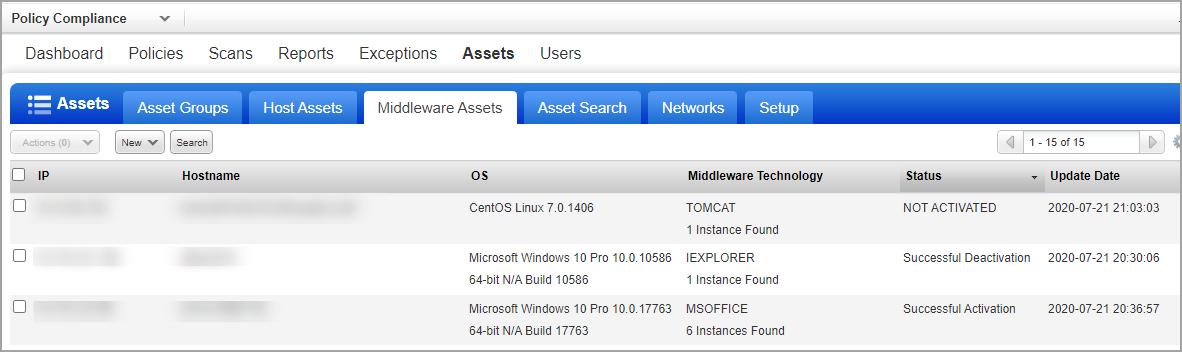
Here you can view details such as number of instances of the technology on your asset, OS, Status, Update Date, etc. There could be a delay in displaying the discovered details in the list, depending on the intervals set on your Cloud Agent scans.
By default, the Middleware Assets tab displays all assets, including those with and without middleware technology instances.
You can filter these assets using the Discovered Instances filter to view only those assets with middleware technology instances. When you apply this filter, the Middleware Asset tab displays all assets with middleware technology instances listed in the Middleware Technology column. To view all assets, regardless of whether they have middleware technology instances or not, simply deselect this filter. As a result, all assets are displayed on the Middleware Assets tab.
The following image illustrates the Middleware Assets tab after applying the filter, Discovered Instances.

Status types:
- Not Activated: The asset is not yet activated for middleware assessment. When a technology is identified by an agent for the first time on the asset, it is listed as Not Activated.
- Successful Activation: The asset is activated for middleware assessment. You can run policy compliance reports on this asset for middleware.
- Successful Deactivation: The asset is temporarily deactivated for middleware assessment and is eliminated from upcoming policy reports.
Activate assets for middleware assessment
When a technology is identified by an agent for the first time on an asset, it is listed as Not Activated.
To activate the asset, select the asset and from the Action menu choose Activate Middleware Assessment. You can select to activate multiple assets simultaneously. Once the asset is activated, the Middleware manifest is assigned to the agent, and the status is set to Successful. You can now create policies and run compliance reports on these assets for the middleware technologies.
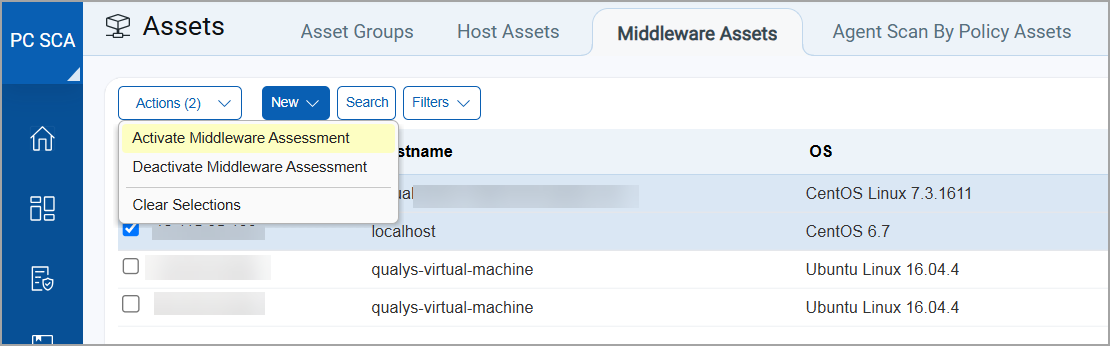
Similarly, you can deactivate an asset for assessment using the Deactivate Middleware Assessment option. Once deactivated, the data for technologies on assets is longer be assessed and not displayed in the policy compliance report. However, data collected before deactivation can still be viewed in the report.
You can active assessment again on an asset any time using the Activate Middleware Assessment option.
Activate assessment on assets by default
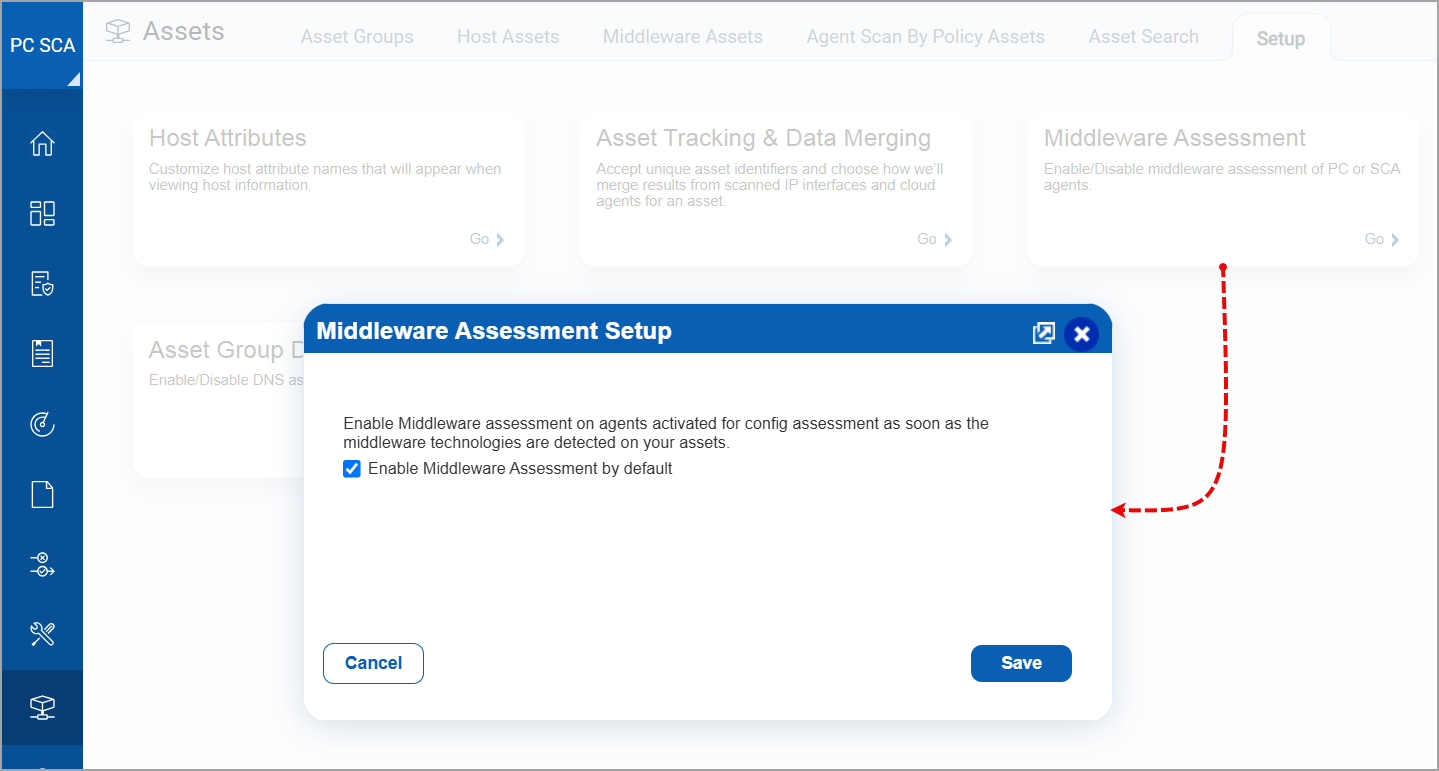
You can set the assets to be activated for assessment by default as soon as they are discovered.
Navigate to Assets > Setup, click Middleware Assessment and select the Enable Middleware Assessment by default option.
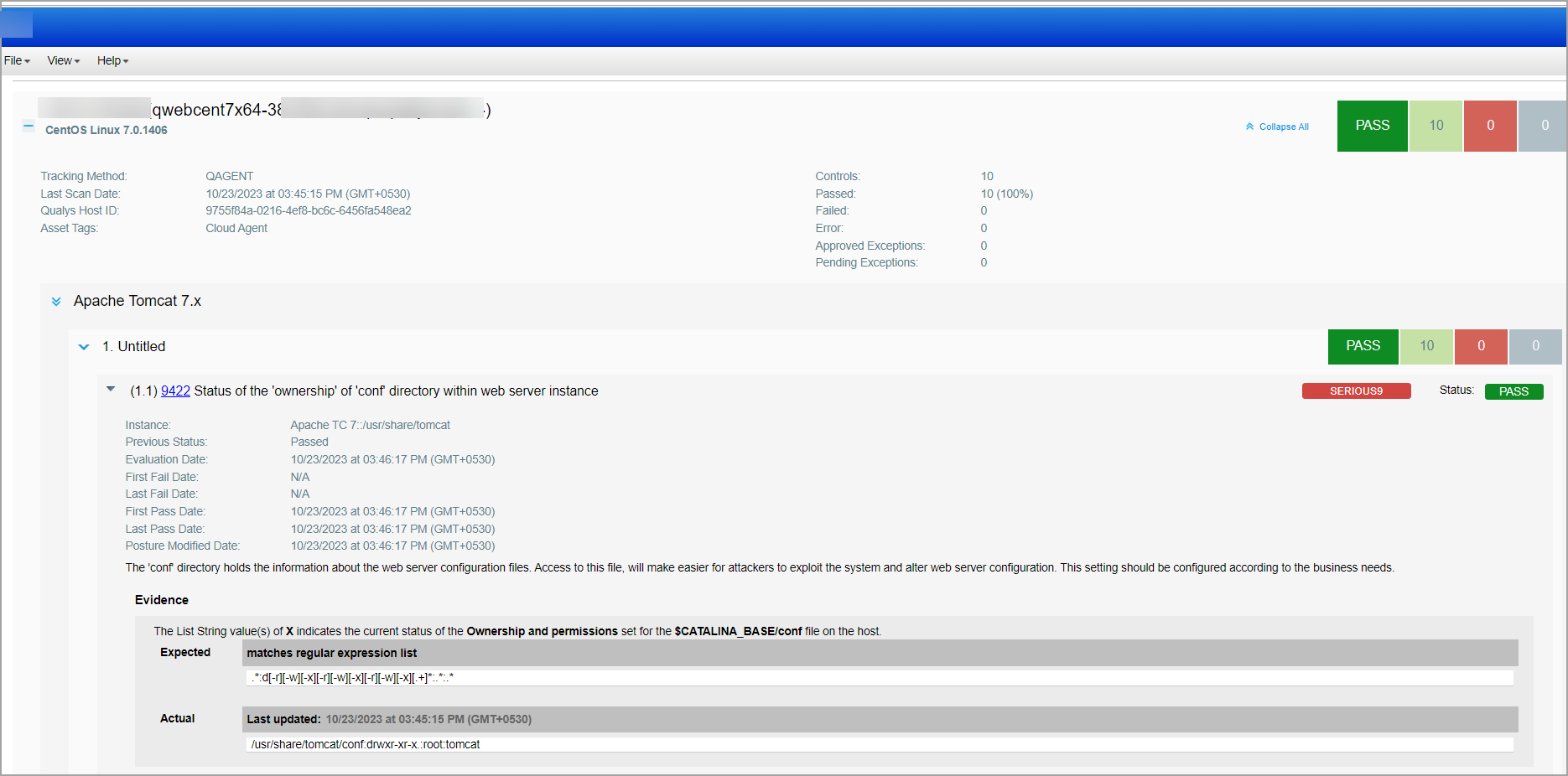
Sample Middleware Assessment Report
Here is a sample Middleware Assessment report for CentOS Linux 7.6.1810
Download the Data List
To download the Middleware Assessment Report list, go to PA > Assets > Middleware Assets. Select Download from the New menu above the data list. Select a download file format and click Download. Learn more