PCI Account Linking for VMDR
PCI Account Linking allows you to associate your PCI Merchant accounts with VMDR so that PCI scans and related workflows can be shared across platforms. This is required to enable cross‑platform visibility and reuse of scan data between VMDR and the PCI environment.
VMDR supports token‑based linking for SAML‑enabled PCI accounts, eliminating the need for basic authentication during the linking process.
Why PCI Account Linking Is Needed
Linking PCI Merchant accounts to VMDR enables the following capabilities:
- Share PCI scan results across platforms
- Support unified scan workflows
- Maintain continuity between PCI and VMDR without duplicate configuration
Account linking requires authentication credentials. In environments that use SAML‑based single sign‑on, password‑based authentication is not used. To support these environments, VMDR provides a token‑based method for linking SAML‑enabled PCI accounts.
Token‑Based Linking for SAML Accounts
If your PCI Merchant account uses SAML authentication, you can link it to VMDR using a secure, time‑bound token instead of a password.
Key benefits:
- No change required to your existing SAML authentication setup
- Secure linking without using basic credentials
- Seamless access to scan sharing and cross‑platform workflows
How PCI Account Linking Works
PCI account linking supports the following two authentication methods, depending on your PCI account configuration:
| PCI Account Type | Linking Method | |
| 1. | Non‑SAML account | Username and password |
| 2. | SAML‑enabled account | Username and secure token |
The system automatically determines which method is used based on whether the PCI account is SAML enabled.
Link an Existing PCI Merchant Account
Prerequisites
- Ensure you have access to the PCI user profile associated with the merchant account.
- If your account uses SAML, generate a linking token from the PCI user profile.
Tokens are single‑use and expire after a short period. Generate the token only when you are ready to complete the linking process. Know more.
- In VMDR, go to Scans > Setup > PCI Account Links.
The PCI Setup dialog displays. - Click Add Existing PCI Account.
The page Link to Existing PCI Service displays:
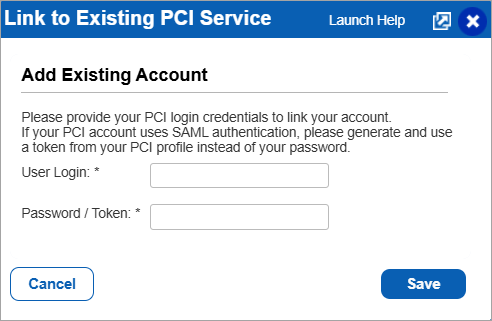
- Enter the following details:
- User Login: Your PCI username
- Password / Token:
- Enter your PCI password (for non‑SAML accounts), or
- Enter the generated linking token (for SAML‑enabled accounts)
- Click Save.
Once the account is linked, the association remains valid even if SAML is later disabled on the PCI side.