Policy Audit Release 1.10
April 2, 2026
Availability of Policy Audit Fix
Policy Audit Fix is a feature of the Policy Audit application that allows remediation of failed controls in order to fix misconfigurations on assets at a larger scale. Failed controls correspond to settings that are not configured as per security guidelines, which may lead to data breaches. When you evaluate your assets against policies and your compliance report shows the status as Failed, you must fix the failed controls to pass the assessment and strengthen your compliance posture.
With this release, the Policy Audit Fix feature is available to all users as a 30-day free trial. During this trial, you can explore the Policy Audit Fix feature.
To start the 30-day free trial for your subscription, in the Policy Audit application, in the left pane, select Audit Fix. On the Audit Fix page, select Start Trial.
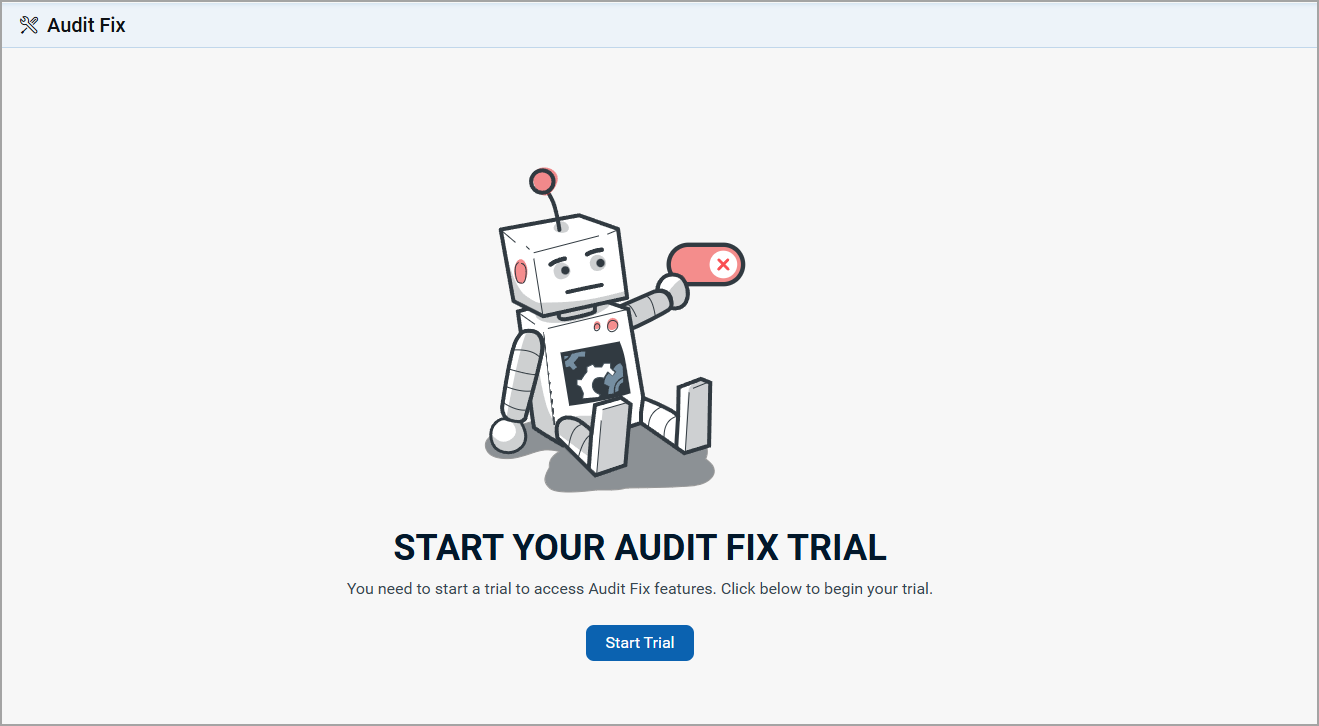
After the trial period ends, you can purchase Policy Audit Fix to continue using its features. To purchase a license, select Purchase Now.
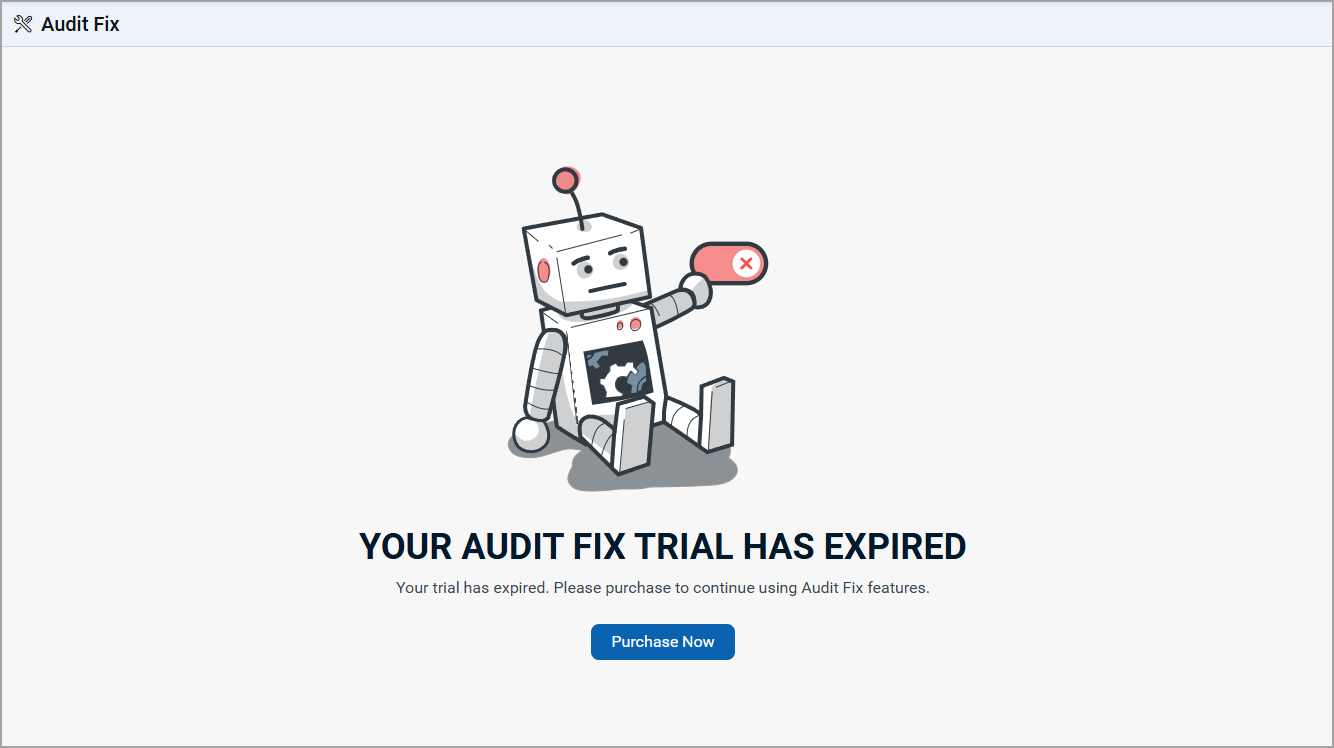
Select Purchase Now > Upgrade to Audit Fix Now. An email template is displayed asking for an upgrade in subscription. Read the email contents and send the email.
Benefits
The following are the benefits of Policy Audit Fix feature:
- Fix misconfigurations.
- Reduce cybersecurity risk caused by misconfigured assets.
- Leverage Qualys Custom Assessment and Remediation (CAR) scripts to set control values based on security guidelines, so that the controls pass in the subsequent scans.
Prerequisites
The following are the prerequisites to use the Policy Audit Fix feature:
- Access to Policy Audit application.
- Qualys Cloud Agent installed on your asset.
- Manager (with all permissions assigned from the Administrator application) or Unit Manager role assigned to your user account.
- For the first time users, the Audit Fix tab displays Start Trial. You must complete the trail before proceeding to purchase the PAF license.
New QQL to search Policy Audit Fix Enabled Assets
We have added a new Qualys Query Language (QQL) token that enables searching for assets by their Policy Audit Fix enabled status.
Token name - asset.isPAFEnabled
Examples,
asset.isPAFEnabled: true
Show Policy Audit Fix enabled assets
asset.isPAFEnabled: false
Show assets that are not Policy Audit Fix enabled.
Run Audit Fix Scripts by Bypassing PowerShell Execution Policy
When remediating failed controls to fix misconfigurations on assets, certain Audit fix scripts may fail to execute due to unauthorized access caused by PowerShell execution policies configured on target assets.
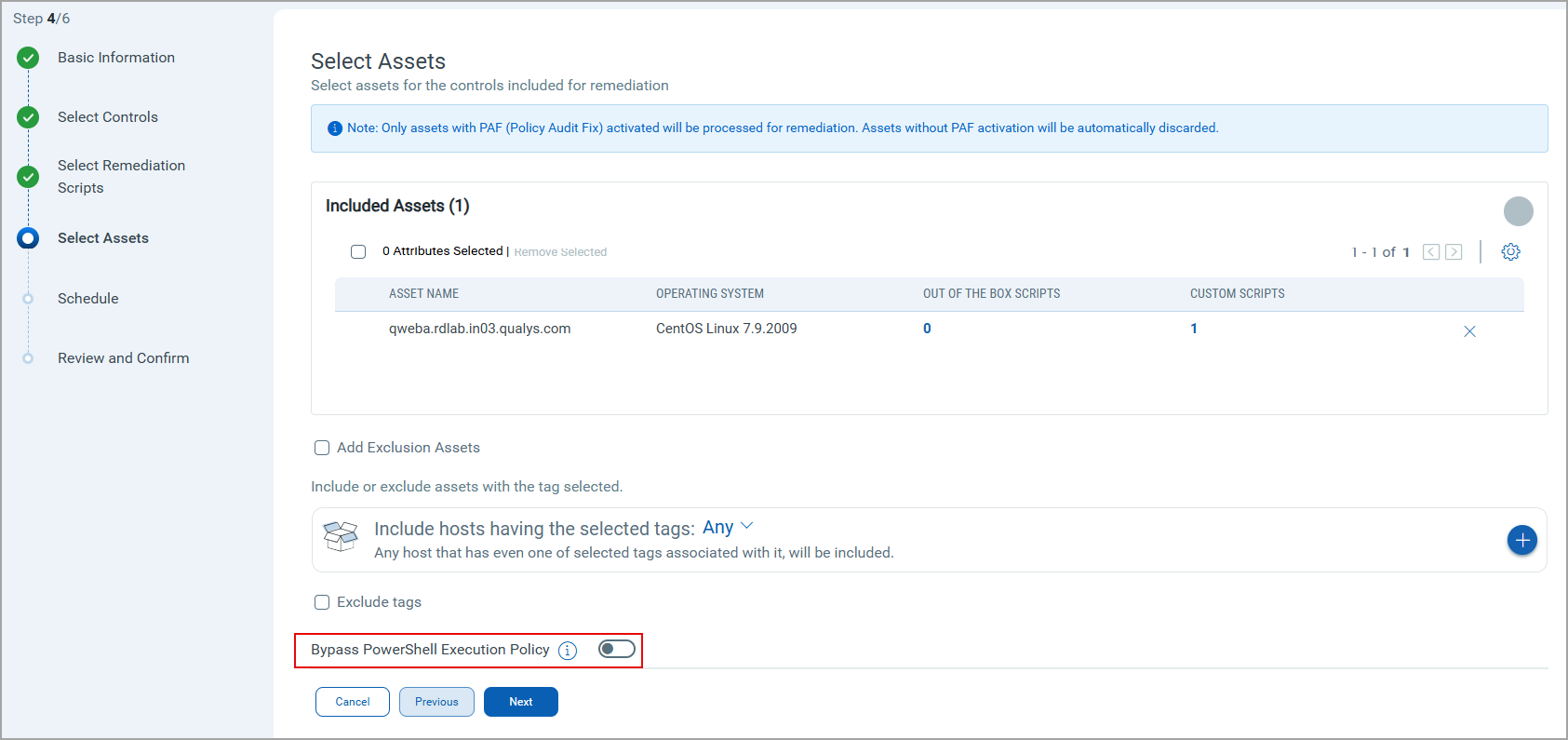
To address this, we have introduced the Bypass PowerShell Execution Policy switch. When enabled, this option allows you to bypass the PowerShell execution policy on Windows targets.
Using the Bypass PowerShell Execution Policy switch, you can override the PowerShell execution policy on Windows agents. When this option is switched on, both signed and unsigned scripts are executed on the agent regardless of the PowerShell execution policy configured on the asset.
To turn on the switch, navigate to:
- On the Audit Fix tab > Create Job> Using Controls.
You are redirected to the Posture tab. - Select the failed controls and then select Remediate Now. The Create Remediation wizard is displayed.
- Add the required details and select Next.
- In Select Assets, the Bypass PowerShell Execution Policy switch is displayed.
View Script Failure Details in Audit Fix Jobs
When an Audit Fix job is complete, you can view the number of scripts that passed or failed for the selected asset(s).
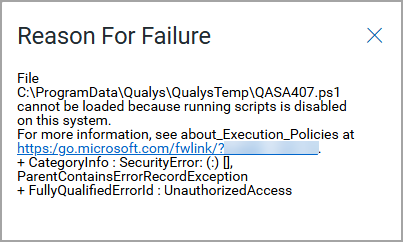
Previously, for failed scripts, the reason for failure was not available. With this release, we have added an icon next to the Failure status. Selecting this icon displays the Reason for Failure pop-up window that provides the reason for the script failure for the asset.
To view failed scripts for an asset, navigate to:
- On the Audit Fix tab > Jobs > select a completed Job.
- In the left pane, select Assets.
- In the table, under the Failed Scripts column, select the number.
The Remediation Scripts page is displayed with a list of all pass and failed scripts.
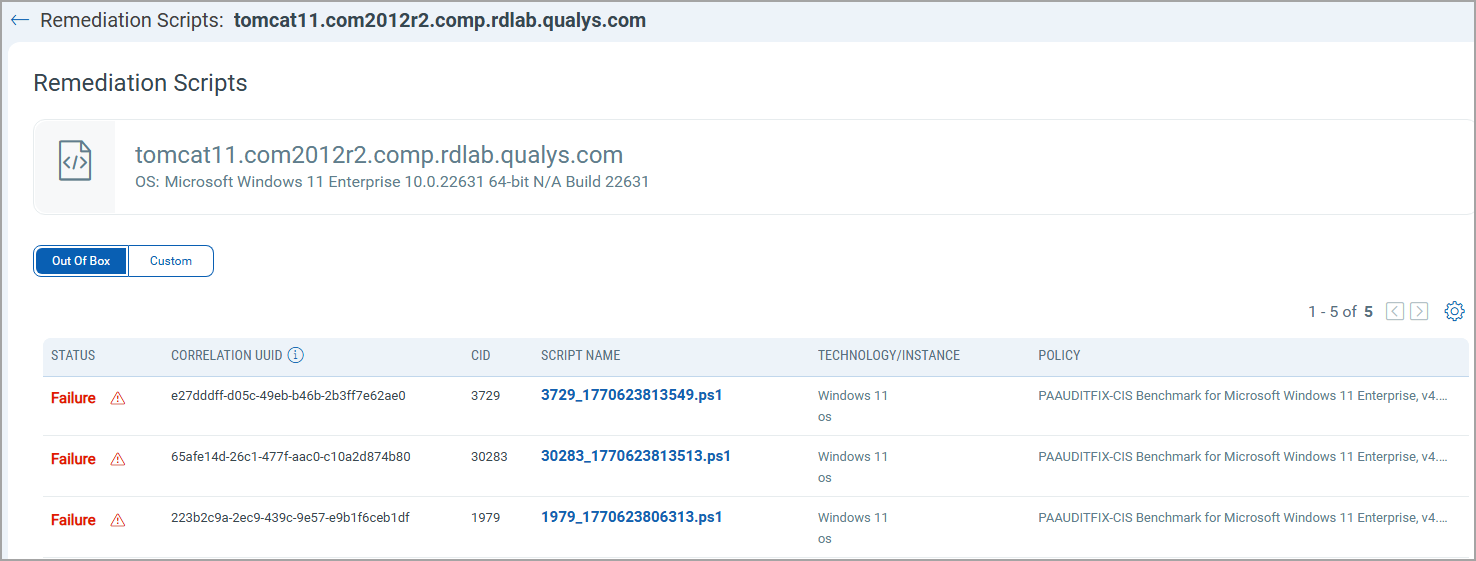
Here, you can also select the failure icon ( ) and get the Reason for Failure displayed.
View 180 Days of Data in Trends Widget
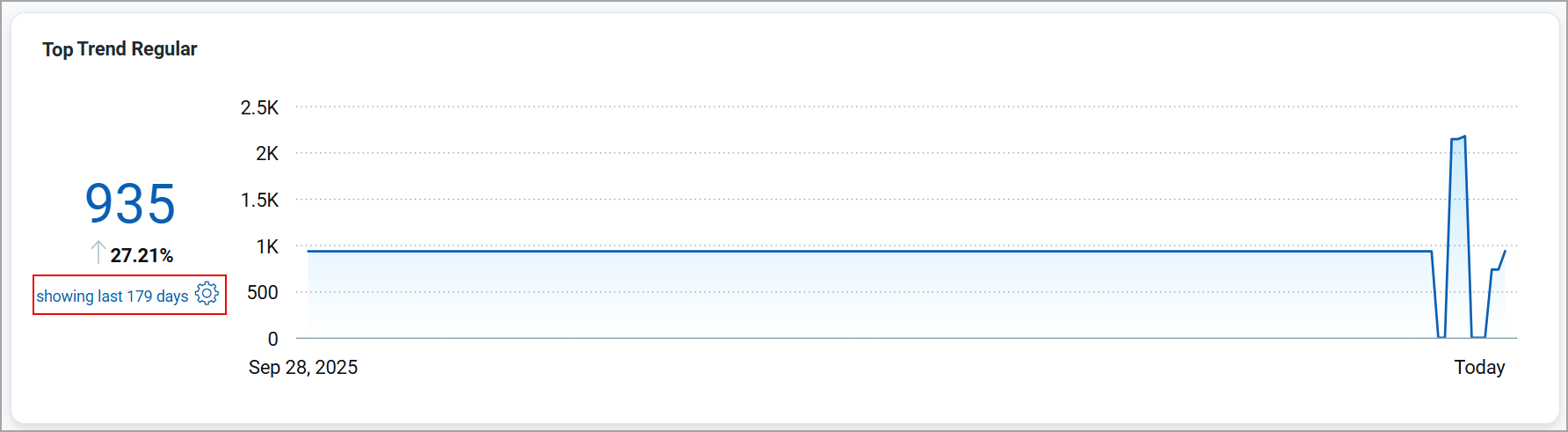
Previously, the Trends widget in the Dashboards tab displayed data for a maximum of 90 days. This limited the ability to analyze longer-term trends.
With this release, the trends widget in the Dashboards tab now displays data for up to 180 days, enabling better long-term trend analysis.
Improved Selection Behavior
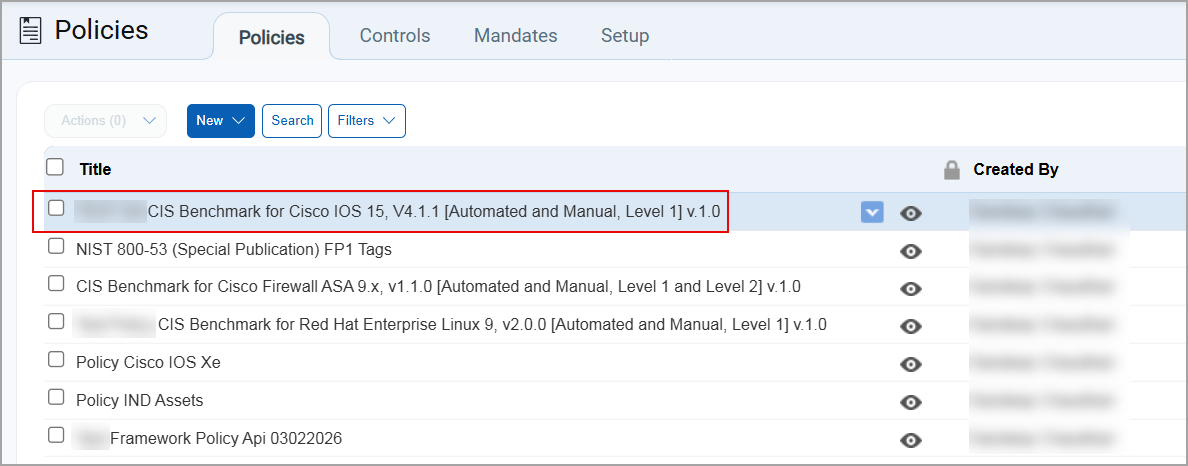
Previously, when you selected an item such as a policy, control, mandate, or exception, the item is highlighted and the corresponding checkbox was automatically selected by default. This behavior made it difficult to simply view an item or access quick actions without unintentionally selecting it.
With this release, selecting an item no longer automatically selects the checkbox. Instead, the item is highlighted, and the quick actions arrow is displayed, allowing you to view details or perform quick actions without marking the item as selected.
VMware Renamed to Hypervisors and Virtualization
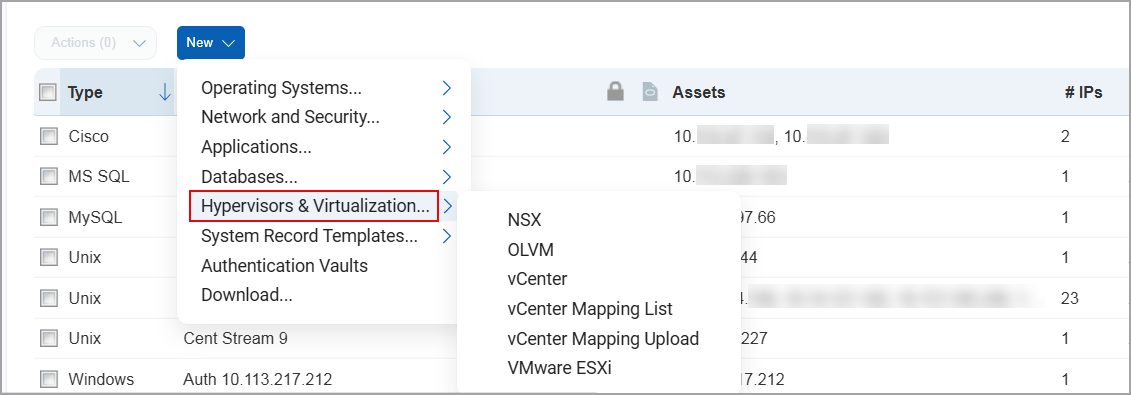
With this release, VMware has been renamed to Hypervisors and Virtualization.
Previously, this option displayed only VMware related databases. With the addition of support for Oracle databases, the scope has expanded beyond VMware. To better reflect this support, the option has been renamed to Hypervisors and Virtualization.
To create a new database under Hypervisors and Virtualization, navigate to Scans > Authentication > New > select Hypervisors and Virtualization.
You can then select a database to create the authentication record.
Support for New Authentication Technology - Oracle Linux Virtualization Manager
With this release, Oracle Linux Virtualization Manager (OLVM) technology is supported for Policy Audit authenticated scans using scanners. This technology is now available for use at the following places:
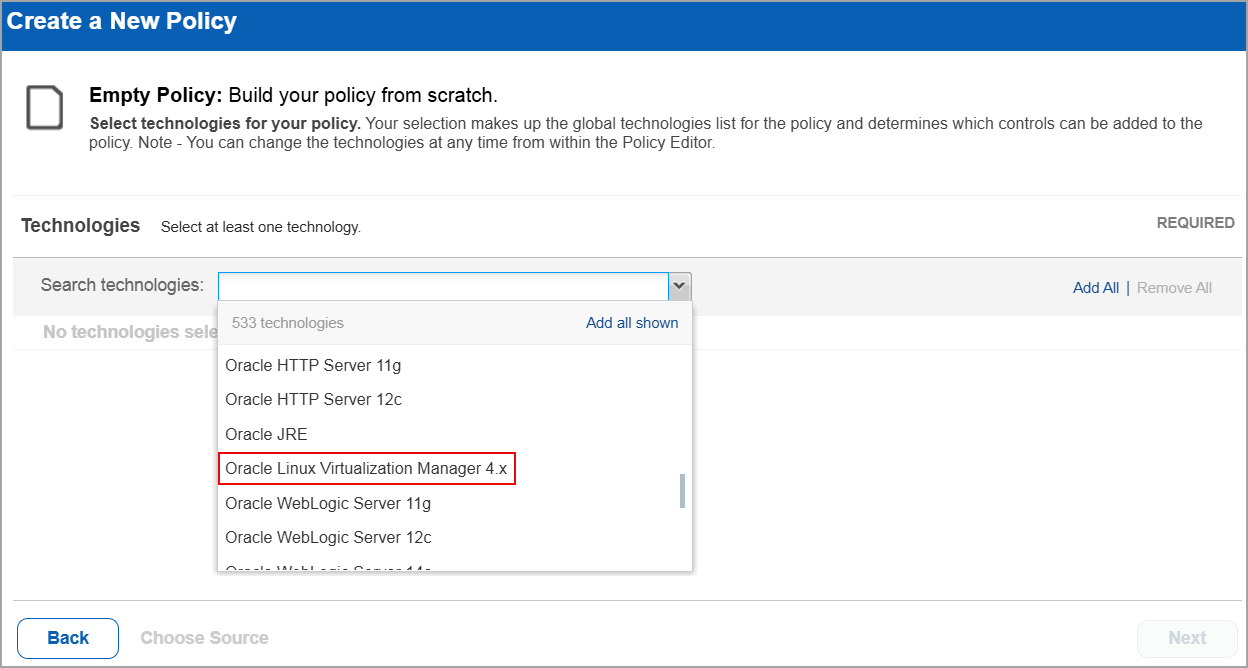
Policy Editor
When you create or edit a policy compliance, Oracle Linux Virtualization Manager is now available in the list of supported technologies.
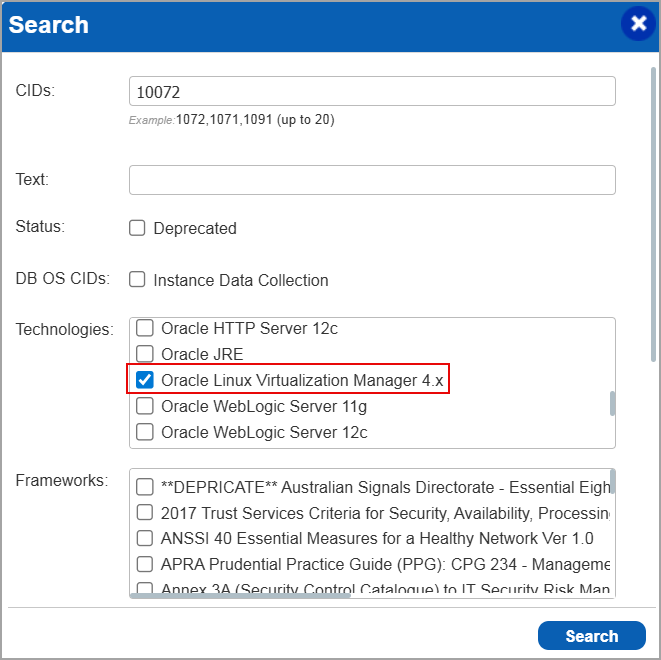
Search Controls
When you search for controls, you see Oracle Linux Virtualization Manager in the list of technologies. Go to Policies > Controls > Search and under Technologies, select Oracle Linux Virtualization Manager in the list.
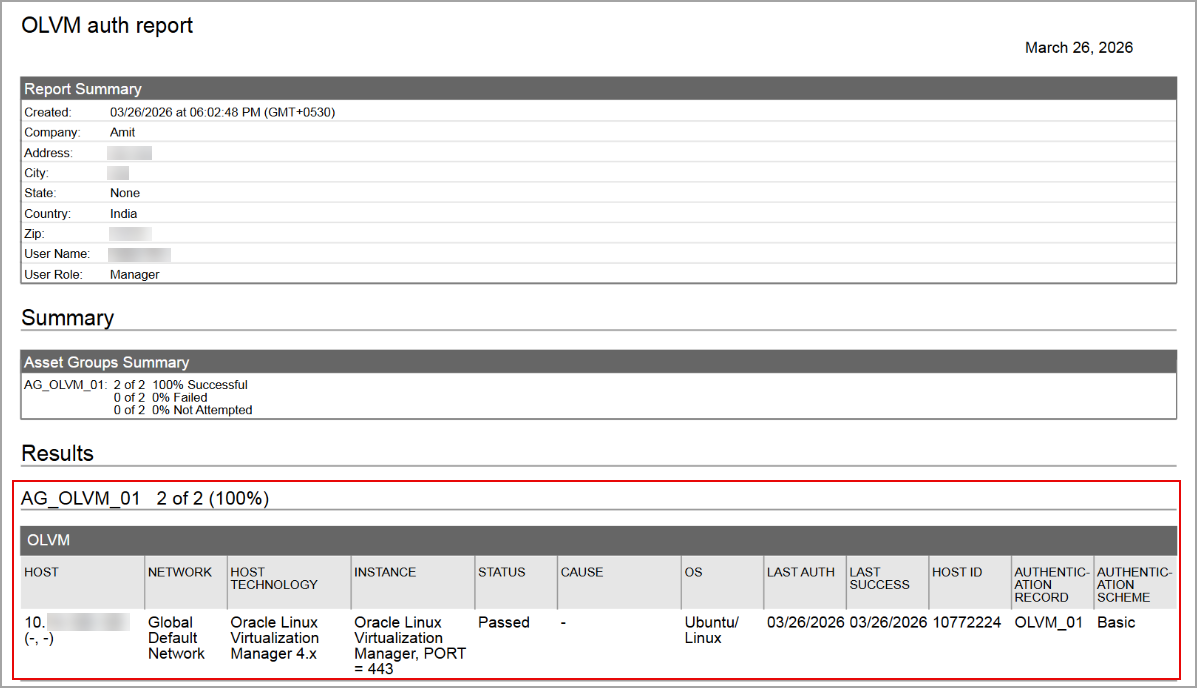
Authentication Report
You can view the Oracle Linux Virtualization Manager in the authentication report. In the Results section of the report, the OLVM details are displayed.
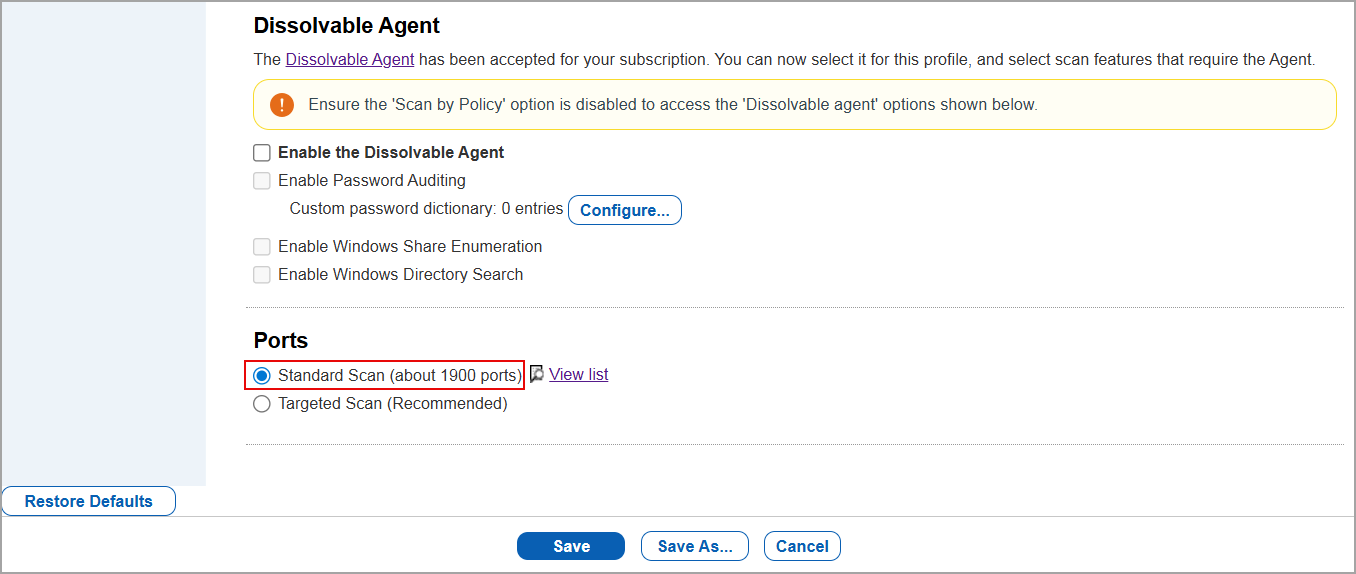
Option Profile
It is important that in the option profile, the Standard Scan option is selected before running a scan.
To enable the option, navigate to Scans > Option Profiles > New > Compliance Profile > Scan. Under Ports, select Standard Scan.
Scan Results
Oracle Linux Virtualization Manager is now listed under Application technologies found based on OS-level authentication in the Appendix section of a compliance scan result.
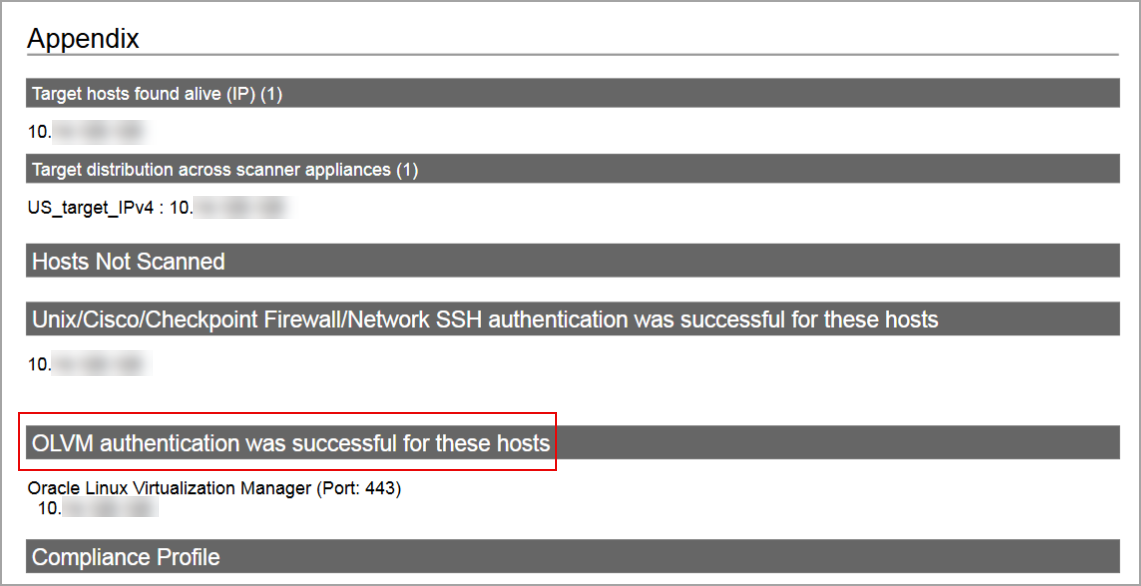
Sample Report
In sample compliance reports, you can view the instances of Oracle Linux Virtualization Manager for scanned hosts. The sample report displays the scanners tracking method as IP for Oracle Linux Virtualization Manager.
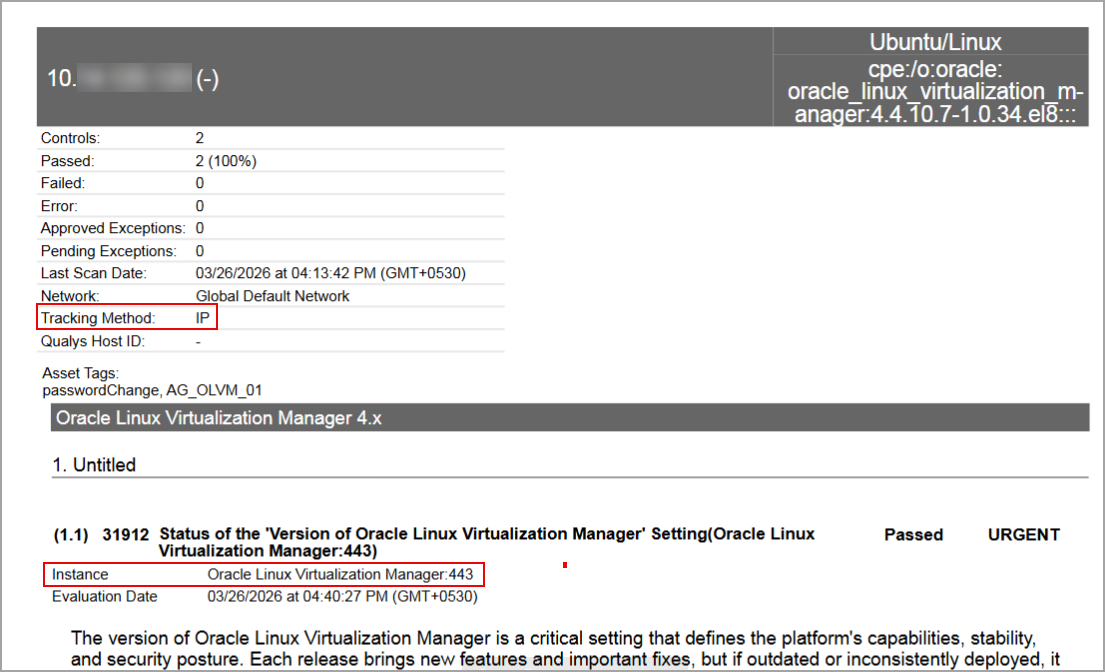
Issues Addressed
The following reported and notable customer issues are fixed in this release:
| Component/Category | Description |
| PA - UI | When the user copied controls from one policy to another, the reference numbers associated with the controls were not copied to the target policy. Relevant code changes have been made to fix the issue. |
| PA - New UI | When the user was using the Classic User Interface (UI) in the Dashboards tab in Policy Audit, the option to switch to Switch to New PA Dashboard was unavailable. Relevant code changes have been made to fix the issue. |
| PA - PCRS | When the user sets a specific date format and timezone for their account, they expect the same format to be displayed in the Compliance Reports in HTML and XML formats in PA application and API. However, the reports continued to display dates in the default format instead of the selected format. Relevant code changes have been made to fix the issue. |
| SCA | When the user was launching a Cloud Perimeter scan from the SCA application, an error stating 'License does not exist' was displayed. Since users with SCA-only subscriptions cannot perform Cloud Perimeter scans, the scan option should not appear for these subscriptions (SCA application and API). Relevant code changes have been made to fix the issue. |
| PA - New UI | When the user downloaded the posture data report, the number of assets shown did not match the number displayed in the Posture tab when using the QQL filter, resulting in a discrepancy in the asset count. The user also verified that a specific asset was shown as scanned in the report but was missing from the asset count in the Posture tab. Relevant code changes have been made to fix the issue. |
| PA | When the user performed a compliance scan and downloaded the scan results in PDF and CSV formats, the data was displayed in the PDF file but was not present in the CSV file. Relevant code changes have been made to fix the issue. Now, when the user performs a new scan, the scan results are displayed in both PDF and CSV formats. |
| PA - New UI | When the user viewed the group-by-posture-criticality widget on their dashboard, they observed that it displayed incomplete data and failed to display some criticality details. Relevant code changes have been made to fix the issue. |