Policy Audit Release 1.12
June 15, 2026
Support for One Identity Safeguard Vault
We now support integration with One Identity Safeguard vault for authenticated scanning.
Previously, users were required to manage their username and password credentials directly within the application for authenticated scans. Users with One Identity Safeguard were unable to leverage their existing vault infrastructure to securely manage scanning credentials.
With this enhancement, you can now perform authenticated scans using credentials securely stored in the One Identity Safeguard Vault, improving security posture and simplifying credential management.
To create a new One Identity Safeguard vault, navigate to the following:
- Scans > Authentication > New > Authentication Vaults.
The Authentication Vaults window is displayed. - Select New > One Identity Safeguard.
The New Identity Safeguard Vault window is displayed. - Enter the Vault Title, Vault Credentials, and Comments (if any) and select Save.
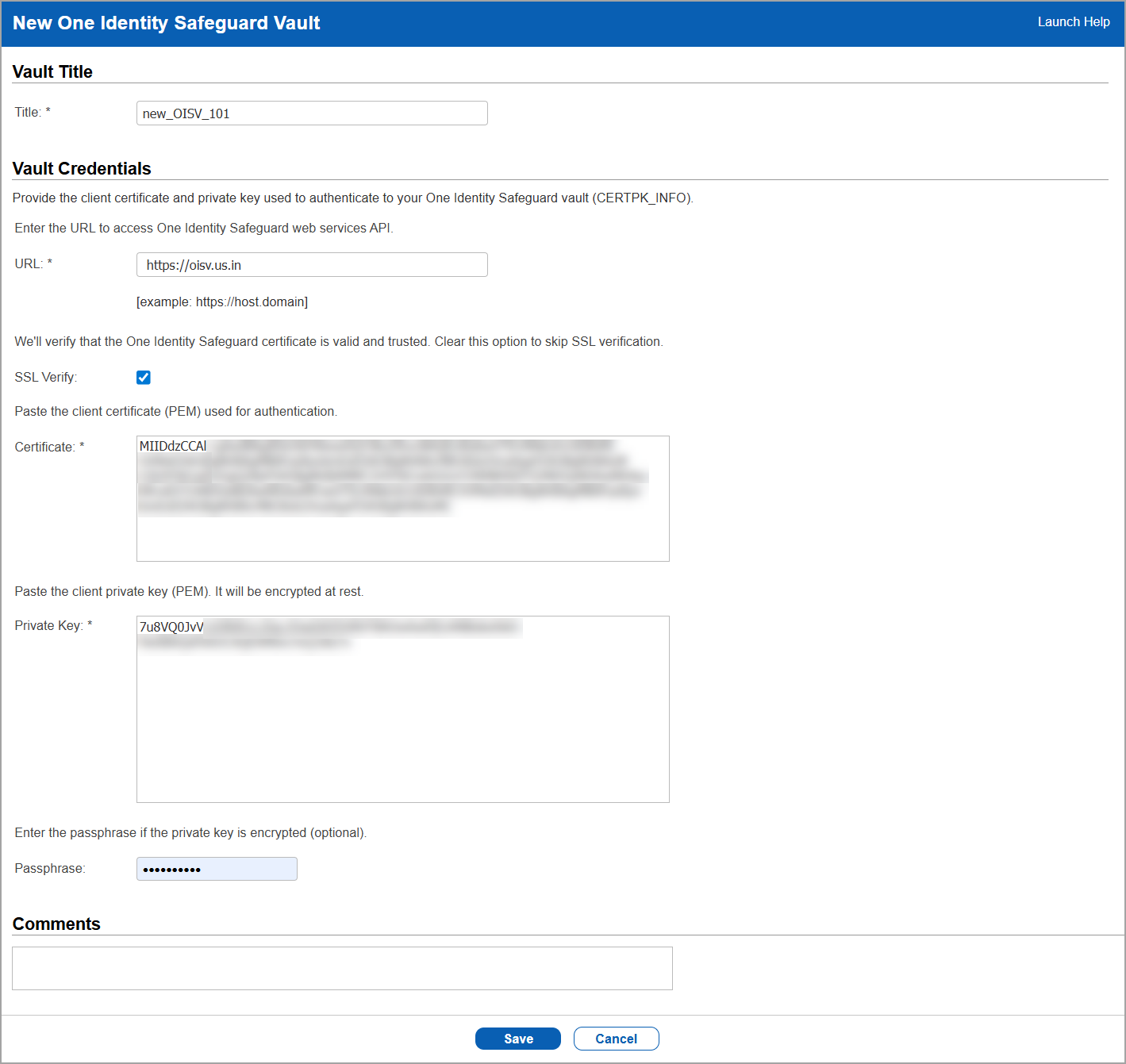
The new vault is created.
Once you create the new One Identity Safeguard vault, you can assign it to an authentication technology. To do so, navigate to the following:
- Scans > Authentication > New.
- Select the type of authentication technology. For example, select Unix > Login Credentials.
- Enable Get password from vault.
The vault fields are displayed. - In Vault Type, select One Identity Safeguard.
- In Vault Record, select the newly created One Identity Safeguard vault.
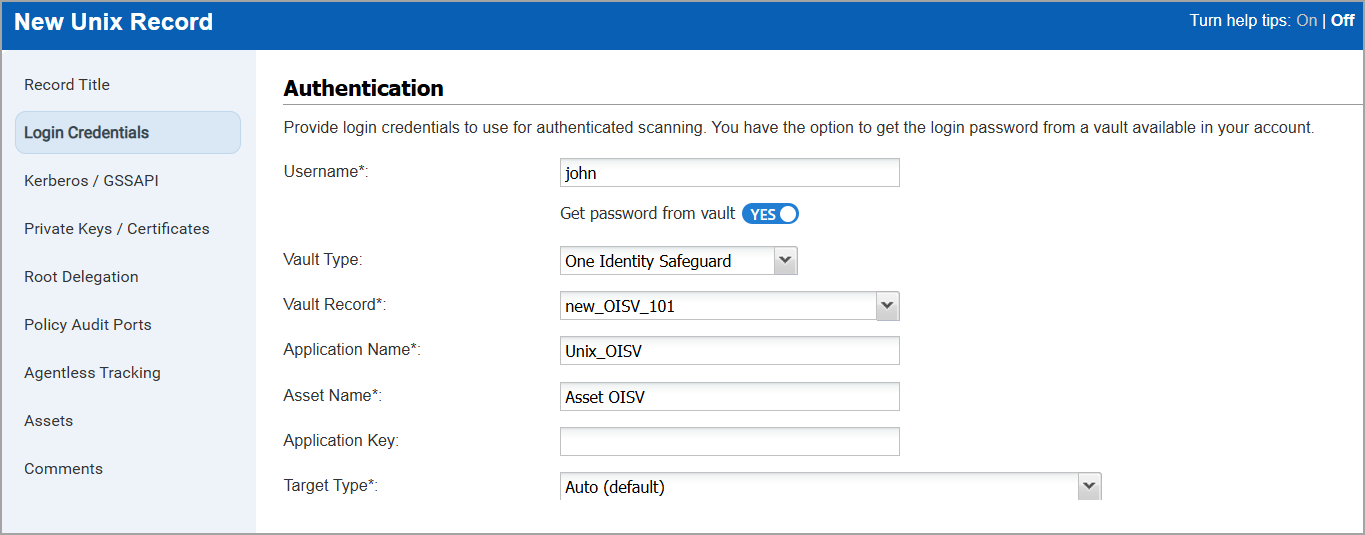
- Enter the Application Name, Asset Name, and select the Target Type. Select Save.
The vault changes are added to the authentication technology.
Qualys API Support
For this enhancement, we have updated the Vault API (/api/3.0/fo/vault/) and the Authentication APIs (/api/3.0/fo/auth/ and /api/4.0/fo/auth/).
For more information, refer to Policy Audit Release 1.12 API Release Notes.
Add Policies when Generating Audit Readiness Report
You can now add policies when generating an Audit Readiness Report, allowing policy details to be included in the report.
Previously, Audit Readiness Reports could be generated only by selecting asset tags. With this enhancement, you can choose to include all policies or select specific policies whose details should be included in the report.
To generate an Audit Readiness Report, navigate to Reports > New > Audit Readiness Report.
In Policies, you have the following two options:
Apply to all policies
When you select Apply to all policies, you can optionally exclude specific policies from the report. In Exclude Policies, select the add icon ( ).
).
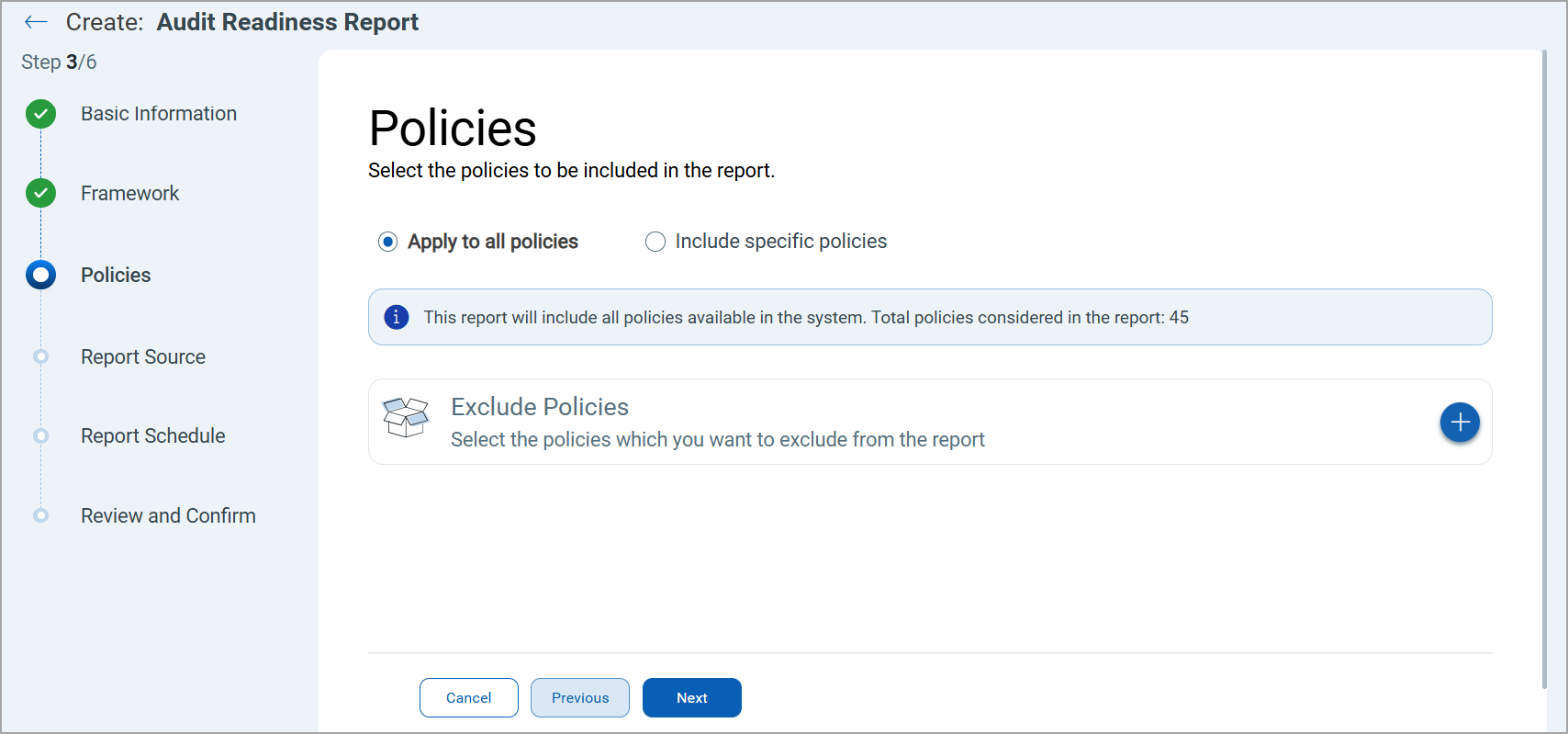
The Select Policies window is displayed. Select the policies to be excluded and select Save.
Include specific policies
When you select Include specific policies, you can choose the policies to include in the report. In Include Policies, select the add icon ().
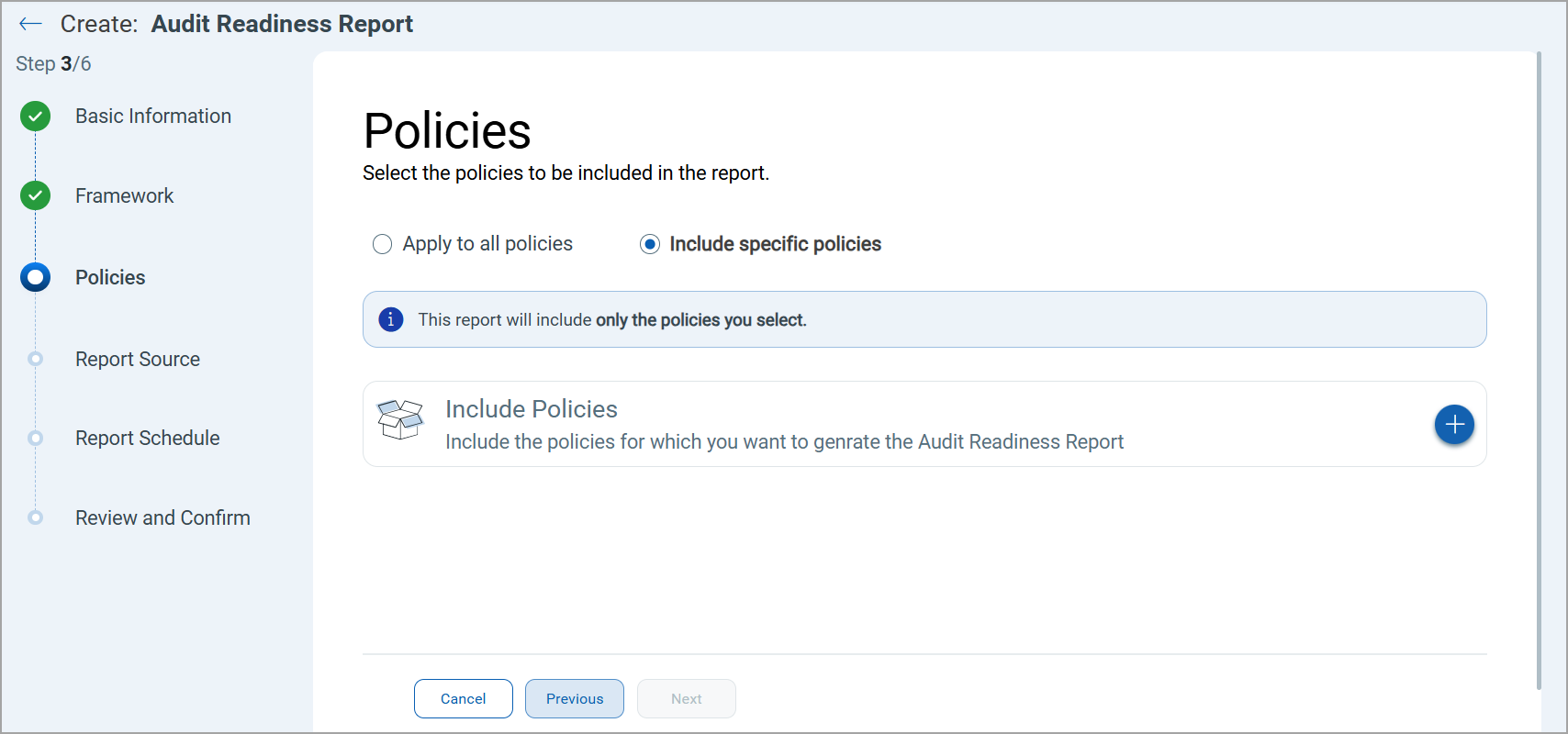
The Select Policies window is displayed. Select the policies to be excluded and select Save.
On selecting Policies, you next go to Report Source, where you select assets tags. If these asset tags selected are not mapped to the policies selected while generating the report, the report is generated with blank data.
Support for New Authentication Technology - IBM DB2 12
IBM DB2 12 technology is supported for Policy Audit authenticated scans using both scanners and agent. This technology is now available for use at the following places:
Policy Editor
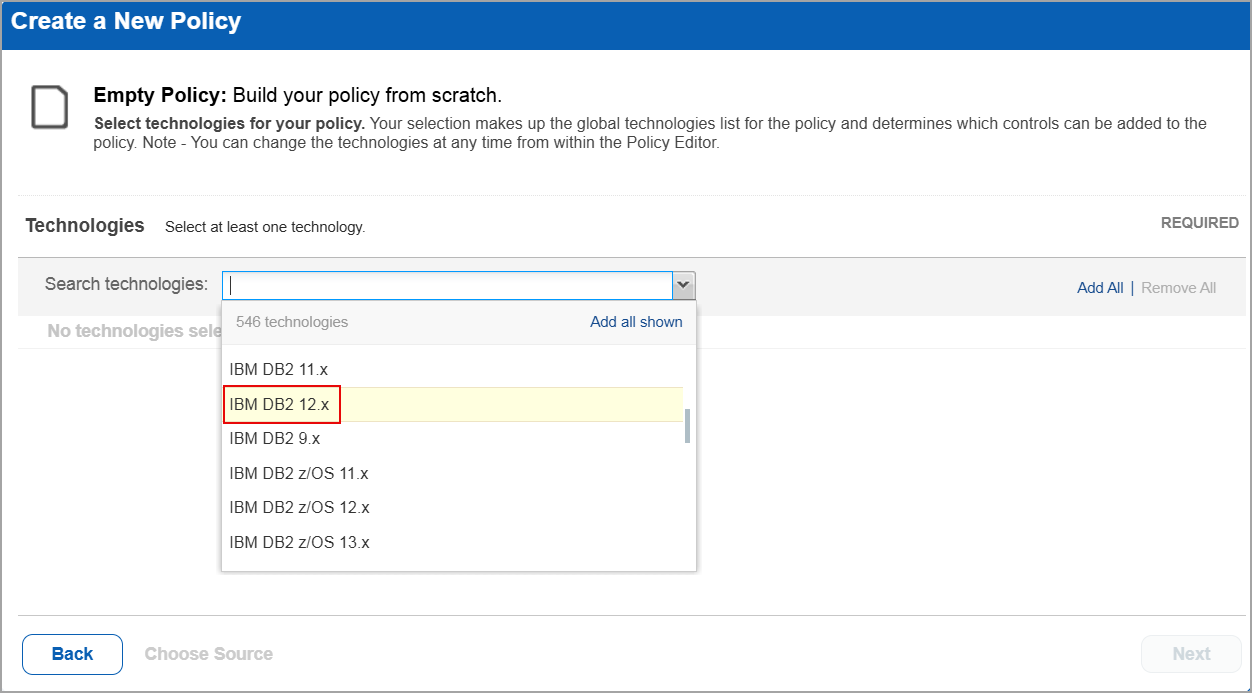
When you create or edit a policy compliance, IBM DB2 12.x is now available in the list of supported technologies.
Search Controls
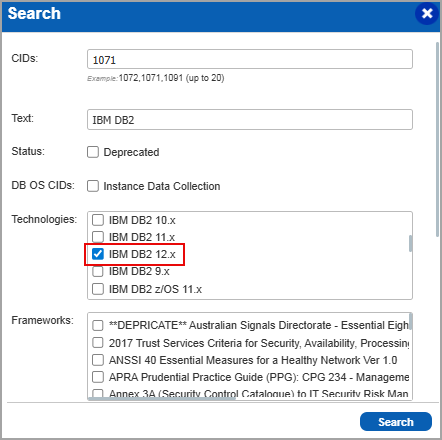
When you search for controls, you see IBM DB2 12.x in the list of technologies. Go to Policies > Controls > Search and under Technologies, select IBM DB2 12.x in the list.
Authentication Report
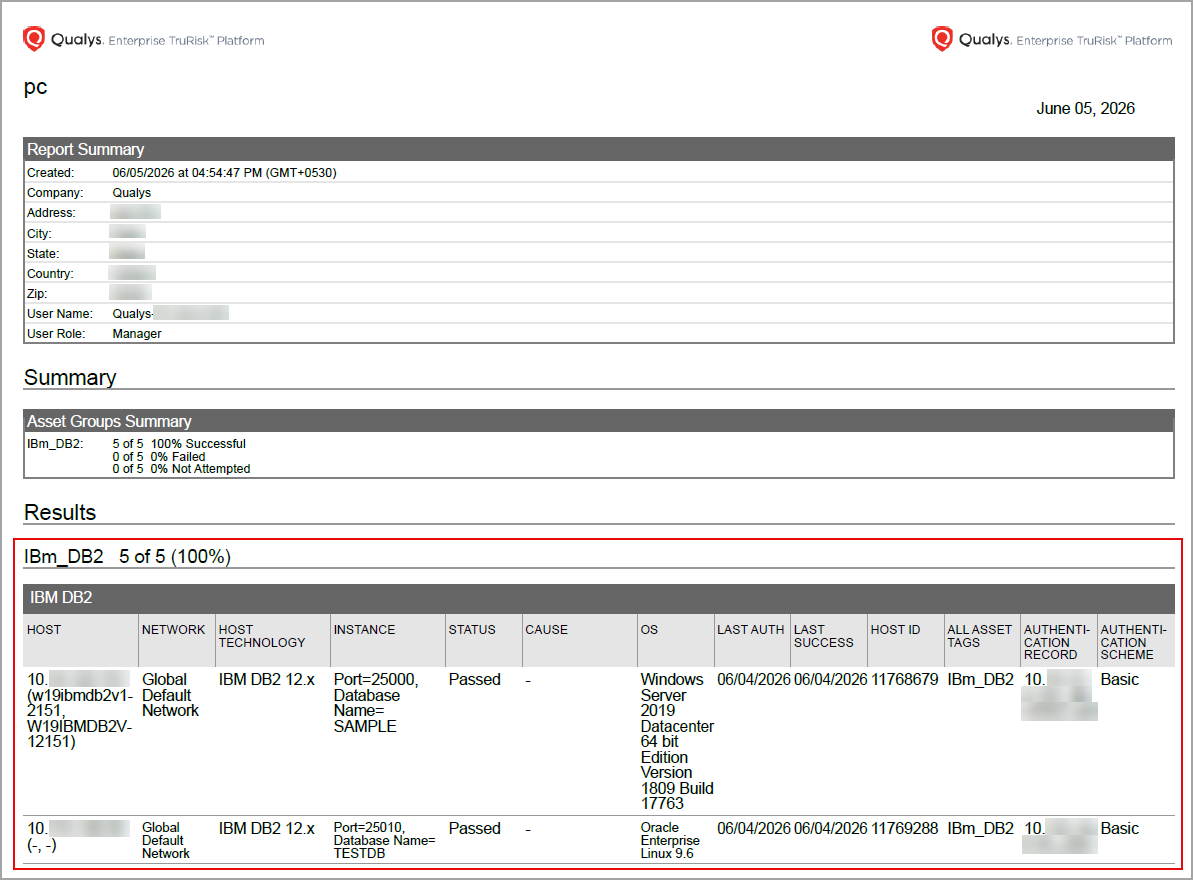
You can view the IBM DB2 12.x in the authentication report. In the Results section of the report, the IBM DB2 12.x details are displayed.
Scan Results
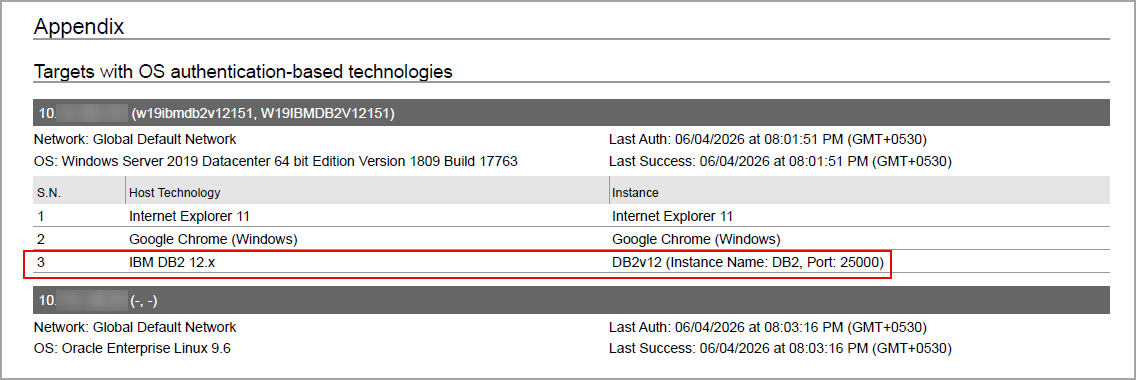
IBM DB2 12 is now listed under Application technologies found based on OS-level authentication in the Appendix section of a compliance scan result.
Sample Report
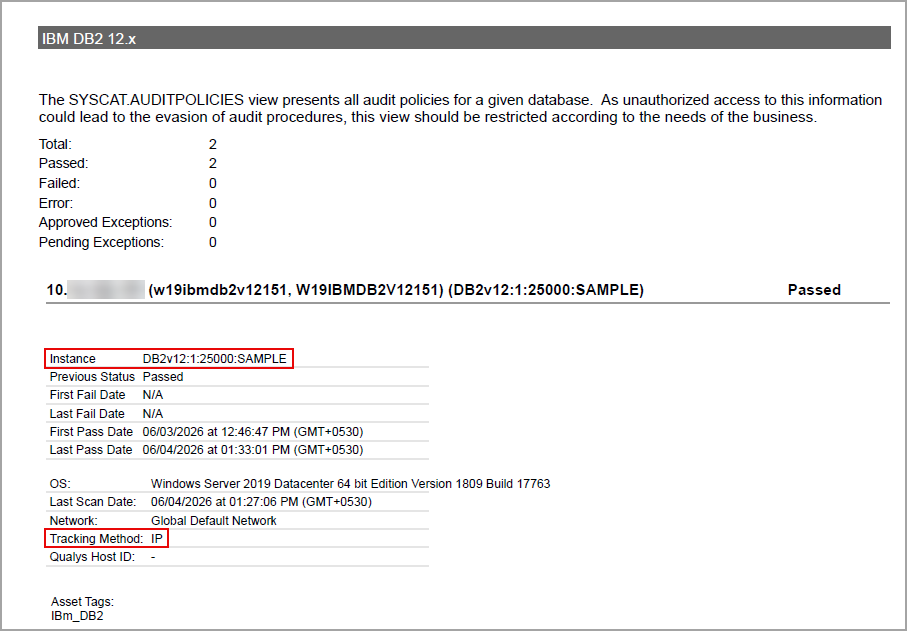
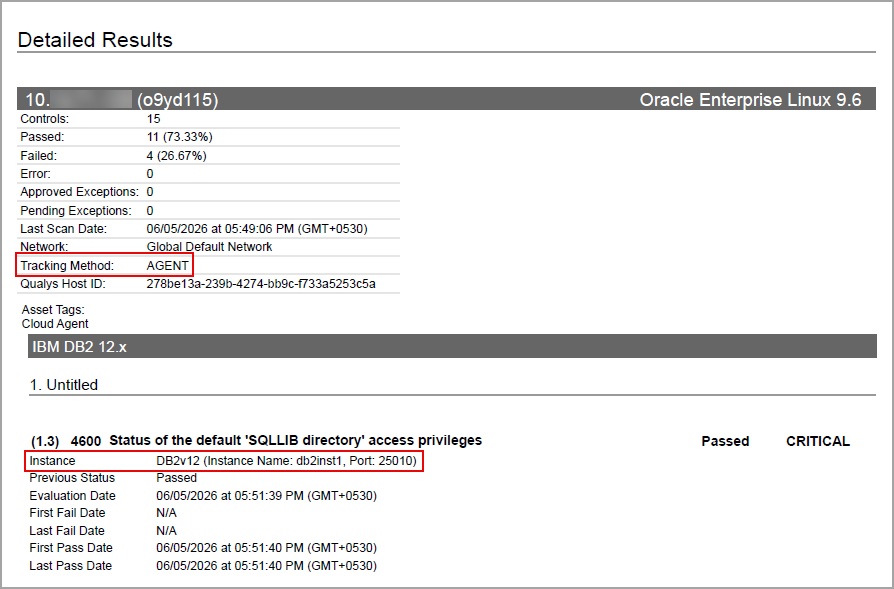
The sample report displays the tracking method and the instances for the scanner and the agent.
- Scanner
In sample compliance reports, you can view the instances of IBM DB2 12 for scanned hosts. The sample report displays the scanners tracking method as IP for IBM DB2 12.
- Agent
In Compliance Reports, you can view the instances of IBM DB2 12 for scanned hosts. The sample report displays the tracking method as AGENT with an instance of IBM DB2 12.
Issues Addressed
The following reported and notable customer issues are fixed in this release:
| Component/Category | Description |
| PA - Authentication Records | When the user edited the Username field for a Unix authentication record, they were unable to save a username longer than 31 characters. Relevant code changes have been made to fix the issue. Now, the maximum supported length for the Username field in Unix authentication records has been increased to 255 characters. |
| PA - Policy Editor | When the user attempted to create a policy using the Create from Host option, the asset selection window continued loading and then failed to display any assets. As a result, users were unable to select hosts and proceed with policy creation. Relevant code changes have been made to fix the issue. |
| PA - Policy Editor | When the user viewed the log entries in the Activity Log tab under Users, they observed incorrect entries for updating or saving the Policy that they had not performed. Relevant code changes have been made to fix the issue. |
| PA - Reports | When the user attempted to generate a Control Chaining compliance report from the Templates tab, the policy list displayed all available policies instead of only compatible CIS-based policies with supported operating system technologies. As a result, selecting an incompatible policy caused the report generation to fail and display an Unknown Error message. Relevant code changes have been made to fix the issue. |
| PA | When the user viewed assets from the View IPs section while manually evaluating a Control, they observed a higher asset count than the number of assets included in the policy. This behavior occurs by design, as the View IPs section displays all assets that matches the technology of the control during evaluation, allowing users to identify and use additional relevant assets. We have now documented this behavior in the Online Help. |
| PA | When the user accessed Audit Fix after their trial subscription was extended, they observed that the Remediate Now option is not displayed, even though these options had been available before the trial expiration. This behavior was observed for a user with Unit Manager responsibilities. This was the expected behavior as the user was not given Unit Manager responsibilities in the Admin module. We have now documented this behavior in the Online Help. |
| PA | When the user enabled the Policy Audit Fix (PAF) subscription, they observed that the system-created Audit Fix Manager and Audit Fix Unit Manager roles were automatically assigned to Manager and Unit Manager users, respectively. Also, any manual changes (like custom roles with custom permissions) are overridden by the original default roles during synchronization. This is expected behavior. We have now documented this behavior in the Online Help. |