Policy Audit Release 1.16
September 7, 2026 (Updated on September 17, 2026)
New Policy Audit Home Page
We have now introduced a new Policy Audit Home page that provides a tailored experience based on your onboarding status.
Home Page Before Onboarding
If you are new to Policy Audit and have not yet completed onboarding, the Home page provides a guided experience to help you get started.
The Home page includes introductory information about Policy Audit, a video to help you understand the product, and guidance to begin onboarding.
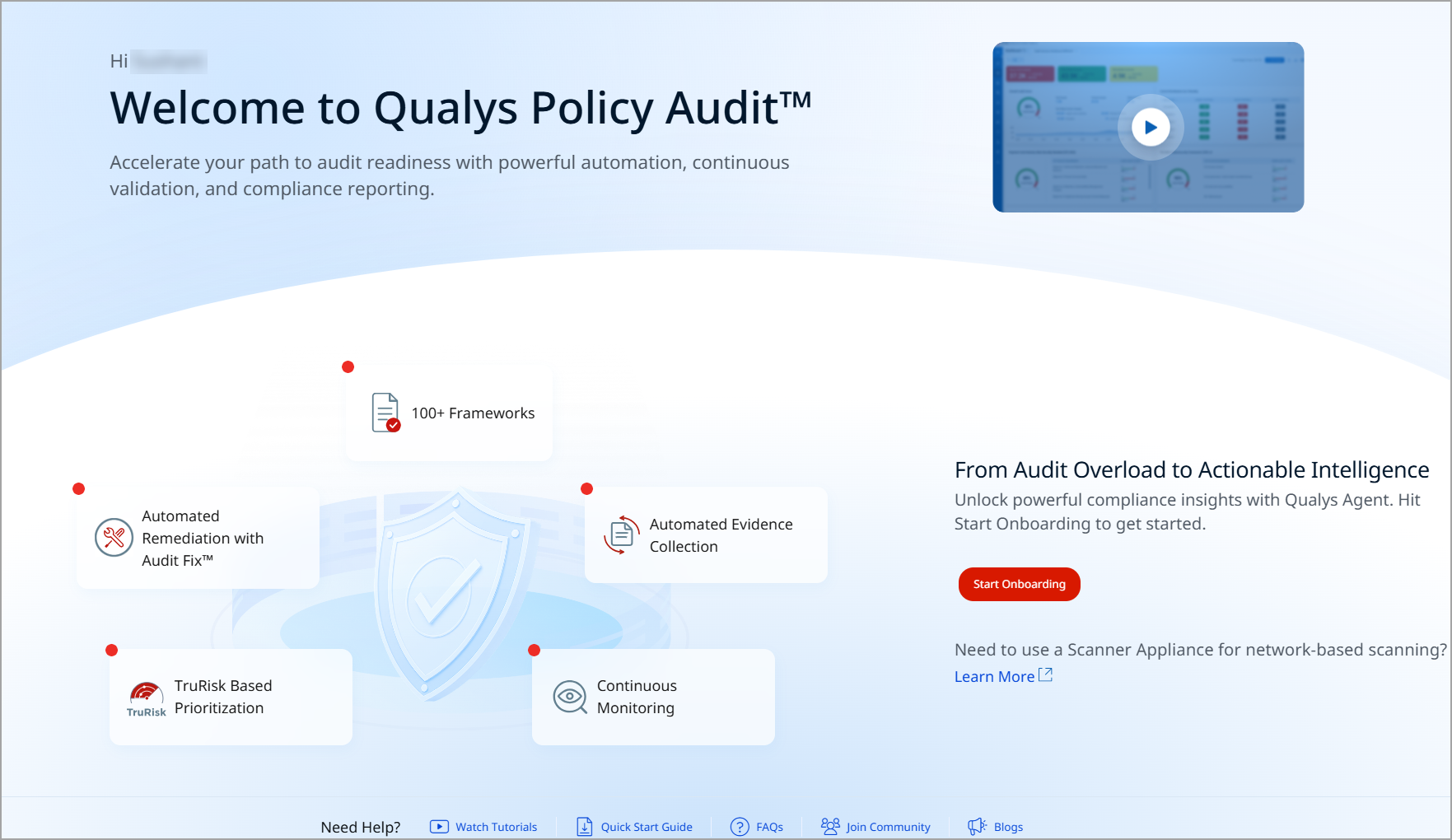
Select Start Onboarding to navigate to the onboarding page, where you can follow the required steps to get started with Policy Audit.
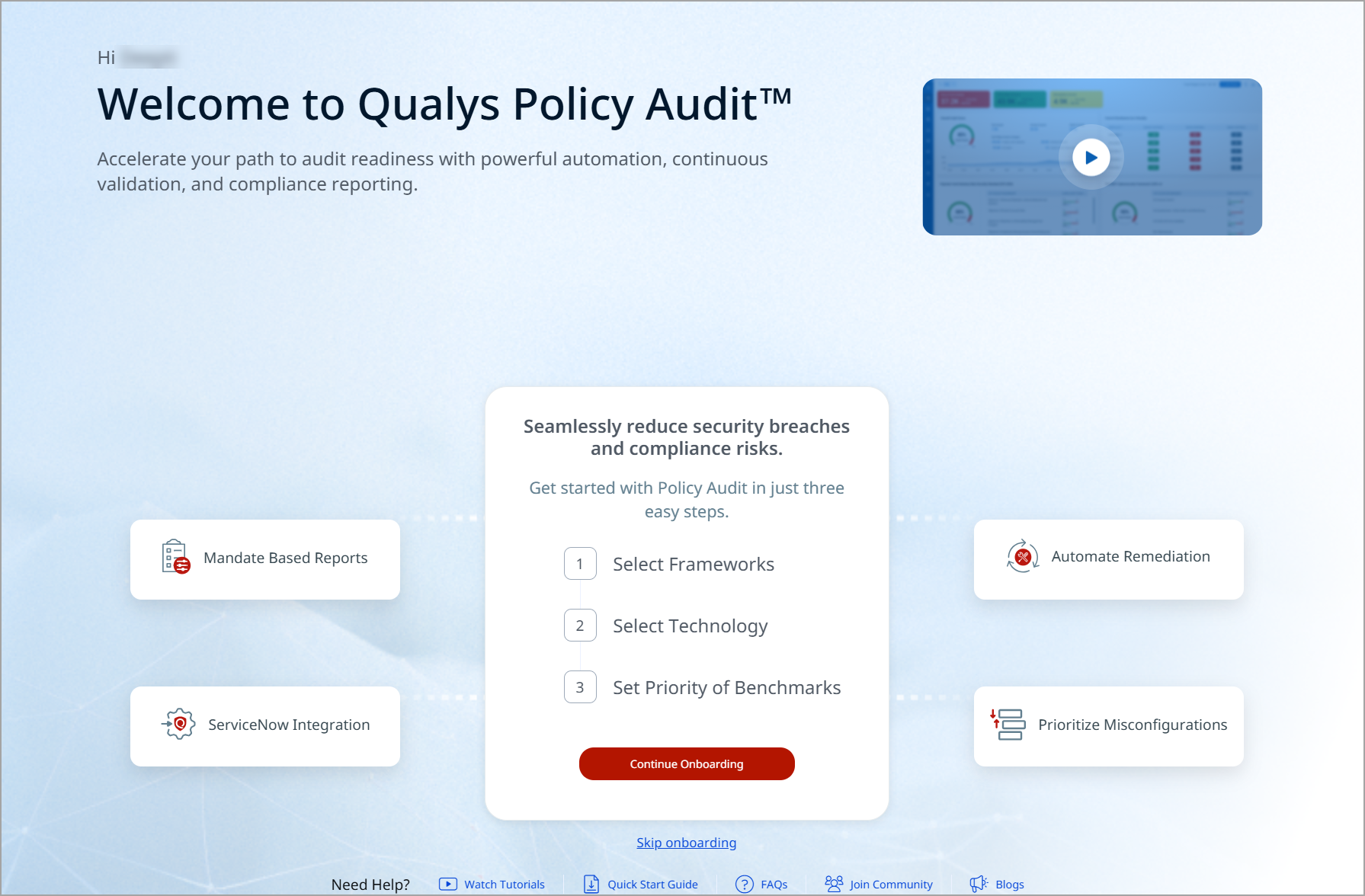
If no eligible agents are discovered in your environment, an informational message is displayed instead of the Start Onboarding option.
Home Page After Onboarding
After you complete onboarding, the Home tab provides a centralized dashboard with insights into your policy audit posture, risk exposure, and recommended actions.
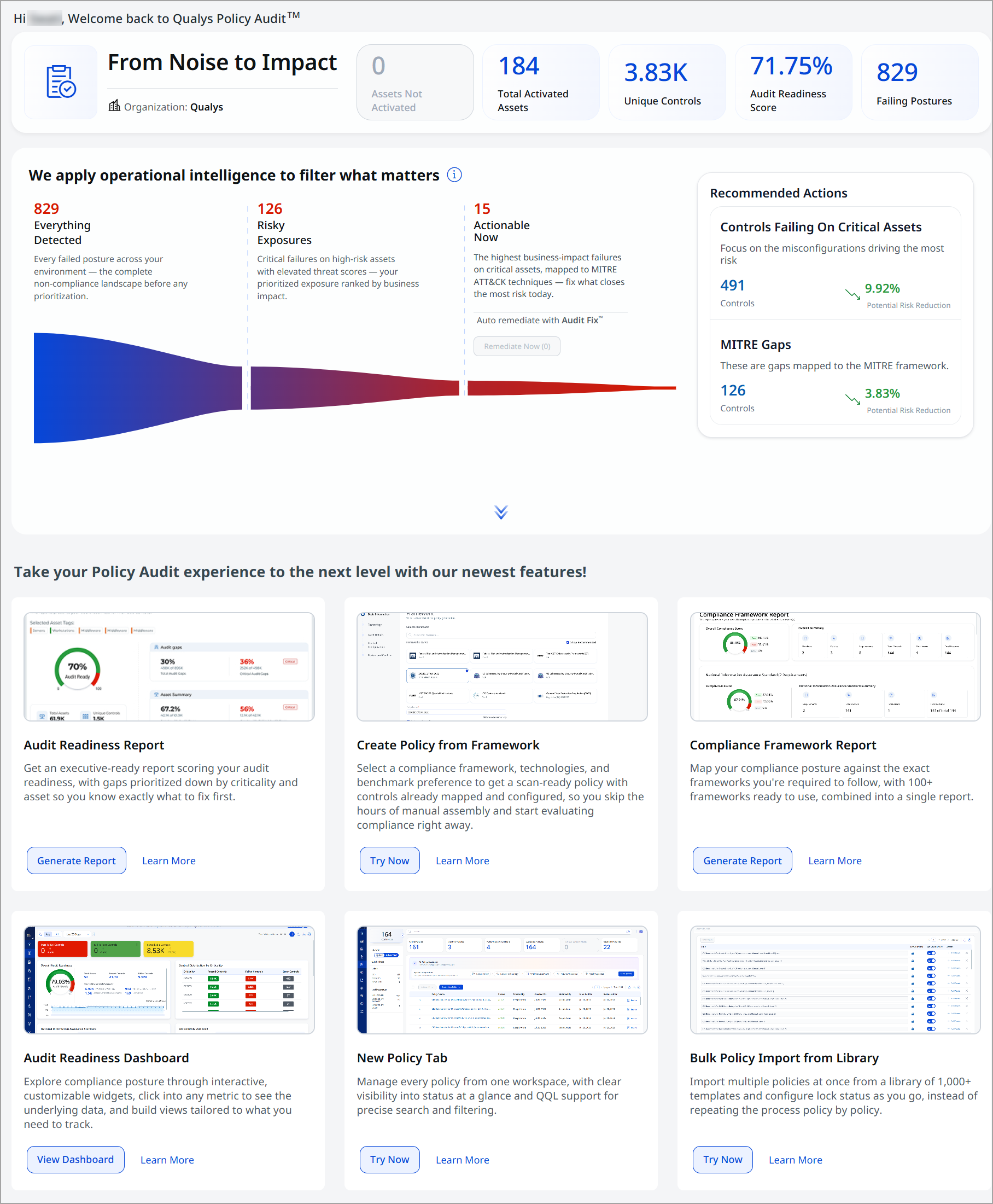
The Home page provides the following information and capabilities:
- Policy Audit summary – View key metrics such as total activated assets, unique controls, Audit Readiness Score, and failing postures. You can also identify assets that are not activated for Policy Audit.
- Interactive posture and risk insights – Review failing postures and risk exposure through an interactive visualization. Select relevant metrics to navigate to the Posture tab with the applicable filters automatically applied.
- Actionable remediation – Identify postures that can be remediated and, when Audit Fix is available, use Remediate Now to initiate remediation.
If Audit Fix is not enabled for your subscription, the Remediate Now option is not available. Select Learn More to find out how to enable Audit Fix for your subscription.
- Recommended actions – Identify controls failing on critical assets and review recommendations to help prioritize areas that require attention.
- Projected Audit Readiness Score improvement – View the potential improvement to your Audit Readiness Score by addressing prioritized failing controls.
- Feature discovery and quick actions – Discover Policy Audit capabilities and quickly access related workflows, such as exploring postures and creating reports.
The new Home page provides a guided onboarding experience for new users and, after onboarding, a consolidated view of your audit posture and prioritized actions to help you identify and address areas of risk.
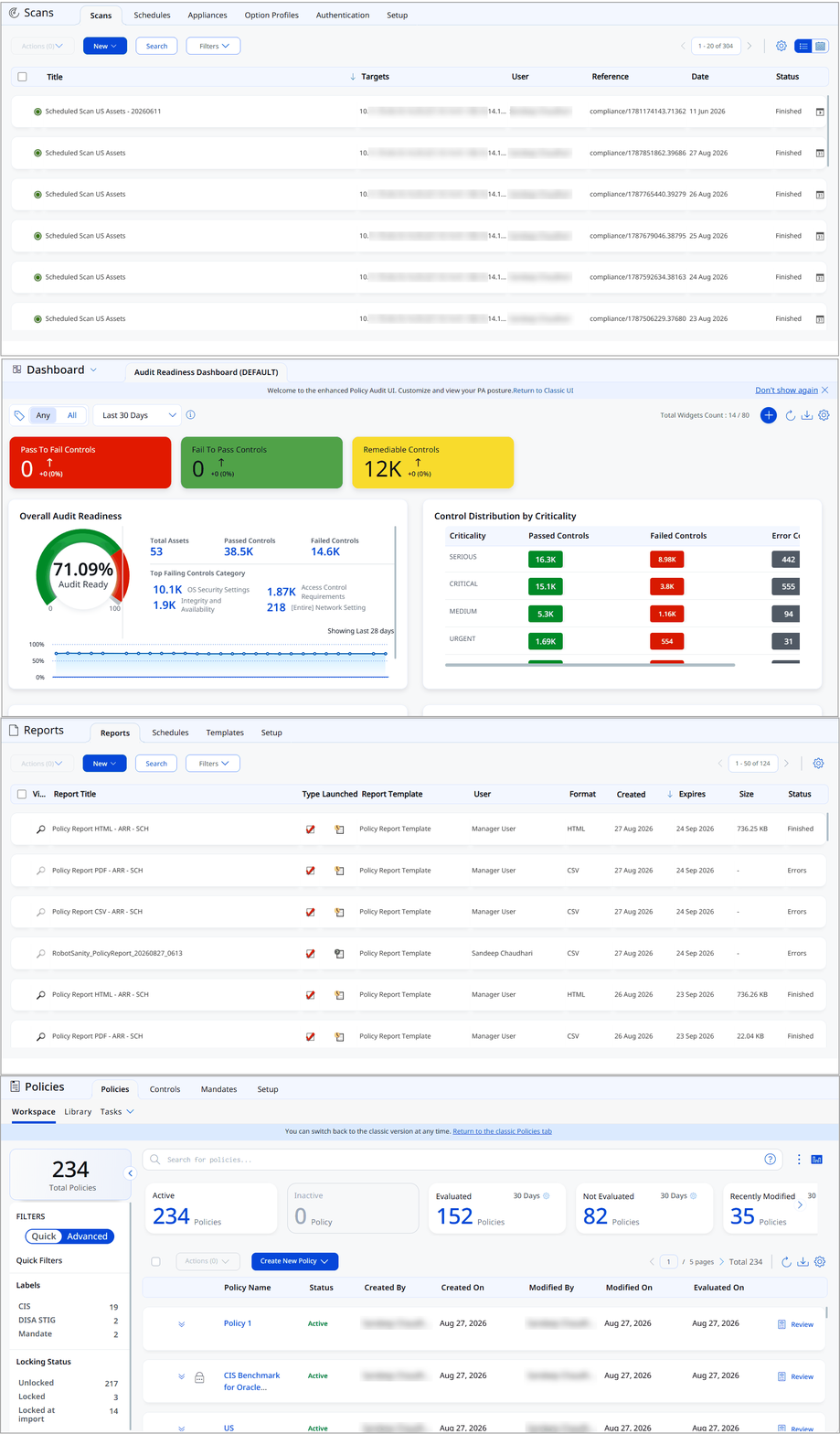
If you are an existing PA user, the Dashboard shown above is displayed, similar to the Dashboard displayed to new users after onboarding.
Granular Access Control for Audit Fix Using Tag-Based User Scoping
Access to remediation jobs and schedules created through the Policy Audit Fix (PAF) feature can now be restricted by each users assigned asset tags, in addition to their existing role and permissions. This is referred to as Tag-Based User Scoping (TBUS).
Prerequisite
Valid PAF permissions/roles are a prerequisite for viewing the Jobs list. Once PAF permissions/roles are granted, the user's view within a job is further scoped by their assigned tags, where they only see agent-enabled assets that match those tags.
Changes with TBUS
- Job and schedule visibility is scope-gated. A job or schedule appears in a user's list only if at least one of its target assets falls within that user's scope. If none of its assets are in scope, the job or schedule is not shown at all.
- Where a job or schedule is visible, the asset count and tags shown in the list and on the detail page reflect only the portion within the viewing user's scope, rather than the full set associated with the job or schedule.
- On the job or schedule detail page, the Basic Information tab shows only in-scope tags, and the Assets tab shows only in-scope asset details.
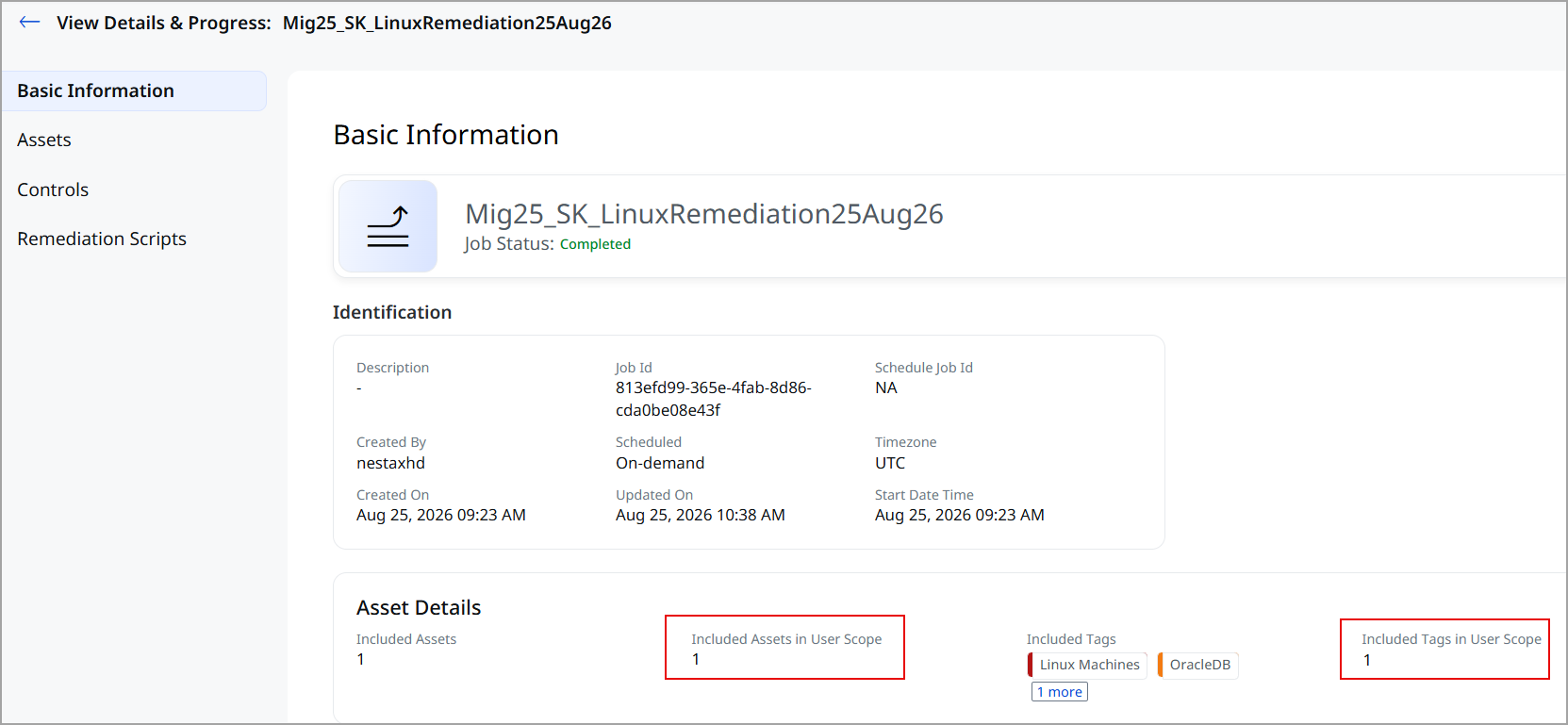
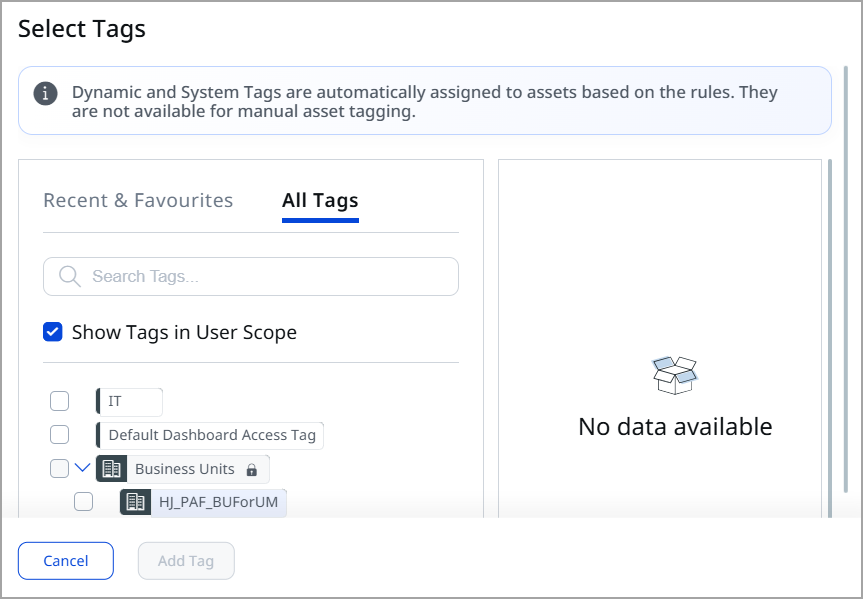
- Creating a job or schedule continues to follow each role's existing asset scoping; the tag selector used to include or exclude tags additionally restricts selection to tags within the user's scope (out-of-scope tags are visible but cannot be selected).
- Relaunching a job loads only the user's scoped assets and tags on the Select Assets step, and any edits (adding or removing assets) are limited to that scoped subset.
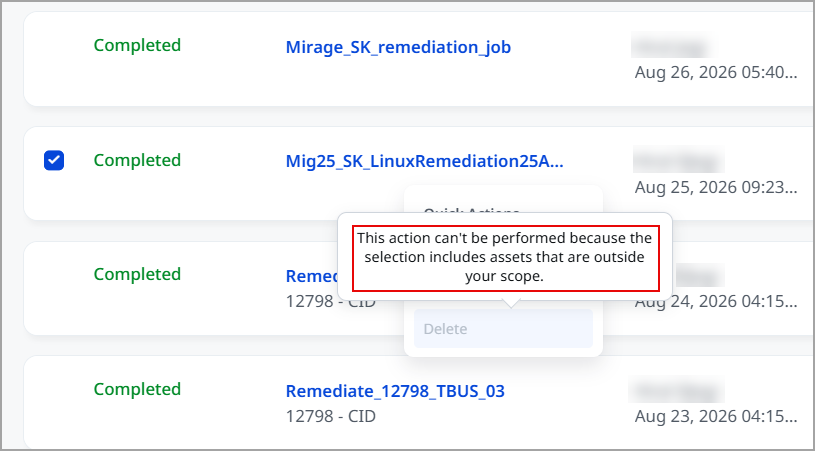
If the user manually selects the asset in Posture and adds it directly to the Included Assets list, PAF treats that as an explicit user override. - Deleting, editing, activating, or deactivating a job or schedule requires full access. Every asset and tag associated with it must be within the user's scope, not just some of them. A user with only partial scope on a job can see it, but cannot delete, edit, activate, or deactivate it.
The action is disabled with the message: “This action can't be performed because the selection includes assets that are outside your scope.”
When a user's scope is changed, the update can take up to 5 minutes to take effect. During this window, the user may still be able to perform actions that are no longer permitted under the updated scope.
Support for new QQL Tokens to Manage CVE IDs
With this release, we support the following 2 new Qualys Query Language (QQL) tokens:
- control.vulnerability.cveId
- control.vulnerability.cveId.exists
When a vulnerability cannot be remediated immediately by applying a patch, companies often implement compensating controls to reduce the risk of exploitation.
With this release, you can now use new QQL tokens in the Posture tab to quickly identify compensating controls associated with one or more CVEs and evaluate their compliance status across your assets.
control.vulnerability.cveId- Filters postures based on the specified Common Vulnerabilities and Exposures (CVE) ID to display the compensating controls associated with that vulnerability.
Examples:
Single CVE ID:
control.vulnerability.cveId:CVE-2022-30594
Multiple CVE ID:
control.vulnerability.cveId:[CVE-2022-30594,CVE-2021-30566]control.vulnerability.cveId.exists- Filters postures to display only those postures that are mapped to compensating controls for one or more vulnerabilities.
Examples:
To display all compensating controls with CVE mapping:
control.vulnerability.cveId.exists: true
To display controls with no CVE mapping:
control.vulnerability.cveId.exists: false
To get CVE IDs for a vulnerability, navigate to the VMDR application > Vulnerabilities tab > for a particular QID, select Quick Actions > View Vulnerability Details > CVE Details.
Enhanced User Interface
The enhancement is temporarily rolled back to ensure a stable user experience and will be reintroduced in an upcoming release.
With this release, we have introduced an improved user experience across all Policy Audit pages. You can see updates across fonts, colors, typography, and buttons, making the interface more intuitive and easier to use. This release features User Interface and design system enhancements that improve visual consistency, readability, and usability across the application, resulting in a cleaner, more intuitive user experience.
Key Benefits
Key benefits of the new interface include:
- Cleaner, more consistent screens
- Easier-to-read and understandable text
- Important information stands out better, with less clutter
- Faster comprehension of risk, status, and numbers
User Interface Consistency and Clarity
Introducing the new and improved User Interface with the following key upgrades:
- Easier-to-read labels and text, with ALL CAPS replaced by sentence-style text
- Consistent text style for status and source names across the application
- Uniform text colors in tables, filters, page numbers, and tabs
- Aligned colors and text styles for tabs and page navigation throughout the application
- Clear visual indicators for buttons and options, showing active, inactive, or secondary states
- Better emphasis on important information, with subtle styling for less critical details to help users focus
Charts, Metrics, and Data Presentation
You can view the following updates:
- Updated chart color schemes for improved clarity and accessibility
- Compact, more readable numeric formats for better visibility
- Refined color gradients for risk scores and meters to enhance interpretation
View Additional Controls Anytime with the New CSV Download Option
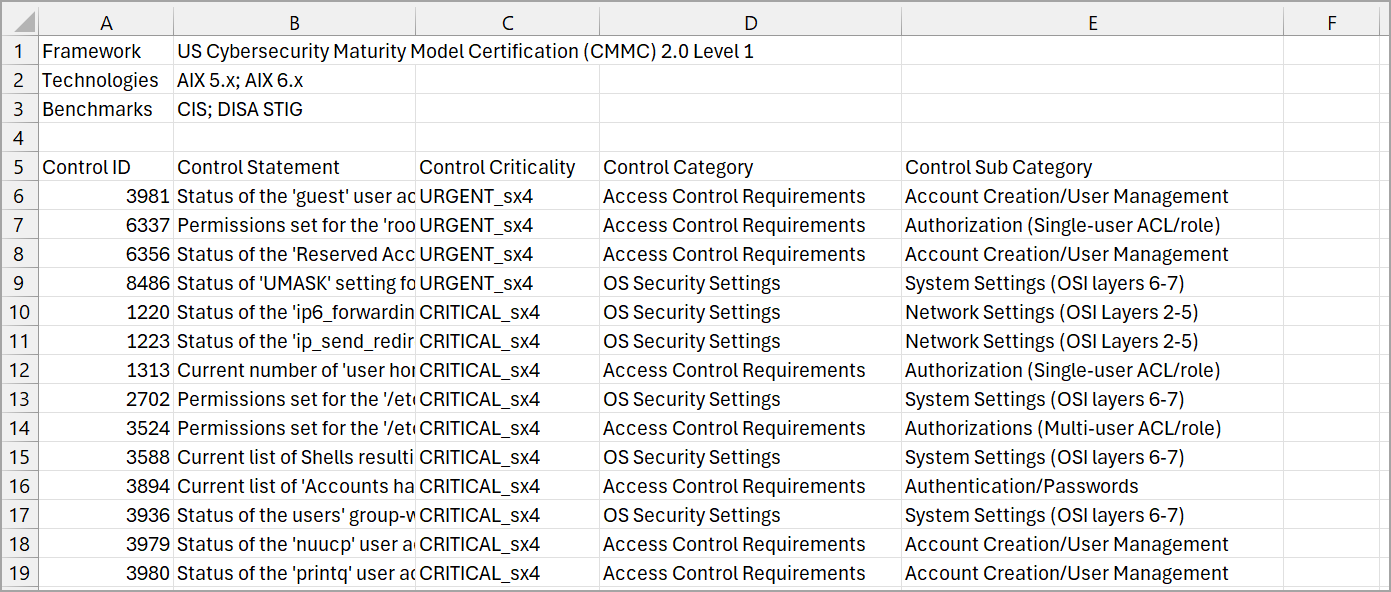
While creating a policy from a framework, you can now download the list of Additional Controls, the controls not mapped to any of the selected benchmarks, such as CIS, Qualys Vendor, and DISA STIG in a CSV report for offline reference.
Previously, the Additional Controls list was visible only while creating the policy — once the policy was created, users had no way to view it again. With this release, you can download the list as a CSV file and keep an offline copy for later reference. This makes it easy to review the Additional Controls after the policy is live, and edit the policy to add any of them if needed.
To download additional controls for a policy, go to Policies > Create New Policy > Create from Framework, enter the relevant details for the policy, and on the Review tab select View Details to open the Additional Controls window.
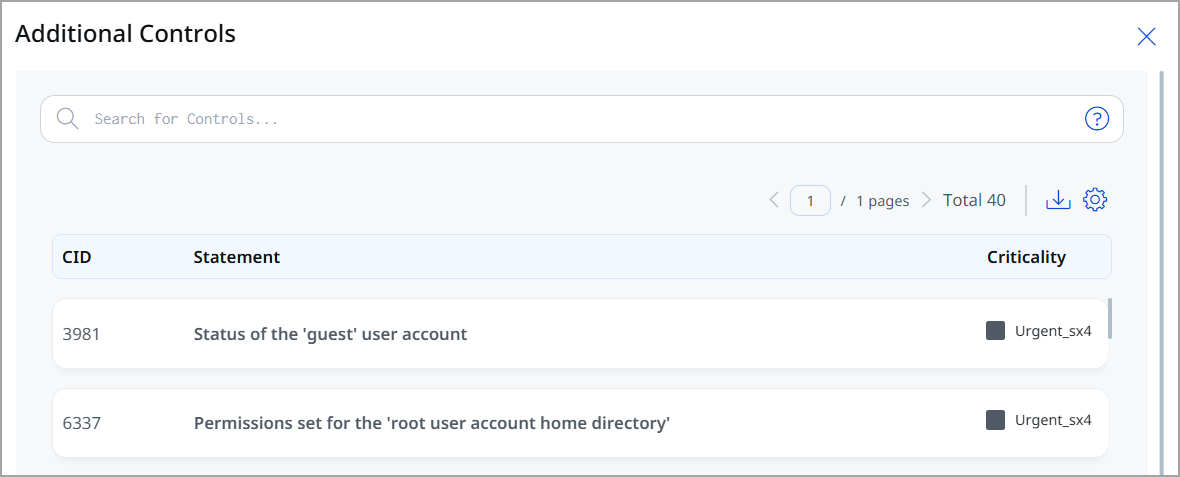
Select the Download icon (  ) to export the list in CSV format.
Track Framework Policy Creation Activity Like Any Other Policy
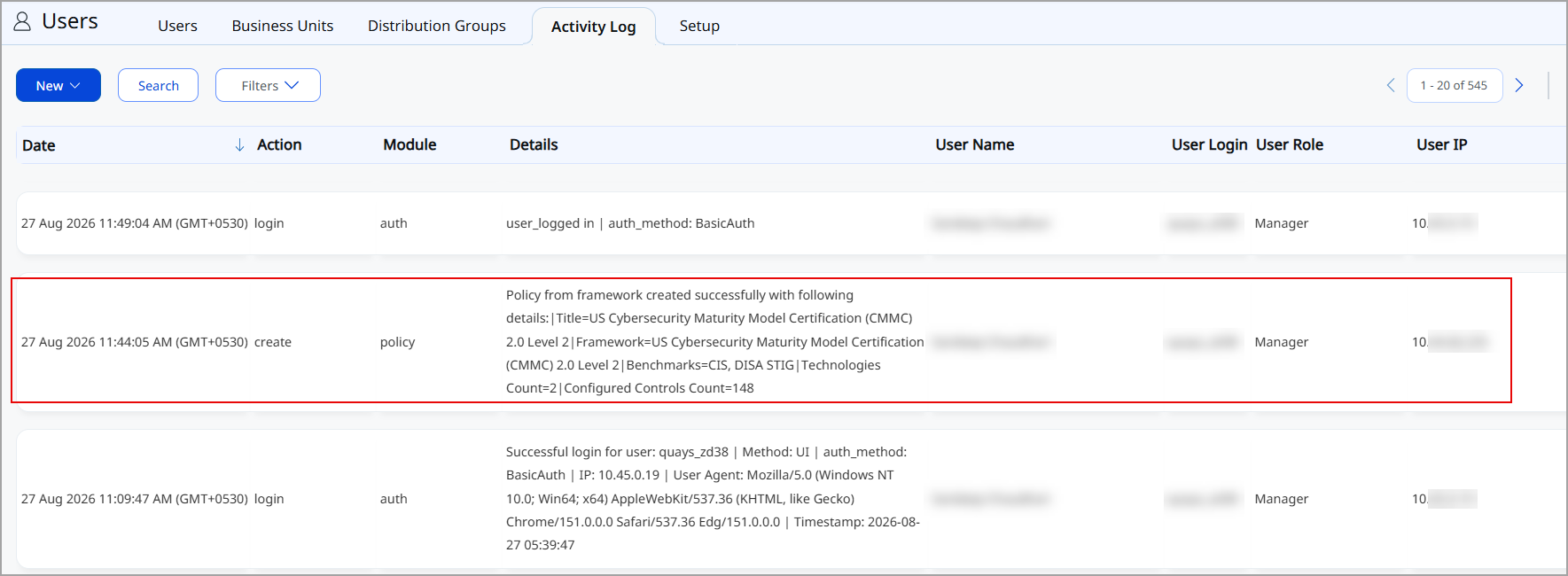
You can now view framework policy details directly in the Activity Log tab.
Previously, framework policy details were not visible in the Activity Log, unlike other policy types. With this release, users can track framework policy creation activity in the Activity Log just as they do for other policies, giving them full visibility into what was created and when.
To view the activity log, go to Users > Activity Log tab. In the Details column, you can now view framework policy details, including the policy title, assigned frameworks, benchmarks, and the total count of configured controls associated with the policy.
UDC Support for Ubuntu 26.x, Debian 13.x, and Oracle Linux 10.x Technologies
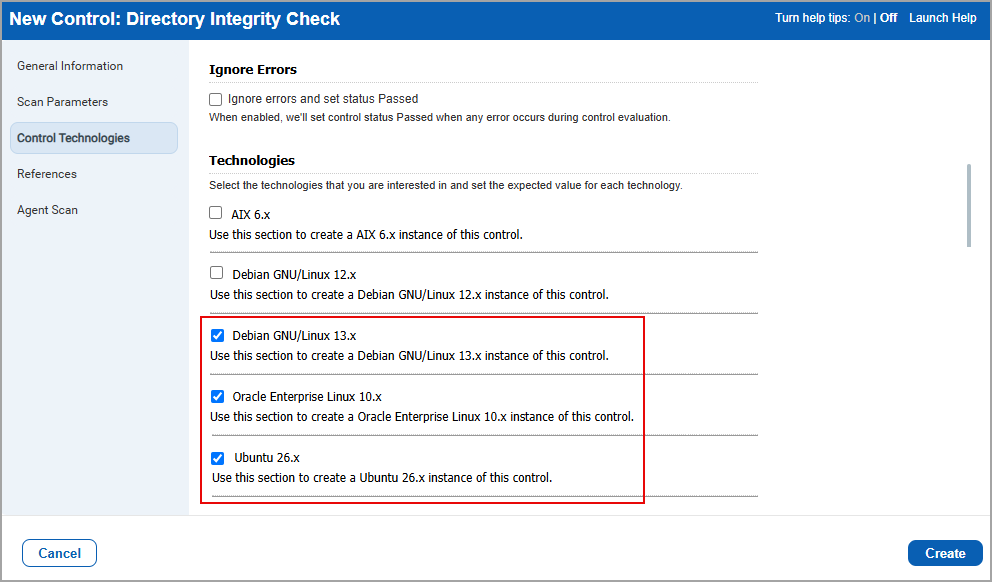
You can now select Ubuntu 26.x, Debian GNU/Linux 13.x, and Oracle Enterprise Linux 10.x technologies when creating a new control for Unix Control types.
Previously, these technologies were not supported for Unix Control types. This release adds support for these technology.
To select these technologies, navigate to:
- Policies > Controls > New > Control > UDC.
The New Control window is displayed. - In the left pane, select Unix Control Types > From the displayed control types, select a control type of your choice.
- In the left pane, select Control Technologies > Under Technologies, you can see the technologies - Ubuntu 26.x, Debian GNU/Linux 13.x, and Oracle Enterprise Linux 10.x.
Oracle Database UDC Support for Linux Agent-based Compliance Scans
You can now scan and report Oracle databases for User-Defined Controls (UDCs) using Linux Intel Cloud Agent.
This feature has limited availability. To enable this feature for your subscription, contact Qualys Support or your Technical Account Manager (TAM). In the current implementation, this feature is supported only for Oracle database.
Previously, compliance scan results for supported Agents included only Operating System UDCs for Linux and Windows.
To support this enhancement, a new option DB UDC Rows Limit for Agent is added to the Scans > Setup page.
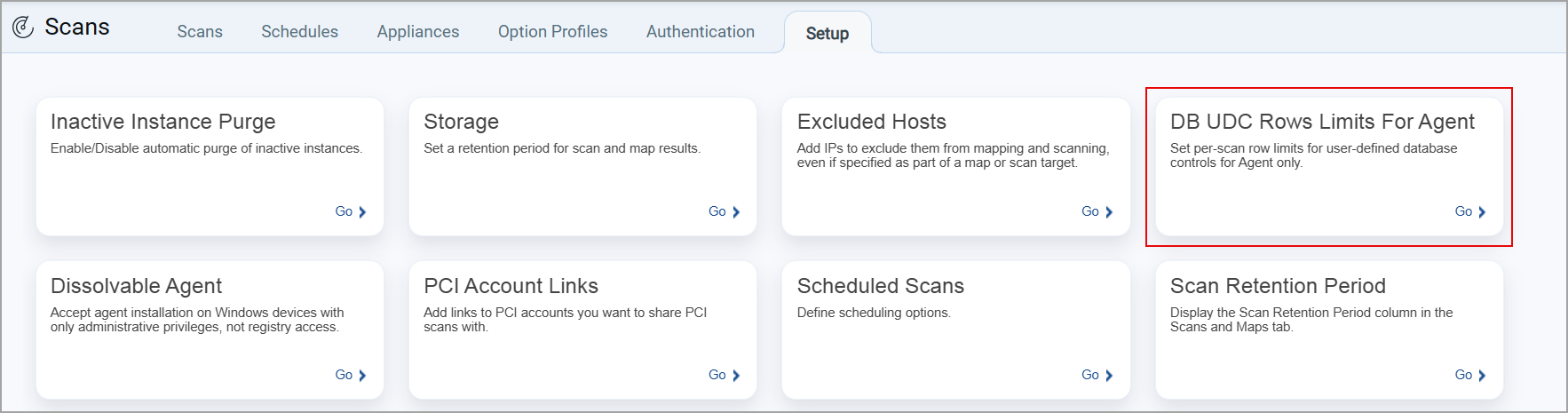
When selected, the DB UDC Rows Limit for Agent window is displayed. Here, you can define the number of rows to be displayed per scan for Linux Agent Oracle databases.
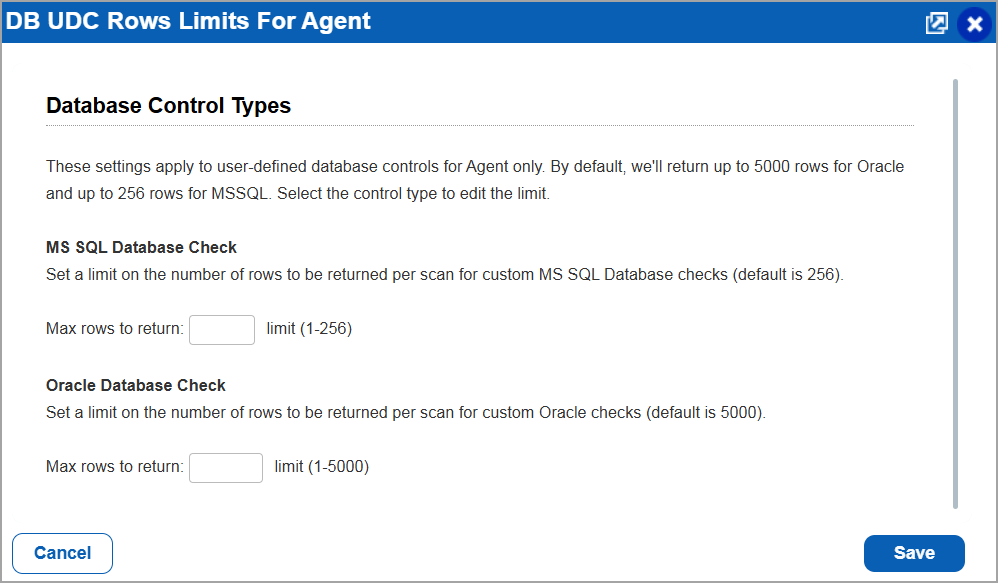
If no value is specified for the number of rows to be displayed per scan, the default value is set as 5000 rows for the Linux Intel Agent Oracle database.
Prerequisite
Database authentication and assessment are enabled for your subscription.
For details on Database authentication and assessment details, refer to the header Database Authentication using CyberArk and Database Assessment using Cloud Agent in the Policy Audit Online Help.
| Required Cloud Agent version | Cloud Agent for Linux Intel 7.5 |
Update - Policy Audit Alerting
We previously introduced the Alerting feature that allowed you to receive real time updates of the events or incidents related to your configurations.
This feature previously required contacting your Technical Account Manager (TAM) or Qualys Support to enable. It is now enabled by default for all users.
In addition to the above, we previously provided a list of tokens supported by the Policy Audit Alerting feature. The following tokens are not supported:
Control Tokens:
| policy.labelName |
| policy.lockType |
| finding.mitre.attack.tactic.id |
| finding.mitre.attack.technique.id |
| finding.mitre.attack.subTechnique.id |
| mandate.controlObjective |
| posture.detectionSource |
| posture.scannerFirstDetectedDate |
| posture.scannerLastDetectedDate |
| posture.agentFirstDetectedDate |
| posture.agentLastDetectedDate |
Asset Tokens:
| asset.isDataTruncated |
| asset.isPAFEnabled |
| asset.criticalityScore |
For more details on the feature, refer to the Policy Audit Alerting section in UI Release Notes for release 1.5.
Issues Addressed
The following reported and notable customer issues are fixed in this release:
| Component/Category | Description |
| PA - UI | When the user accessed the Account Info page, the page consistently took approximately 3 to 6 minutes to load. Relevant code changes have been made to fix the issue. |
| PA - PCRS Reports | When the user generated a Compliance report for a user-manually-locked policy, the Policy Locking status displayed as Unlocked, regardless of the actual policy locking status. Relevant code changes have been made to fix the issue. |
| PA - Scans | When the user generated a Compliance scan result in XML format, the Hosts Not Alive and Excluded Hosts sections were missing for scans using DNS tracking. As a result, dead and excluded hosts were not included in the downloaded XML report, although these hosts were correctly included in the PDF and HTML reports. Relevant code changes have been made to fix the issue. |
| PA - UDC | When the user exported and imported User Defined Controls (UDCs) from one account to another, the import failed due to missing support for the UNIX platform. Relevant code changes have been made to fix the issue. |
| PA - Schedule Report | When the user scheduled a Policy report to run every 3 months, the report was generated approximately one month earlier than expected. The scheduled report did not run according to the configured schedule. Processing logs have been added to provide additional details for troubleshooting report scheduling and processing. |
| PA - API | When the user updated a PostgreSQL Authentication record using the /api/3.0/fo/auth/postgresql/ API, the API call returned a successful response, but the specified IP address was not added to the Authentication record. The issue occurred when the 'tag support' feature was enabled and the API request did not specify an asset type. Relevant code changes have been made to fix the issue. |
| PA - New UI | When the user navigated to the Posture tab and selected the Assets data list, filtering for the operating system value - using the quick filter did not return the correct asset data. Relevant code changes have been made to fix the issue. The quick filter now displays the relevant asset data when the user selects the - operating system value. |
| PA - New UI | When the user navigated to the CyberSecurity Asset Management (CSAM) application and in Compliance Control section attempted to download the control details, an error message was displayed. Relevant code changes have been made to fix the issue. |