Policy Audit Release 1.18
November 6, 2026
This release introduces the What’s New window, where you can view the latest Policy Audit features and go directly to them. It also shows included and excluded tags separately in expanded policy details on the Workspace tab, with the complete list of technologies and tags available for each policy.
New Feature
View Latest Features in the What's New Window
What's New for You
You can now view the latest Policy Audit features in the What's New window and navigate directly to them.
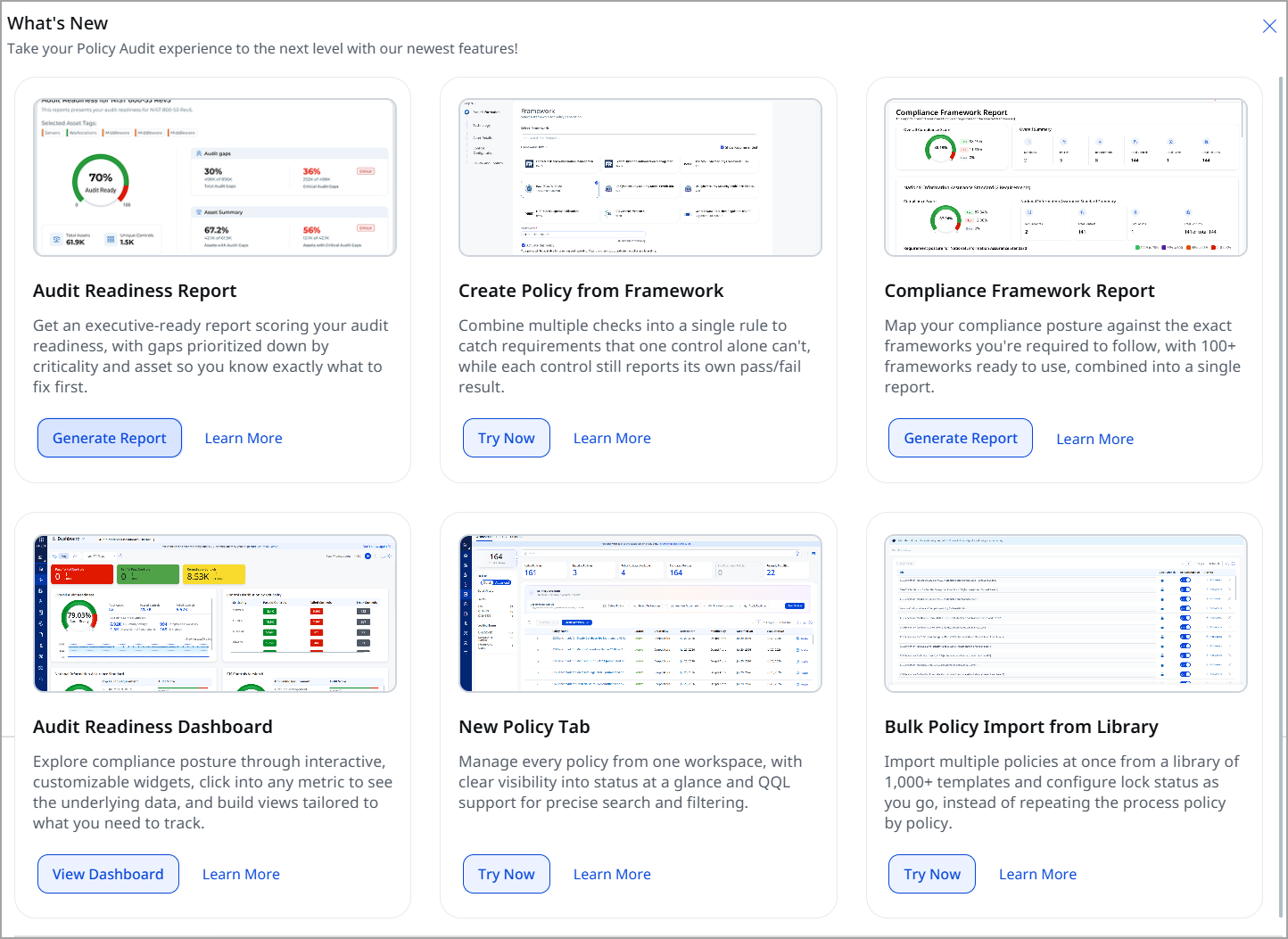
Previously, the latest Policy Audit features were displayed only on the Home page.
With this release, these features are also displayed in the What's New window.
To open the What's New window, select the help icon (  ) > What's New?
Each card describes a feature and includes an action, such as Try Now or Generate Report, that takes you directly to that feature.
The What's New feature is not available for users with Security Configuration Assessment (SCA) only subscriptions.
Enhancement
Improved Tags, Technology, and Asset Group Visibility in Policy Details
What Changed For You
When you expand a policy in the Workspace tab under Policies, the details now show included and excluded tags separately. You can also see every technology and tag assigned to the policy, not just the first few.
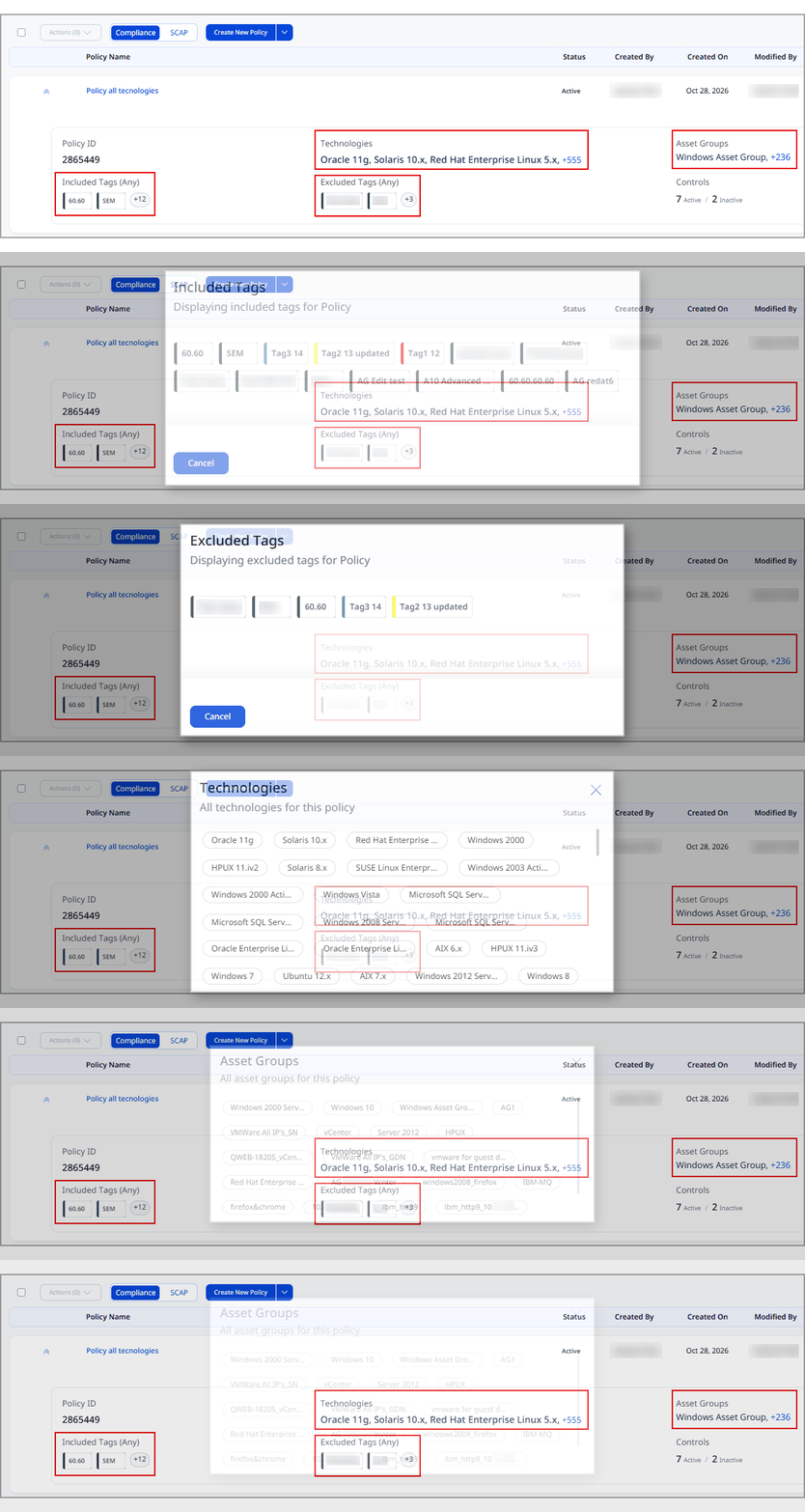
Previously, the expanded policy details displayed all asset tags under a single Tags field, so you could not identify which tags were included or excluded. Also, when a policy had many technologies, tags, or asset groups, the details showed only the first few, and there was no way to see the rest.
With this release, the expanded policy details include the following changes:
- Included Tags and Excluded Tags are now shown as separate fields instead of a single Tags field.
- When a policy has more technologies, tags, or asset groups than fit in the view, a count appears next to the list. Select the count to see the complete list.
To view these details, navigate to Policies > Workspace > Select a policy for which details are to be displayed.
Fix
Fixes
The following reported and notable customer issues are fixed in this release:
| Component/Category | Description |
|---|---|
| SCA - Scan Schedule | Issue: Saving a scheduled compliance scan on SCA-licensed IPs failed with the error “Scan launched on SCA licensed IPs must have option profile scan by policy enabled (with CIS policies)”, although a regular scan with the same option profile ran successfully. Scheduled scans checked option profile policies more strictly than regular scans. Fix: Scheduled scans now use the same policy check as regular scans, and scheduled compliance scans with CIS policies save successfully. |
| PA - New UI | Issue: On the Posture tab, when a control ID filter was applied, moving to the second or next page displayed a blank page. This happened because the pagination logic was not fetching all the required records. Fix: This issue is now fixed. The pagination logic now fetches the correct records, and filtered results are displayed properly on all pages. |
| PA - New UI | Issue: On the Posture tab, after using Group By on Controls or Assets, selecting a count (such as Control instances) did not display the data on the first click. The data appeared only after the second click. Fix: This issue is now fixed. The Posture tab and grouped result links now use the same URL, so the data loads correctly on the first click after using Group By. |
| PA - New UI | Issue: On the Posture tab, assets with an undetected operating system displayed “-” in the Operating System field and the Operating System quick filter. This value did not clearly indicate that the operating system could not be identified. Fix: This issue is now fixed, and these assets now display Unidentified in the Operating System field and the Operating System quick filter. The exact-match QQL query asset.os:`Unidentified` returns these assets, and asset.os:`-` continues to work.
|
| PA - User Management | Issue: A Scanner user running a STIG-based compliance report with asset tags as the target received an empty report, while a Manager user running the same report with the same parameters received the full details. This occurred when tag-based user scoping was enabled, and the tagged assets were not part of any asset group assigned to the Scanner user. The report applied an additional asset group filter that excluded these tagged assets. Fix: This issue is now fixed. When tag-based user scoping is enabled, STIG-based reports that target asset tags no longer apply the asset group filter. Scanner users now see data for all assets in the selected tag, consistent with Manager user results. |
| PA - Mandate Report | Issue: When editing a mandate-based report template, changing the owner and saving the template did not update the owner. The template continued to show the original owner. Fix: This issue is now fixed. The selected owner is now saved when you edit a mandate-based report template, create a new one, or use Save As, and the new owner is displayed after saving. |