VMDR Release 2.10
May 13, 2026
Platform Level TruRisk™ v2 Formula
This release provides the Platform Level TruRisk™ v2 formula and calculations in the VMDR module. To enable the v2 formula for TruRisk™ Score, ensure that all dependent applications, such as Enterprise TruRisk Platform 3.24.0.0 and VMDR 2.10.0, are deployed, and the required feature flag is enabled. The following enhancements help you understand and refer to the formula.
If you do not see the v2 formula for the tag‑based TruRisk™ Score, contact your Technical Account Manager or Support team for clarification.
TruRisk™ Score Widget (VMDR) Displaying v2 Formula
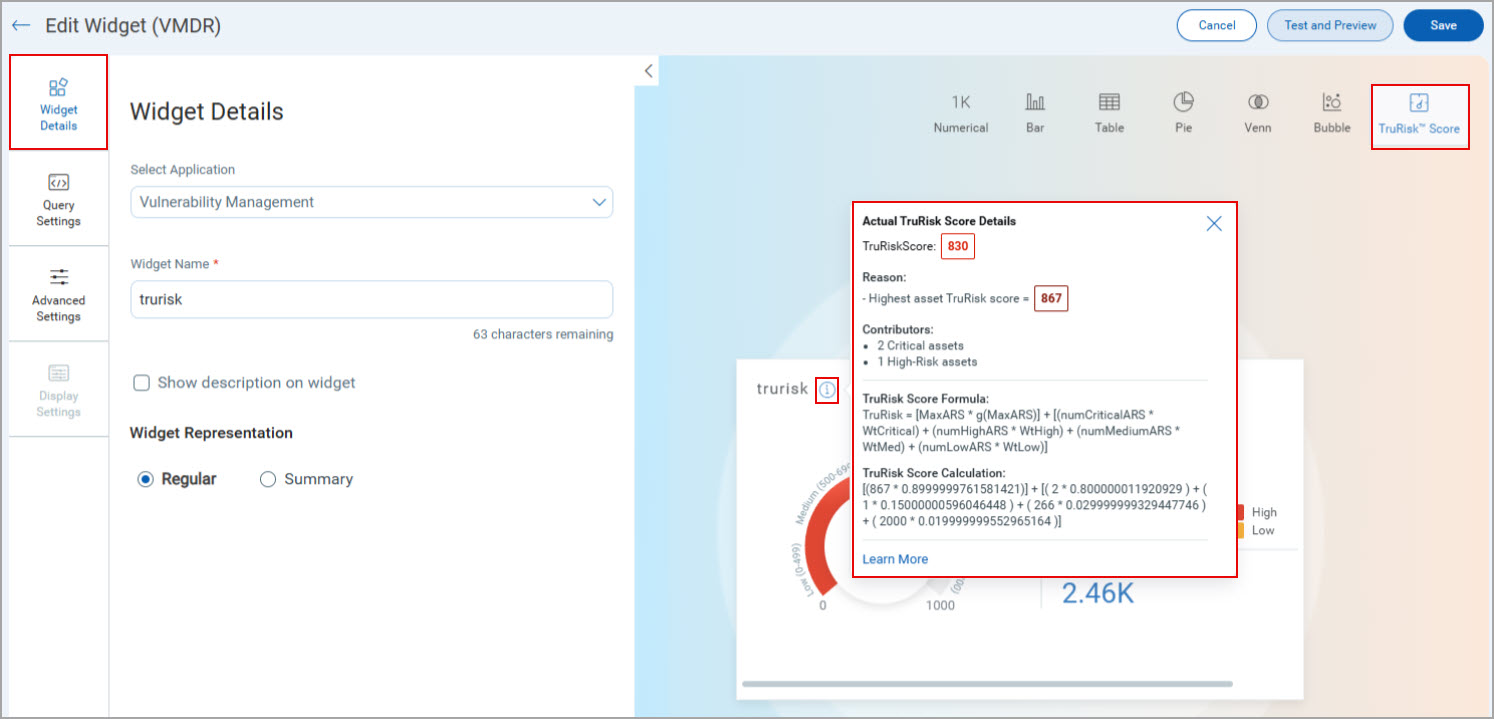
We have provided the actual TruRisk™ Score and v2 formula and calculations in a separate information message box in the VMDR module, at the following locations:
- VMDR Dashboard > Edit > Widget Details > TruRisk™ Score.
- Prioritization Tab > Select Asset Tags > Qualys TruRisk™ Mode > TruRisk™ score gauge.
- Prioritization Tab > MITRE ATT&CK Matrix > TruRisk™ score gauge.
For example, when you open Dashboard > select a required widget > Edit > Widget Details > TruRisk™ Score > the info icon  , a message box opens and displays the TruRisk™ Score formula and calculation. You can also click the Learn More link in this message box to refer to the Platform Level TruRisk™ Score Formula topic in the VMDR Online Help. For more information, refer to the following section Online Help Topic for Platform Level TruRisk™ v2 Formula.
The following is an example of this message box displaying the TruRisk™ Score formula and calculation:
Online Help Topic for Platform Level TruRisk™ v2 Formula
In this release, we have added a new topic, Platform Level TruRisk™ v2 Formula, to the VMDR Online Help. This topic includes a more accurate, risk‑aware approach to calculate tag‑level TruRisk™ Scores. For more information about the formula, refer to Platform Level TruRisk™ Score Formula.
CVSS V4 Base Score Support for Vulnerability Analysis
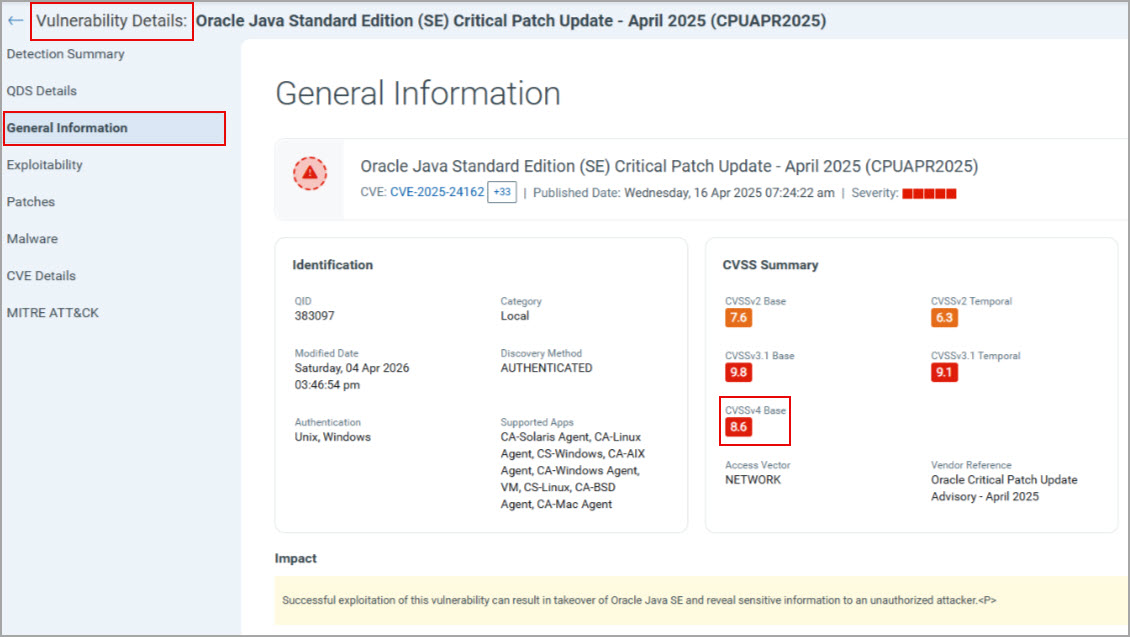
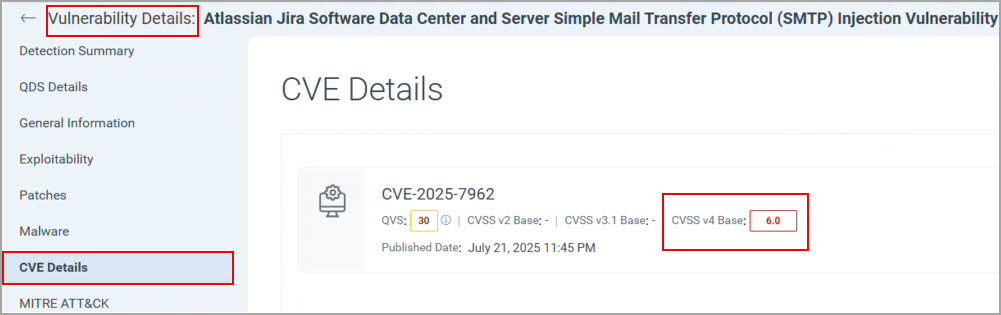
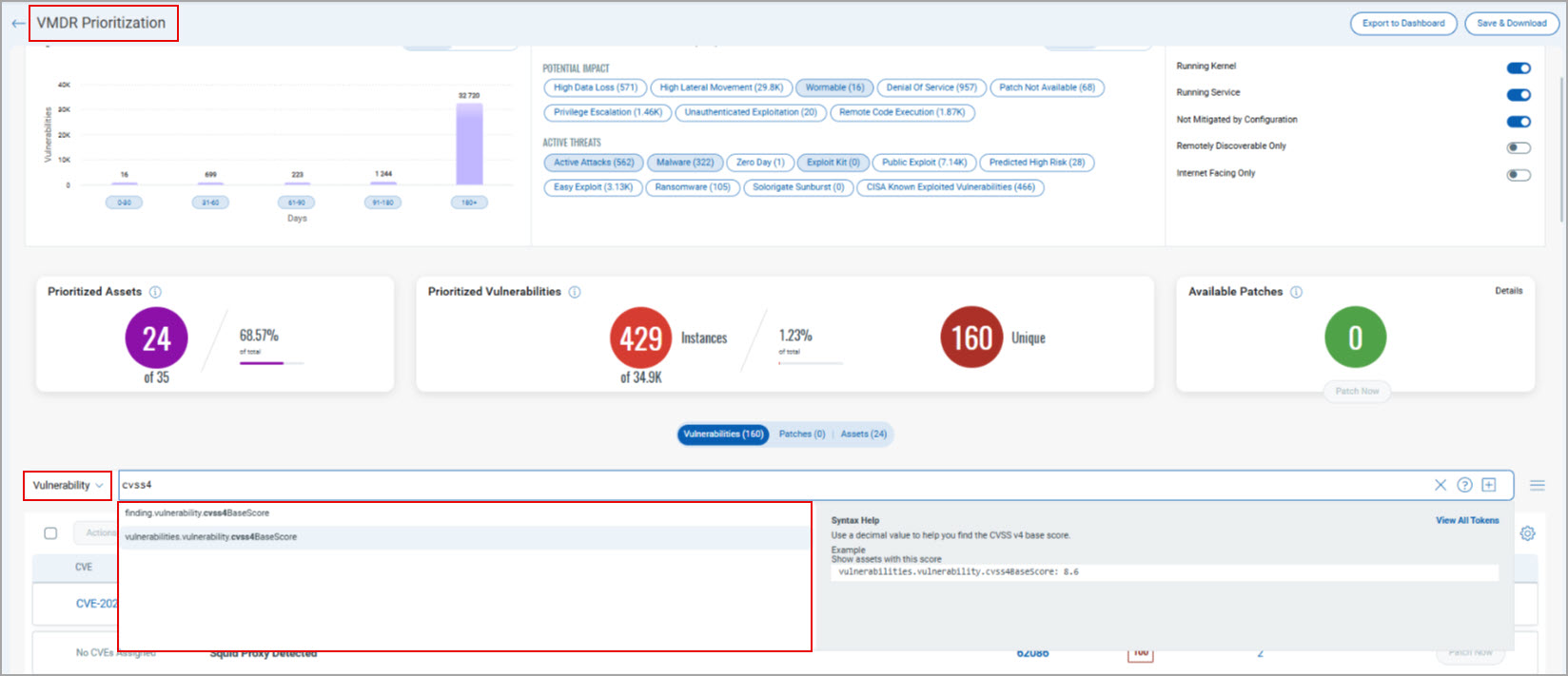
This release adds support for the CVSS V4 Base Score in VMDR in addition to the existing CVSS Base Score values. This update helps you group, investigate, and export vulnerability data using the latest CVSS scoring standard. You can view the CVSS V4 Base Score from the following locations:
- Vulnerabilities > Vulnerability Details > General Information > CVSS SummaryCVSS Summary
 .
. - Vulnerabilities > Vulnerability Details > CVE DetailsCVE Details
 .
. - VMDR Prioritization> Start Prioritizing > Select Asset Tags >
 > Vulnerability searchVulnerability search
 .
.
Group the Vulnerabilities Using CVSS V4 Base Score
You can now organize and analyze vulnerabilities based on CVSS V4 Base Score using the Group by option. You can view this option on the Vulnerabilities tab > Group by > CVSS V4 Base ScoreCVSS V4 Base Score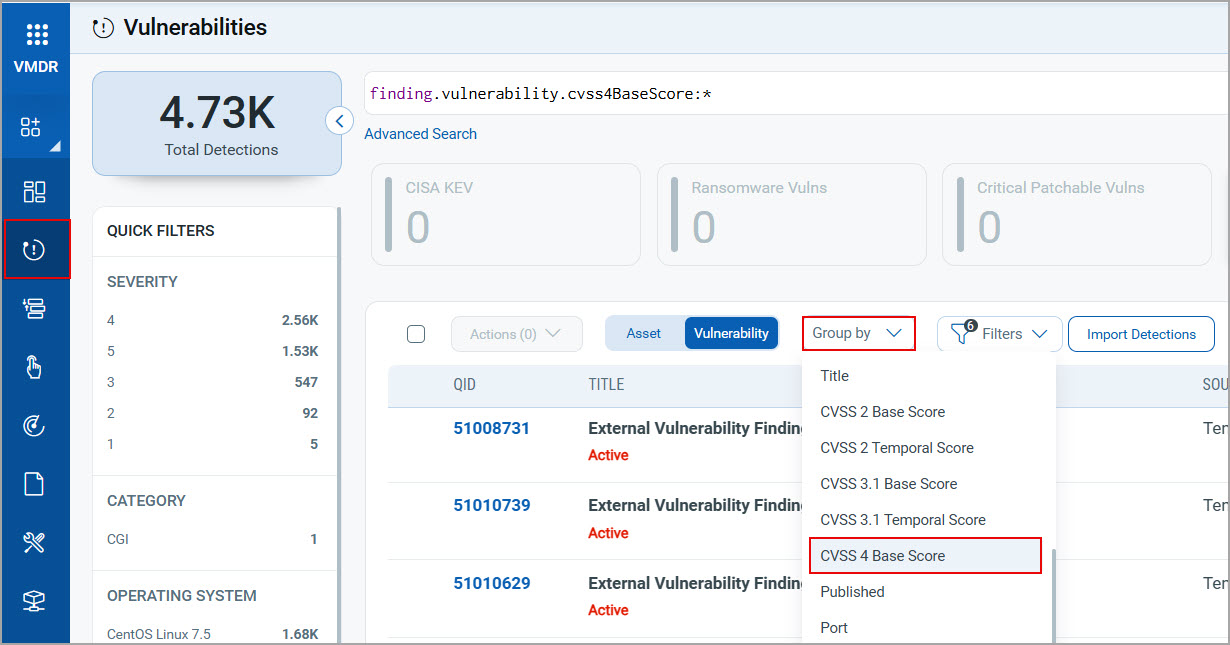 .
.
Download CVE Reports with CVSS V4 Base Score Data
You can now include CVSS V4 Base Score information when downloading the CVE report. The Download Formats dialog box includes the CVSS V4 Base Score checkbox in the CVE section. To open the dialog box and view the check box, click the Vulnerabilities tab > Download > Download FormatsDownload Formats 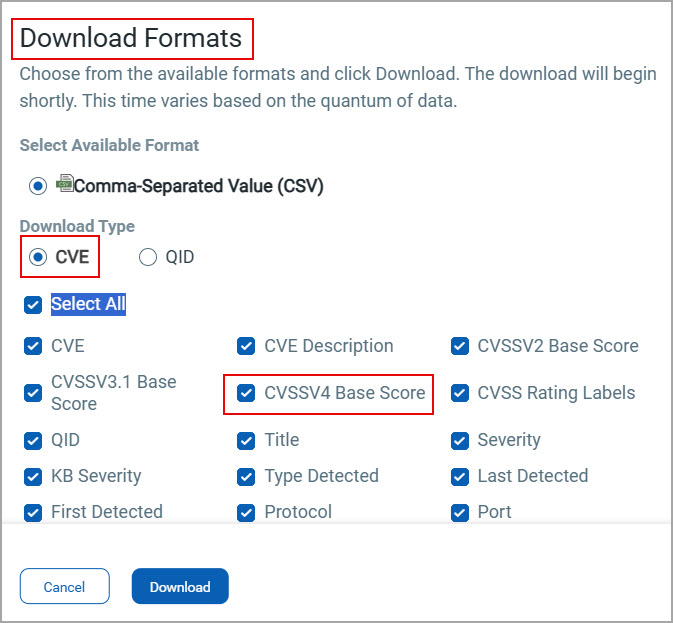 . The downloaded CVE report includes the CVSS V4 Base Score column.
Rule‑based Asset Isolation Using TruRisk Eliminate
We have added the Isolate Asset with TruRisk Eliminate option to isolate risky assets while creating a new action. Using this option, you can now detect, notify, and automatically isolate assets using a rule-based workflow powered by Custom Assessment and Remediation (CAR), VMDR Rule Manager, and Endpoint Detection and Response (EDR) integration. To select this option, Responses > New Action > Select Action as External Actions > Select Connector Type as Isolate Asset with TruRisk Eliminate. This feature is implemented as a part of Patch Management (PM) release 3.14.
The following image is an example to select the Isolate Asset with TruRisk Eliminate connector type.
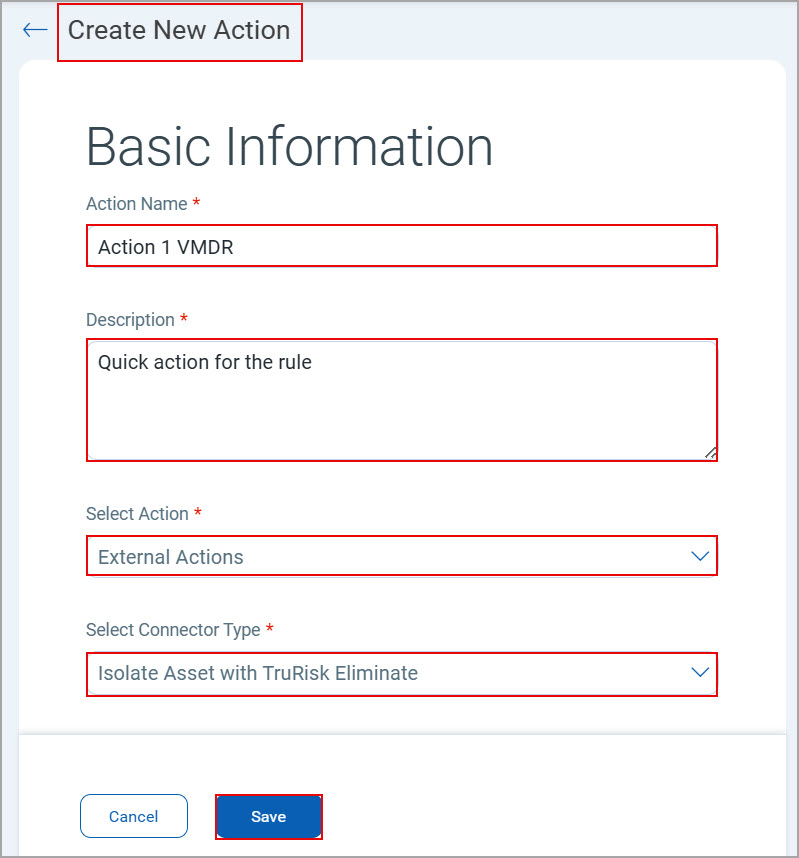
Selecting this option helps in:
- Automated Asset Isolation: You can configure VMDR Rule Manager to apply a 24-hour delayed rule when the Isolate Asset with TruRisk Eliminate connector type is selected. After the delay, VMDR Rule Manager automatically isolates affected assets if the QID status remains Active, Open, or Reopened.
- Automated Email Notification: You can configure VMDR Rule Manager to send automated email notifications when the relevant QID triggers.
- Automated Detection: You can detect targeted conditions using CAR by running custom scripts that generate a custom QID.
You can view the Isolate Asset with TruRisk Eliminate option in the Create New Action dialog box only if you select the Isolate Asset with TruRisk Eliminate connector type. If the option is unavailable, contact your Technical Account Manager.
For more information, refer to Create a New Action from Actions.
New Tokens
The following new tokens are added to the Vulnerability and Prioritization tabs:
| Rule Query | Tokens |
| Vulnerability |
For more information, refer to Search Tokens for VMDR. |
| Finding |
For more information, refer to Search Tokens for VMDR. |
Issues Addressed
The following reported and notable customer issues are fixed in this release:
| Category/Component | Issue |
| Vulnerabilities Page |
We fixed an issue where the Name column on the Asset tab did not display any names after switching from the Vulnerability tab in the VMDR module > Vulnerabilities > Vulnerability > Asset. Only after refreshing the page, the Name column displayed the assets' names correctly. You can now view assets' names correctly in the Name column when you switch between the Vulnerability and Asset tabs. |
| Vulnerabilities Page |
We fixed an issue where the Detected First and Detected Last columns did not display any data in the downloaded report when the Group by: Vulnerability option was selected. The issue occurred during the report download from the VMDR module > Vulnerabilities > Group by: Vulnerability > Download ( Now, when you select the Group by: Vulnerability option and download the detailed report, the Detected First and Detected Last columns display the data correctly. |
| Vulnerabilities Page |
We fixed an issue where the table on the Asset tab did not display any data after switching between the Vulnerability and Asset tabs. For example, when you access the VMDR module > Vulnerabilities > Vulnerability > Asset, the data does not appear in the table on the Asset tab. Now, when you switch between the Vulnerability and Asset tabs, the data loads completely, and the table on the Asset tab displays data correctly. |
 ) >
) >