Enterprise TruRisk™ Platform Release 10.38.3
May 11, 2026
Qualys Vulnerability Management (VM)
Support for Google Cloud Platform Instance-Based Scans for IPv4
Cloud Internal Scan support is now available for Google Cloud Platform (GCP). This enhancement allows you to perform authenticated scans on private IP addresses of GCP cloud instances and provides deeper visibility into internal assets, along with improved overall security coverage. The scan is automatically initiated once the GCP connector is configured.
Previously, GCP supported only perimeter scans, while AWS EC2 and Azure supported both internal and perimeter scans.
With this update, GCP now supports instance‑based internal scans and remains consistent with other major cloud providers. You can configure GCP Cloud Internal Scans by navigating to Scans > New > Cloud Internal Scan > Cloud Information > GCP. You can create or update GCP Cloud Internal Scans.
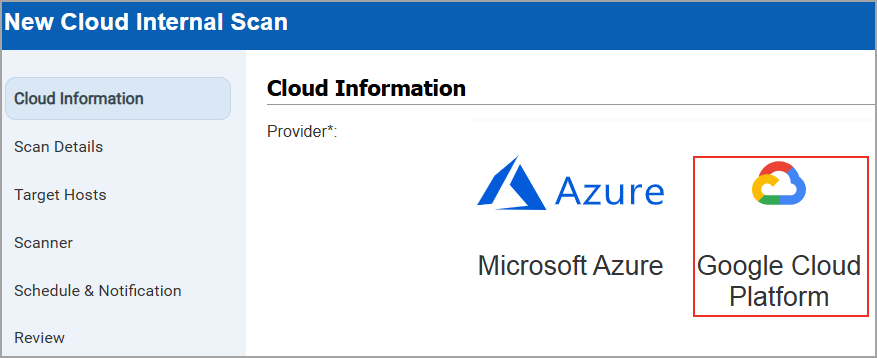
You can apply a filter to view GCP scans on the scan list page, along with AWS EC2 and Azure(Scans > Filters > Cloud Internal Scan).
- GCP internal scan is supported only for VMSP subscription. To disable the GCP internal scan for your subscription, contact your TAM or Qualys Support.
- GCP Internal Scan does not support private DNS names or GCP metadata.
- Scanners must have network reachability to all VPCs and subnets included in the scan to achieve a successful, reliable scan across all targeted networks.
- A GCP connector is required to launch Instance-Based Scans.
- Only Manager, Unit Manager, or Scanner role have permission to launch the GCP internal scans.
Qualys API Support for Google Cloud Platform
For this enhancement, we have updated the Cloud Internal Scan API: /api/3.0/fo/scan/cloud/internal/job/. For more information, refer to Enterprise TruRisk Platform Release 10.38.3 API.
Enhancement in VMware Authentication
With this release, we have provided the following enhancements in VMware Authentication to create a VMware authentication record.
VMware Renamed to Hypervisors and Virtualization
Previously, VMware displayed only VMware related databases. With the addition of support for Oracle databases, the scope has expanded beyond VMware. To better reflect this support, the option has been renamed to Hypervisors and Virtualization.
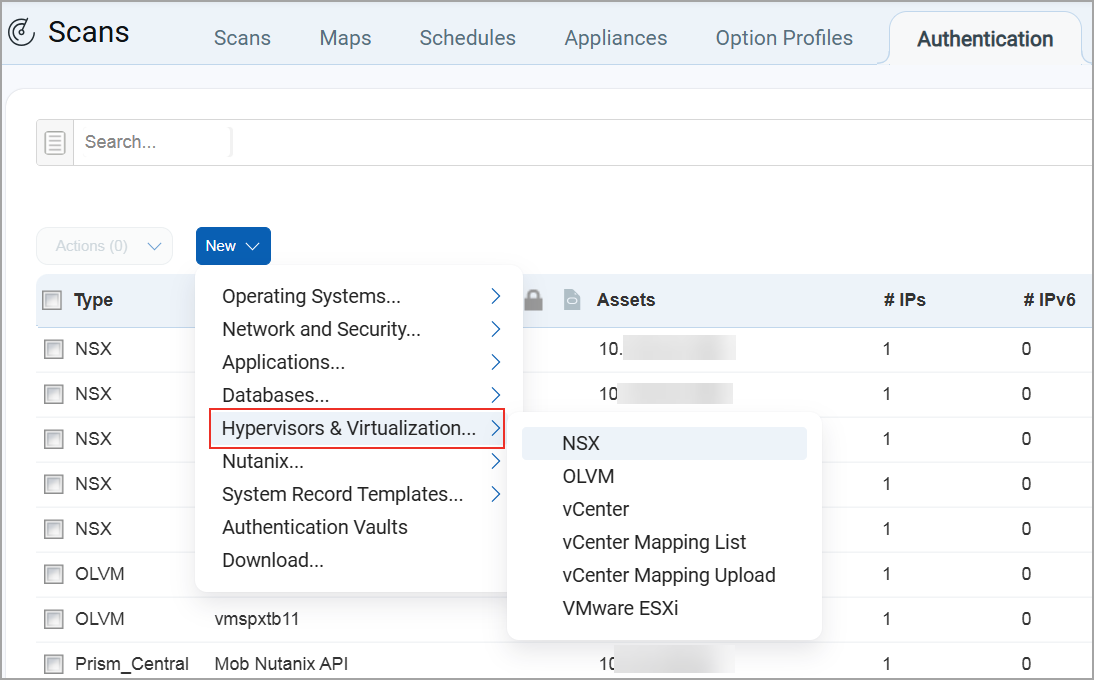
To create a new database under Hypervisors and Virtualization, navigate to Scans > Authentication > New > select Hypervisors and Virtualization.
You can then select a database to create the authentication record.
Added Active Directory Support to VMware NSX Authentication
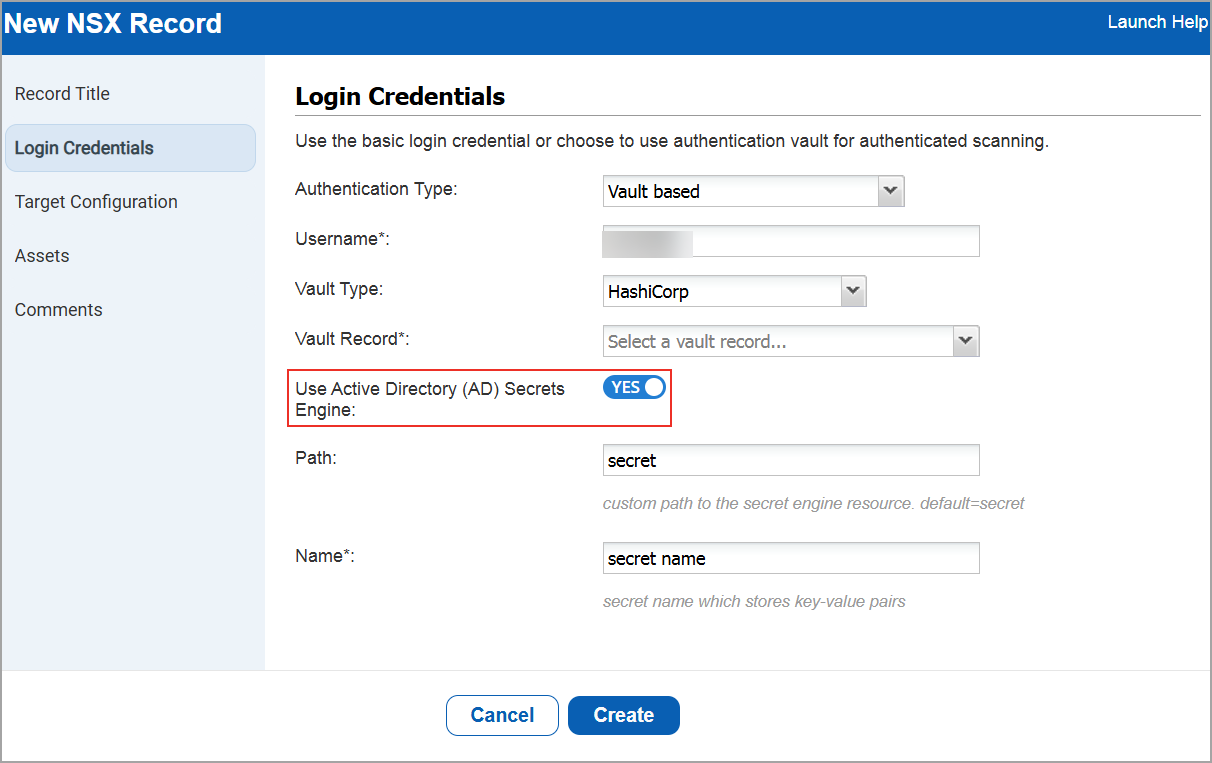
You can now use Active Directory (AD) support with HashiCorp Vault when you create or edit a VMware NSX authentication record. This enables you to securely retrieve AD credentials from Vault. With this enhancement, you can:
- Connect directly to the target asset using AD credentials.
- Fetch credentials dynamically from the specified Vault path.
You can find this option when you navigate to:
- Scans > Authentication > New > Hypervisors & Virtualization > NSX.
The new NSX Record window is displayed. - Go to Login Credentials > Select the Authentication Type as Vault based > Vault Type as Hashicorp.
Qualys API Support for VMware NSX
For this enhancement, we have updated the Authentication API: /api/3.0/fo/auth/nsx. For more information, refer to Enterprise TruRisk Platform Release 10.38.3 API.
Link SAML Enabled PCI Merchants to VMDR Using Secure Tokens or Credentials
Previously, linking a PCI merchant to VMDR required a username and password. If your PCI account used SAML based single sign on, you could not complete the linking process because SAML authentication does not rely on passwords. This prevented you from linking your PCI account to VMDR and accessing related cross platform workflows.
You can now link SAML enabled PCI merchants to VMDR using a secure, time bound token, eliminating the need for basic authentication during linking.
This update removes a key limitation if you rely on SAML for PCI authentication. You can now link your PCI and VMDR accounts without changing your authentication setup, allowing you to continue scan sharing and related workflows seamlessly.
What You Can Do Now
- If your PCI account uses SAML, you can generate a linking token from your PCI user profile and use it to link your PCI merchant account in VMDR.
- On the Scans > Setup > PCI Accounts Links > Add Existing PCI Account > Link to Existing PCI Service page, you can add your existing account using:
- Username and password (for non SAML accounts), or
- Username and token (for SAML enabled accounts).
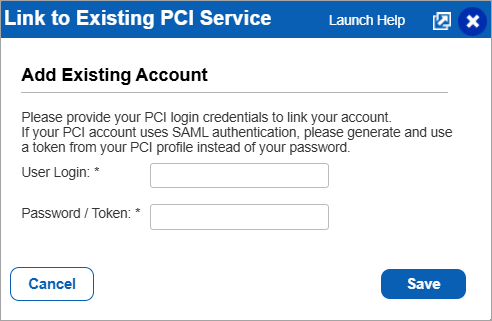
- You can access additional guidance through the Launch Help link on the linking page.
- The input field label now clearly indicates that you can enter a password or token.
Account Linking Behavior
- Token based linking is used only when your PCI account is SAML enabled.
- Tokens are single use, expire after a short time, and are intended only for account linking.
- If your PCI account does not use SAML, you can continue linking using your username and password without any change.
- Once your account is linked, the link remains valid even if SAML is later disabled on the PCI side.
Security Configuration Enhancements
We have enhanced user account security by extending the password length limits and introducing absolute session timeout controls.
Extended the Range of Minimum Length of Password
We have now extended the minimum length of the password range to 8 - 32 characters, which was earlier 8 - 16 characters. You can now set a password within the range of 8 to 32 characters. This enables stronger password policies, improving the overall system security and compliance. This option is available under Users > Setup > Security > Password Security.
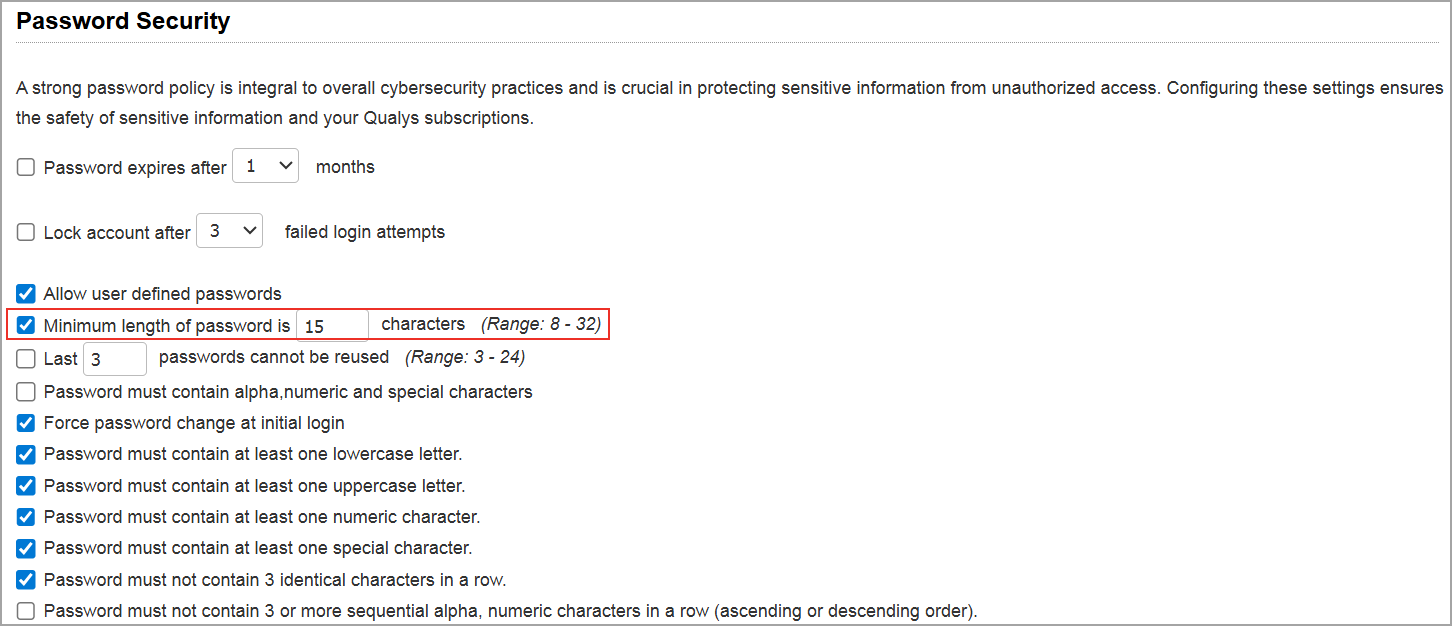
The Minimum Length of password checkbox is not selected by default. You have to select this checkbox to enable the extended password length range.
Absolute Session Timeout Support
We have provided support to absolute session timeout, which enforces a maximum session duration regardless of user activity. This helps to strengthen the security controls by preventing indefinite session access, even when you remain continuously active. You can enable the absolute session timeout setting to configure a maximum session duration between 60 and 720 minutes.
When enabled, all user sessions automatically expire once the configured duration is reached, even if the user remains active. The system either terminates the session or forces re‑authentication, providing a user experience consistent with existing inactivity‑based session timeouts. You can enable this option by navigating to Users > Setup > Security > Absolute Session Timeout.
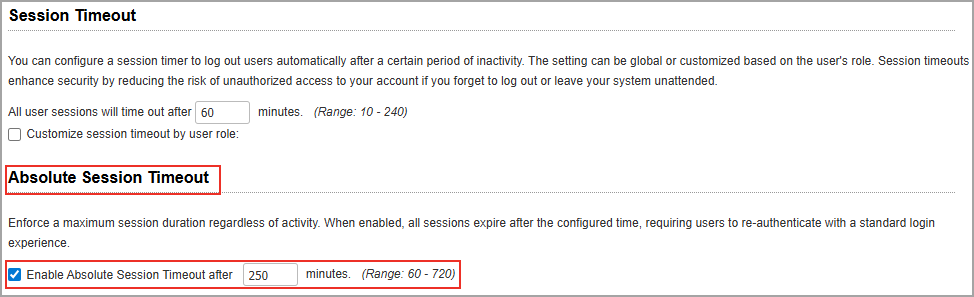
This setting is disabled by default for all subscriptions and requires explicit enablement. When enabled, the configured session timeout applies to all users across all modules within the subscription.
Tag Rule and Asset Tag Support for Authentication Technologies
We have added support for adding IP Range in Tag Rule and Asset Tags for the following authentication technologies.
- Network and Security
- Network SSH
- SNMP
- Cisco
- Palo Alto Networks Firewall
- Applications
- Tomcat Server
- HTTP
- Oracle WebLogic Server
- JBoss Server
- Databases
- MySQL
- Sybase
- Oracle
- Oracle Listener
- MongoDB
- IBM DB2
- Hypervisors and Virtualization
- vCenter
- NSX
- VMware ESXi
Previously, this support was limited to the operating system authentication technologies, Unix and Windows.
To create a new authentication record with tag based support, navigate to:
Scans > Authentication > New > Select the type of authentication record > Assets.
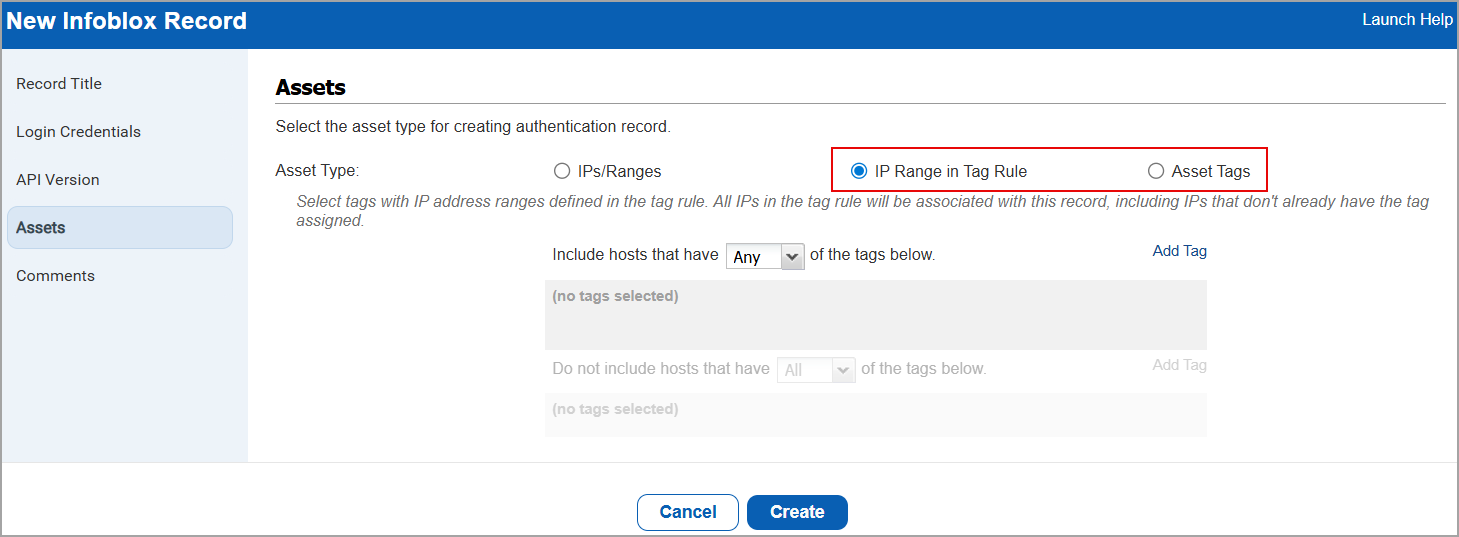
To enable this feature for your subscription, contact your Technical Account Manager (TAM) or Qualys Support.
Issues Addressed
The following reported and notable customer issues are fixed in this release:
| Component/Category | Description |
| VM - ML | When users performed VM scans using SNMPv3 authentication on certain network devices, scans failed even though the same credentials worked with external SNMP verification tools. The issue has been fixed so that supported encryption options are handled consistently during authentication. As a result, SNMPv3 scans now work as expected when valid credentials and encryption settings are used. |
| VM - Knowledge Base | When users selected a QID, the preview page displayed the KnowledgeBase section data shifted one row above the expected fields. As a result, subsequent fields appeared in incorrect rows, causing misalignment in the displayed information. This issue has been resolved, and all KnowledgeBase fields are now displayed in their correct rows. |
| VM - Knowledge Base | When users accessed the KnowledgeBase API, they experienced intermittent delays or received corrupted XML responses, which impacted integrations and data processing workflows. This issue has been resolved to ensure the API consistently returns valid, well‑formed responses and operates reliably across requests. As a result, customers can now retrieve KnowledgeBase data without interruptions or data integrity issues. |
| VM - Auth API | When users attempted to create multiple Windows domain authentication records using the API with the same domain but different networks, the request failed with an 'already exists' error, even though this configuration is valid and worked when performed through the UI. This issue has been resolved so that domain authentication records can now be created and updated correctly across different networks using the API, while existing validation behavior remains unchanged for same‑network or non‑network‑supported scenarios. |
| VM - Authentication Records | When users configure VMware ESXi authentication records to use vCenter authentication, the ESXi records incorrectly appear under the Unused tab (Scans > Authentication > Unused). This occurred even when the associated IPs were successfully authenticated through the parent vCenter record, and the Auth ESXi Vcenter status indicated successful authentication. This issue has been resolved, and the VMware ESXi authentication records now appear correctly in the All tab. |
| VM - Assets | When users added or edited entries in the Excluded host section, commas were unexpectedly inserted into the Comments section, even though the user did not enter them. This issue has been resolved so that no additional characters are added when comments are added for the addition or removal of IPs from the Excluded host section. |
| VM - Assets | When users edited an existing domain or created a new domain with a large number of associated IP addresses, the UI became unresponsive and did not display all domain details on the UI like approved hosts section. This issue was caused by a UI display limitation that prevented all content from being visible when managing large IP sets. The UI has been updated so that all associated IPs and the Approved Hosts controls are now fully visible and accessible, allowing users to correctly review, add, or remove IPs as expected. |
| VM - Assets | When users reviewed the User Activity Log under VMDR, the log incorrectly showed that a user had invoked a CSAM‑related API, even though the user had not made any API calls and was only authorized for GUI access. This issue occurred because certain internal system‑initiated requests were being logged as user actions. The behavior has been corrected so that internally triggered infrastructure calls are no longer recorded as user‑initiated activity, ensuring the User Activity Log accurately reflects genuine user actions only. |
| VM - Assets | When users viewed excluded host details (Scans > Setup > Excluded Hosts), a discrepancy was observed between the total count of excluded hosts displayed on the Excluded Hosts page and the count in the downloaded CSV file (View > Existing Excluded Hosts > Download). |
| VM - Assets | When users attempted to edit the Business/CVSS information for an Asset Group (select an asset group > Quick Actions menu > Info > Edit), the Business Impact field dropdown was not functional. This occurred because the View link next to the Business Impact field overlapped the dropdown, preventing selection. This issue has been resolved, and the View link no longer overlaps the dropdown, allowing the Business Impact field to be updated successfully. |
| VM - Host Based Report | When users generated VM reports using asset groups that contained only DNS‑tracked assets, the report returned no data even though the scans completed successfully and Information Gathered (IG) data was available. This issue has been resolved so that reports now correctly include DNS‑tracked assets with IG‑only data when reporting by DNS name, provided the report template is configured accordingly. As a result, reporting by DNS asset groups now returns the expected data across supported report formats. |
| VM - Scan API | When users retrieved scan results using the /api/2.0/fo/scan/?action=fetch endpoint, the response included two additional columns, Result Errors and Result Debug, that were not documented, leading to confusion. This behavior occurs only for subscriptions where the QRDI feature is enabled. The documentation has now been updated to include these additional columns in both the brief and extended scan result outputs when QRDI is enabled, ensuring the API output aligns with customer expectations. |
| VM - User Management | When users attempted to add or edit the Email Address field by creating or editing a user record, users were unable to use valid email addresses containing an apostrophe (') in the email address (for example: Sean.O'[email protected]). This issue has been resolved, and users can now successfully update email addresses that include apostrophes in the email address. |
| VM - Host List Detection API | When users launched Host List Detection API by excluding the host_metadata input parameter and status set to fixed, the API returned malformed CSV output with misaligned columns. The issue has now been resolved, and the CSV output is generated with correctly aligned columns.
Impacted API: /api/2.0/fo/asset/host/vm/detection/ |
| Integrations - Splunk | When users launched the Host List Detection API endpoint with the vuln_detection_source input parameter set to 1, an error occurred while processing the API response. When the application continuously retried the same API calls, repeatedly encountered the same error, and received no new data. This issue has been resolved, and the API output is now processed successfully, allowing data to be received as expected.
Impacted API: /api/4.0/fo/asset/host/vm/detection/ |