Enterprise TruRisk™ Platform Release 10.39
June 8, 2026
Qualys Vulnerability Management (VM)
Support for CVSSv4.0 Base Score in KnowledgeBase and Report Template
We have provided support to Common Vulnerability Scoring System version 4 (CVSS4.0 Base Score) in the following sections to have a more accurate and realistic way to measure the severity of vulnerabilities. This enhances the transparency and confidence in vulnerability assessments.
- KnowledgeBase and KnowledgeBase Search List
- Report and Report Template
Prerequisite: CVSSv4.0 is available in the scan report template only if you have a Vulnerability Management Reporting Service (VMRS) enabled subscription.
If you are unable to view CVSS v4 information in the reports (CSV and XML file formats), contact your TAM or Qualys Support to enable VMRS service for your subscription.
KnowledgeBase and KnowledgeBase Search List Section
- In the KnowledgeBase listing page, you can view the CVSS4.0 Base-Score column, where the score represents 0 to 10 (VM > KnowledgeBase).
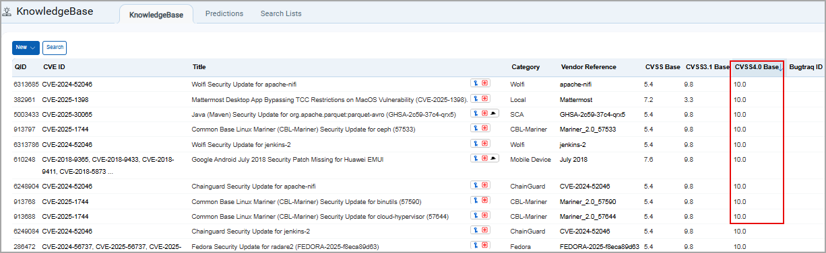
- Under the Details and General Information tab (KnowledgeBase > Select any QID or CVE ID > Quick Actions menu > Info/Edit), the CVSS4.0 Base Score is displayed with its associated vector string.
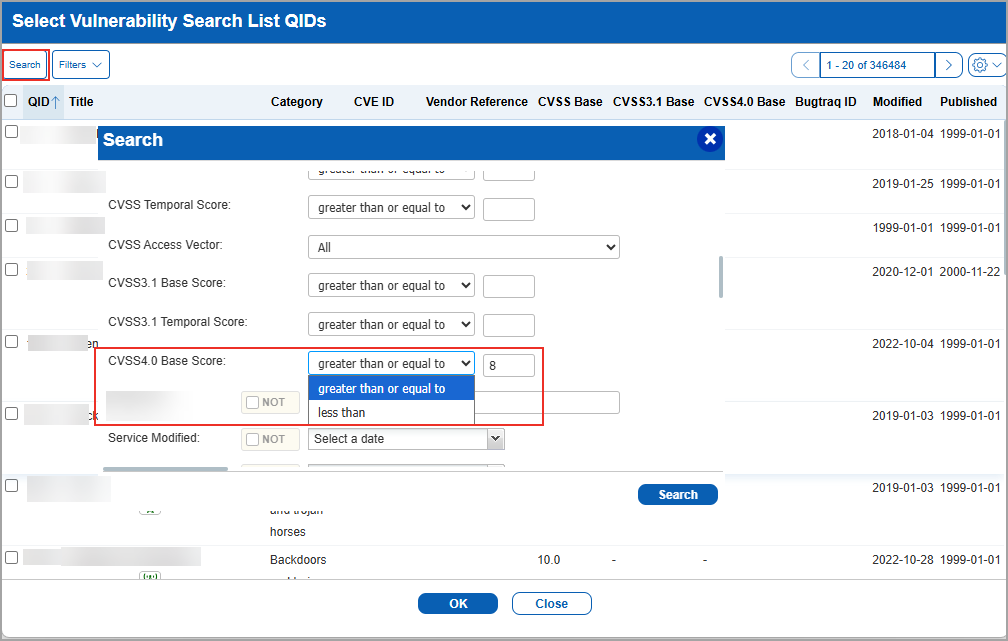
- You can perform a search for QIDs (KnowledgeBase > Search) with CVSS4.0 Base Score greater than or equal to or less than (in the range of 0 to 10).
- When you perform a static search list (KnowledgeBase > Search Lists > New > Static List), you can filter the QIDs by CVSSv4.0 by selecting the QIDs by navigating to QIDs > Select. Once you click Select, a window is displayed to search the vulnerability. On this window, you can search for the list of QIDs with CVSS4.0 Base Score greater than or equal to or less than (in the range of 1 to 10). A list of QIDS is displayed with their CVSS 4.0 Base scores.
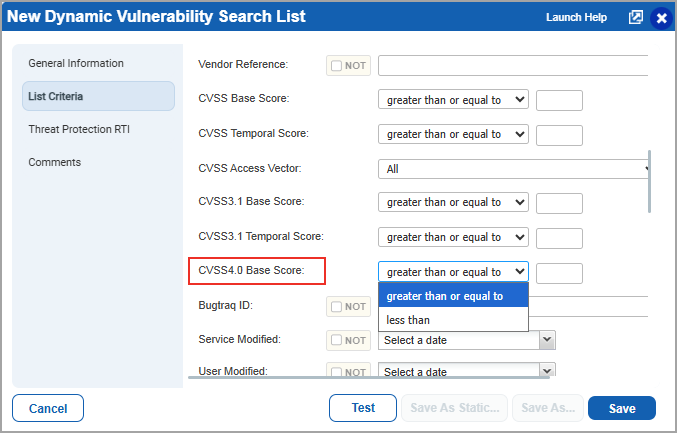
- When you perform a dynamic search (KnowledgeBase > Search Lists > New > Dynamic List), you can search for CVE IDs with the CVSS4.0 Base score greater than or equal to or less than criteria by navigating to List Criteria > CVSS4.0 Base Score.
- You can edit or view the information of static or dynamic search from the Search Lists listing page (KnowledgeBase > Search Lists > Select any one of the titles > select Edit/Info from Quick Actions menu). When you click on Info, a new window of Vulnerability Search List Information is displayed. You can view all the QIDs under the QIDs section. When you click the View Vulnerability Information icon, you can view the CVSS4.0 Base score and its associated vector string under Details.
- When you download the QID list from the listing page (KnowledgeBase > KnowledgeBase > New > Download), you can view the CVSS4.0 Base Score column in the CSV file format. It also supports XML file format.
Report and Report template
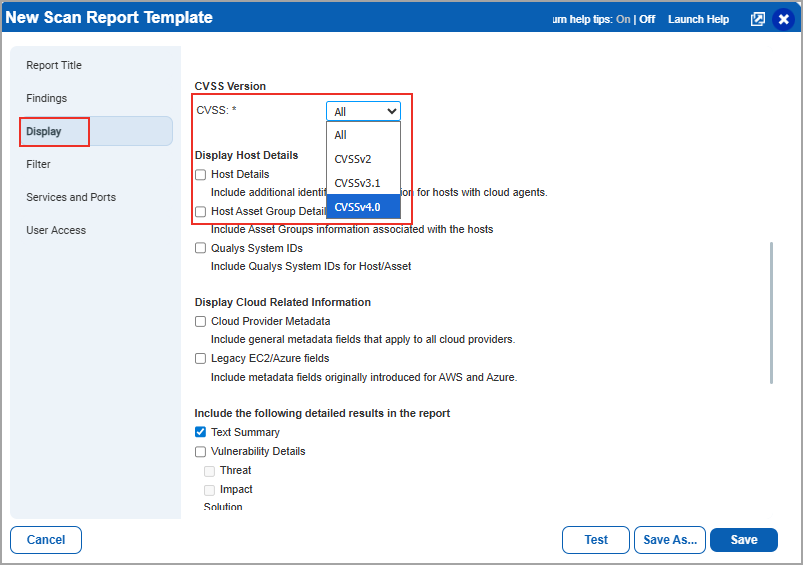
- When you create/edit a template by navigating to Reports > Templates > New > Scan Templates > QID Based Template, a new Scan Report Template window is displayed. You can select CVSSv4.0 by navigating to Display > Detailed Results > CVSS Version > Select CVSSv4.0 from the list.
- When you generate a report by navigating to Reports > New > Scan Report > Template Based and enter the report details to create a new report on scan data, you can view the CVSS4.0 base score in both CSV and XML file formats, along with other existing scores.
- In the CSV report file format, you can view a new column of CVSS 4 Base Score.
- In XML, a new tag of <CVSS 4_SCORE> <CVSS4_BASE>-</CVSS4_BASE></CVSS4_SCORE>.
Qualys API Support for CVSS4 Base Score
For this enhancement, we have updated the following APIs:
- KnowledgeBase: /api/4.0/fo/knowledge_base/vuln/
- Dynamic Search Lists: /api/3.0/fo/qid/search_list/dynamic/
- Scan template: /api/7.0/fo/report/template/scan/
For more information, refer to Enterprise TruRisk Platform Release 10.39 API.
Added Option to Manage Scanner Capacity Column Visibility
We have introduced a new setup option to manage the visibility of the Avg. Available Scan Capacity (%) column on the Scanner Appliances listing page.
Previously, this column was displayed for all users by default, which caused longer page load times due to the heavy data processing required to calculate the average available capacity.
With this update, the column is hidden by default to ensure optimal page performance. The user with a Manager role can enable the display of the Scanner Capacity Percentage column on the listing page by navigating to Scans > Setup > Scanner Capacity Percentage, select the checkbox, and click Save.
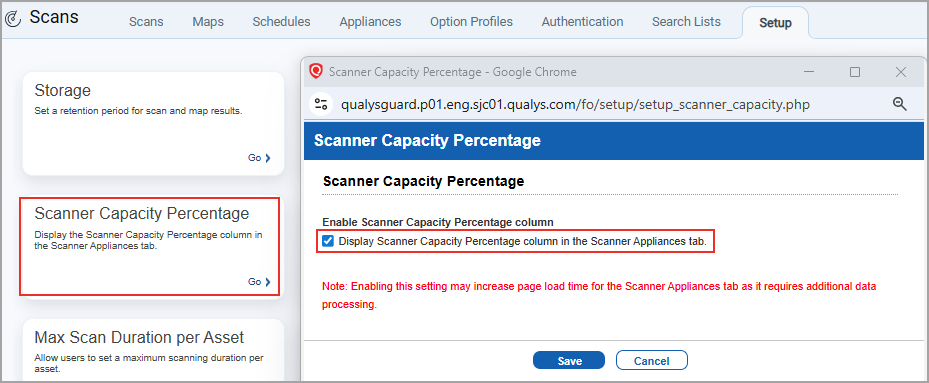
This checkbox is disabled by default. Only Managers and Primary Contact (POC) can enable the scanner capacity percentage column. Once enabled, Avg. Available Scan Capacity (%) column becomes visible to all users within the subscription.
Use BeyondTrust Vault for Network SSH Authentication
The BeyondTrust Password Safe Vault is now available in the UI to create or update Network SSH authentication records.
You can now integrate Network SSH authentication with your BeyondTrust vault, eliminating manual password updates and aligning authentication workflows with your credential rotation policies. This improves reliability and reduces scan failures.
Previously, the BeyondTrust vault was not available for Network SSH authentication (for example, Cisco devices). This required you to manually enter and update passwords, which could lead to authentication failures when credentials were rotated in the vault.
The BeyondTrust option is now available in the Vault Type drop-down for Network SSH authentication records.
Authentication → New → Network and Security... → Network SSH → Login Credentials → Authentication Vault → Vault Type:
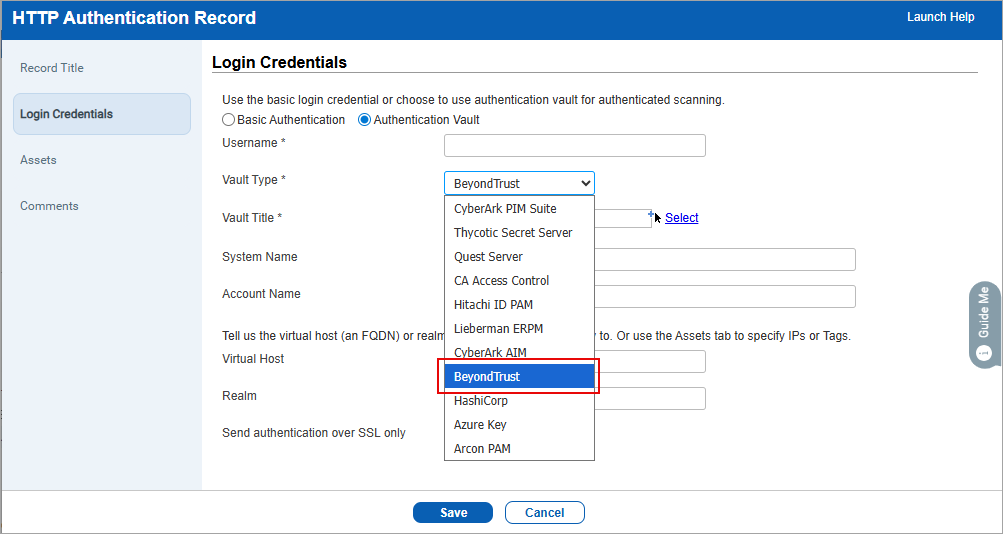
You can select BeyondTrust to retrieve credentials dynamically instead of entering them manually. Existing vault options remain available and unchanged.
Support for One Identity Safeguard Vault
With this release, we now support integration with One Identity Safeguard vault for authenticated scanning.
Previously, users were required to manage their username and password credentials directly within the application for authenticated scans. Users with One Identity Safeguard were unable to leverage their existing vault infrastructure to securely manage scanning credentials.
With this enhancement, you can now perform authenticated scans using credentials securely stored in the One Identity Safeguard Vault, improving security posture and simplifying credential management.
To create a new One Identity Safeguard vault, navigate to the following:
- Scans > Authentication > New > Authentication Vaults.
The Authentication Vaults window is displayed. - Select New > One Identify Safeguard.
The New Identity Safeguard Vault window is displayed. - Enter the Vault Title, Vault Credentials, and Comments (if any) and select Save.
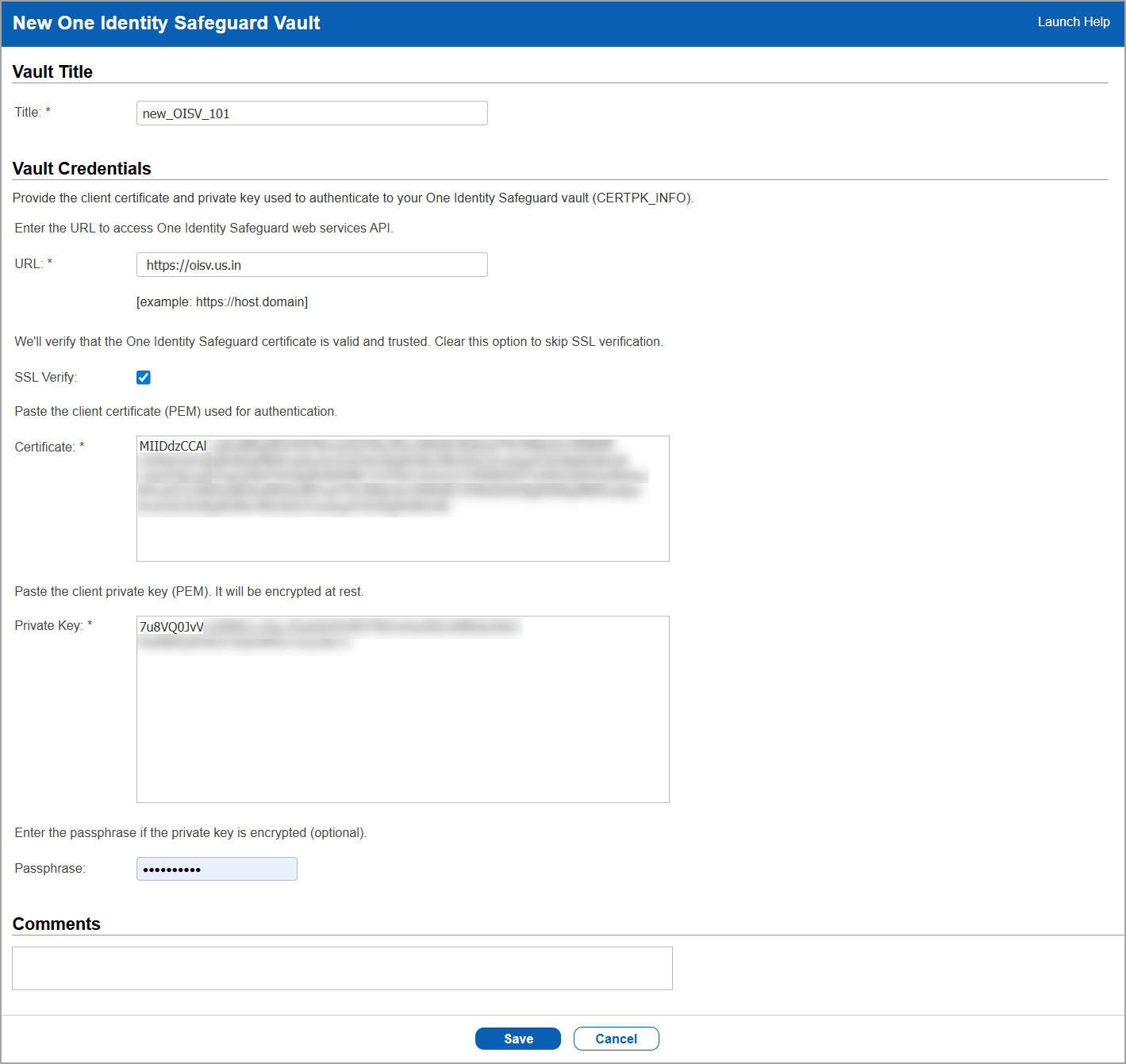
The new vault is created.
Once you create the new One Identity Safeguard vault, you can assign it to an authentication technology. To do so, navigate to the following:
- Scans > Authentication > New.
- Select the type of authentication technology. For example, select Unix > Login Credentials.
- Enable Get password from vault.
The vault fields are displayed. - In Vault Type, select One Identity Safeguard.
- In Vault Record, select the newly created One Identity Safeguard vault.
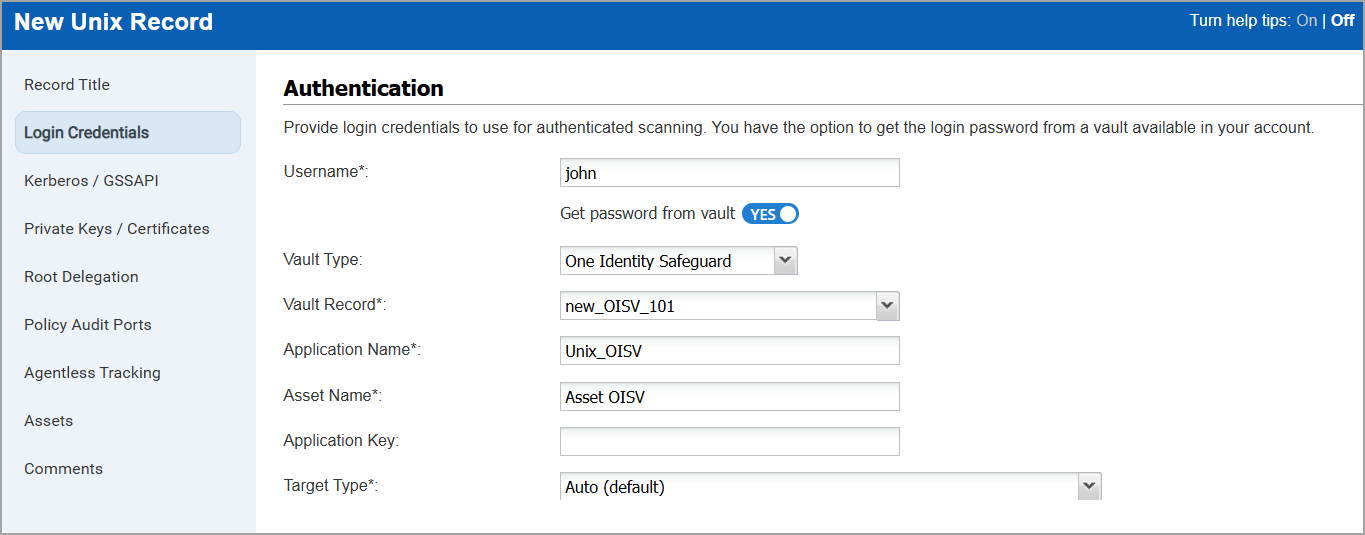
- Enter the Application Name, Asset Name, and select the Target Type. Select Save.
The vault changes are added to the authentication technology.
Issues Addressed
The following reported and notable customer issues are fixed in this release:
| Component/Category | Description |
| VM - Scan UI | When a “Scanner Unavailable” email notification was generated, it provided only a basic message indicating that the appliance was offline or did not pick up the scan. It did not include diagnostic details such as appliance status, last successful contact time, or available capacity at dispatch, limiting visibility. This issue is now resolved. The notification includes all the diagnostic information, enabling users to self-diagnose issues more effectively. |
| VM - Reports General | When users received a Host-Based report in CSV format, the report was truncated when delivered through a Mimecast email appliance. Reports that must have contained more than 900 lines were reduced to only 117 lines. This occurred because attachments were sent with an incorrect MIME type (application/octet-stream) instead of text/csv. The issue is now resolved, and scheduled Host-Based report emails include the correct Content-Type: text/csv header, ensuring complete report content is preserved. |
| VM - Scan UI | When users launched a scan with the Option Profile set to Select at Runtime for Vulnerability Detection, and the Scanner Appliance set to All Scanners in TagSet, the scan launch encountered an error. This issue is now resolved, and scans launch successfully with this configuration. |
| VM - Assets | When users with the Reader role searched for applications by entering only the application name (Assets > Applications), no results were returned. This issue is now resolved, and users can search applications using only the application name. |
| VM - Assets (Scanner) | When users opened the Authentication record details page, it experienced significant delays or failed to load for records containing a large number of IPs, impacting usability. The behavior has been improved to handle large datasets more efficiently, resulting in faster and more reliable loading of authentication record details across all supported configurations. |
| VM - Report Schedule | When users reviewed scheduled VM reports, the Run History indicated that a job had executed, but the report was not visible in the UI and no notification was delivered, leading to confusion about the job status. This issue occurred when report validation failed at runtime and was not reflected in the Run History. The behavior has been improved so that validation failures are now properly recorded, ensuring that Run History accurately reflects the outcome of scheduled report executions and helps users understand the status of their jobs more clearly. |
| VM | When the Manager edited user roles on SCA‑only subscriptions with expired PC entitlements, the update failed due to unsupported compliance notification parameters being submitted. This issue has been resolved so that only supported options are processed, allowing user updates to be saved successfully. |
| VM | When users invoked the Host List Detection (HLD) API with parameters such as show_igs and show_results, the API response took significantly longer to return for large datasets, impacting performance. This issue has been resolved by improving how data is retrieved and processed, ensuring the HLD API now delivers results more efficiently and reliably across all supported versions. |