Configuring Qualys Cloud Agent Enrollment details with Airwatch
Adding Qualys Cloud Agent
To configure, user must first add the Qualys Cloud Agent for:
- Android (Same agent is used for Chrome) - iOS
Adding Qualys Cloud Agent for Android (or Chrome) app with Google Play Integration The following instruction apply if you set up Google Play Integration with your AirWatch account. If you don't have this integration, you can Visit the AirWatch support site for more information.
- Open AirWatch.
- Click Add > Public Application.
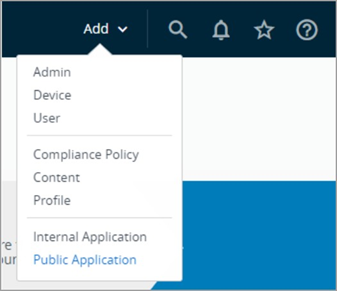
- Enter the following information:
- Platform: Select Android.
- Source: Select Search App Store.
- Name:Enter "Qualys" to search the Google Play Store for the Qualys Agent for Android app.
- Click Next.
- Click the Qualys Agent for Android app from the Google Play Store.
-
Click Approve and follow the on-screen prompts to add the app.
Adding Qualys Cloud Agent for iOS app
- Open AirWatch.
- Click Add > Public Application.
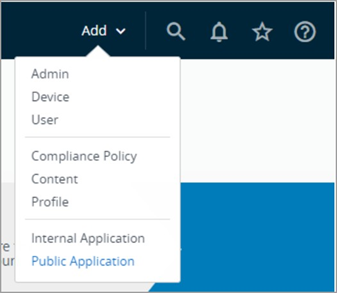
- Enter the following information:
- Platform: Select Apple iOS.
- Source: Select Search App Store.
- Name:Enter "Qualys" to search the Apple Play Store for the Qualys Agent.
- Click Next
-
Click Select in front of Qualys Agent app from the Apple Play Store and follow the onscreen prompts to add the app.
Assigning the app to a group and applying a configuration
Configuration details are mandatory. We recommend to use the configurable custom attributes of user to set the enrollment details for individual user.
- Click Add Assignment.
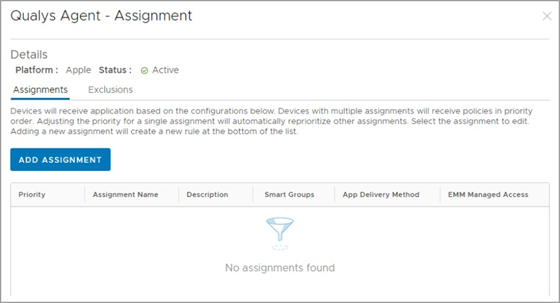
- In the Assignment Groups field, select a group to apply the configuration to.
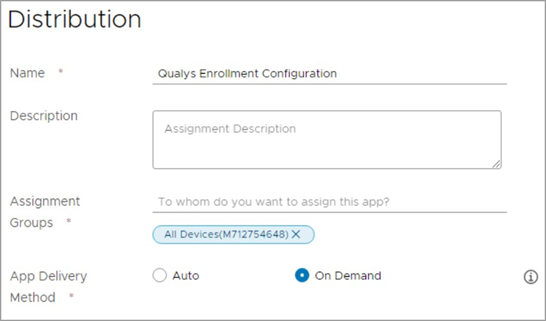
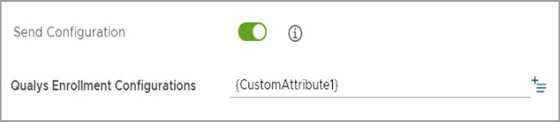
- Select Enabled to auto-configure the enrollment configurations for users. For Android (or Chrome), set configuration as follows:
For iOS, set configuration as follows:
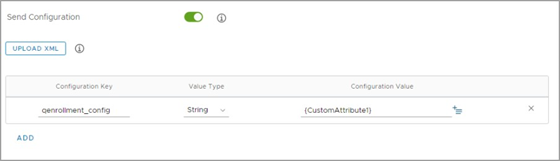
- Specify the configuration details as required.
- Click Add.
- Click Save and Publish to deploy the app.