Chrome Enrollment
Chrome Enrollment
-
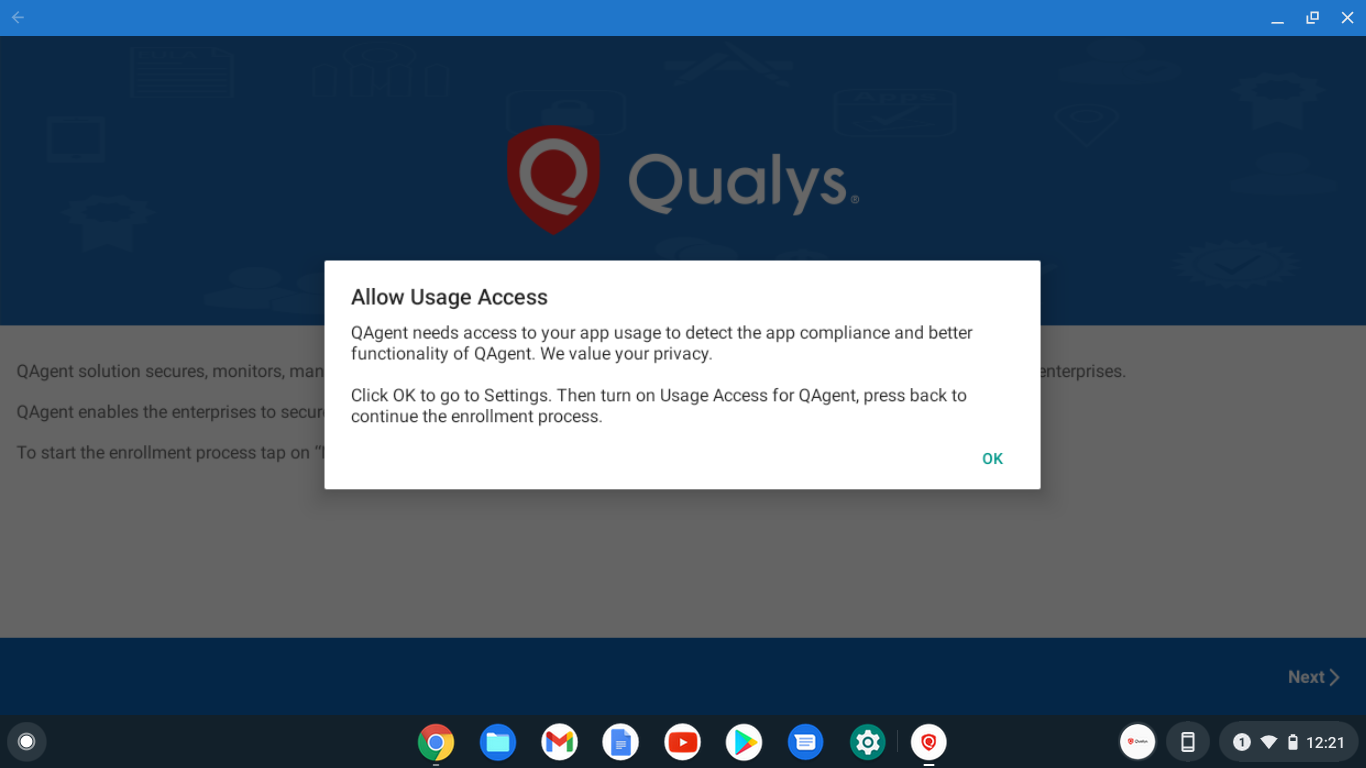
Install Qualys Cloud Agent App from Google Play Store. Tap on the URL to launch Google Play. Launch the Agent (app you just downloaded). You will be prompted with the following screen.
Tap OK allow usage access to Qualys MDM agent.
-
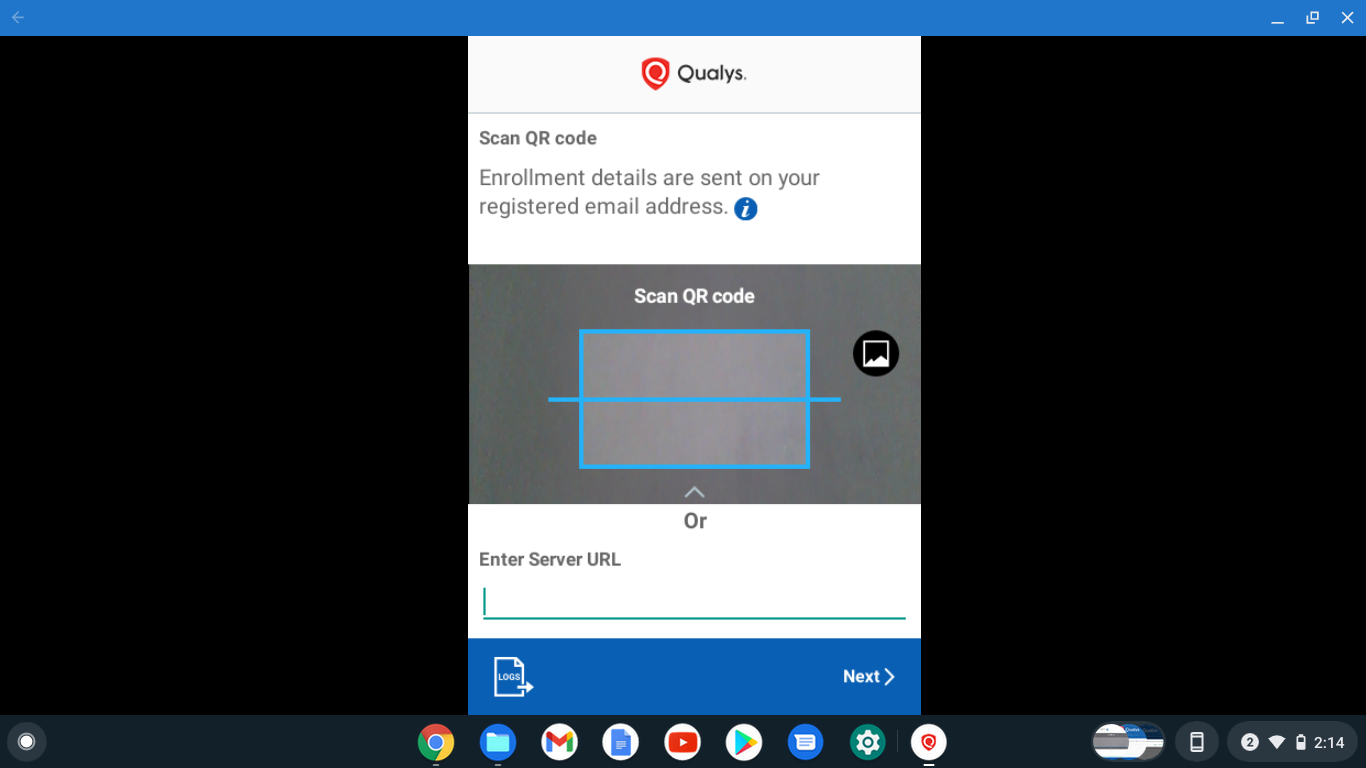
Scan the QR code or enter Server URL mentioned in the User activation email with subject “Qualys VMDR Mobile - Account Activation” and Tap Next.
If you don’t have email with subject “Qualys VMDR Mobile - Account Activation”, please contact your Qualys Account Manager.
-
If you have scanned the QR code, you will be redirected to step 4 and the following screen will be shown:
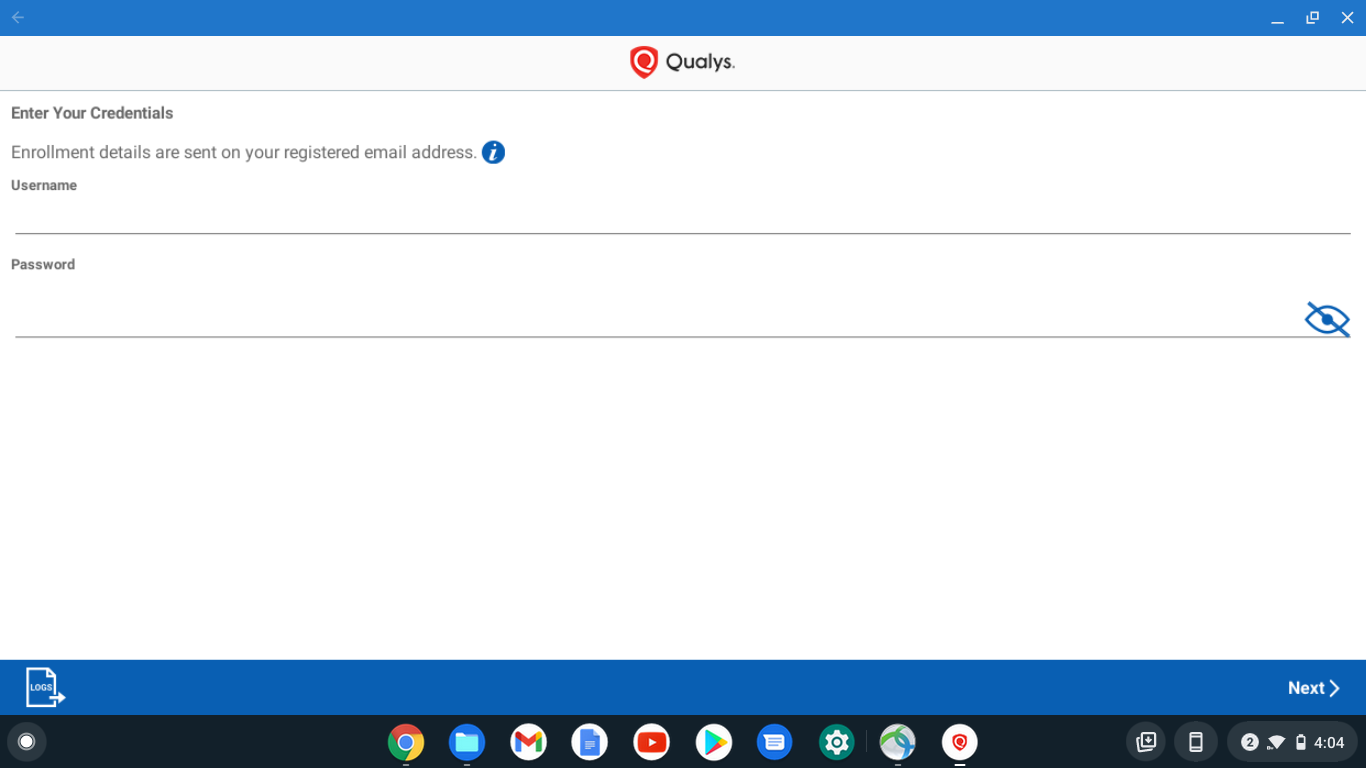
Please refer to User activation emails with subject “Qualys VMDR Mobile - Account Activation” and “Qualys VMDR Mobile - Account Details” to enter the following details:
- Username
- Password
If you don’t have the “Qualys VMDR Mobile - Account Activation” and “Qualys VMDR Mobile- Account Details” email, please contact your Qualys Account Manager.
-
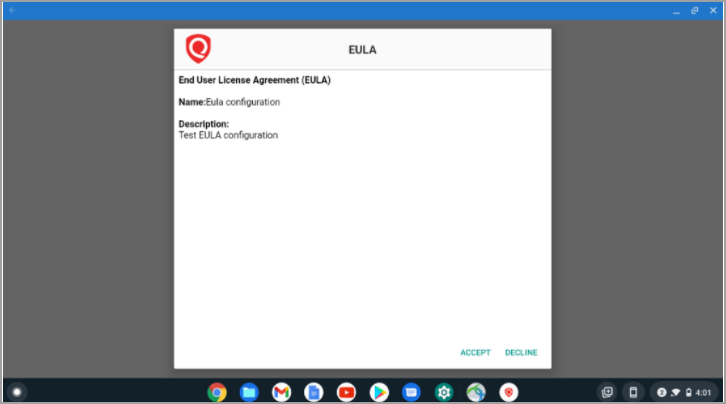
If EULA is not configured for your organization, you will be redirected to step 5. If EULA is configured and you have already accepted it, then you will be redirected to step 5, else you will be presented with a EULA. If you decline the EULA, you will not be able to enroll the device.
-
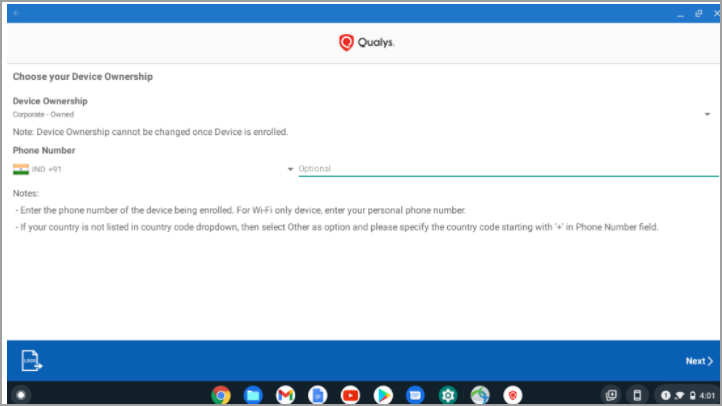
If your organization has set Default Ownership, then Device Ownership drop-down will be read-only. Otherwise, you will need to select the Device Ownership.
If the device is owned by Organization, select Corporate - Owned. If it is not owned by Organization, select Employee - Owned.
Enter your phone number in the space provided.
-
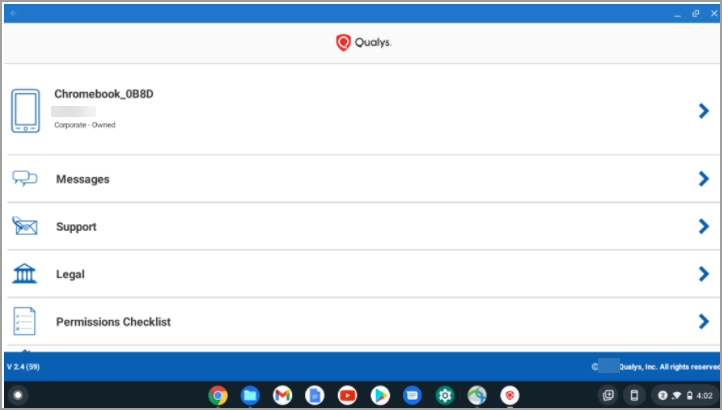
Once your device is successfully configured with your Organization server, you’ll be redirected to the following screen.