iOS/iPadOS Enrollment>
These are the steps for manual enrollment. For auto-enrollment, refer Automated Enrollment.
-
Install Qualys Cloud Agent App from iTune Store. Tap the URL to launch iOS App Store.
- Scan the QR code or enter Server URL mentioned in the User activation email with subject “Qualys VMDR Mobile - Account Activation” and Tap Next.
If you don’t have email with subject “Qualys VMDR Mobile - Account Activation”, please contact your Qualys Account Manager.
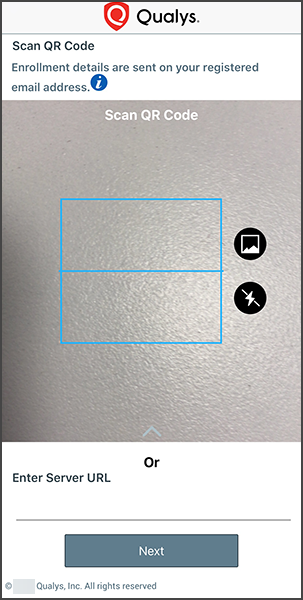
- After scanning the QR code, you will be redirected to step 4, else the following screen will be shown:
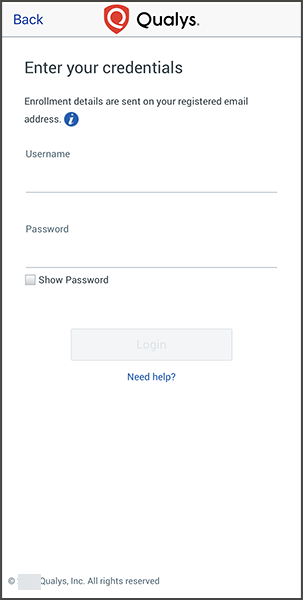
Please refer to the User activation email with subject “Qualys VMDR Mobile - Account Activation” and “Qualys VMDR Mobile - Account Details” to enter following details:
- Username
- Password
If you don’t have the "Qualys VMDR Mobile - Account Activation" and "Qualys VMDR Mobile - Account Details" email, please contact your Qualys Account Manager.
-
If EULA is not configured for your organization, then you will be redirected to Step 5.
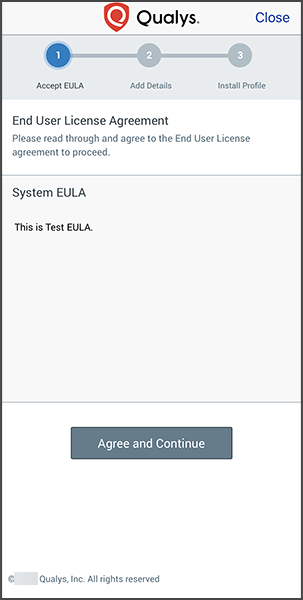
If EULA is configured and you have already accepted the EULA, you will be redirected to Step 5, else you will be presented with a EULA.
If you decline the EULA, you will not be able to enroll the device.
-
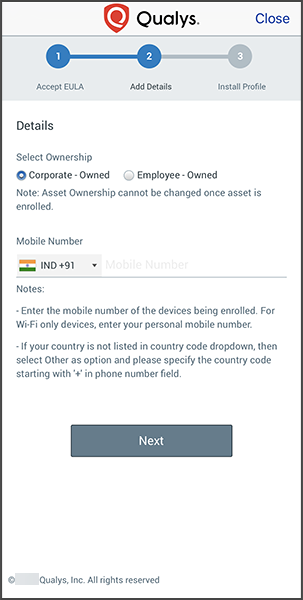
If your organization has set Default Ownership, then the respective Device Ownership radio button will be selected, and both the radio button will be read-only. Otherwise, you will need to select Device Ownership.
If the device is owned by an organization, select Corporate - Owned, and if not, select Employee - Owned.
Enter your mobile number in the space provided.
-
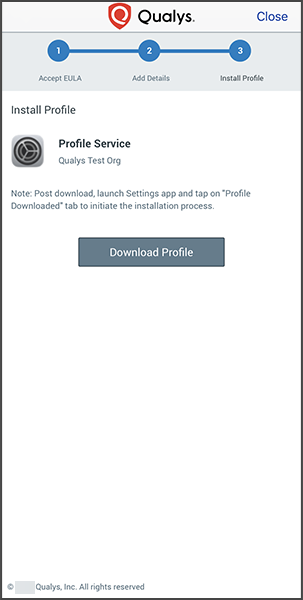
If the enrollment is set as without VMDR Mobile EMM for your Organization, then you will be redirected to Step 10. Else, tap on the Download Profile button to download the profile for installation.
-
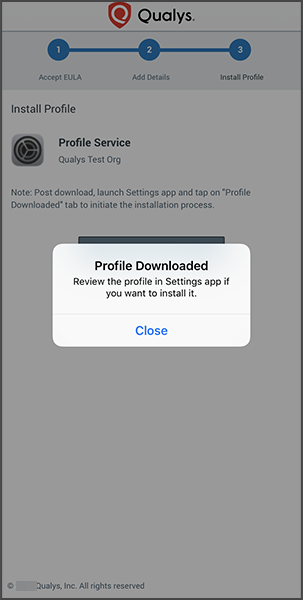
If iOS version is 12.2 or later, allow to download the configuration. Then you’ll see the following popup. Tap Close.
If iOS version is prior to 12.2, allow to open Settings app, then you’ll be redirected to Step 9.
-
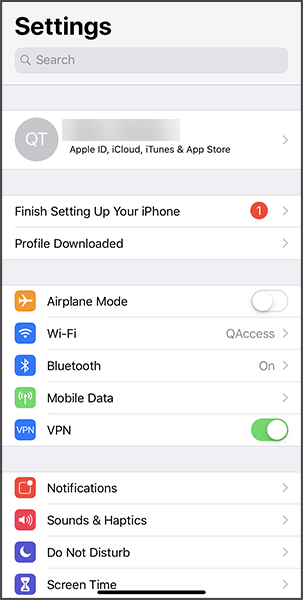
Launch Settings app and tap Profile Downloaded to initiate the installation process.
-
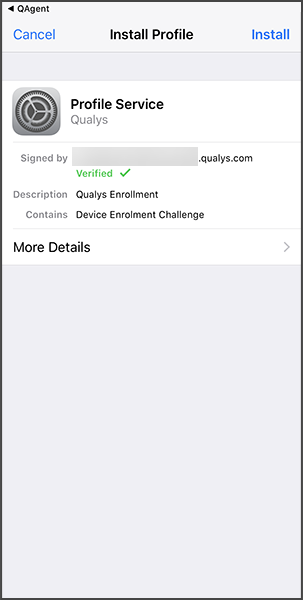
You are almost there! You’ll see the following screen, tap Install, and follow the instructions to complete enrollment.
-
After profile installation, you need to launch QAgent app to complete the enrollment process.
For iOS 12 to 12.1.4 devices, complete the enrollment process using QAgent app.
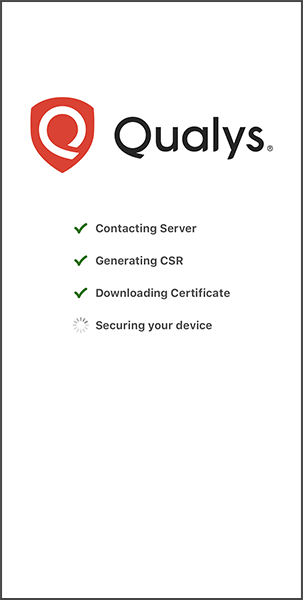
If the enrollment is set as without VMDR Mobile EMM for your organization, then after completing Step 5 or after launching QAgent, you will be redirected to the following screen.
-
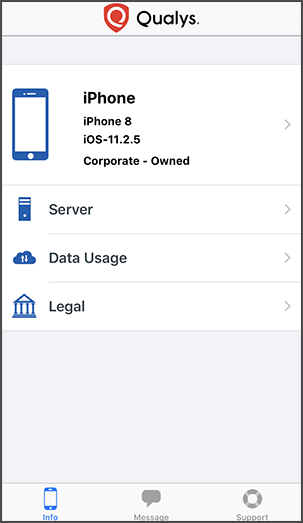
This completes device enrollment and you’ll see the following screen.