Create Action
An action defines how alerts are delivered when a rule is triggered.
To create an action, follow these steps:
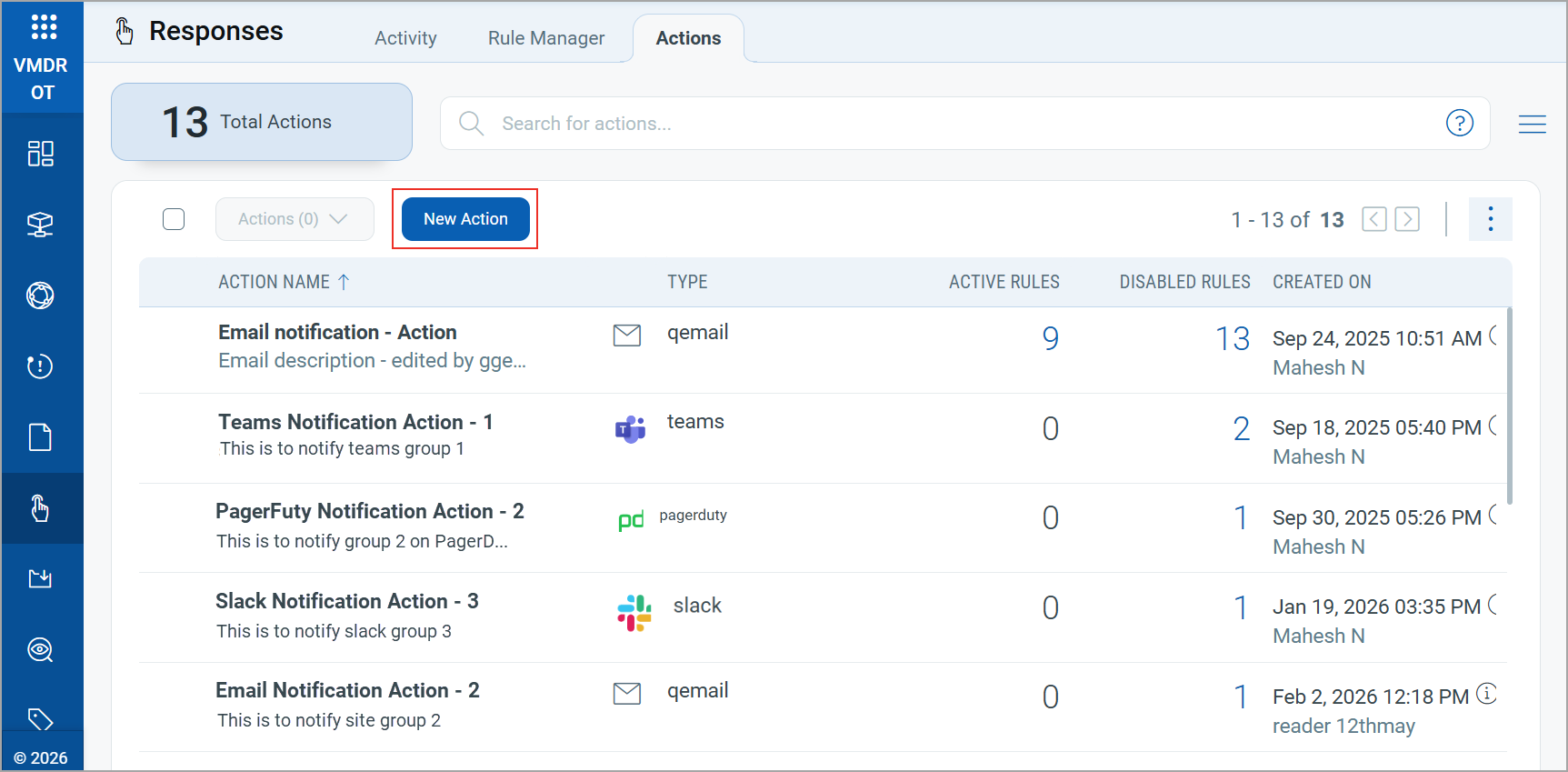
- Navigate to Responses > Actions > New Action.
-
Provide the Action Name and Description in the Basic Information section.
-
Select an action from the Select Action list to specify the mode of sending alert messages.
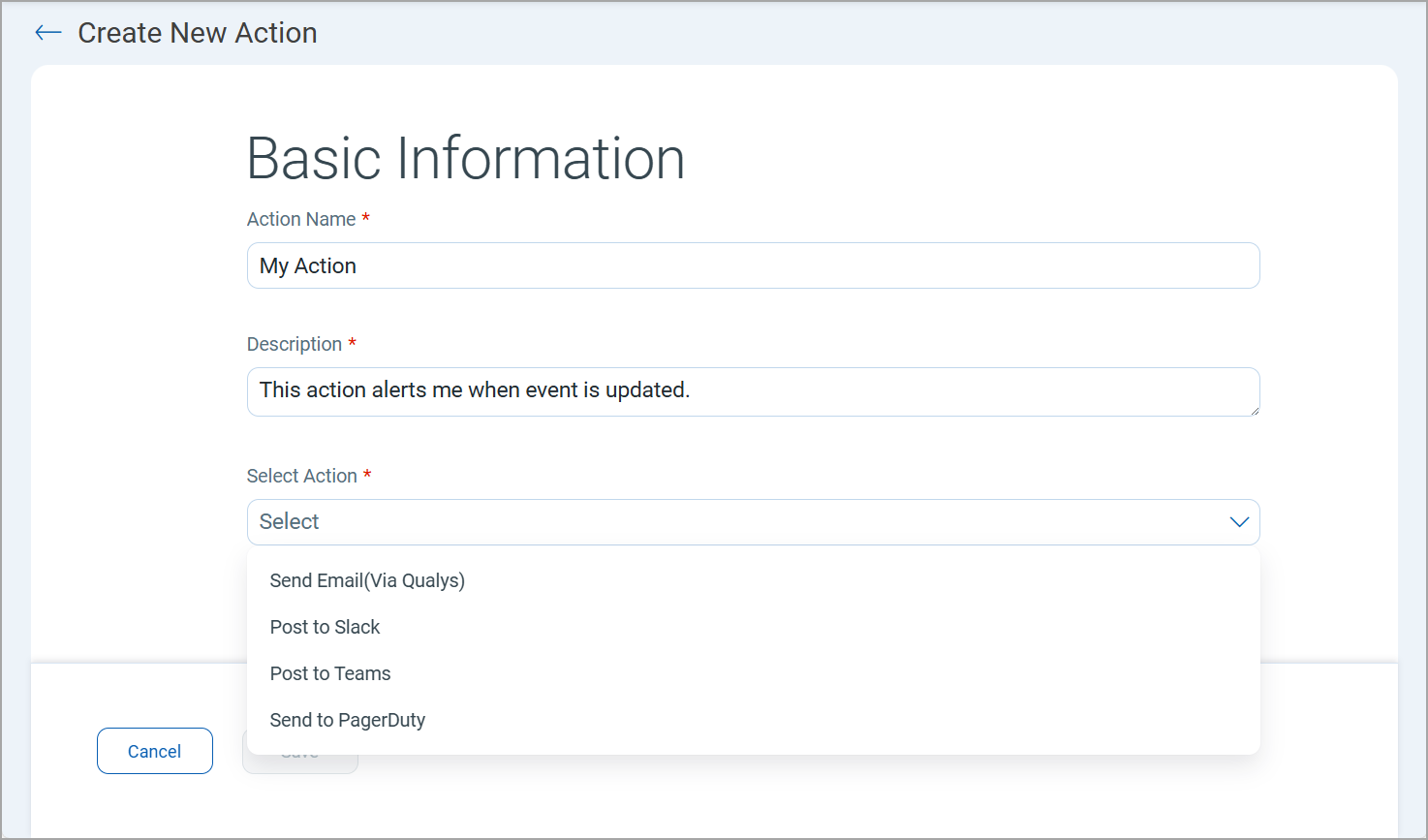
The following actions are available to select:
Action Description Send Email (via Qualys) 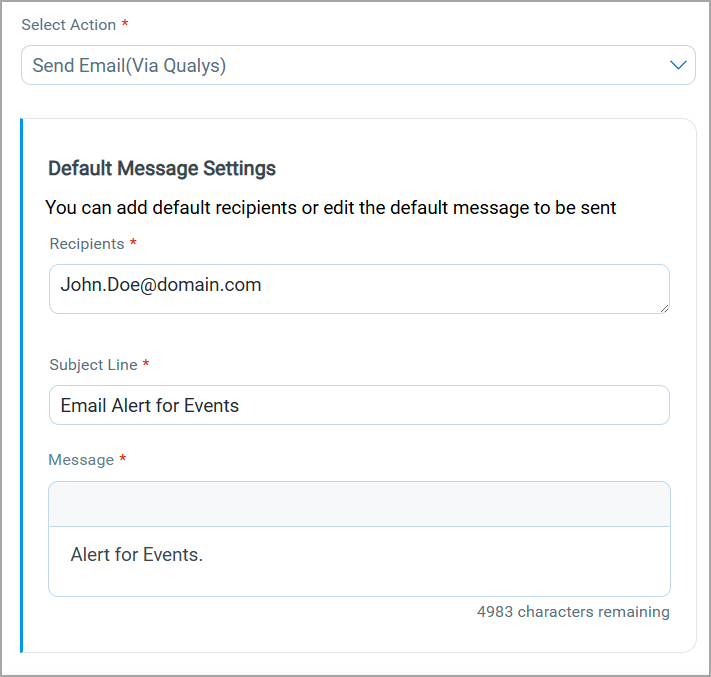
Post alert messages to your email ID.
Enter the Recipient email ID who should receive the alerts, the Subject Line for the alert message, and the customized alert Message. You can add a maximum of 50 email addresses using a comma.
Post to Slack
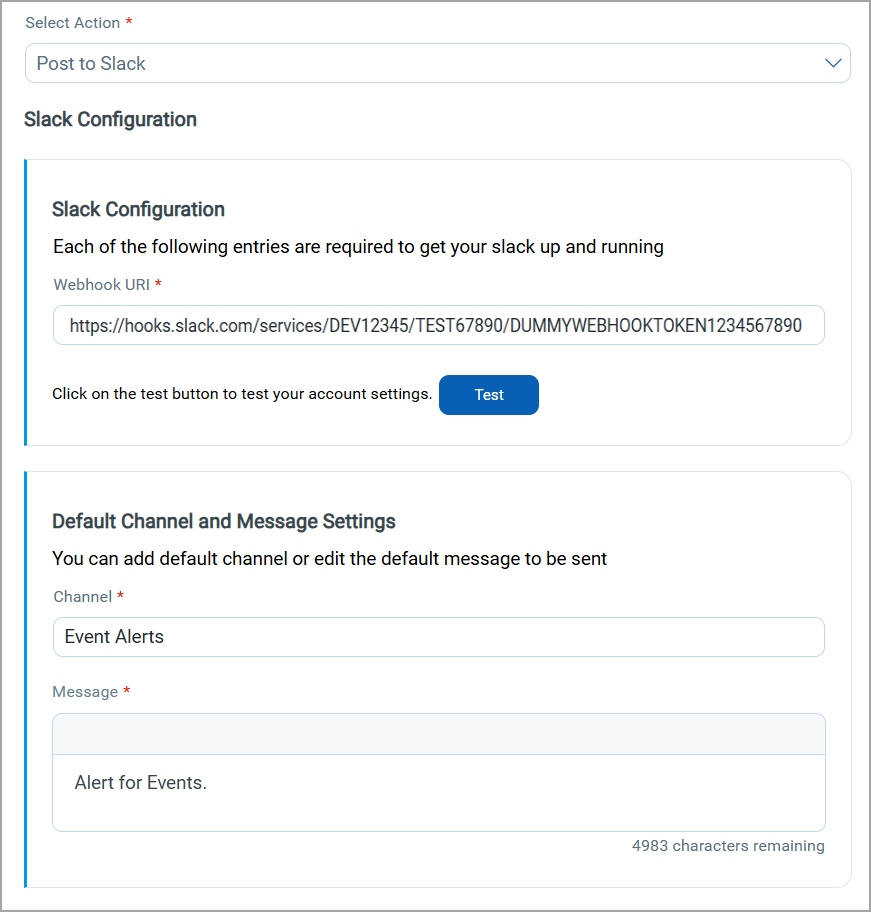
Post alert messages to your Slack account.
Provide the Webhook URI to connect to your Slack account to post alert messages. Specify the Channel and the customized alert Message.
Post to Teams
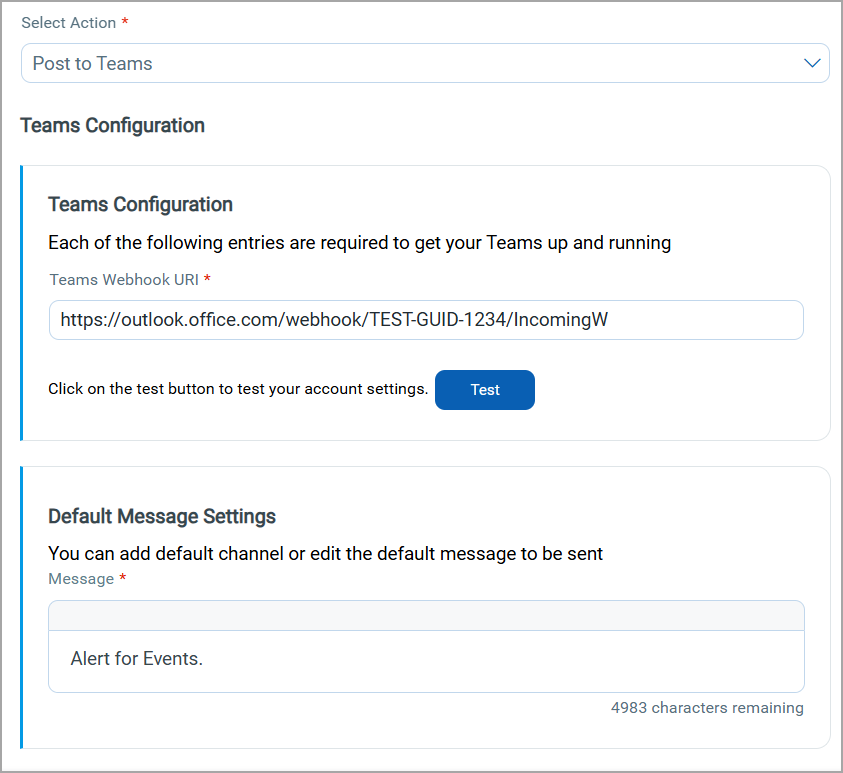
Post alert messages to your Microsoft Teams group.
Provide the Webhook URI to connect to your Microsoft Teams account to post alert messages. Specify the Subject Line for the alert and the customized alert Message.
For more information on configuring Teams, refer to Get Started with Microsoft Teams Alerting.
Send to PagerDuty
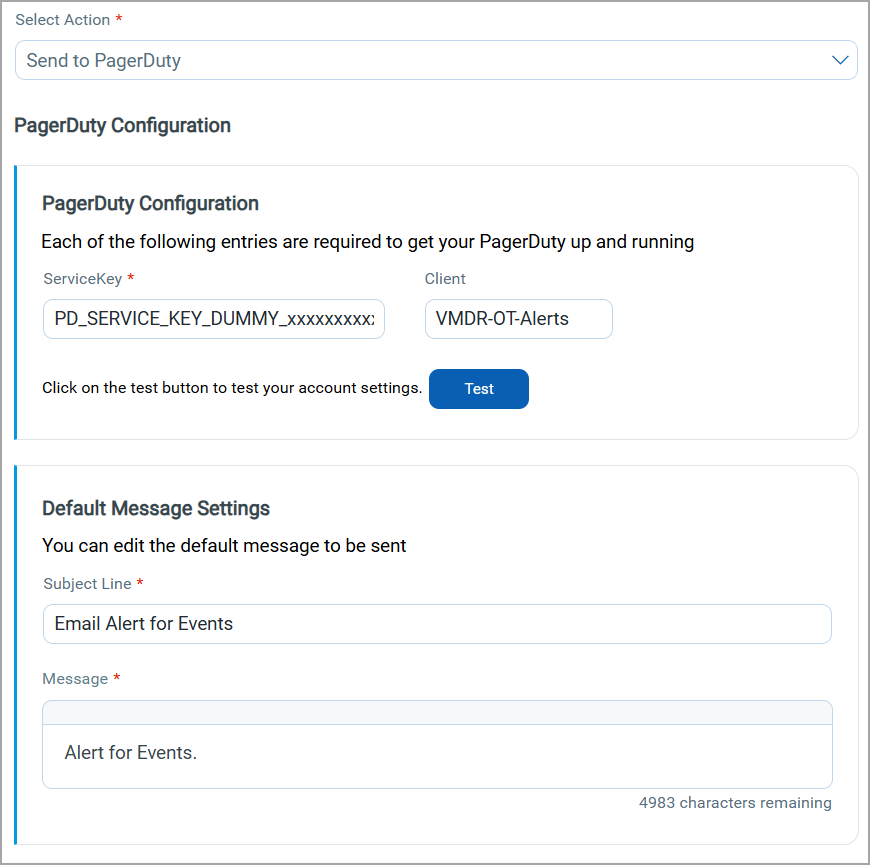
Send alerts to your PagerDuty account.
Provide the Service Key to connect to your PagerDuty account. Specify the Subject Line and the customized alert Message.
-
Click Save.
Manage Actions
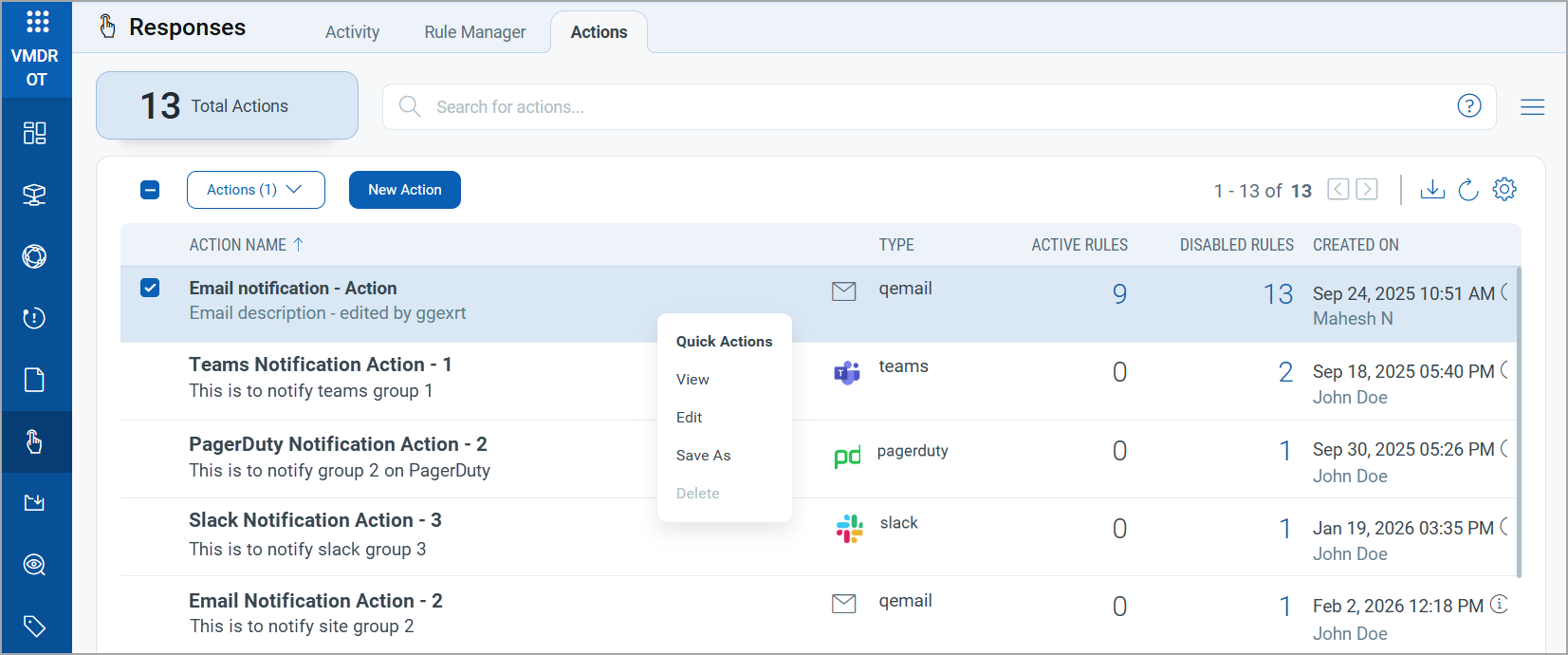
View the newly created actions in the Actions tab with the following details:
| Column | Description |
|---|---|
| Action Name | Displays the name and description of the action. |
| Type | Indicates the notification method used by the action, such as Email or Microsoft Teams. |
| Active Rules | Shows the number of enabled rules currently associated with the action. |
| Disabled Rules | Shows the number of disabled rules linked to the action. |
| Created On | Displays the creation date, time, and the user who created the action. |
You can use the Actions menu or Quick Actions menu to View, Edit, Save As, and Delete an existing action.