Create a New Rule
Rules specify the conditions under which alerts are generated.
To create a rule, follow these steps:
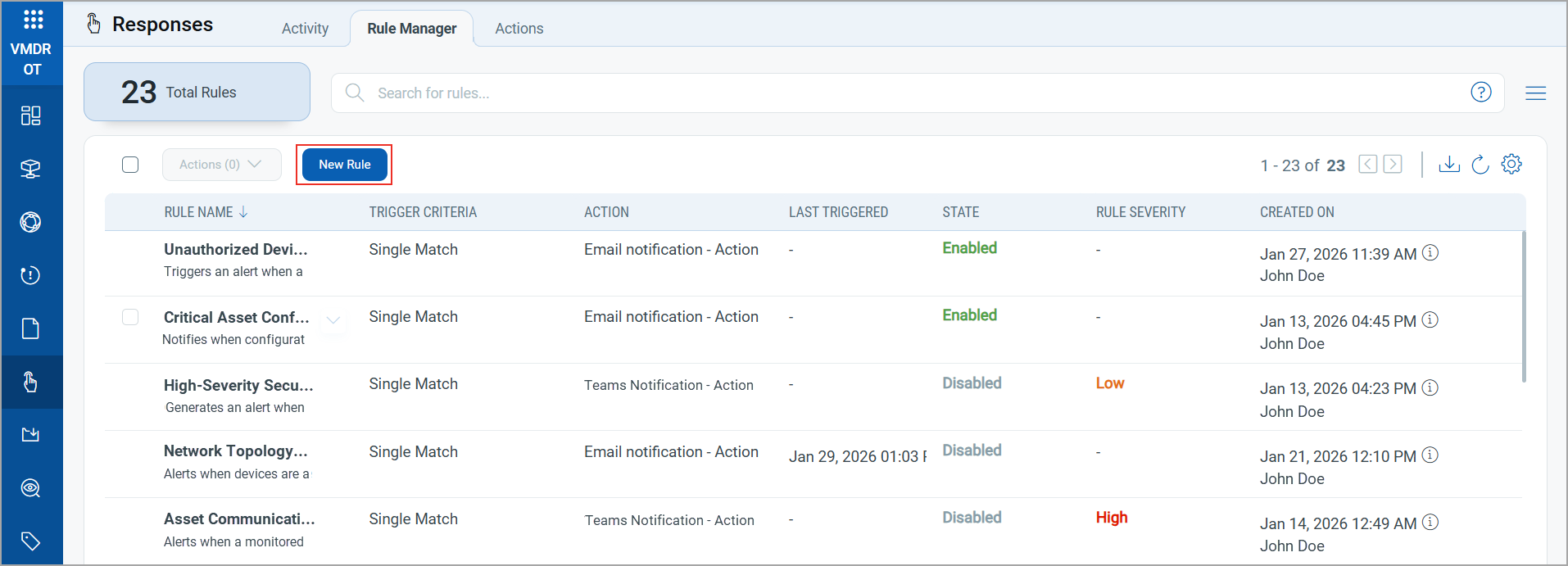
- Navigate to Responses > Rule Manager > New Rule.
-
Provide required details in the respective sections to create a new rule:
-
In the Rule Information section, provide a Rule Name, Description, and Rule Severity of the new rule.
-
In the Rule Query section, provide a query to match source for alert trigger.
You can select the source as Asset, Network, or Monitoring. The system uses this query to search for events. Use the Test Query button to test your query.
- Click Sample Queries to select from predefined queries.
- In the Trigger Criteria section, define when alerts are generated.
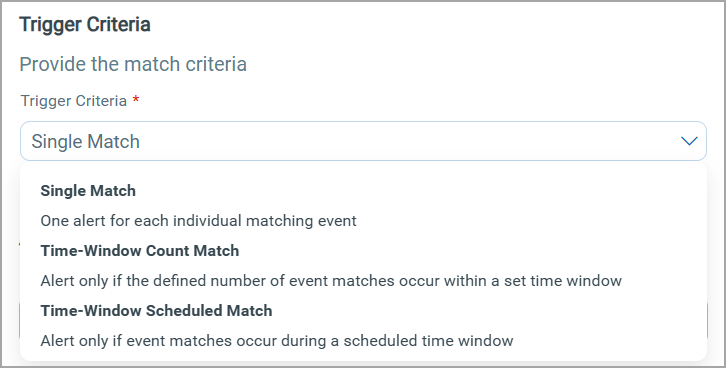
The following trigger criteria are available to select:
Criteria
Description
Single Match
The system generates an alert each time it detects an event that matches your rule query.
Time-Window Count Match
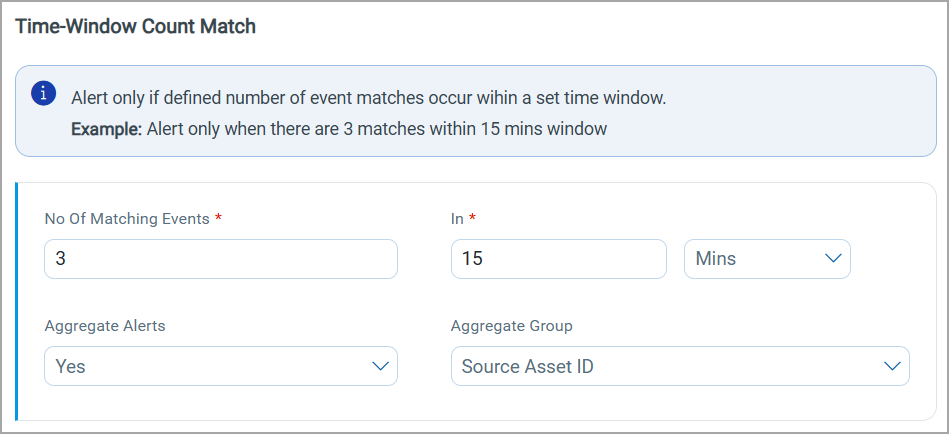
The system generates alerts based on the number of events returned by the search query in a fixed time interval.
For example, an alert is sent when three matching events are found within a 15-minute window.
To set the time interval, specify the No Of Matching Events and the time interval in Minutes or Hours.
Time-Window Scheduled Match
The system generates alerts for matching events that occur during a scheduled time. The rule is triggered when an event matching your search criteria is found during the time specified in the schedule.
For example, alerts are sent everyday for events that match within 1 hour duration from 05:00 PM and 06:00 PM.
To configure the schedule, provide the following values:
Time Window Starts On Specify the start date for the scheduled time window. Start Time Define the time of day when the alerting window begins. Time Window Ends On Specify the end date for the scheduled time window. End Time Define the time of day when the alerting window ends. Duration Displays the total duration of the configured time window based on the start and end time. Repeats Specify how often the time window repeats (Daily, Weekly, Monthly). The fileds may vary based on the frequency you select. Aggregate Alerts Select Yes to aggregate multiple alerts within the time window into a single alert. Aggregate Group Specify the attribute used to group aggregated alerts (for example, Source Asset ID or Destination Asset ID). 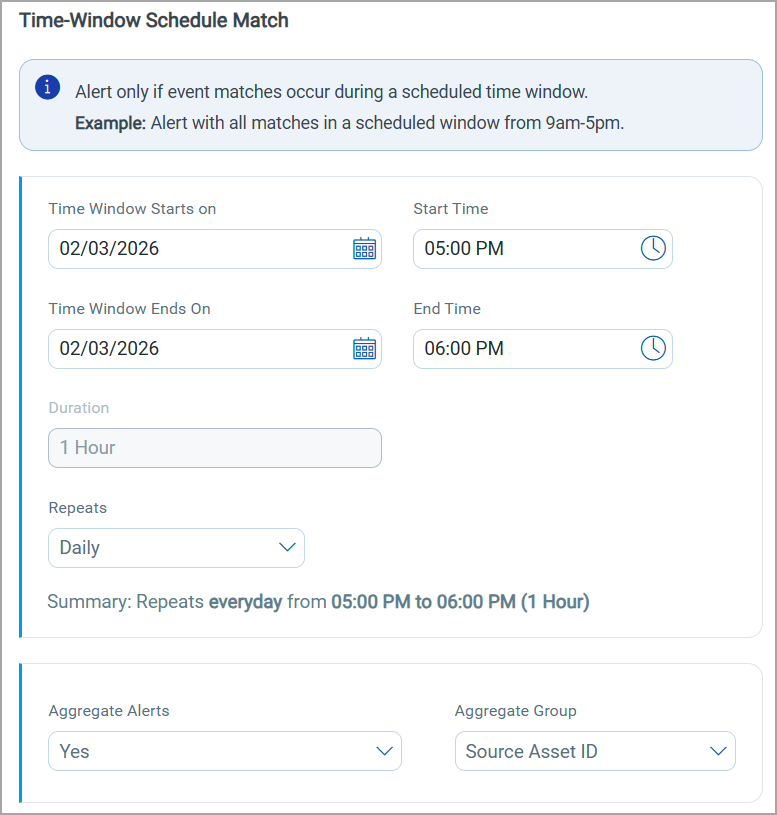
- In the Action Settings section, select the actions that you want the system to perform when an alert is triggered.
-
- Click Save.
Manage Rules
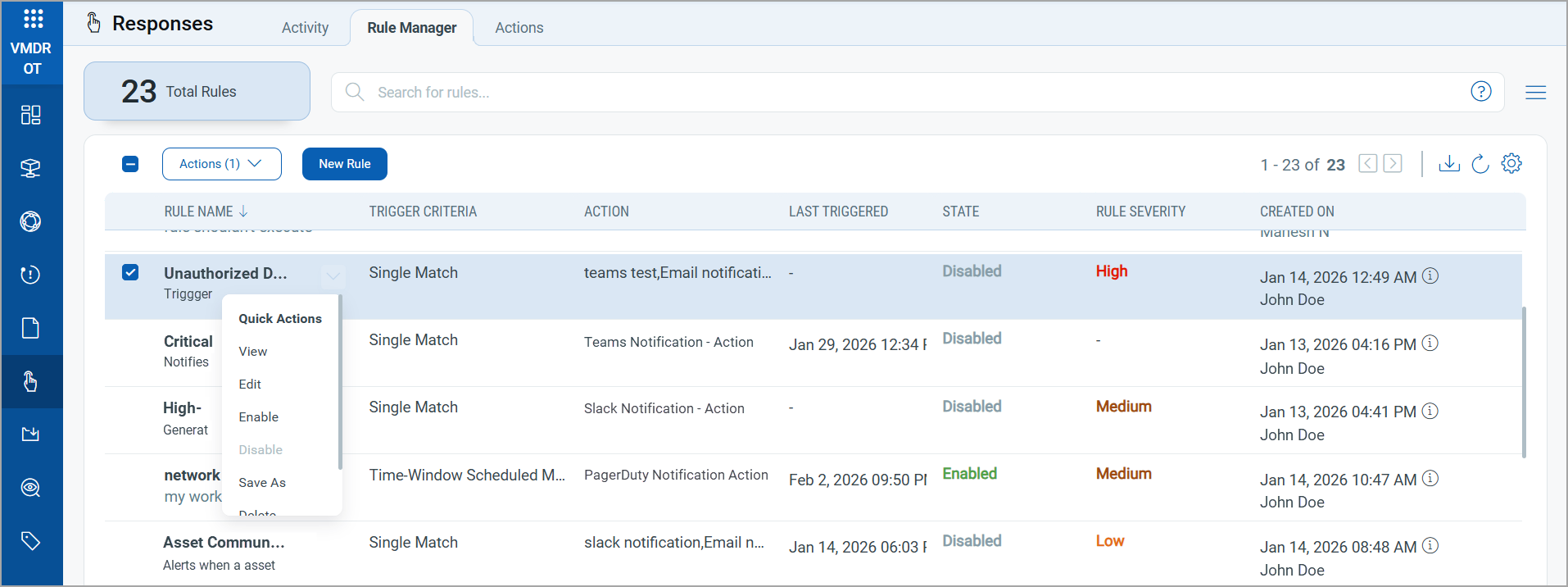
The Rule Manager tab lists all the rules that you have created, with the following details:
| Column | Description |
|---|---|
| Rule Name | Displays the name of the rule along with an optional description. |
| Trigger Criteria | Displays the condition used to trigger the rule (for example, Single Match). |
| Action | Displays the action or actions executed when the rule is triggered, such as Email or Teams notifications. |
| Last Triggered | Displays the date and time when the rule was last triggered. |
| State | Displays whether the rule is currently enabled or disabled. |
| Rule Severity | Displays the severity level assigned to the rule (Low, Medium, High). |
| Created On | Displays the rule creation date, time, and the user who created it. |
You can use the Actions menu or Quick Actions menu to View, Edit, Enable, Disable, Save As, and Delete existing rule.