Create a New Action from Actions
You can create a new action for which you want to receive an alert once the created rule is triggered. Alerts are initiated when events matching a condition are detected, and the action you configure for the condition match is triggered. Actions that you can select are sent as alert messages through an Email, PagerDuty, Microsoft Teams, or Post to Slack. You must have a Super User or Manager role to create, edit, and delete actions and rules.
Perform the following steps in the VMDR application to create a new action:
- From the Responses, navigate to Actions and click New Action.
- Provide the Action Name and Description in the Basic Information section.
- In the Select Action drop-down, select an action to specify the mode of sending alert messages via any of the following actions:
- Send Email (via Qualys): Specify the recipients’ email ID who will receive the alerts, the subject of the alert message, and the customized alert message.
- Post to Slack: This option allows you to post alert messages to your Slack account. Provide the Webhook URI to connect to your Slack account to post alert messages. In Default Message Settings, specify the subject of the alert message and the customized alert message.
- Post to Teams: This option allows you to post alert messages to your Microsoft Teams group. Provide the Webhook URI to connect to your Microsoft Teams account to post alert messages. In Default Message Settings, specify the subject of the alert message and the customized alert message.
- Send to PagerDuty: This option allows you to send alerts to your PagerDuty account. Provide the service key to connect to your PagerDuty account. In Default Message Settings, specify the subject and the customized alert message.
- External Actions: Click a Connector Type to send alert messages to your ServiceNow account.
When you select External Actions in the Select Action list, the Select Connector Type list appears. In the list, click Isolate Asset with TruRisk Eliminate to isolate risky assets.
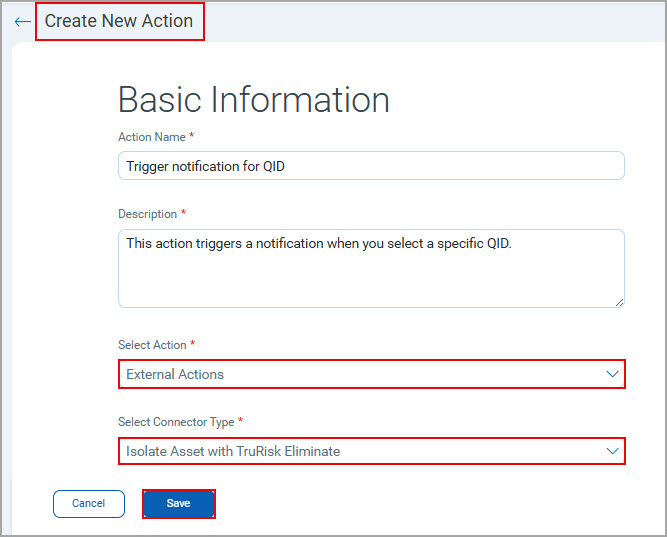
Selecting the Isolate Asset with TruRisk Eliminate option helps in:- Automated Email Notification: You can configure VMDR Rule Manager to send automated email notifications when the relevant QID triggers.
- Automated Asset Isolation: You can configure VMDR Rule Manager to apply a 24-hour delayed rule when the Isolate module is enabled. After the delay, VMDR Rule Manager automatically isolates affected assets if the QID status remains Active, Open, or Reopened.
- Automated Detection: You can detect targeted conditions using CAR by running custom scripts that generate a custom QID.
You see the Isolate Asset with TruRisk Eliminate option in the Create New Action dialog box only when you enable the isolation module. If the option is unavailable, a message opensmessage opens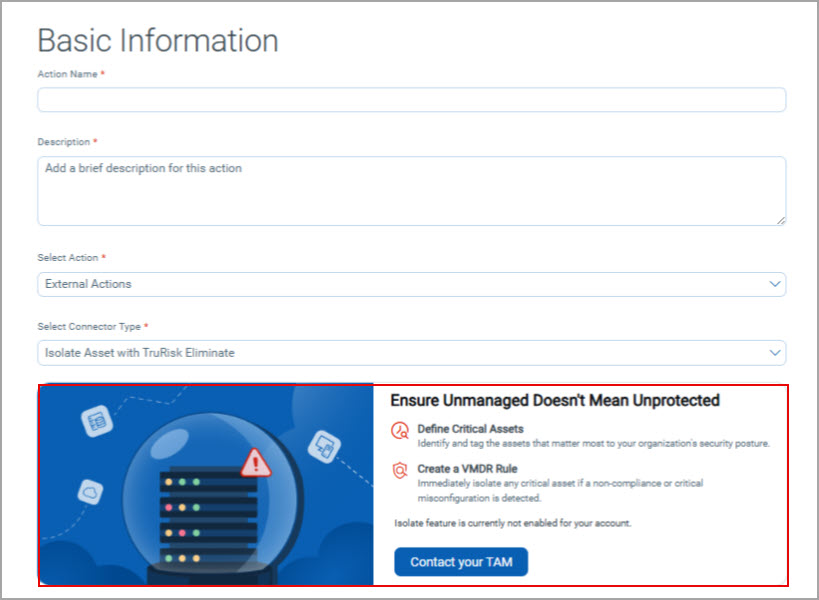 indicating that the isolate feature is not available for your account. Contact your Technical Account Manager for assistance.
4. Click Save.