Change Your Password
If you feel your password has been compromised in any way, you must log in to the application and change it immediately. (Do you need to change the password for another user? Go here to learn how)
Qualys aligns password validation across the UI and the APIs, so the same password works consistently whether you sign in through the UI or authenticate through the API.
If your existing password contains unsupported whitespace, tab, or special characters, you must reset your password so that it complies with the updated password requirements.
When you log in for the first time, you receive an email with a temporary password. After you sign in with the temporary password, you must change your password before you can continue.
What are the steps?
- Choose the Change Password option under your user name (in the top right corner). You can also choose Account Activity from the same menu, and click change your password in the dialog that displays.
- Depending on the password security settings for the subscription, you'll have one of the following options:
- Auto-Generate a New Password: Simply click Save to generate a new password. When your new password appears, click Confirm.
- Define your own password: Enter a new password in the fields provided and click save.
You can use these special characters while creating user-defined password: ( ) ` ~ ! @ # $ % ^ & * - + = | \ { } [ ] : ; " ' < > , . ? /.
- Log in again. You'll be prompted to log back in with your new password.
This validation applies wherever you create or change a password, including changing your password from Account Activity, resetting your password through Forgot Password, and updating your password the first time you sign in after a reset.
Why can't I define my own password?
Your subscription may not allow user-defined passwords. By default, passwords are auto-generated by the service. Managers have the option to allow users in the subscription to define their own passwords by going to Users > Setup > Security and selecting the Allow user defined passwords check box.
How do I secure my login from brute force?
You can use a captcha to strengthen the security on the password change page and the first login password change. You must validate the captcha on each password, along with entering the new password.
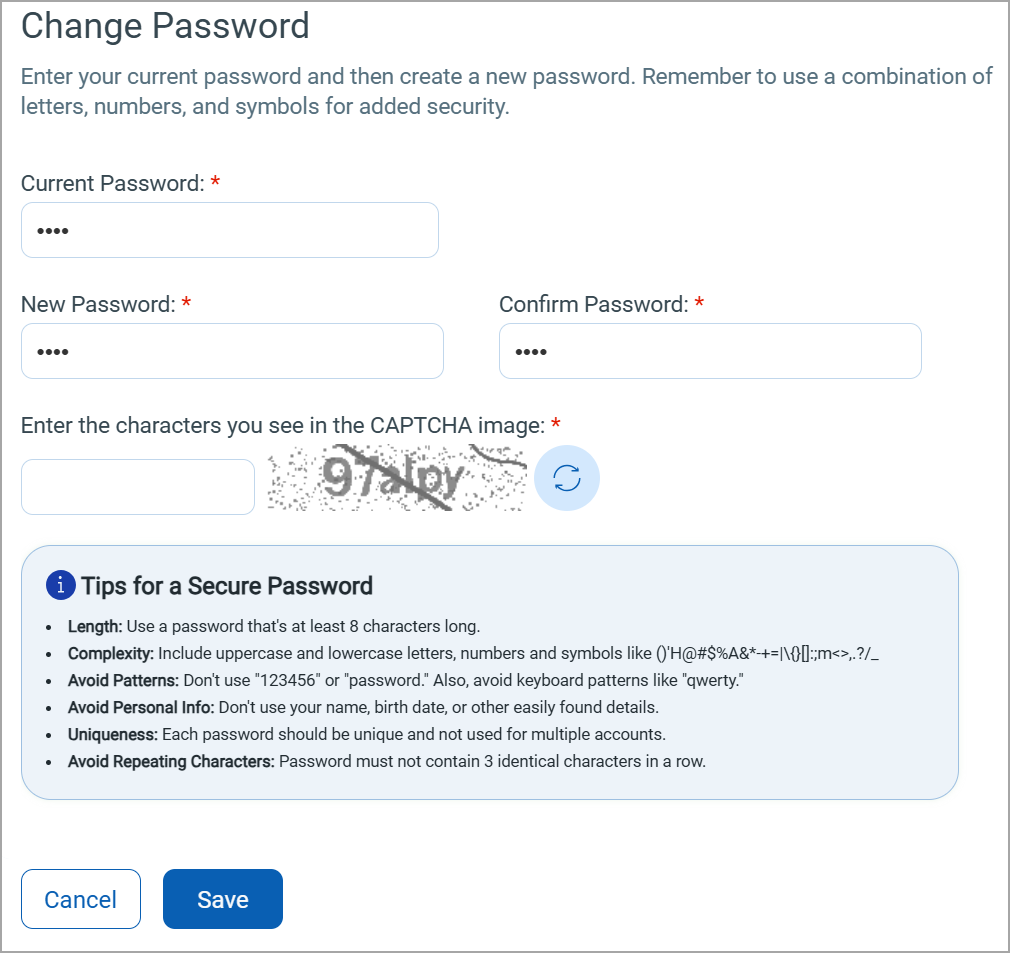
- You must adhere to the strong password tips given below the captcha.
- To enhance usability on the Qualys Cloud Platform, an eye icon has been added to password fields. This feature allows users to view their passwords, improving accuracy and reducing login errors. The icon is now available on the Qualys Guard and FO login pages, Change Password screens, and the Forgot Password workflow.
Recommended - Update password reset info
Edit your own user account and go to the Security section. Then choose and answer three secret questions. We'll use this information to help you reset your password if you forget it.