Cloud Agent for WSL2 Detection
Cloud Agent supports scanning Windows Subsystem for Linux (WSL2) instances installed on Windows assets natively. This enables Cloud Agent to collect inventory and monitor WSL instances, and provides visibility into installed packages, WSL status, user information, Cloud Agent status, and authorized and unauthorized WSL instances.
This feature is available with Windows Cloud Agent 6.5 (Limited Customer Release). Contact your Technical Account Manager or Qualys Support to enable it.
This feature facilitates determining:
- WSL Status (Running or Stopped).
- Collects inventory of WSL instances.
- Availability of Cloud Agent in a WSL instance.
How to Enable Cloud Agent for WSL2 Detection
The following are the steps to enable WSL2 detection on Windows assets:
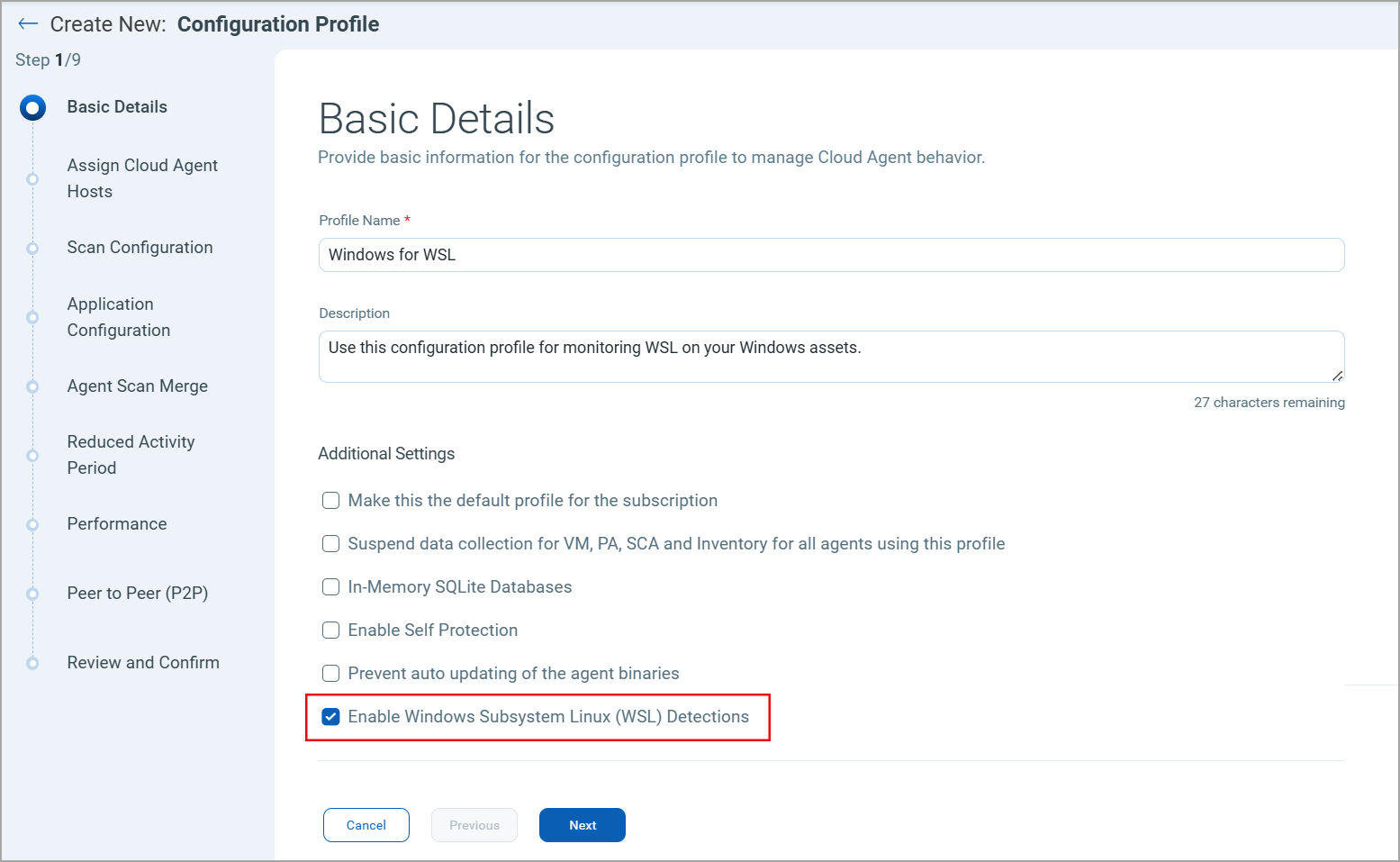
- To enable Cloud Agent for WSL, navigate to Configuration > Configuration Profiles window in Cloud Agent user interface.
- Create a new configuration profile or edit an existing profile.
- In the Basic Details windows locate the Additional Settings section.
- Select the Enable Windows Subsystem Linux (WSL) Detections checkbox. You can assign this configuration profile to the required Cloud Agents for monitoring WSL on their hosts.
WSL service restart or system reboot is required for WSL detection changes to take effect.
How to Manage WSL Plugin
The following subsection explains how to install, upgrade and uninstall the WSL plugin.
How to Install WSL Plugin
Perform the following steps to install WSL Plugin:
- In the Cloud Agent configuration profile, select the Enable Windows Subsystem Linux (WSL) Detections checkbox in the Basic Details window. Learn More.
- The Cloud Agent automatically installs the new WSL plugin.
- Restart the WSL service to load the newly installed WSL plugin using the following commands in Windows PowerShell.
Stop-Service wslservice -Force

	start-service wslservice
Where is the WSL Plugin Stored
The WSL binary and related files are stored on the Cloud Agent host at:
- Directory to Store WSL Binary -
C:\ProgramData\Qualys\QualysAgent\WSL - WSL Binary -
C:\ProgramData\Qualys\QualysAgent\WSL\Bin\QWSLModule.dll - WSL Plugin Logs -
C:\ProgramData\Qualys\QualysAgent\WSL\Bin\wsl_plugin_log.txt
How to Upgrade WSL Plugin
Cloud Agent automatically upgrades the WSL plugins. When the new WSL plugin is available, Cloud Agent downloads and upgrades to the latest available version. To load the new WSL plugin you need to restart the WSL service.
How to Uninstall WSL Plugin
Perform the following steps to uninstall the WSL plugins:
- In the Cloud Agent configuration profile, uncheck the Enable Windows Subsystem Linux (WSL) Detections checkbox in the Basic Details window. Learn More.
- Uninstall a Cloud Agent associated with the configuration profile.
- Restart the WSL service using the following commands in the Windows PowerShell to remove the WSL plugin.
Stop-Service wslservice -Force

	start-service wslservice
Where to Find Cloud Agent Logs for WSL Plugin
The WSL2 detection logs are available at:
C:\ProgramData\Qualys\QualysAgent\Logs\WSL\agentwsllog.txt
QIDs for WSL Detection
When WSL detection is enabled in a configuration profile, and WSL2 is installed with configured instances/distributions, the following QIDs are reported during a VM scan:
- QID 45763: Windows Subsystem for Linux (WSL) Metadata Detected
- QID 45764: Installed Packages on Windows Subsystem for Linux (WSL) Detected
The following registry key–based QIDs are reported if WSL2 is installed and instances/distributions are configured:
- QID 45519: Windows Subsystem for Linux (WSL) Installation Detected
- QID 45736: Windows Subsystem For Linux (WSL) Instances Detected