Database Assessment Analysis
This topic helps you find the required details for troubleshooting Database Assessment-related issues.
Search Tokens
Use the following search tokens to find the database instances detected for your assets:
Search Token for CSAM
Use text value ##### to find the software category 2 value you're looking for. Select category 2 while searching for RDBMS databases.
Example
Use the following search token in the CyberSecurity Asset Management (CSAM) to find the detected database instances:
software:(category2:`RDBMS`)
Search Token for GAV
Use the following token in the Global Asset View (GAV) application to find the detected database instances:
Use values within quotes or backticks to find the software name you're looking for. Quotes can be used when the value has more than one word.
For Windows Assets
software:(name:"Microsoft SQL Server")
For Linux Assets
software:(name:"Oracle Database")
Activate Middleware Assessment
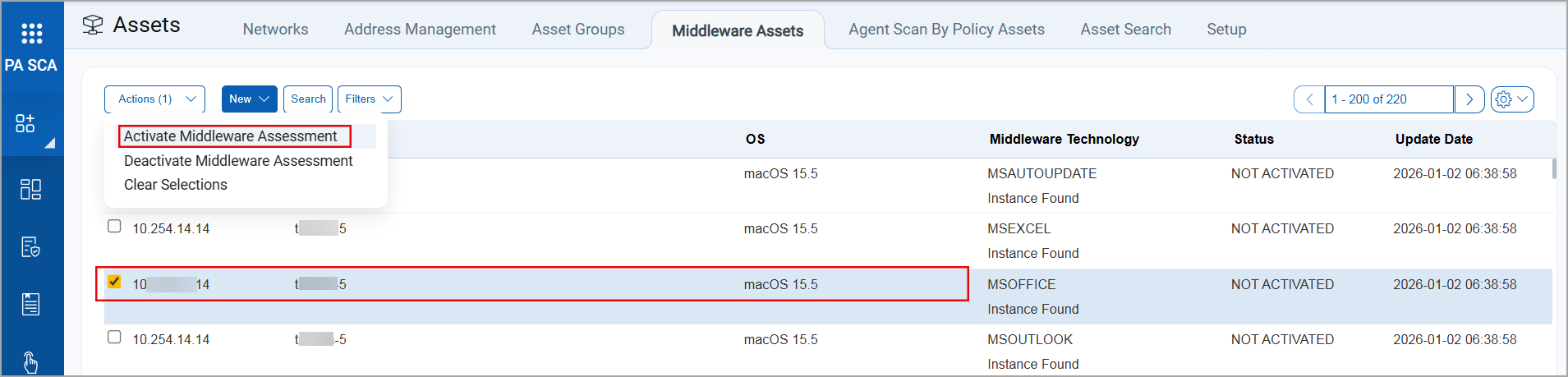
The database instances detected in CSAM or GAV applications must be activated for the Middleware Assessment. You can activate the Middleware Assessment from the Policy Audit user interface. Activating the Middleware Assessment for the detected database ensures that those are scanned during the middleware scans:
Activation for Single Asset
To activate the Middleware Assessment for a single asset, search the detected database instances in the Policy Audit user interface. In the Actions menu for the selected asset, click Activate Middleware Assessment.
Activation for Multiple Assets
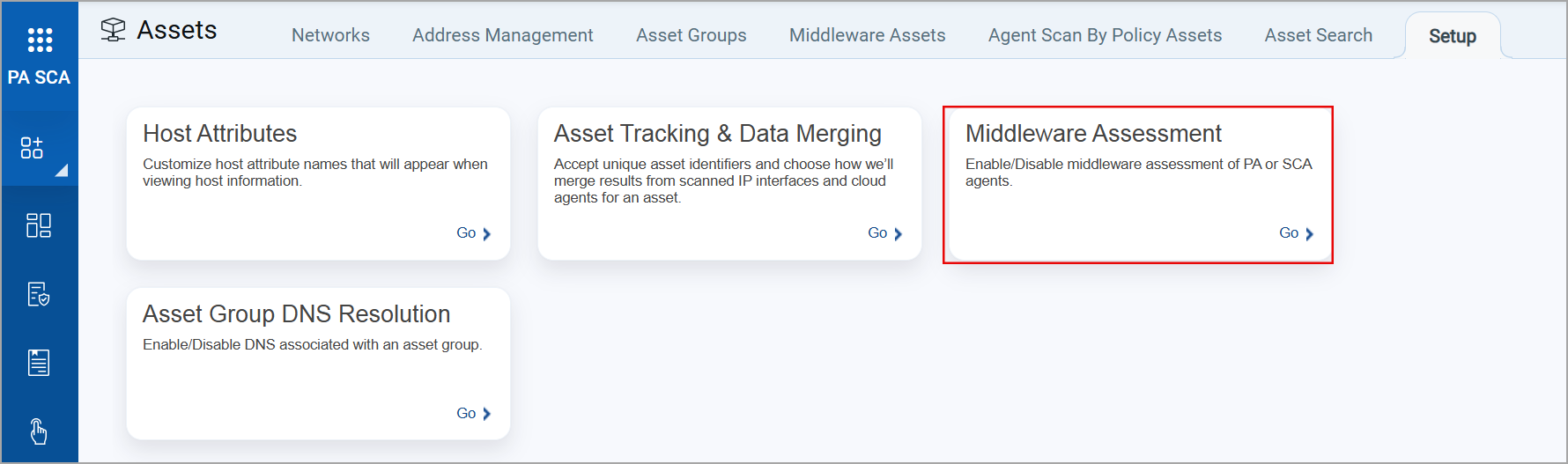
- To activate the Middleware Assessment for multiple assets, navigate to the Setup tab in the Policy Audit user interface.
- Find the Middleware Assessment section under the Setup tab.
- Click Go to select the database instances to activate Middleware Assessment.
Assign Assessment Profile
Once the database instance is activated for the Middleware Assessment, it can be added to the database assessment profiles.
- To select the database instance for an assessment profile, select an existing profile or create a new profile.
- In the Database Instances section, click Add
 .
. - The list of database instances activated for the Middleware Assessment is displayed. Select the database instance you want to add to the assessment profile.
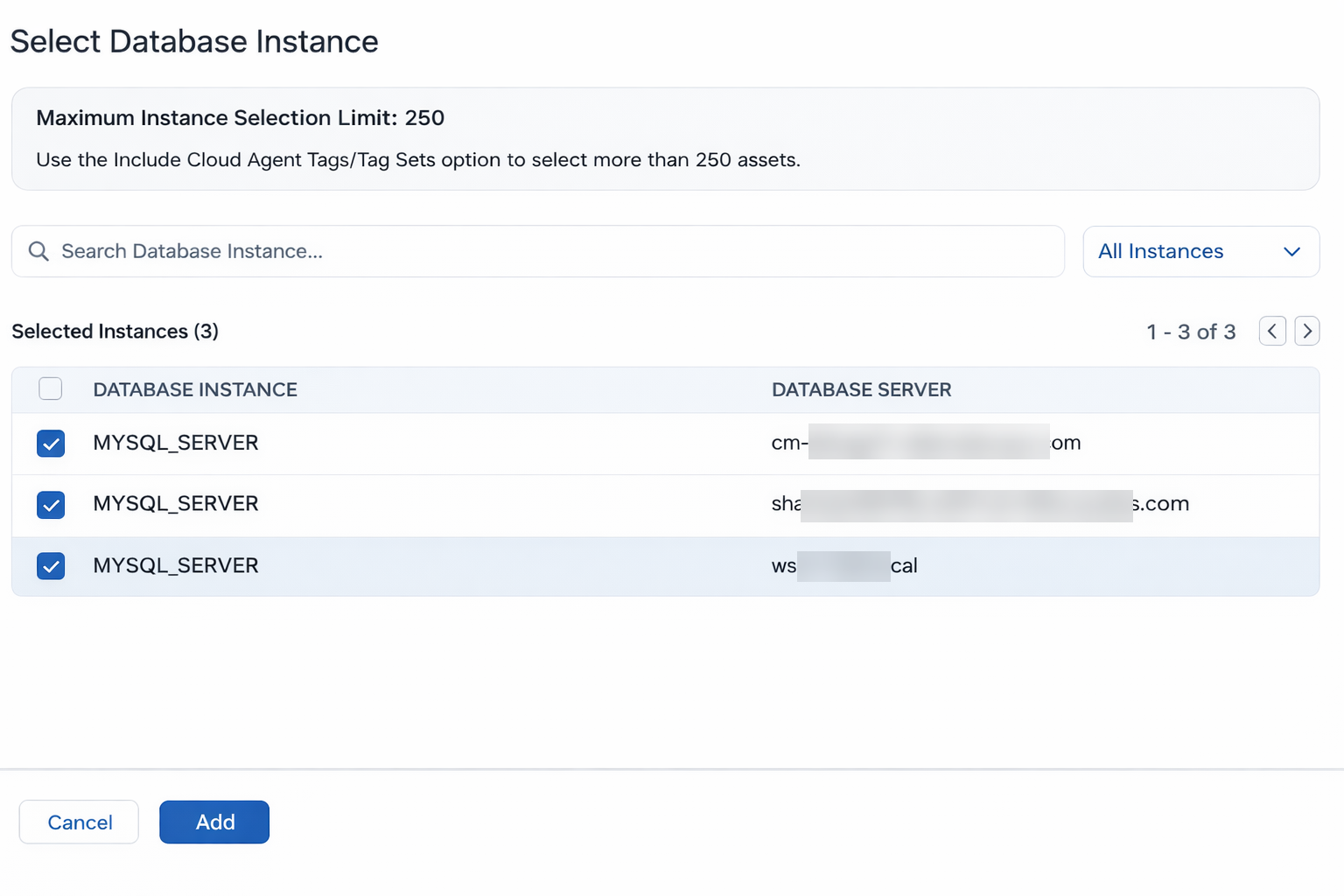
- Click Add to proceed.
The database instance added to an assessment profile will not be available for selection with the other assessment profiles.
Assigning Multiple Assessment Profiles
If you want to assign multiple assessment profiles to a single database instance, use the tags or tag sets. When a database instance is assigned multiple assessment profiles, Cloud Agent selects the profile based on their priority. The profile with the highest priority is selected for the first assessment attempt.
For example, if a database instance is assigned with Profiles A, B, and C with priorities 1, 2, and 3, respectively. In this case, Profile A has the highest priority. Hence, Profile A is used for the first assessment attempt of the database instance. If the assessment with Profile A fails, the next profile in priority order is selected, in this case, Profile B.
Authentication Status
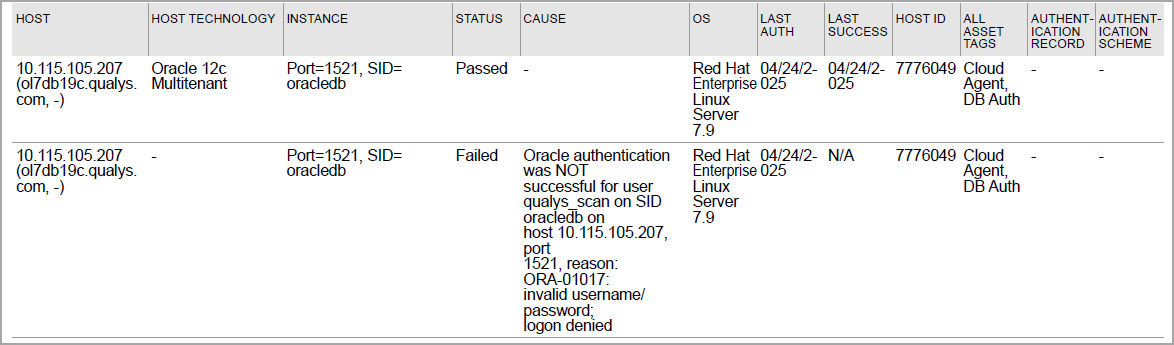
You can view the authentication status of the database instances in the Authentication reports. The authentication report is available only after the authentication scan is complete and Cloud Agent has attempted the database instance authentication.
By default, Cloud Agent collects the middleware scan data once in a day (24 hours).
To learn more about downloading the Authentication report, refer to Tell me about Authentication Reports.
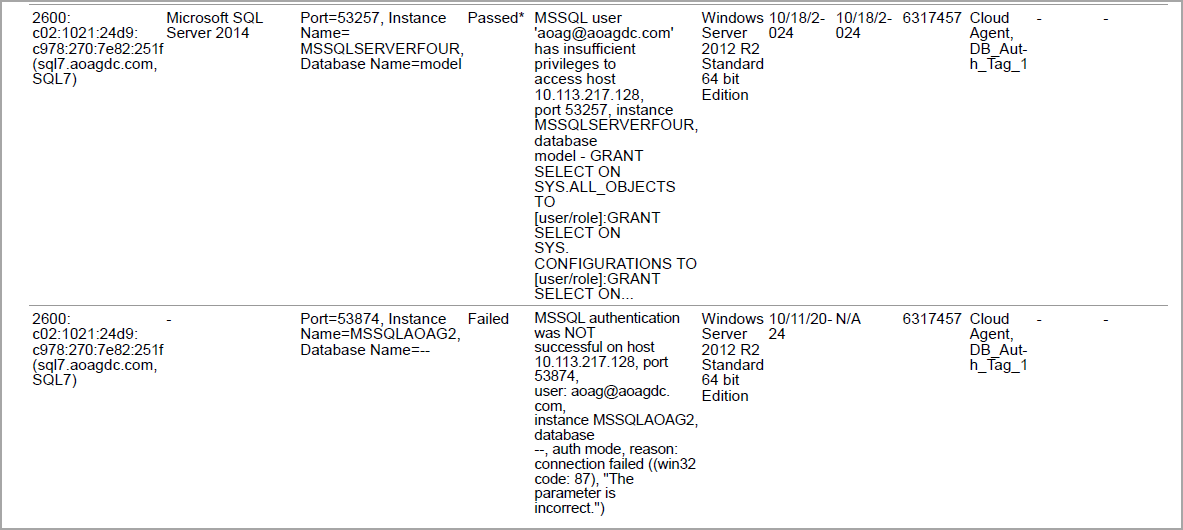
The following image highlights passed and failed authentication records for the MSSQL database. The authentication record with Passed status has insufficient privileges.
The following image highlights passed and failed authentication records for the Oracle database.