Scan Configuration
Scan configuration enables the data collection for the agent host associated with the configuration profile. You can set the scan intervals for all the available applications with the Cloud Agent.
To configure the scan intervals, go to Agent Management > Configuration Profiles > Scan Configuration. You can edit an existing profile or create a new one.
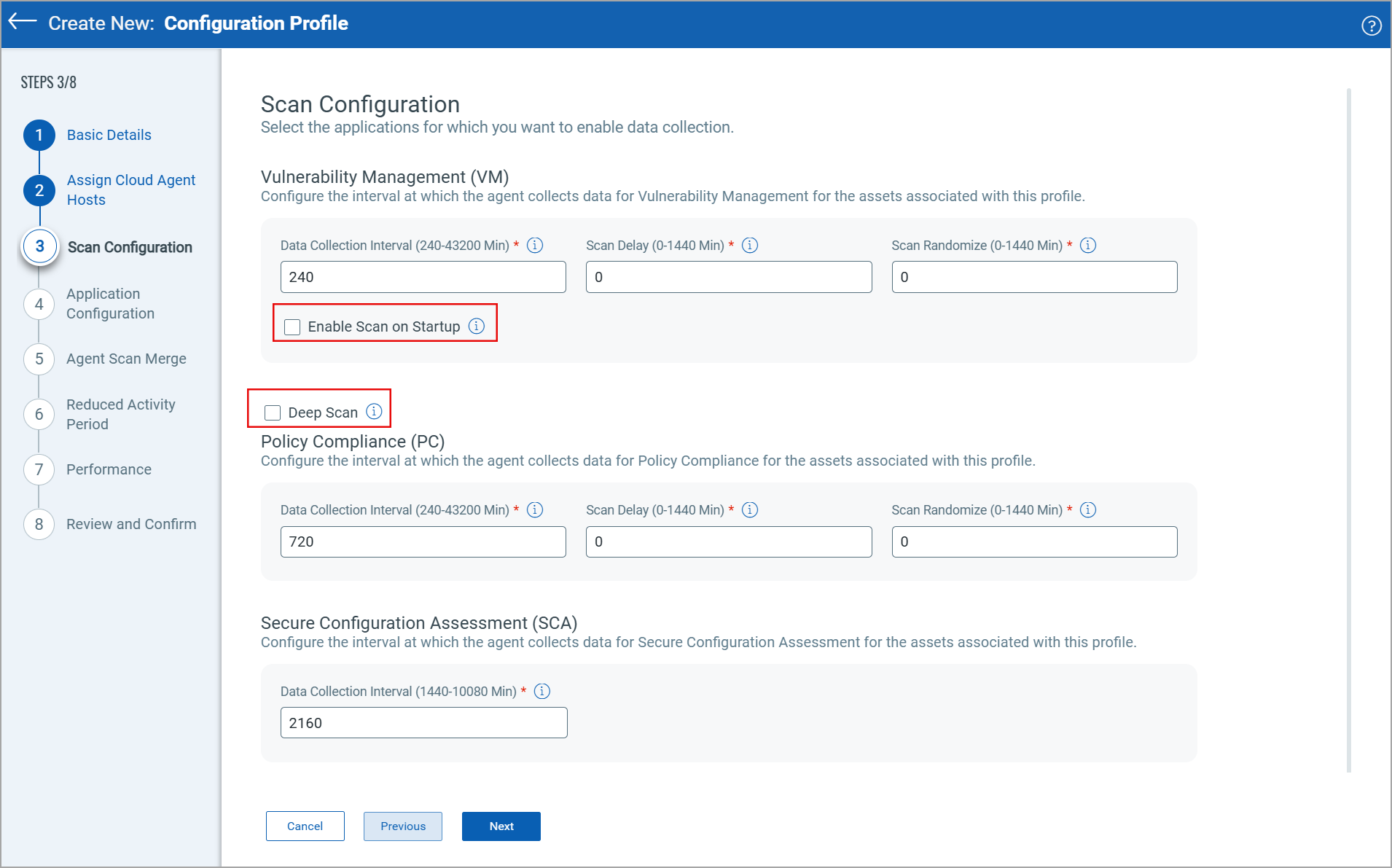
The following are the different scan intervals:
Data Collection Interval
The data collection interval sets the time lapse between the completion of the previous scan and the start of the next scan.
Set the data collection interval value between 240 minutes (4 hours) to 43200 minutes (30 days).
The default data collection interval for:
- Vulnerability Management (VM): 240 minutes.
- Policy Compliance (PC): 720 minutes.
- Secure Configuration Assessment (SCA): 2160 minutes.
Scan Delay
This is the time added to the start of scanning, both for new installs and for interval scanning. Enter the time in minutes to delay the start of a scan.
Set the scan delay value between 0 minutes to 1440 minutes (24 hours). A value of 0 (zero) means no scan delay added.
Scan Randomize
The range of randomization added to the scan delay to offset scanning. For example, if the randomization range is 60 minutes, then a random number between 1 and 60 is calculated and used to delay the start of the next scanning interval. A value of 0 (zero) means no randomization occurs.
For the supported platform and agent version for scan delay and scan randomize feature, refer to the Features by Agent Version section in the Cloud Agent Platform Availability Matrix.
Enable Scan on Startup
Select the Enable Scan on Startup checkbox to run the vulnerability scans automatically when the Cloud Agent service starts. This option is available on Cloud Agent for Windows 5.1 and later. By default, this feature is disabled.
Deep Scan
Enable the Deep Scan option to detect vulnerabilities in non-standard binaries and software that fall outside typical system formats, locations, and behaviors.
Deep Scan matters because traditional vulnerability scanning methods (IP-based and agent-based) target well-known file locations, executable formats, and standardized software packages. This approach leaves gaps: custom-built tools, standalone executables, and software installed in non-default directories remain unscanned, creating blind spots in your security posture.
To learn more about Deep Scan, refer to Deep Scan Configuration.
TruConfirm-Maximum CPU Usage
In the TruConfirm scan configuration, provide the maximum CPU usage limit for Cloud Agent. The default CPU usage limit is 30%. The valid range is 2-100%.
Remote Detection
Enable the Remote Detetction option to detect vulnerabilities remotely.
When enabled, Cloud Agent automatically downloads a lightweight, headless scanner binary based on configuration settings and executes remote detection tasks such as TLS inspection, banner collection, and packet‑based vulnerability detection.
To learn more about this feature, refer Cloud Agent Remote Detetction.
Prevent Scanning During Group Policy Execution
Switch the Avoid Scanning During Group Policy Updates toggle to ON to prevent or suspend scanning during group policy execution. To learn more about this feature, refer Prevent Scans During Group Policy Execution.
This option is available for Policy Audit and Vulnerability Management scans.
Next Step: Application Configuration