Configuration
The Configuration tab specifies the list of restricted commands, assets, and asset tags suiting your environment. In addition, you can maintain a list of lab assets.
The manager role user can perform the actions on blocked commands, blocked assets, setup and lab assets and other RBAC users have 'View Only Access' to the configuration tab.
The Configuration tab contains the following sub-tabs:
- Blocked Commands
- Blocked Assets
- Lab Assets
- Setup
Blocked Commands
In Blocked Commands, you can add the list of commands that you want to block from running on the script. You can also view who created and updated each blocked command.
When you add the commands in blocked commands, script creation is blocked every time these commands are found in the scripts.
To block the commands, follow these steps:
- Navigate to Configuration > Blocked Commands
- Add the blocked commands to the list by providing,
- Platform: The platform type of the script.
- Scripting Language: The scripting language type of the command.
- Commands: The command you want to block.
- Created By and Updated By: Automatically displays the user who created and updated the respective blocked command.
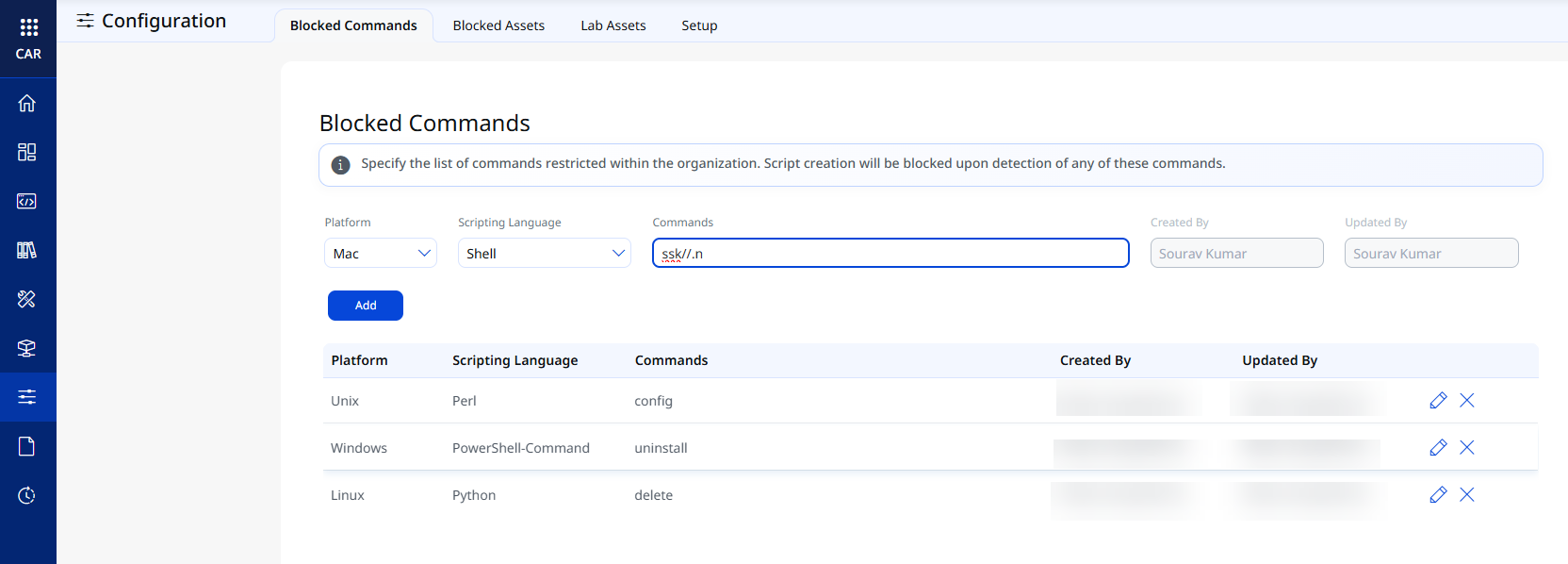
- Click Add.
The command/commands you want to block is added.
- To edit the command, click
 .
.
You can delete a command by clicking  .
.
Blocked Commands that are encoded or encrypted by any algorithm and used as part of script content during script creation are not interpreted by CAR.
Blocked Assets
You can specify the assets or assets tags that you wish to block for script execution. This helps enforce security policies and prevent unauthorized script execution on sensitive assets.
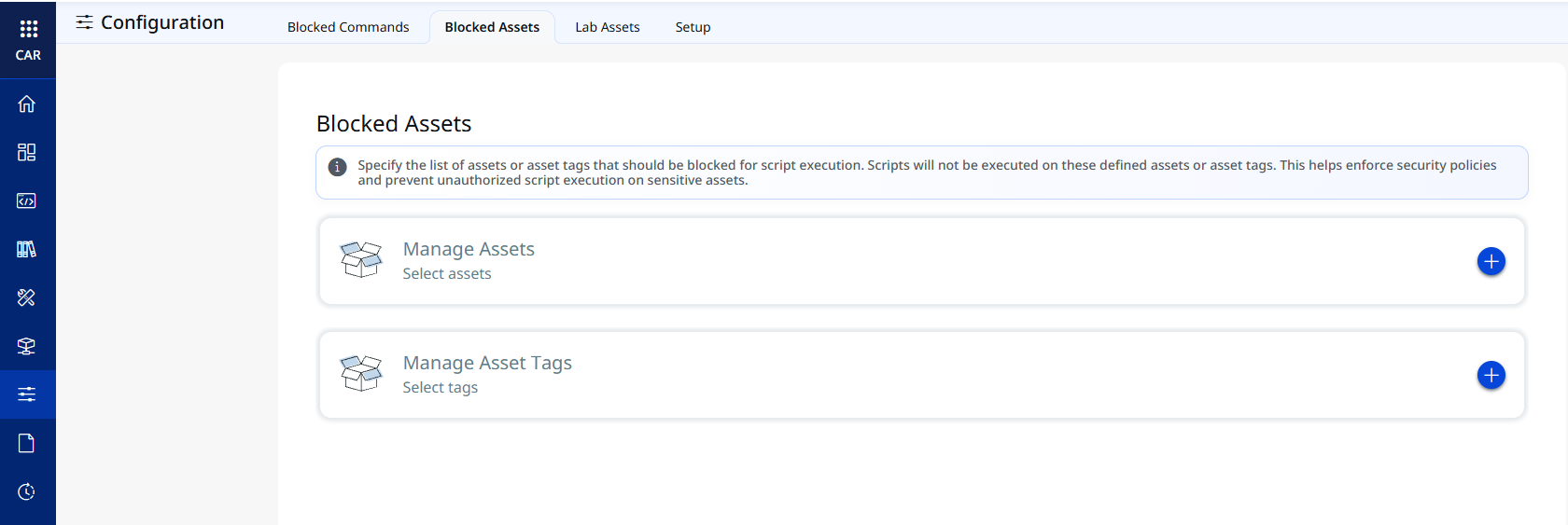
To Manage Assets click + to add assets you want to block.
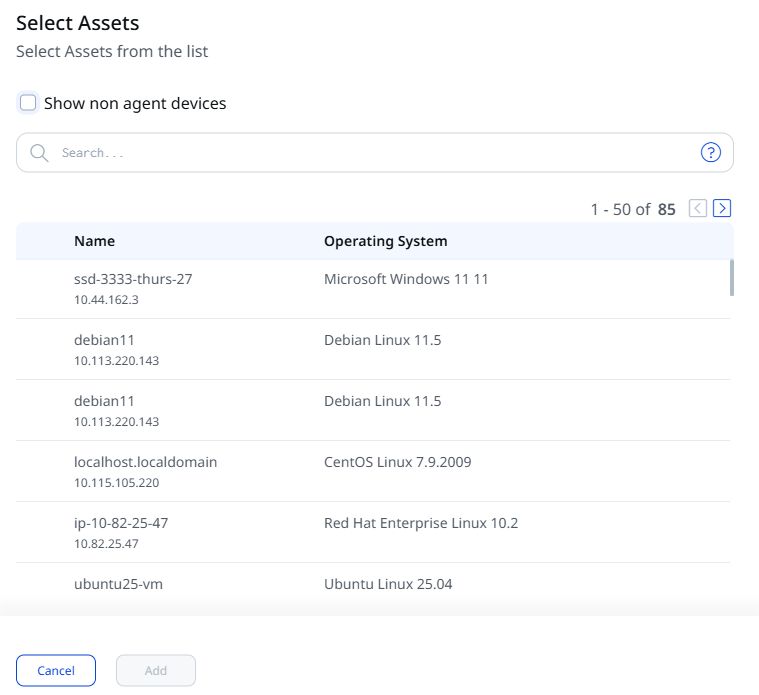
You can select the assets from the list and click Add. To add non-agent assets, select the non-agent devices checkbox.
Next, to Manage Asset Tags click + to add asset tags you want to block.
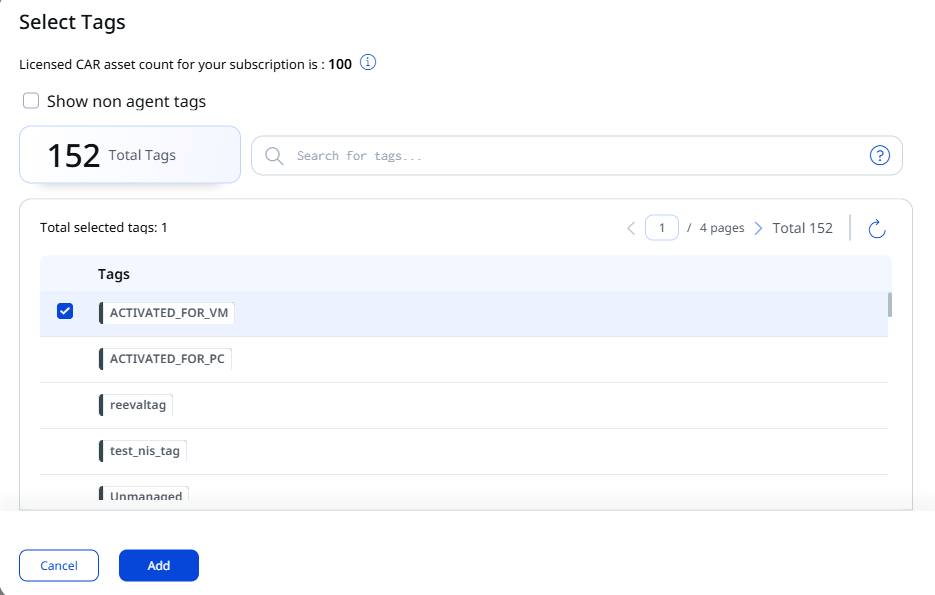
Select the tags you wish to add to the list and click Add. To add non-agent tags, select the non-agent devices checkbox.
You can view the added assets on the Blocked Assets page.
Lab Assets
You can define a list of non-production assets exclusively designated for script testing, ensuring a controlled and focused testing environment. To manage these lab assets, you can add them to the Lab Asset list or use tags in the Lab Asset Tags list.
Manage Lab Assets
You can add or remove assets from the lab asset list.
To add or remove, follow these steps:
- On the Manage Lab Assets section, click
 .
.
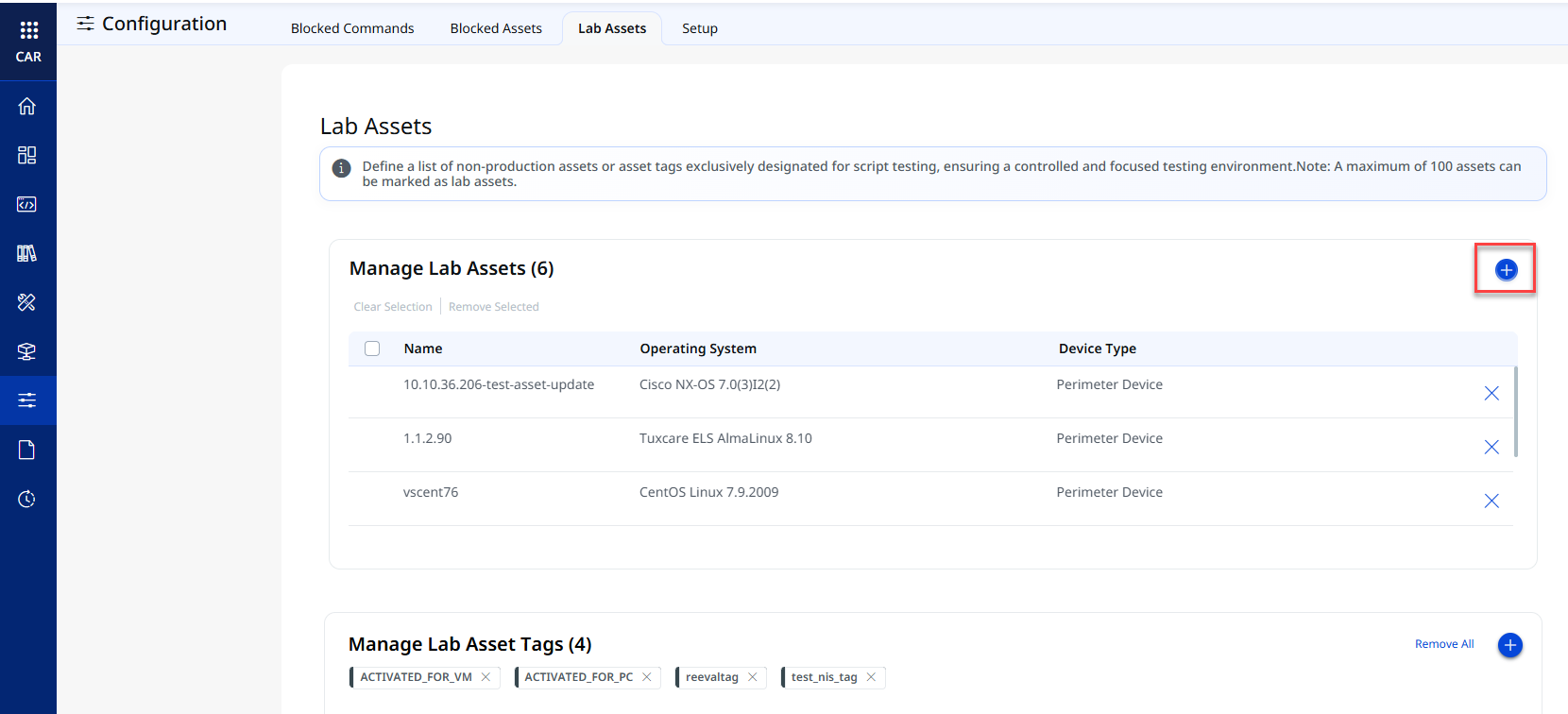
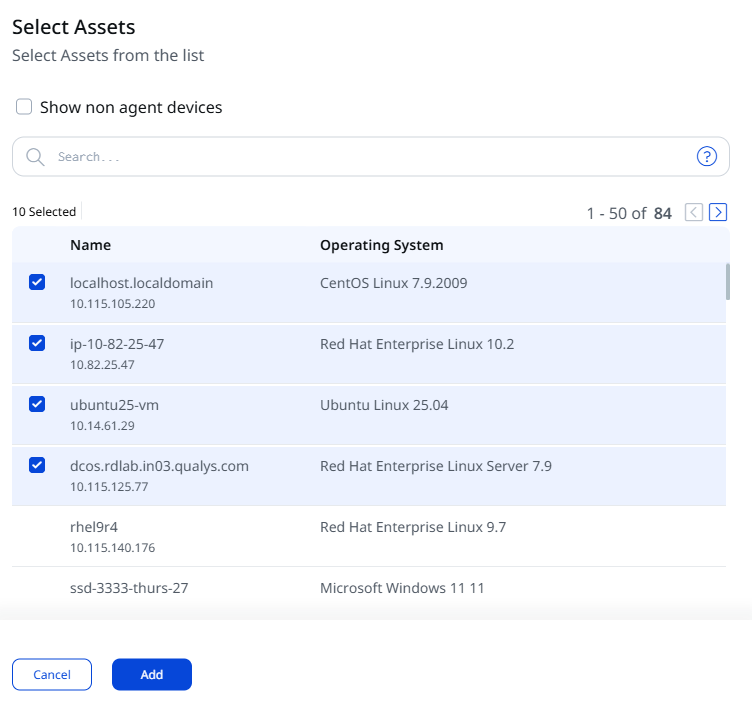
- On the Select Assets window, select the required assets and click Add. To show non-agent devices, select the non-agent devices checkbox.
A maximum of 100 assets can be marked as lab assets.
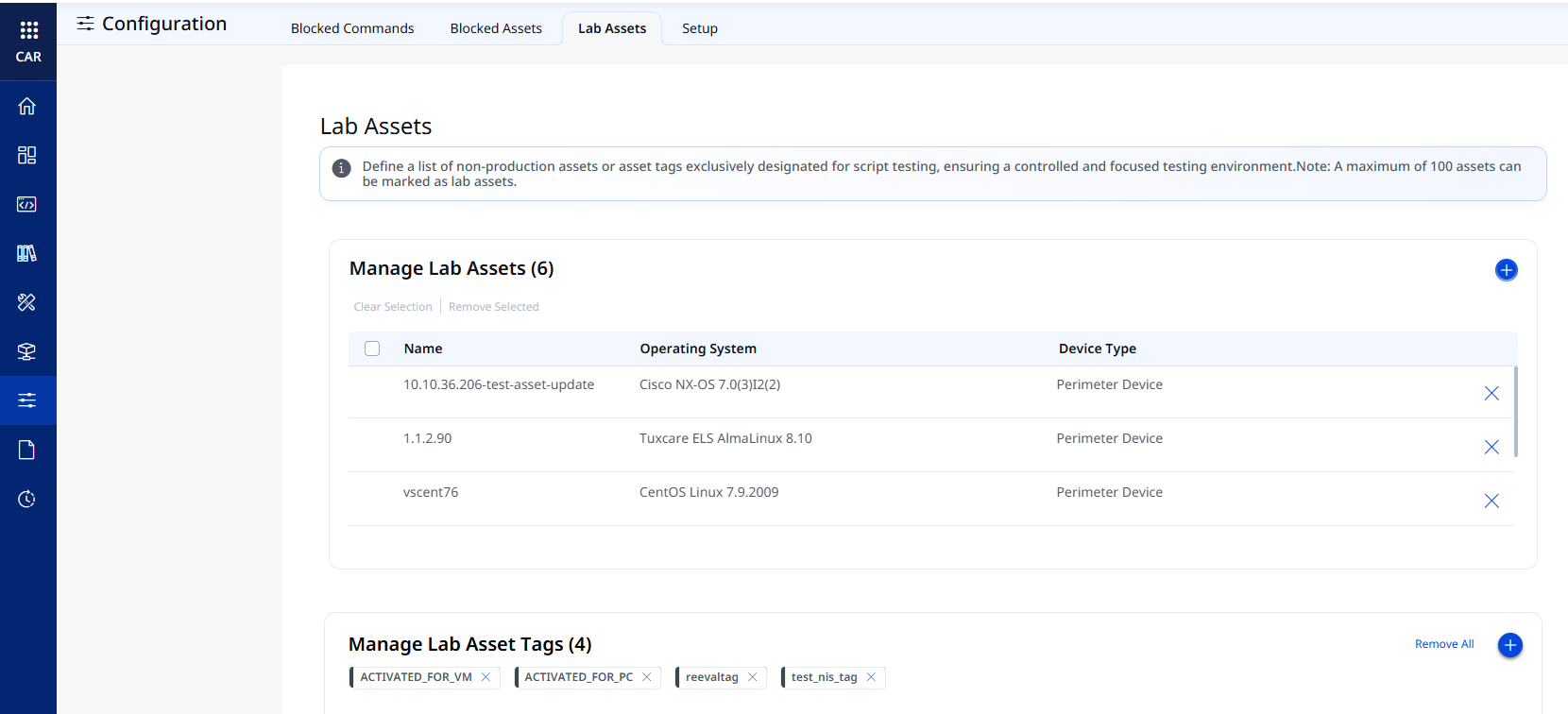
The lab assets are added and you can view them under the Manage Lab Assets section.
-
To remove assets from the lab asset list, click
adjacent to the asset on the Manage Lab Assets section.
Manage Lab Asset Tags
You can add or remove tags from the lab asset tags list.
To add or remove, follow these steps:
- On the Manage Lab Asset Tags section, click .
- On the Select Tags window, select the required assets and click Add.
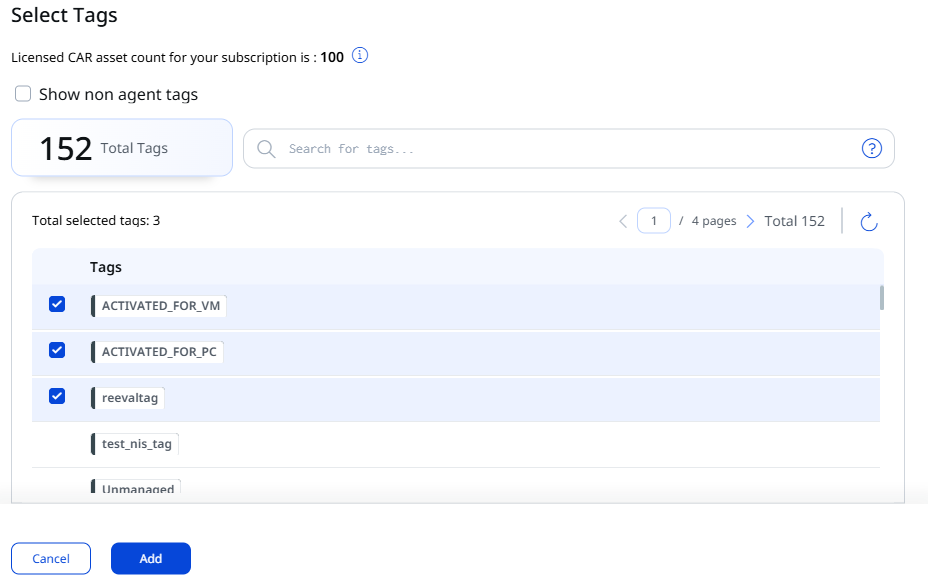
You can add a maximum of 25 lab tags to the list of lab asset tags.
The lab assets tags are added and you can view them under the Manage Lab Asset Tags section.
-
To remove tags from the lab asset tags list, click
adjacent to the asset on the Manage Lab Asset Tags section.
Setup
The Secondary Approval Workflow requires an independent reviewer to approve scripts and software packages before they can run. When this workflow is enabled, users cannot approve scripts or packages that they create, even if they have approval permissions. Another user with approval permissions must review and approve the script or software package before it is executed.
Prerequisites
- Ensure you have permission to access the Setup page.
- Ensure at least one additional user has approval permissions.
The Secondary Approval Workflow setting is available only to users with the required permission. Contact your Technical Account Manager (TAM) if you need access to this.
Configure Secondary Approval Workflow
- Navigate to Configuration > Setup.
- Turn on Secondary Approval Workflow.
Enabling the Secondary Approval Workflow immediately deactivates schedules for all currently approved scripts and packages. Before enabling this setting, review your approved scripts or packages.
When the workflow is enabled:
- New scripts and packages are created in the Pending Test state.
- Users cannot approve scripts or packages they create.
- Users can reject scripts or packages they create.
- Another user with approval permissions must review and approve the script or package before execution.
Approval Workflow Behavior
The following table describes how the workflow behaves when Secondary Approval Workflow is enabled.
| Action | Result |
|---|---|
| Create a script or package | The script or package is created in the Pending Test state. |
| Submit a script or package for approval | Another user with approval permissions must review the script or package. |
| The creator attempts to approve the script or package | Approval is not allowed. The creator can reject the script or package. |
| The reviewer approves the script or package | The status changes to Approved, and the script or package becomes available for execution. |
| The reviewer rejects the script or package | The status changes to Rejected. |
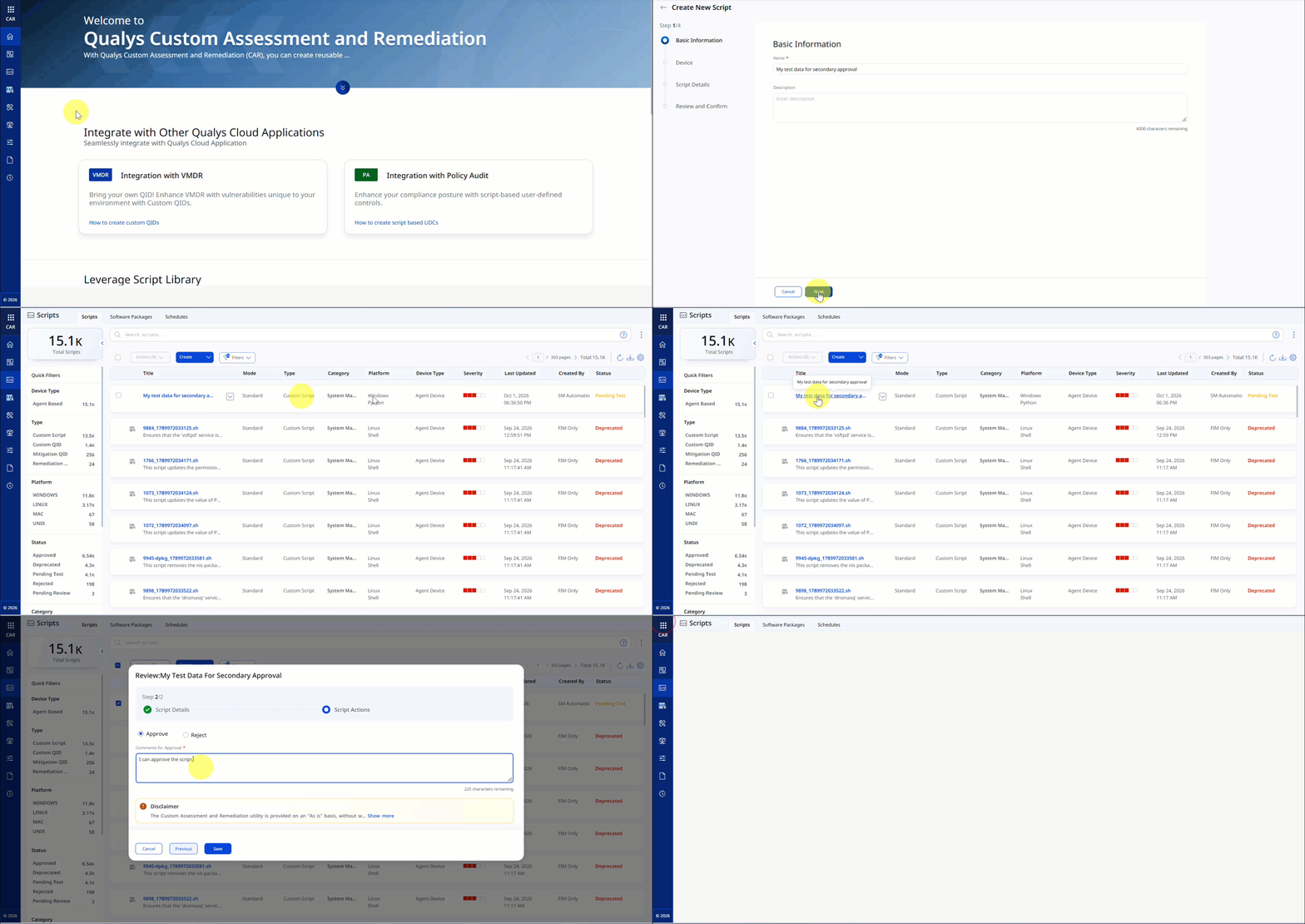
For more information about creating a script, refer to Create Scripts.
Edit an Approved Script or Package
When you edit an approved script or package:
- The status changes to Pending Approval.
- Associated schedules are deactivated.
- The schedules remain inactive until the script or package is approved again.
After the script or package is approved, you can reactivate the associated schedules as needed.
Disable Secondary Approval Workflow
Turn off Secondary Approval Workflow to restore the standard approval process.
Disabling the Secondary Approval Workflow does not change the status of existing scripts, packages, or schedules. Existing schedules remain unchanged.