Perimeter Devices
You can now execute CAR scripts on assets that cannot host the Qualys Cloud Agent, including network appliances such as routers, switches, firewalls, and load balancers, operational technology systems, and other non-agent devices.
This helps custom assessments to more assets in your environment while allowing you to use the same CAR workflows for script creation, execution, scheduling, and results management.
View Perimeter Devices
The Perimeter Devices tab lists non-agent devices that you can assess with CAR scripts. You can configure which devices appear on this tab by adding asset tags in Network Device Configuration. CAR includes scan-discovered devices that match the selected tags.
The Perimeter Devices tab, available under the Assets tab, provides a consolidated view of non-agent assets that Qualys scans and discovers, such as routers, switches, and firewalls.
For example, the following network devices are listed for the CAR Non Agent tag.
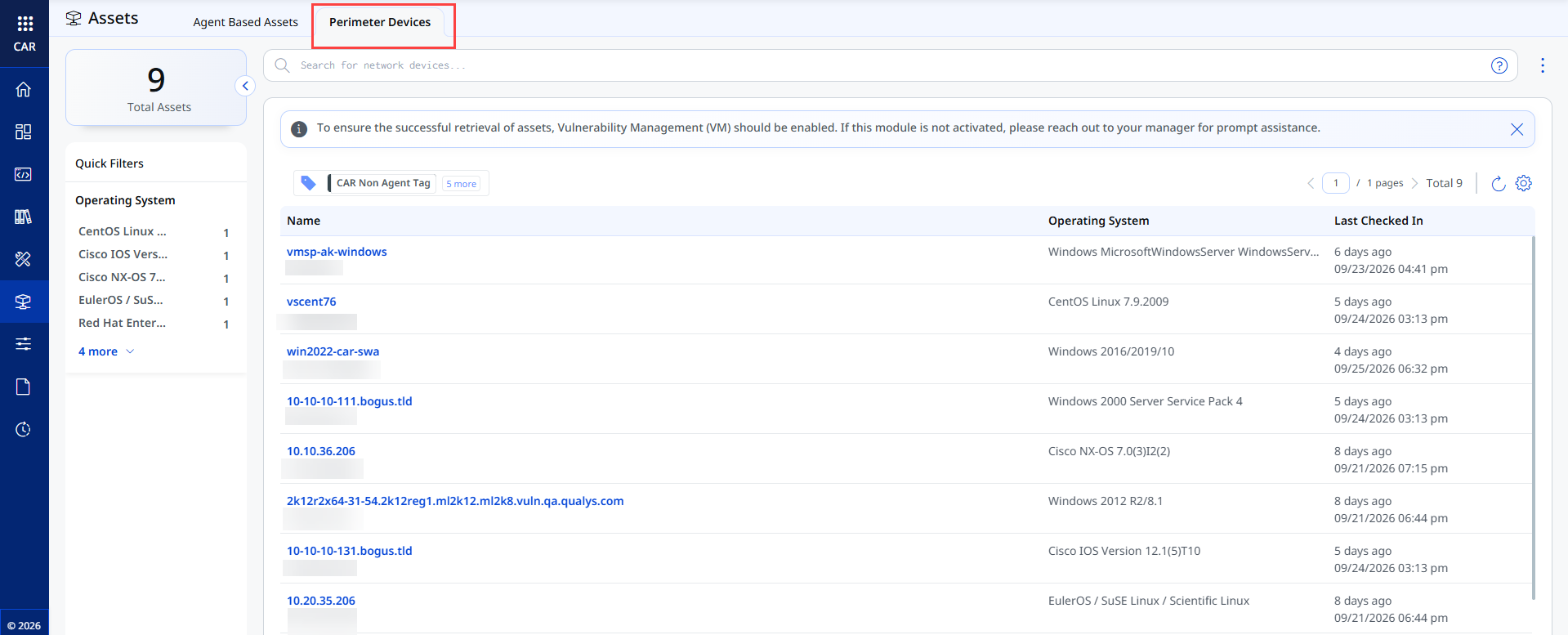
The tab displays the following details for each perimeter device:
| Perimeter Device Detail | Description |
|---|---|
| Name | The device name and its interface IP addresses. |
| Operating System | The operating system that the scan reported, for example, Windows, Cisco IOS. |
| Last Checked In | The last time the Cloud Agent communicated with the Qualys platform. |
Add Tags to Include Perimeter Devices
Add asset tags to specify which network devices CAR displays on the Perimeter Devices tab.
- To add a new tag, click the icon
 .
A Network Device Configuration dialog box opens.
- In Network Device Configuration, select Add Tag.
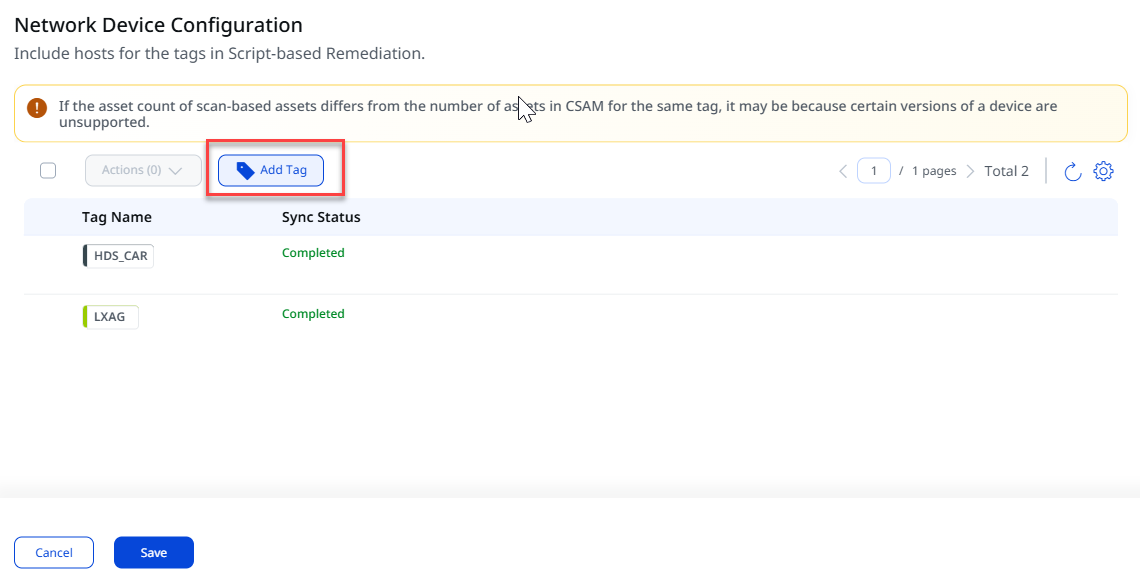
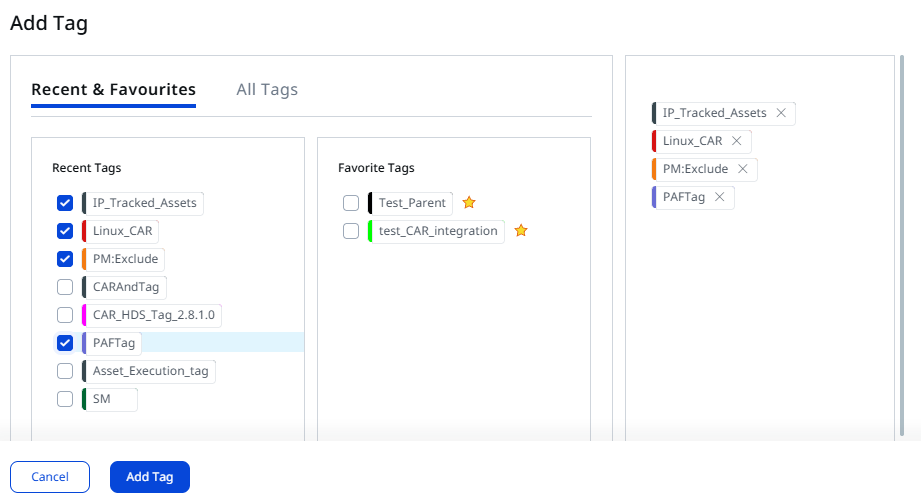
- In an Add Tag dialog box,
- Select Recent & Favourites to view recently used or favorite tags.
- Or, select All Tags to search all available tags. Enter a tag name in the Search Tags field. To view child tags, expand the parent tag.
- Select the check box next to each tag that you want to add.
The selected tags appear in the right pane. To remove a tag, select X next to the tag.
-
Select Add Tag.
-
In the Network Device Configuration dialog box, select Save.
CAR synchronizes the devices associated with those tags. Monitor synchronization progress in the Sync Status column. When the status changes to Completed, CAR displays the devices on the Perimeter Devices tab. You can then select those devices when you run or schedule scripts on Perimeter devices.
Search Using Tokens
Use search tokens in the search bar for advanced searches. This enables you to use complex queries beyond quick filters.
For more information on supported tokens, refer to Search assets.
Quick Actions
Depending on the network device status, you can perform the following actions on a package:
| Quick Action | Description |
|---|---|
| View Details | Display complete information about the selected perimeter device. You can view details such as the device name, operating system, IP addresses, asset information, vulnerabilities, compliance, and tags. |