Assess Devices That Cannot Run the Qualys Cloud Agent
You can use CAR to run scripts on devices that cannot run the Qualys Cloud Agent, including network appliances, devices, and other non-agent devices. This feature removes the requirement to install the Cloud Agent on assets to run scripts and extends custom assessments to more assets across your environment. You can use the same CAR workflows to create, run, schedule, and review scripts for these devices.
You can use CAR scripts on Perimeter devices to:
- Assess device configurations: Verify that a required configuration exists or check the state of a protocol or service.
- Create custom detections: Use Custom QID scripts to report detected issues as findings in VM/VMDR.
- Extend script-based assessments: Assess devices that cannot run the Qualys Cloud Agent.
Prepare Your Environment to Use the CAR with Perimeter Devices
Before you run CAR scripts on non-agent devices, make sure that you meet the following prerequisites.
- Deploy a Scanner appliance.
- Associate devices with a Qualys network.
- Configure authentication.
For more information from Steps 1 to 3, refer to Prerequisites. - Onboard non-agent devices with Tags: Use asset tags to onboard the target non-agent devices for script execution:
- Tag the devices in CSAM: In the CyberSecurity Asset Management (CSAM) module, create and assign a custom tag to the non-agent devices on which you want to execute CAR scripts. For more information, refer to the Create Asset tags in CSAM.
- Add the tag in CAR: In CAR, go to Assets > Perimeter Devices and add the same tag that you assigned in CSAM. CAR syncs and onboards the non-agent devices associated with the tag. After the tag synchronization is complete, the onboarded non-agent assets are available as targets when you launch or schedule script executions for the network device type.
Use CAR with Perimeter Devices
While creating a new script for non-agent devices:
- Select Perimeter Devices as the device type.
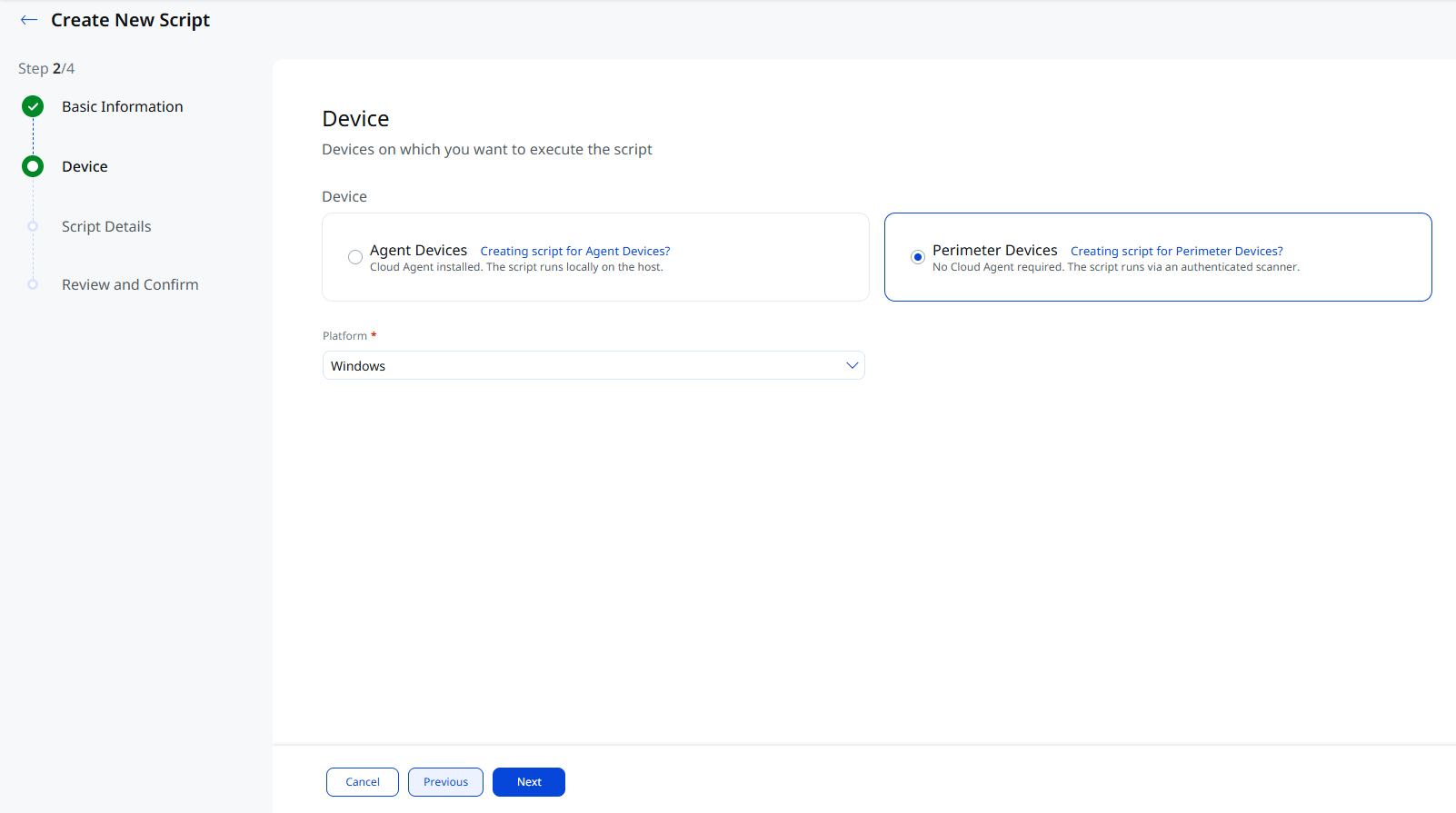
- Select the required Platform.
The available scripting languages are automatically filtered based on the selected platform and device type.
Below are the supported platforms and scripting languages:
Platform Script Language Windows PowerShell-Command, PowerShell-Script Linux Shell, Shell-Command Unix Shell Mac Shell All Cisco Shell-Command Cisco IOS Shell-Command Cisco NX-OS Shell-Command Cisco ASA Shell-Command Cisco Firepower Shell-Command Juniper JunOS Shell-Command Arista EOS Shell-Command F5 BIG-IP Shell-Command Fortinet FortiGate Shell-Command Check Point Shell-Command - Click Next to view the Script Details page.
The following script types are supported while creating a script for the Perimeter devices:
The rest of the script creation flow remains the same for the supported script types above. Complete the remaining fields.
Example Scripts for Perimeter Devices
You can use these sample commands and scripts to start assessing your perimeter devices. Each sample only reads information from the device.
Single Commands
Windows (PowerShell Command)Windows (PowerShell Command)
The Powershell commands which are invalid or produces empty output or produces output in tabular format are not supported.
If you want to use the commands which produces tabular output, you can write it in below format -
$CommandOutput = ""
$null = Get-ChildItem "C:\Windows\System32" | Measure-Object
$result = Get-ChildItem "C:\Windows\System32" | Select-Object -First 20
$CommandOutput = $result | Out-String -Width 200
if ($CommandOutput) {
    $CommandOutput -split "`r`n" | ForEach-Object { Write-Output $_ }
} else {
    Write-Output ""
}
| Command | What it returns |
|---|---|
hostname |
The host name of the device |
Get-Service |
All services and their status |
Linux (Shell-Command)Linux (Shell-Command)
| Command | What it returns |
|---|---|
hostname |
The host name of the device |
uname -a |
Kernel name, version, and architecture |
cat /etc/os-release |
Distribution name and version |
df -h |
Disk usage, in a readable format |
free -h |
Memory usage, in a readable format |
cat /proc/cpuinfo |
Processor details |
Unix (Shell-Command)Unix (Shell-Command)
| Command | What it returns |
|---|---|
uname -a |
System name, version, and architecture |
hostname |
The host name of the device |
df -k |
Disk usage, in kilobytes |
Mac (Shell-Command)Mac (Shell-Command)
| Command | What it returns |
|---|---|
sw_vers |
The macOS version and build |
hostname |
The host name of the device |
df -h |
Disk usage, in a readable format |
Cisco IOS (Shell-Command)Cisco IOS (Shell-Command)
| Command | What it returns |
|---|---|
show version |
Software version, uptime, and hardware model |
show inventory |
Hardware components and serial numbers |
show running-config |
The current device configuration |
Cisco NX-OS (Shell-Command)Cisco NX-OS (Shell-Command)
| Command | What it returns |
|---|---|
show version |
Software version, uptime, and hardware model |
show inventory |
Hardware components and serial numbers |
Cisco ASA (Shell-Command)Cisco ASA (Shell-Command)
| Command | What it returns |
|---|---|
show version |
Software version, uptime, and hardware model |
show route |
The routing table |
show running-config |
The current device configuration |
Cisco Firepower (Shell-Command)Cisco Firepower (Shell-Command)
| Command | What it returns |
|---|---|
show version |
Software version, uptime, and hardware model |
show route |
The routing table |
show running-config |
The current device configuration |
Check Point (Shell-Command)Check Point (Shell-Command)
| Command | What it returns |
|---|---|
hostname |
The configured host name of the gateway |
uname -a |
System's kernel, hostname, and architecture details |
ifconfig -a |
All network interfaces and their settings |
netstat -rn |
The routing table |
cpstat os -f all |
Operating system and system status details |
Multi-Line Scripts
You can use multi-line scripts when you want labeled, easy-to-read output or when a single task requires several commands.
Windows (PowerShell Script)
PowerShell commands that are invalid, return empty outputs, or generate tabular formatting are not supported. If you need to use a command that outputs a table, pipe the results into Out-String using the following format:
$ScriptResult = ""

$null = Get-ChildItem "C:\Windows\System32" | Measure-Object

$result = Get-ChildItem "C:\Windows\System32" | Select-Object -First 20

$ScriptResult = $result | Out-String -Width 200

if ($ScriptResult) {

    $ScriptResult -split "`r`n" | ForEach-Object { Write-Output $_ }

} else {

    Write-Output ""

}
Collect Basic System InformationCollect Basic System Information
Returns the host name, operating system name and version, and the last boot time.
Write-Output "Hostname:"

hostname
Write-Output "`nOS Information:"

Get-CimInstance Win32_OperatingSystem |

Select-Object Caption, Version
Write-Output "`nLast Boot Time:"

(Get-CimInstance Win32_OperatingSystem).LastBootUpTime
List Running ServicesList Running Services
Returns the name, display name, and status of every running service.
Write-Output "List of Running Services"
Get-Service |
Where-Object {$_.Status -eq "Running"} |
Select-Object Name, DisplayName, Status
Linux (Script)
Collect Basic System InformationCollect Basic System Information
Returns the host name, operating system details, and kernel version.
#!/bin/bash
echo "Hostname:"
hostname
echo ""
echo "Operating System:"
cat /etc/os-release
echo ""
echo "Kernel Version:"
uname -r
Collect CPU InformationCollect CPU Information
Returns the processor model and the number of processing units.
#!/bin/bash
echo "========================================"
echo "          CPU INFORMATION"
echo "========================================"
echo
echo
echo "----- CPU COUNT -----"
echo "Available CPUs    : $(nproc 2>/dev/null || echo "N/A")"
echo "Total CPUs        : $(nproc --all 2>/dev/null || echo "N/A")"
if [ -r /proc/cpuinfo ]; then
    echo "Logical CPUs : $(grep -c '^processor' /proc/cpuinfo)"
    echo "CPU Model    : $(grep -m1 '^model name' /proc/cpuinfo | cut -d':' -f2- | xargs)"
    echo "CPU MHz      : $(grep -m1 '^cpu MHz' /proc/cpuinfo | cut -d':' -f2- | xargs)"
else
    echo "ERROR: /proc/cpuinfo is not readable." >&2
fi
if command -v nproc >/dev/null 2>&1; then
    echo "Available CPU: $(nproc)"
else
    echo "WARNING: nproc command not found." >&2
fi
echo "==========================="
Related Topics
Creating Custom QIDs Using Scripts