Qualys Native Deployment for Azure Snapshot-based Scan
Use this method to to grant the permissions required for deployment, and then use the FlexScan APIs to register and set up the Service and Target Accounts.
For an overview of the available deployment methods, refer to Configure Zero-touch Snapshot-based Scan for Azure.
Prerequisites for Snapshot-based Scan on Azure
Before you enable snapshot-based scanning for Azure, ensure the following:
Subscription and Feature Enablement
- You have an active Qualys Enterprise TruRisk Platform subscription with TotalCloud.
- The Zero-touch Snapshot-based Scan for Azure feature is enabled for your subscription. If not, contact Qualys Support.
Azure Connectors and Subscriptions
- At least one Azure subscription is configured as the Service Account subscription. This subscription hosts the shared scan infrastructure.
- One or more Azure connectors are configured as Target Account subscriptions. These subscriptions host the VMs to be scanned.
Permissions in Azure
The service principal used by the Qualys connector must be able to:
- Create and delete snapshots and disks.
- Launch and terminate VMs, including the virtual networks (VNets) and subnets they use.
- Read and write to a Storage account used for scan results and logs.
- Use a Key Vault key to encrypt scan disks and snapshots.
- Deploy the publicly invokable Function App that routes requests and responses between the Qualys backend and the private scanner VM.
To deploy the required resources and permissions, refer to Azure Terraform Configuration for Snapshot-based Scan.
Azure Rate Limits and Recommendations
Snapshot-based scanning uses your Azure quotas. For a smooth experience:
- Compute quotas – Ensure that you have enough quota for:
- Snapshot operations per subscription and region.
- Disk create and delete operations.
- A small pool of temporary scanner VMs in the Service Account subscription.
- Storage account quotas – Ensure sufficient storage and throughput in the Service Account subscription for scan results and logs.
- Key Vault – Verify that your Key Vault keys have enough capacity for the expected number of encrypt and decrypt operations.
Scan frequency
Qualys performs discovery and scheduling internally. In a typical setup, each eligible VM is evaluated for snapshot-based scanning approximately once every 24 hours, with built-in retry logic for failures. You do not need to manage cron schedules.
Feature Support Matrix
The following table summarizes the scan types supported for Azure snapshot-based scan in this release.
| Resource Type | OS Scan | SwCA Scan | Secrets Scan | On-Demand Scan |
|---|---|---|---|---|
| Linux-based instances | ✔ | ✔ | ✔ | ✖ |
| Windows-based instances | ✔ | ✖ | ✖ | ✖ |
| Linux-based machine images | ✖ | ✖ | ✖ | ✖ |
| Windows-based machine images | ✖ | ✖ | ✖ | ✖ |
Currently, snapshot-based scanning on Azure supports OS, SwCA, and Secrets scans for Linux-based instances. For Windows-based instances, only the OS scan is supported.
OS Compatibility
For the operating systems and architectures supported by Azure Snapshot-based Scan, refer to Azure Snapshot-based Scan OS Compatibility Matrix.
Azure Services Created for Snapshot-based Scan
When you deploy the Qualys resources for Azure, the service provisions resources in your Service Account subscription and uses permissions on your Target Account subscriptions.
Service Account Subscription (Central Scan Infrastructure)
The Service Account subscription typically contains:
- Scanner VMs
- Temporary VMs that attach disks created from snapshots of your target VMs, and run the Qualys scanner to perform OS, SCA, and secrets assessments.
- Scanner VMs are tagged so that they are easy to identify and monitor.
- Networking – You can configure one of two network access types for the scanning infrastructure. Use the following table to choose a mode:
Requirement Recommended Mode Lowest Azure cost SERVICE_ENDPOINTSimpler deployment SERVICE_ENDPOINTBlob container scanning SERVICE_ENDPOINTCross-subscription storage access SERVICE_ENDPOINTMaximum network isolation PRIVATE_ENDPOINTSmallest security blast radius PRIVATE_ENDPOINTZero public endpoint exposure PRIVATE_ENDPOINTEnterprise compliance PRIVATE_ENDPOINT - Storage accounts – A storage account for each target region stores:
- Scan results (OS and SCA data).
- Logs from the scanner VM.
- Entities required to perform the scan.
- Key Vault – A Key Vault key is used to encrypt:
- The boot disk of the scanner VM.
- Disks created from snapshots.
- Control plane components – Internal services used by Qualys to submit scan requests, poll scan status, and coordinate cleanup of snapshots and temporary resources.
- Snapshots of VM disks – Snapshots are created for each eligible disk attached to your target VMs.
Target Account Subscriptions (Workload Subscriptions)
In each target subscription where your workloads run, Qualys uses the VM read permission to discover target VMs. Snapshots of the discovered VMs are created in the Service Account subscription.
Qualys manages all of these resources on your behalf. Do not modify or delete them manually unless you intend to disable snapshot-based scanning.
Configure Snapshot-based Scanning
Deploy the Service and Target Account Subscriptions
To fully enable snapshot-based scanning on Azure, you need to:
- Set up the permissions for Azure Service Account subscription using Terraform.
- Register the created connector as a Service Account using the FlexScan API, and enable the Snapshot-based scan checkbox from the UI.
- Configure scan settings for the Service Account.
- Configure scan settings for individual Target Accounts.
- Verify the setup and state using the Get APIs.
- Deregister the Service Account when decommissioning.
All FlexScan APIs are available under the FlexScan API base path:
https://<qualys_base_url>/flexscan-api/rest/v1/...
Use the same Authorization header that you use for other Qualys APIs, for example, a bearer token.
1. Set Up the Permissions for Azure Service Account Subscription with Terraform
Before deploying the Azure resources, download the Terraform configuration for the required Azure scope.
Using the API
Download the Terraform configuration using the following command:
curl --location --request GET 'https://<gateway-url>/flexscan-api/rest/v1/artifacts/download?cloudType=AZURE&fileName=terraform.zip'\
--header 'Authorization: Bearer <Bearer-token>'
To identify the gateway URL for your Qualys platform, refer to Qualys Platform Identification.
Using Postman
curl -X 'GET' \
  'https://<qualys-gateway-url>/flexscan-admin/admin/masif/download?type=flexscan-artifacts&key=AZURE%2Fterraform.zip' \
  -H 'accept: */*' \
  -H 'X-Admin-Token: secret-token'
Using Terminal
curl --output gcp_terraform.zip -X 'GET' \
  'https://<qualys-gateway-url>/flexscan-admin/admin/masif/download?type=flexscan-artifacts&key=AZURE%2Fterraform.zip' \
  -H 'accept: */*' \
  -H 'X-Admin-Token: secret-token'
Deploy the Qualys Terraform configuration for Azure. At a high level, the configuration:
- Creates or reuses a Qualys service principal in your chosen Service Account subscription.
- Registers the required Azure resource providers on the service subscription (Compute, Storage, Key Vault, Function App, and so on).
- Creates custom roles for FlexScan.
- Grants snapshot, Key Vault, and tenant, management group, or subscription-level permissions so that FlexScan can:
- Discover target subscriptions.
- Create snapshots of VM disks.
- Use a Key Vault key for encryption.
Typical high-level steps:
- Choose an Azure subscription to act as the Service Account subscription.
- Prepare the Terraform variables, such as:
subscription_id(required)location(required)deploy_flexscan = trueto deploy FlexScan in addition to CSPM- Optional scoping variables (
target_management_groupsandtarget_subscriptions) if you do not want tenant-wide role assignments
- Run
terraform init,terraform plan, andterraform applyfrom your Terraform environment. - After Terraform completes:
- The service subscription has the required resource group, roles, and registered resource providers.
- The Qualys service principal has tenant, management group, or subscription-level access to take snapshots and use Key Vault.
For the detailed variables, deployment scenarios, and troubleshooting, refer to Azure Terraform Configuration for Snapshot-based Scan.
2. Register the Azure Connector as a Service Account (Register API)
After Terraform completes and the connector exists in Qualys, register the connector as a Service Account.
Endpoint: POST /flexscan-api/rest/v1/service-accounts/register
Headers
| Header | Value | Required |
|---|---|---|
Authorization |
Bearer <token> (or equivalent Qualys authentication) |
Yes |
Content-Type |
application/json |
Yes |
Accept |
application/json |
Yes |
Request body
{
  "accountId": "xxxx-xxxx-xxxxx-xxxxx",
  "cloudType": "AZURE"
}
Fields
| Field | Type | Required | Allowed Values | Description |
|---|---|---|---|---|
accountId |
String | Yes | – | The Azure subscription ID that you want to use as the Service Account subscription. This must match the connector account ID in Qualys. |
cloudType |
String | Yes | GCP, AWS, AZURE (case-insensitive) |
Cloud provider type. Use AZURE for Microsoft Azure. |
If the account is already registered, the API may return 304 Not Modified with the status ALREADY_REGISTERED.
To enable snapshot-based scanning for Azure, activate it on the Azure connector.
- Create or edit an Azure connector
- Sign in to the Qualys portal and navigate to Connectors > Azure.
- Create a new connector or edit an existing one for your Azure environment.
- Go to the Tags and Activation step
- Locate the Enable Zero-touch Snapshot-based Scan option.
- Select the checkbox to turn on snapshot-based assessment for the connector.
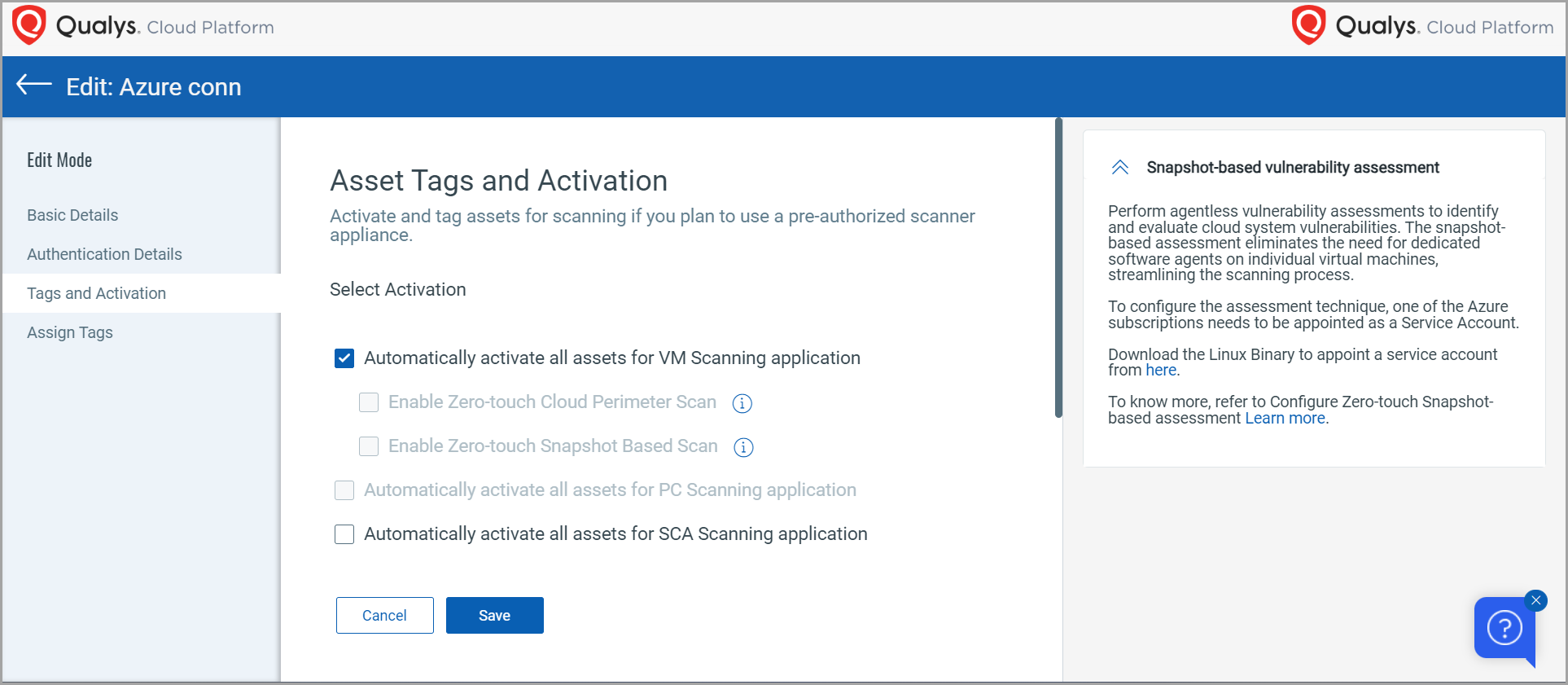
- If the checkbox is unavailable
The checkbox remains disabled in the following cases:
- Snapshot-based scan for Azure is not yet enabled for your subscription.
- No Service Account subscription is registered for Azure snapshot-based scanning.
In this case, complete the Service and Target Account deployment steps below, or contact Qualys Support.
3. Configure Service Account Scan Settings (Service Account Setup API)
After registration, configure the scan settings for the Service Account. These settings act as defaults for all child Target Accounts.
Endpoint: POST /flexscan-api/rest/v1/service-accounts/setup
Headers: Same as the Register API.
Request body (ScanConfigRequest)
{
  "accountId": "xxxx-xxxx-xxxxx-xxxxxx",
  "regions": ["eastus", "centralus"],
  "networkAccessType": "SERVICE_ENDPOINT",
  "scanInfo": [
    {
      "resourceType": "VM",
      "enabled": true,
      "tagFilter": {
        "mustHave": [],
        "atLeastOne": [],
        "exclude": []
      },
      "platforms": [
        {
          "platform": "LINUX",
          "enabled": true,
          "scans": [
            {
              "scanType": "OS",
              "enabled": true,
              "intervalHours": 24
            },
            {
              "scanType": "SCA",
              "enabled": true,
              "intervalHours": 24,
              "includeDirectories": [],
              "excludeDirectories": []
            },
            {
              "scanType": "SECRET",
              "enabled": true,
              "intervalHours": 24,
              "includeDirectories": [],
              "excludeDirectories": [],
              "ruleCategories": [],
              "ruleSeverities": ["HIGH", "CRITICAL"]
            }
          ]
        },
        {
          "platform": "WINDOWS",
          "enabled": true,
          "scans": [
            {
              "scanType": "OS",
              "enabled": true,
              "intervalHours": 24
            }
          ]
        }
      ]
    }
  ]
}
Fields
| Field | Type | Required | Default | Allowed Values | Description |
|---|---|---|---|---|---|
accountId |
String | Yes | – | – | Service Account ID (the Azure subscription ID registered in the previous step). |
regions |
String[] | Yes | – | Azure regions, for example, eastus, centralus |
Regions where snapshot-based scanning runs. |
networkAccessType |
String | No | SERVICE_ENDPOINT |
SERVICE_ENDPOINT, PRIVATE_ENDPOINT |
Network access type for the scanning infrastructure. |
scanInfo[] |
|||||
scanInfo.resourceType |
String | No | VM |
For this release: VM only |
Resource types to scan. For snapshot-based scan, only VMs are supported. |
scanInfo.tagFilter |
|||||
mustHave |
String[] | No | – | – | Tags that must all be present on a VM (AND logic). |
atLeastOne |
String[] | No | – | – | At least one of these tags must be present on a VM (OR logic). |
exclude |
String[] | No | – | – | VMs with any of these tags are excluded from scanning. |
scanInfo.platforms[] |
|||||
platforms.platform |
String | No | – | LINUX, WINDOWS |
Target platform for scanning. |
platforms.enabled |
Boolean | No | true |
true, false |
Enables or disables scanning for the platform. |
scanInfo.platforms[].scans[] |
|||||
scans.scanType |
String | No | OS |
OS, SCA, SECRET |
VM scan type. SCA and SECRET are not supported on Windows in this release. |
scans.enabled |
Boolean | No | true |
true, false |
Enables or disables the scan type. |
scans.intervalHours |
Integer | No | 24 |
24–720 | Scan interval in hours. The minimum is 24 hours. |
scans.includeDirectories |
String[] | No | – | – | Directories to include in the scan. Applies only when scanType is SCA or SECRET. |
scans.excludeDirectories |
String[] | No | – | – | Directories to exclude from the scan. Applies only when scanType is SCA or SECRET. |
scans.ruleCategories |
String[] | No | – | – | Rule categories used to filter secret detections. Applies only when scanType is SECRET. |
scans.ruleSeverities |
String[] | No | – | – | Rule severities used to filter secret detections, for example, HIGH, CRITICAL. Applies only when scanType is SECRET. |
These settings are stored on the Service Account and are used as the baseline scan configuration for all child Target Accounts.
The following regions are currently not supported: canadaeast, qatarcentral, australiacentral, koreasouth, and westindia.
Changing the networkAccessType of an existing setup from SERVICE_ENDPOINT to PRIVATE_ENDPOINT, or vice versa, is not recommended.
4. Configure Target Account Scan Settings (Target Account Setup API)
After the Service Account is configured, you can override the scan settings for each target subscription.
Endpoint: POST /flexscan-api/rest/v1/target-accounts/setup
Headers: Same as the Service Account Setup API.
Request body (ScanConfigRequest)
{
  "accountId": "my-target-subscription",
  "regions": ["eastus"]
}
By default, all Target Accounts use the scanInfo of the Service Account, unless specified otherwise. To change scanInfo for a Target Account, use the same schema as the Service Account Setup API.
Fields
Same schema as the Service Account Setup API, with the following additional rule:
- Regions subset rule – The Target Account
regionsmust be a subset of the parent Service Account regions.
Configuration precedence: When FlexScan runs, the Target Account scan settings take precedence over the Service Account settings. If a setting is not defined on the Target Account, the Service Account value is used.
5. Verify the Service Account Configuration and State
After Terraform and the setup APIs complete, verify that the Service Account is healthy and that the regions are configured correctly.
5.1 Get Service Account
Endpoint: GET /flexscan-api/rest/v1/service-accounts/{accountId}
Path parameter
| Name | Type | Required | Description |
|---|---|---|---|
accountId |
String | Yes | Service Account ID (the Azure subscription ID). |
This API returns the detailed configuration, including regions, scan interval, and tag filters.
5.2 Get Service Account State
Endpoint: GET /flexscan-api/rest/v1/service-accounts/{accountId}/state
Path parameter
| Name | Type | Required | Description |
|---|---|---|---|
accountId |
String | Yes | Service Account ID. |
The response includes:
state– One ofPENDING,REGISTERED,SUCCESS,PARTIAL_SUCCESS,DISABLED, orFAILED.cloudInfo– Basic information about the underlying Azure subscription.
Use this API to confirm that all regions from the Service Account setup are in the SUCCESS state before you rely on snapshot-based scans.
6. Deregister the Service Account (Before Deleting the Connector)
To remove a Service Account, always deregister it before you delete the corresponding connector in TotalCloud.
Endpoint: DELETE /flexscan-api/rest/v1/service-accounts/deregister
Headers: Same as the Register API.
Request body
{
  "accountId": "xxxx-xxxx-xxxxxx",
  "cloudType": "AZURE"
}
This call:
- Informs the snapshot service that the Service Account is no longer active.
- Prepares the environment so that you can safely delete the connector and, if required, remove the infrastructure.
7. Verify the Target Account State
Similar to the Service Account State API, you can verify the state of each Target Account.
Endpoint: GET /flexscan-api/rest/v1/target-accounts/{accountId}/state
Path parameter
| Name | Type | Required | Description |
|---|---|---|---|
accountId |
String | Yes | Target Account ID (the Azure subscription ID of the workload subscription). |
The response includes:
- The current state of the associated Service Account. Target Accounts inherit the state from their parent Service Account.
- Per-region
cloudInfothat indicates which regions are fully set up and synchronized.
Use this API to verify that each target subscription is attached to the Service Account and ready for snapshot-based scanning.
View Findings
After a successful scan, you can view the findings in TotalCloud. Refer to View OS, SCA, and Secrets Findings in TotalCloud.