Connector Release 2.15
March 09, 2026
Connector 2.15 introduces changes to Azure Snapshot Scan and the OIDC Authentication.
Extended Support for On-Demand Snapshot-Based Scans for Azure Connector
With this release, you can now trigger Azure VM scans on demand, without waiting for the configured scan interval.
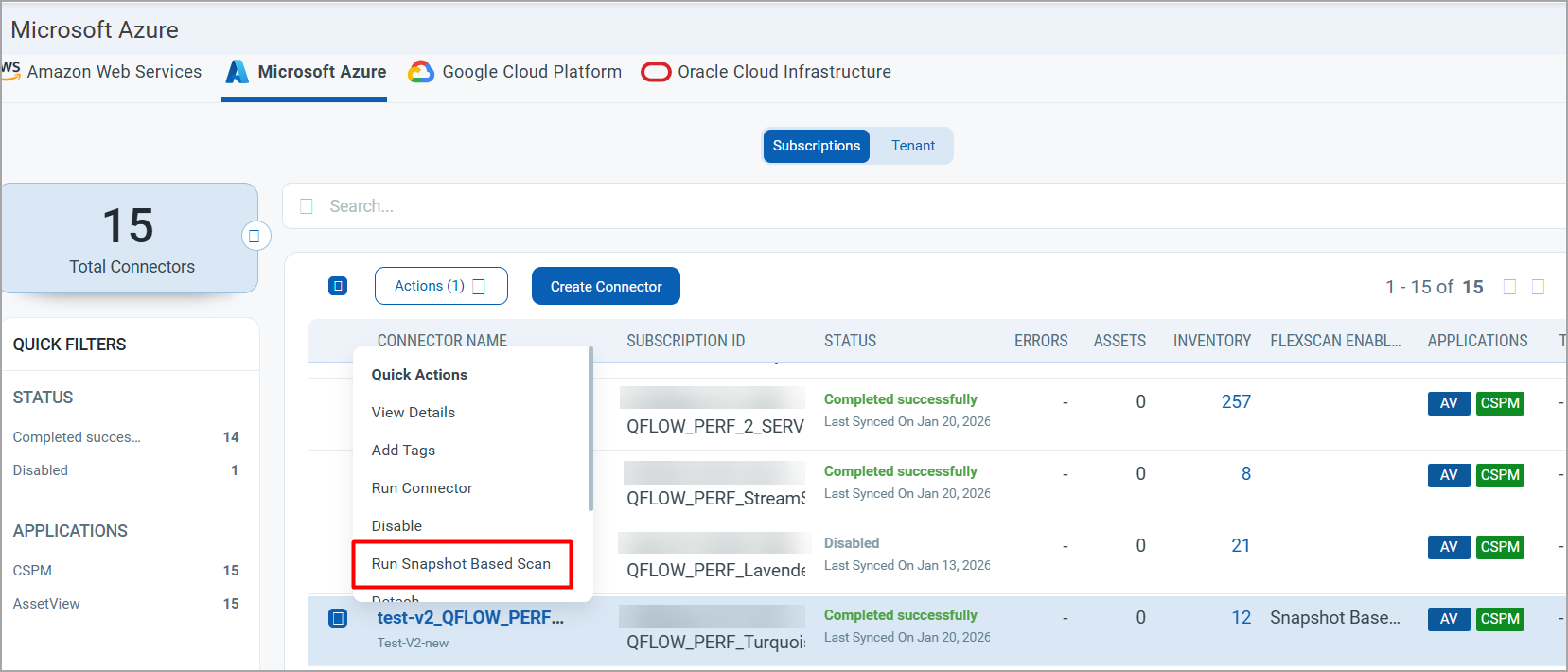
Previously, VM scans ran automatically based on the configured Scan Interval (ranging from 24 hours to 7 days). With this enhancement, customers can manually initiate scans whenever required using the Run Snapshot-Based Scan action.
Ways to trigger an on-demand scan:
- Connector level (Connector)
- Action: Run Snapshot-Based Scan on a connector
- Behavior: Triggers an on-demand scan for all instances across all target regions associated with the selected Azure account.
- Resource level (TotalCloud)
- Action: Run Snapshot-Based Scan on one or more VMs.
- Behavior: Triggers a scan only for the selected VM(s).
- Multiple VMs can be selected and scanned together, with a maximum limit of 50 instances per action.
This feature provides greater flexibility and control, enabling immediate scans for validation, troubleshooting, or compliance checks without waiting for the next scheduled run.
Azure Snapshot Scan – Migration from Terraform to Bicep
Azure Snapshot Scan has been updated to use Bicep instead of Terraform for infrastructure deployment and teardown.
Key changes include:
- Infrastructure provisioning now uses Bicep-based deploy and destroy commands, replacing Terraform binaries.
- The configuration file user-config.json has been renamed to parameters.json.
- tenantId is no longer a required parameter in the new parameters.json file.
This change simplifies configuration management, aligns with Azure-native infrastructure tooling, and reduces dependency on Terraform for snapshot-based scanning workflows.
Azure Snapshot Scan – Windows OS Support
Azure Snapshot Scan now supports Windows-based operating systems.
With this enhancement, snapshot-based scans can be performed on Windows Azure VMs, enabling visibility and assessment alongside existing Linux support. This expands coverage for mixed-OS environments and allows customers to apply snapshot scanning consistently across both Windows and Linux workloads in Azure.
Windows Compatibility
The compatibility matrix for Windows OS. The following matrix is common to Marketplace, Quickstart and Community-based instances.
| OS | x86_64 |
|---|---|
| Windows Server 2016 | Supported |
| Windows Server 2019 | Supported |
| Windows Server 2022 | Supported |
| Windows Server 2025 | Supported |
Support for Auth ID Client Management from UI
With this release, we have extended our support for OpenID Connect Authentication Client Management capabilities from the Connector UI. This update allows for secure authentication and authorization of API access directly from the user interface. Our API interactions are now authenticated with enhanced security measures.
ID tokens are generated and validated with utmost security. This seamless integration requires minimal changes to the existing infrastructure, allowing to maintain the highest level of security for APIs.
With the Auth ID Client Management from UI, you can:
- Manage authentication and authorization processes more intuitively, providing a smoother user experience.
- Easily handle API access permissions directly from the UI, simplifying the process of granting and revoking access when needed.
- Maintain your existing workflows with minimal changes, enabling you to continue your tasks without the need to learn new processes extensively.
Access Control
We have provided role-based access control to create User Level and Subscription Level clients.
Manager users can create two types of clients based on access requirements:
- User Level Clients: These clients are associated directly to individual user accounts, making them ideal for scenarios where user-specific access control is required. Users can access APIs and Connector functionality provided by this client.
The token generated through the User Level client becomes invalid if the user is deactivated. - Subscription Level Clients: These are independent of user identities and offer broader access within the subscription. This means the token generated by this client is tied to the subscription rather than an individual user.
The token generated for a subscription-level client continues to function even if the user is deactivated.
Non-manager users are restricted to creating only User Level Clients, ensuring limited access control.
To access the Client Management tab, navigate to your profile icon, located at the top-right corner, and click View Profile > Auth Id Client Management tab.
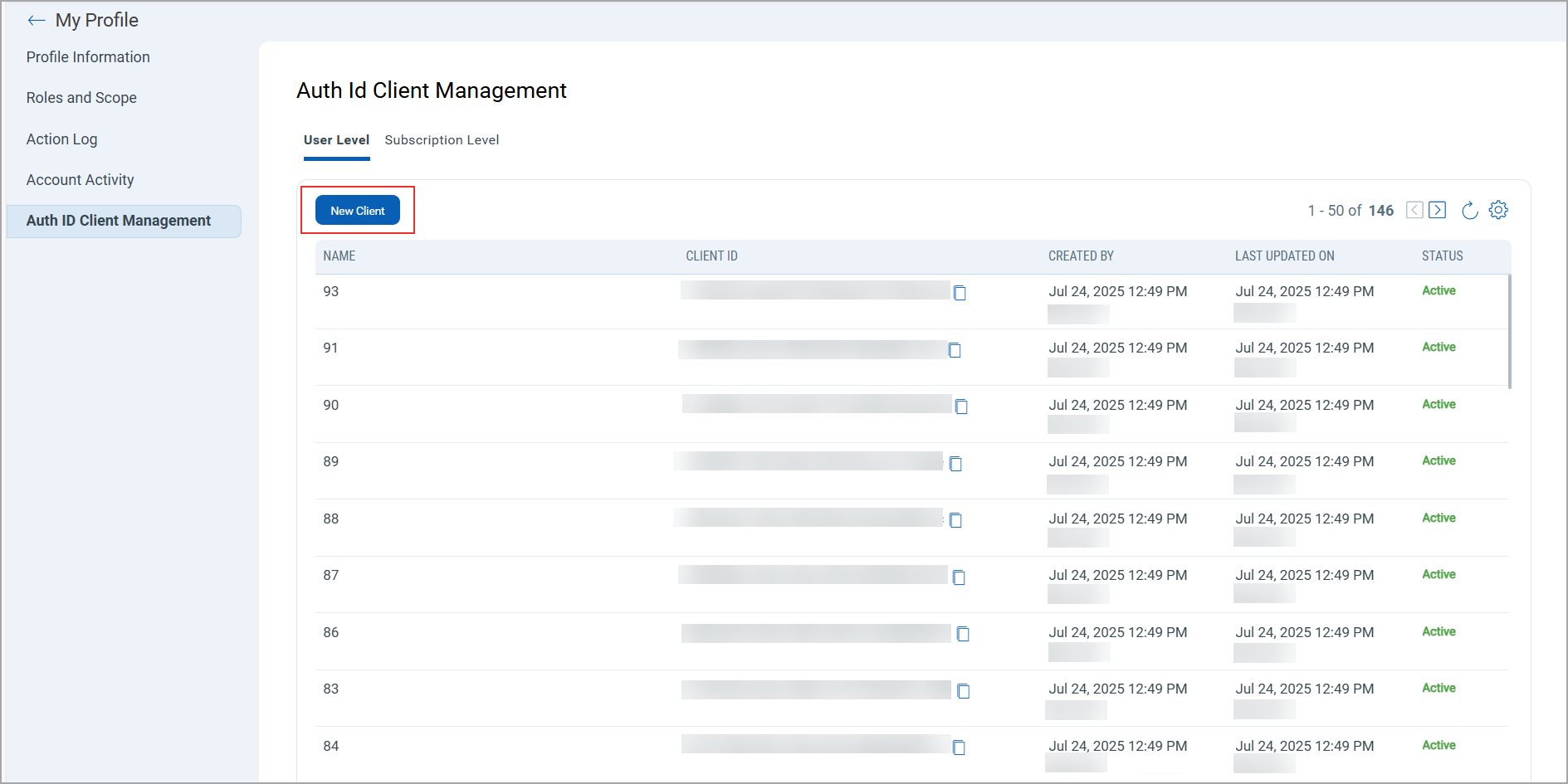
For client creation, select either User Level or Subscription Level from the available options, and then click New Client.
Only users with manager privileges can view and access the Subscription Level tab.
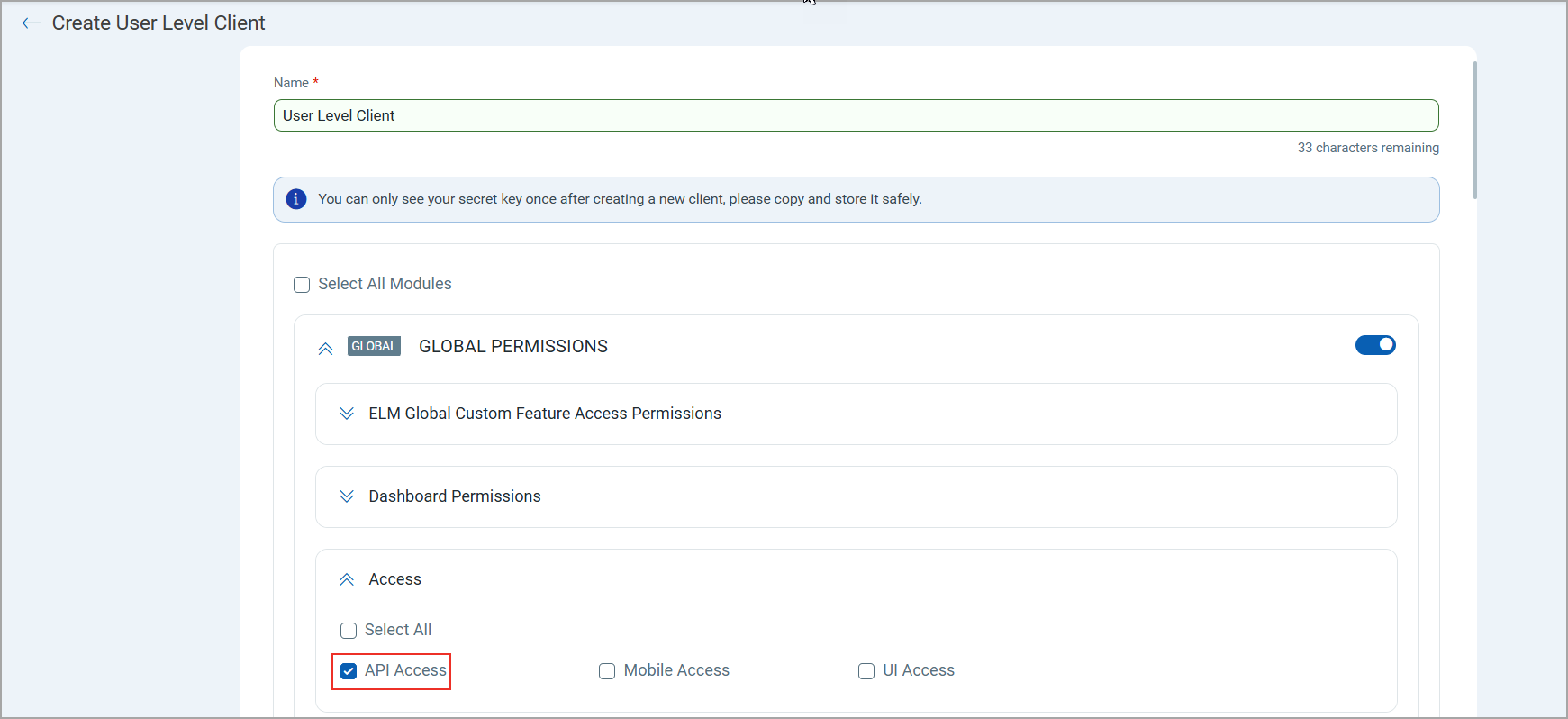
While creating a client, you can select all modules at once or individual modules as required. You can also set various permissions including global permissions, dashboard permissions, tagging permissions, as well as API access. Depending upon these permissions a user can access the modules and its features that are assigned to the client.
Based on the permissions you select:
- If the API Access permission is not enabled under Global Permissions > Access, the API returns a response with this message:
User does not have permission to access the API module
- If the TotalCloud API Access permission under TotalCloud is not enabled, the API returns a response with this message:
User does not have permission to access the TotalCloud module
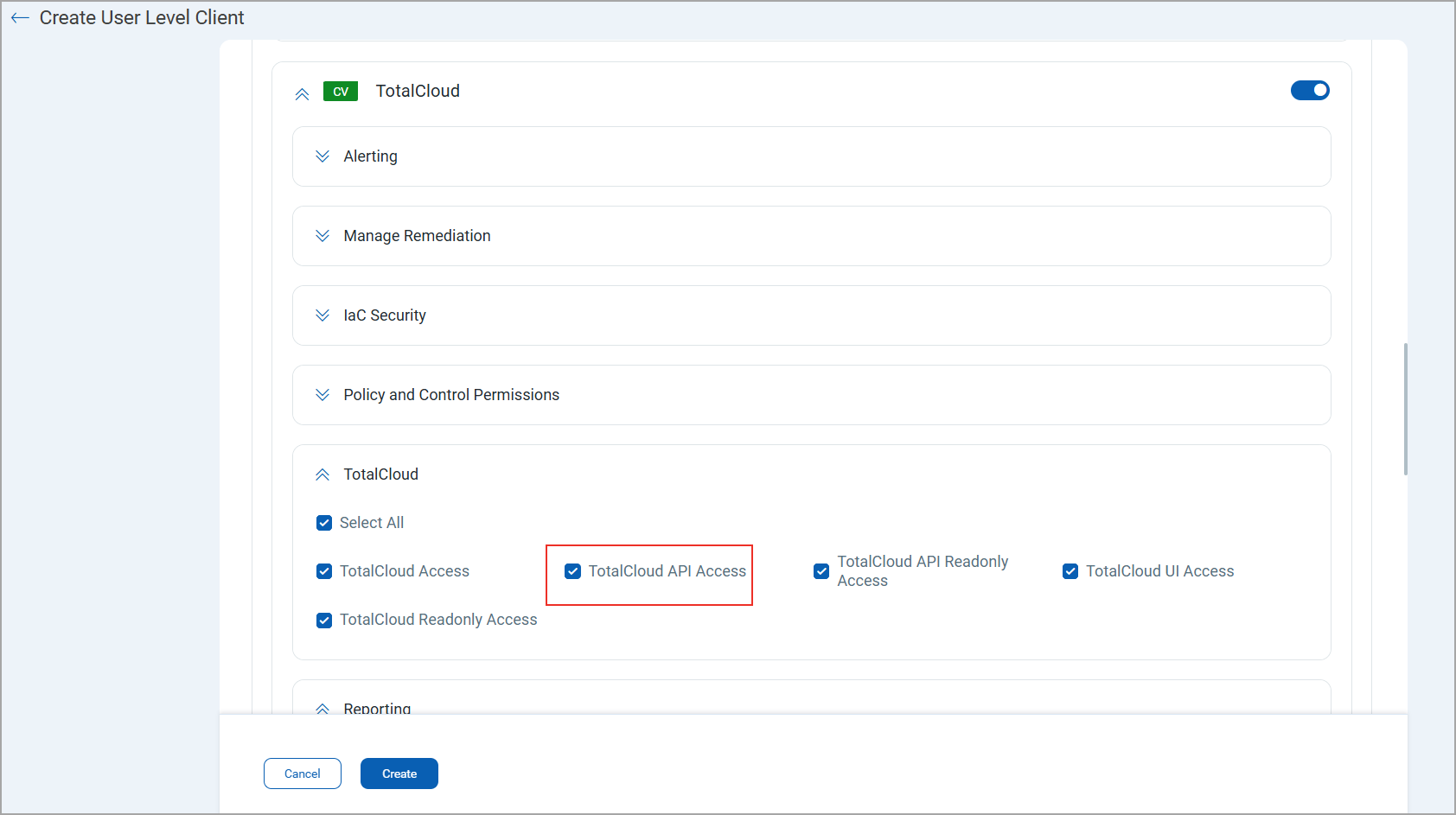
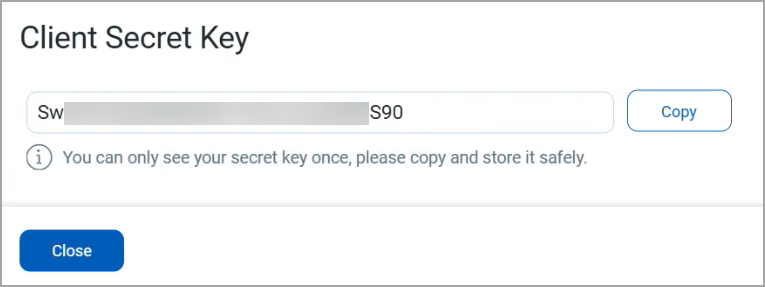
Once you click Create, a Client ID and Client Secret Key are automatically generated. The Client Secret Key is displayed only once. Make sure to copy and store it securely. This key is essential for generating JWT access tokens and cannot be retrieved later. For more information, refer to Connector Release 2.15 API Release Notes