Container Security Release 1.42
March 03, 2026
Qualys Locator Path (QLP) for Container Grouping (Beta)
As containerized environments scale, you face growing difficulty in manually tracking individual containers, especially when hundreds or thousands of instances are listed independently. The lack of a hierarchical view makes organization and navigation increasingly complex.
Qualys Container Security now introduces Qualys Locator Path (QLP) - a hierarchical, intuitive grouping framework that organizes Kubernetes containers based on their logical placement within the environment. Each container is assigned a unique QLP, allowing you to reliably track and differentiate containers, even when they originate from the same image.
QLP provides a flexible, structured, group‑by view of container assets, allowing you to:
- Easily navigate large container inventories
- View logical hierarchy
Account → Cluster → Namespace → Pod → Container - Reduce manual effort in tracking and correlating container instances
- Improve clarity in multi‑cluster and large‑scale Kubernetes environments
Container QLP Uniqueness
A single container image may spawn many containers. To uniquely identify each Container QLP, Qualys uses one or more of the following attributes:
- Container name OR
- Image SHA OR
- Repository and tag
QLP Structure
A QLP provides hierarchical grouping of containers based on the cloud provider or environment where they are hosted. Each QLP is structured in the following pattern:
<account qlp>/<cluster qlp>/<namespace qlp>/<pod qlp>/<container qlp>
See an example of a Container QLP in the AWS EKS environment below.
aws://eks/us-west-2/123456789012/my-eks-cluster/prod-namespace/nginx-pod/nginx-app
The following illustration explains the formation of Container QLP using the above example.
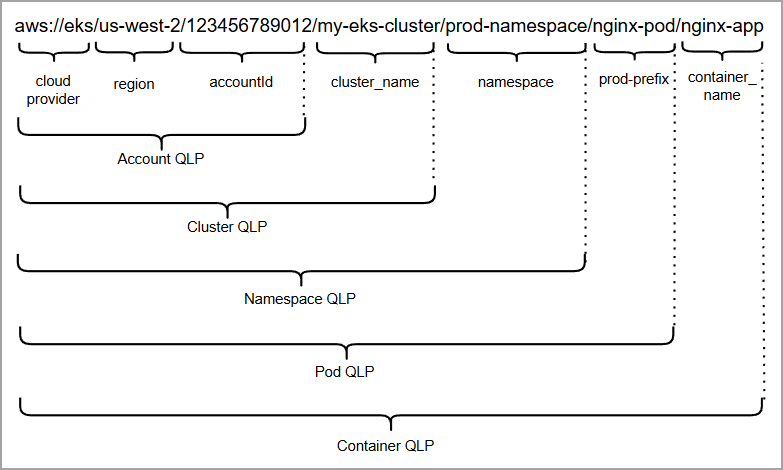
Such a hierarchy using QLP provides a clear, logical path to locating and organizing container assets at scale.
To know QLP examples in various other environments, refer to CS Online Help.
Container Grouping
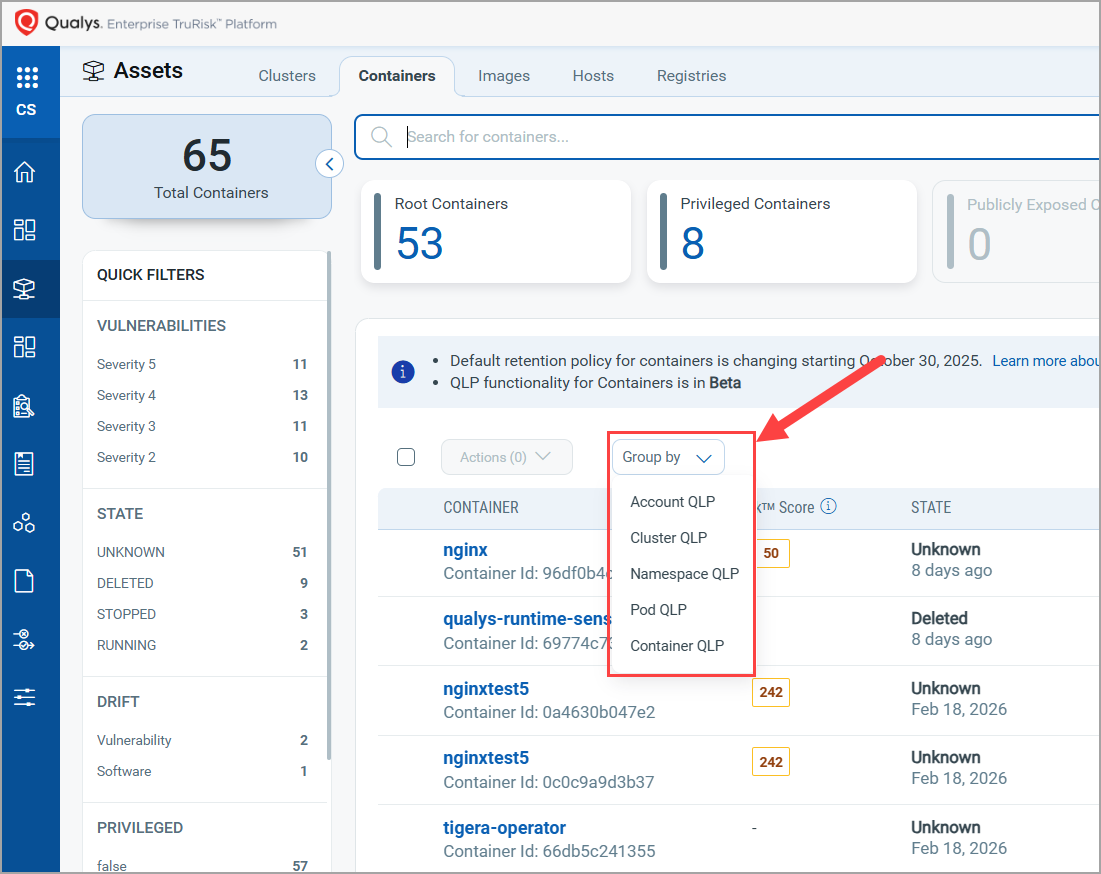
To support Container grouping using QLP, a new Group by dropdown is introduced under Assets > Containers. It provides QLP hierarchy options that allow viewing QLPs and container counts.
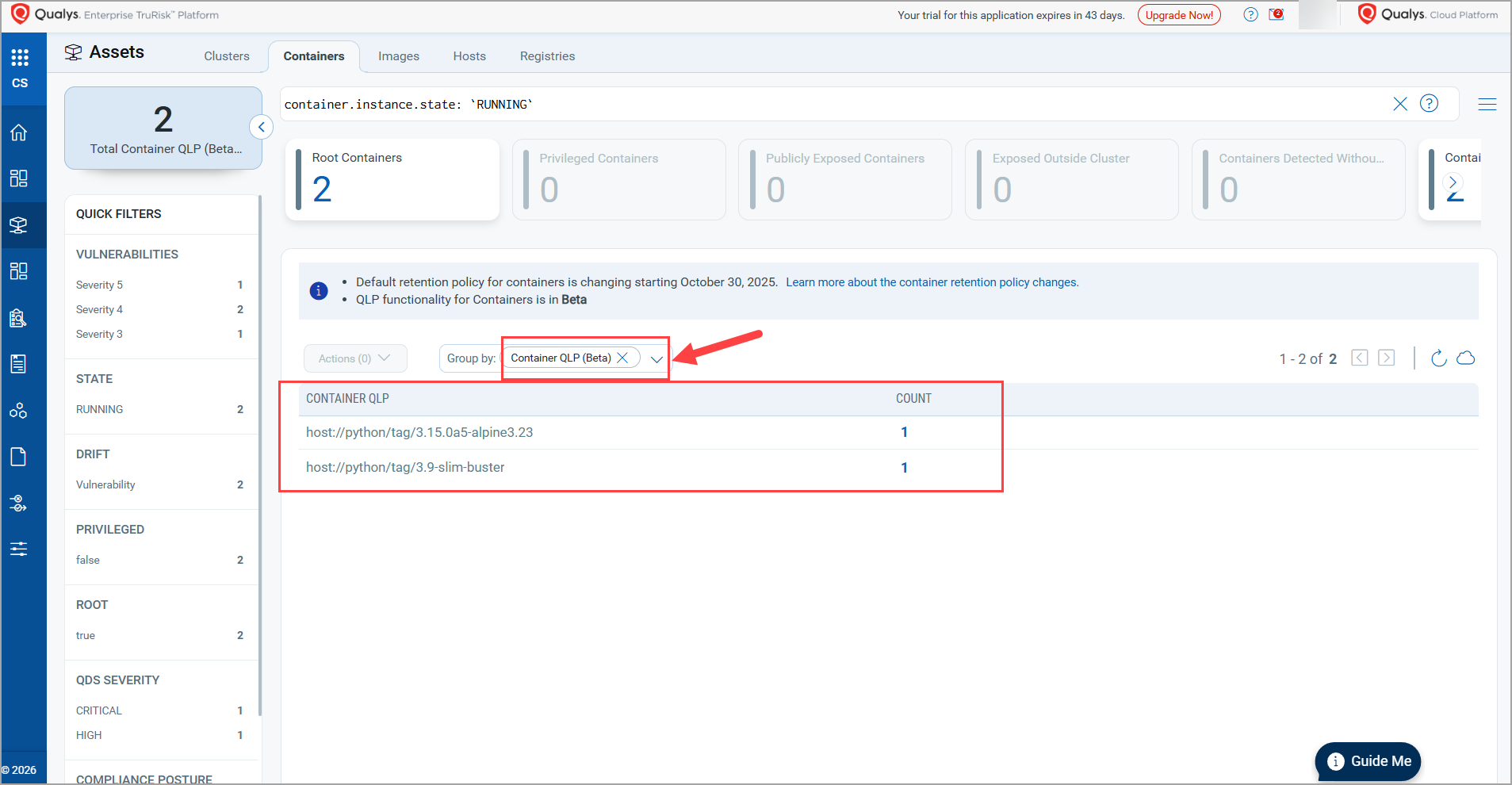
As an example, the image below shows a list of containers as grouped by their respective Container QLPs.
New Unified 'Vulnerability' Tab with Layer Intelligence (Beta)
Container environments generate vast amounts of vulnerability data across images, layers, and workloads. This often results in duplication, broken context, and slower, more difficult priortize. The current Container Security dashboards and reports are based on asset-centric filtering, and at times become large and inflated due to high number of vulnerabilities.
To address this issue, Qualys Container Security now introduces the layer-aware Vulnerabilities tab, which lists all vulnerabilities (QIDs) found in your images.
This enhancement enables faster, more intuitive analysis by reducing navigation steps and consolidating vulnerability data into a unified view. It is also intended to deliver a clean, de-duplicated view of risk with deep traceability.
Currently, CS is offering this feature as a Beta release.
The Vulnerabilities (Beta) page lists QIDs along with other details such as Title, QDS, First detected timestamp, Image, Software, and Container QLPs, along with Tags. You can quickly filter QIDs using quick view tiles such as - CISA KEV, Ransomware, Critical Patchable, and Critical vulnerabilities, or you can use other quick filters such as - OPERATING SYSTEM, RECENTLY SCANNED IMAGES, TYPE DETECTED, and so on.
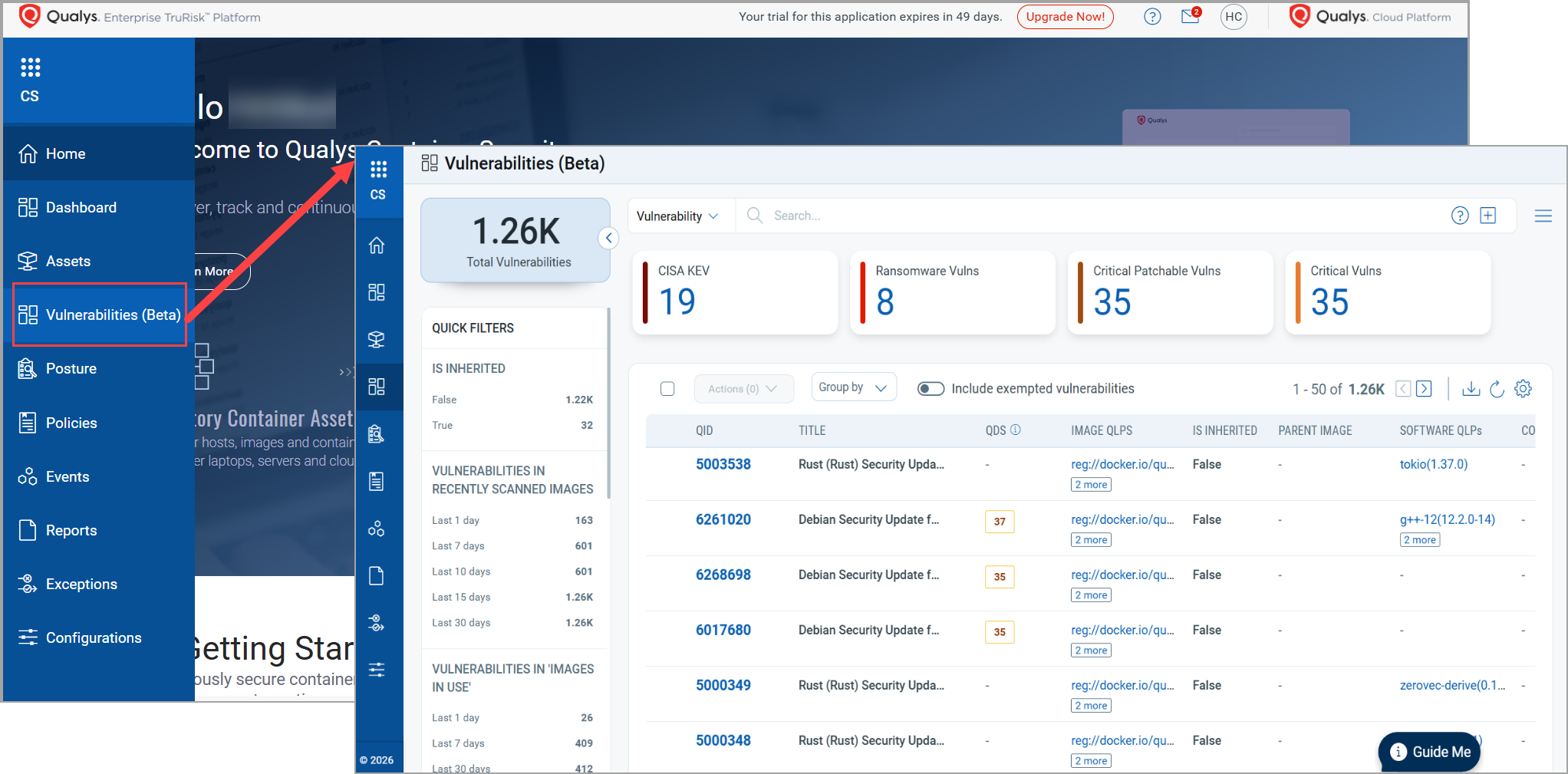
You can generate a detailed report with all vulnerabilities records or a quick export to export a record upto 5000 records.
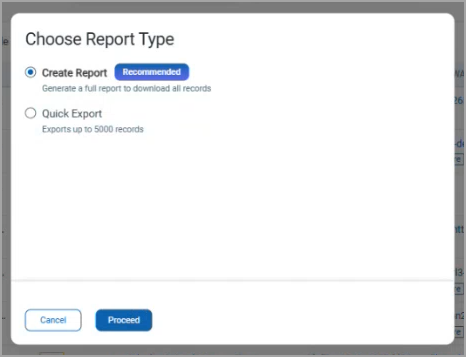
To know the Vulnerabilities page in detail, refer to Container Security Online Help.
EOL & EOS Details for Images
Qualys Container Security now shows lifecycle details for the software installed in an image. With programming languages evolving rapidly, outdated or EOL/EOS software has become increasingly common, often carrying unaddressed vulnerabilities. By leveraging the CSAM Software Catalog, Container Security can now automatically surface key EOL/EOS insights for software detected within images.
Additionally, a new summary card - Images With Software EOL in 3 months - is added for easier navigation.
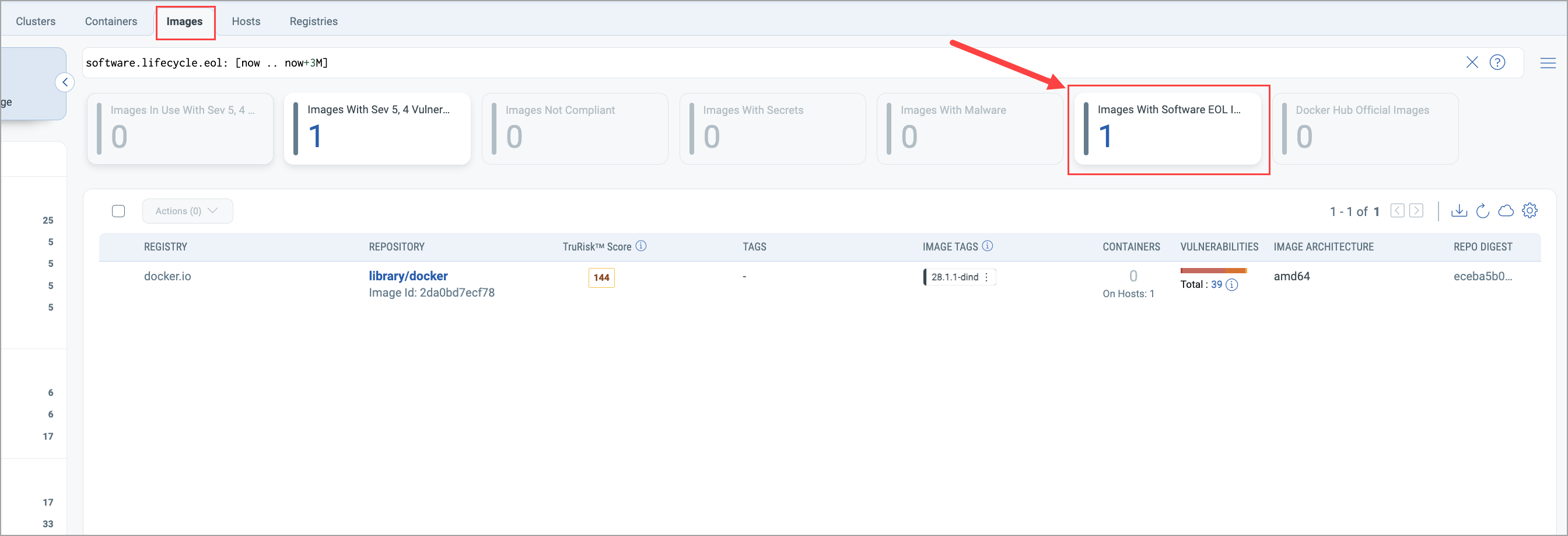
Qualys Container Security now supports the following new details for an image.
- EOS - End of Support. Indicates the date after which the software no longer receives vendor support or security patches.
- EOL - End of Life. Shows when the software version is fully retired and no longer maintained by the vendor.
- GA - General Availability. Displays the official release date when the software becomes production‑ready.
- Stage - Shows the current stage of the software.
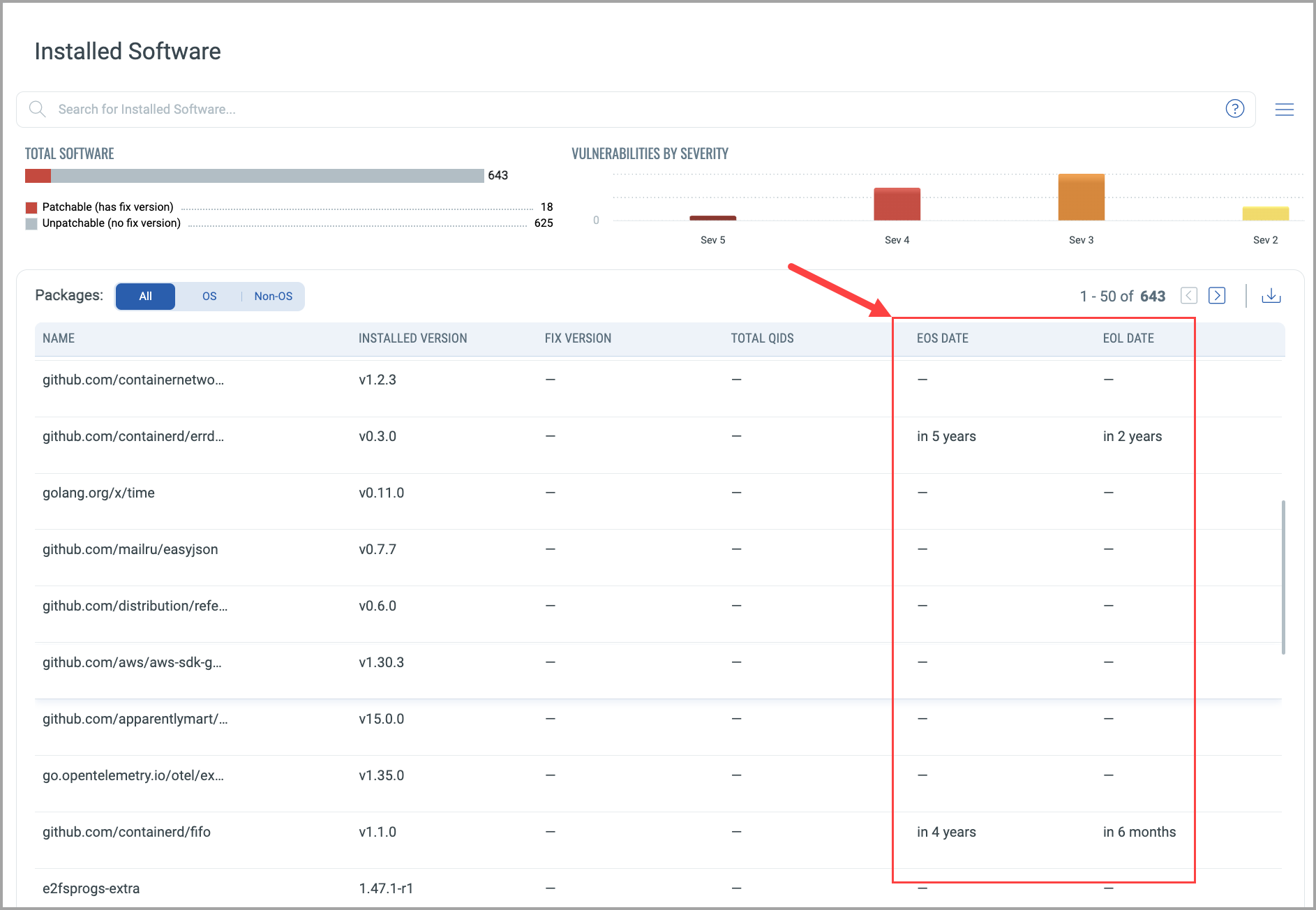
The EOS DATE and EOL DATE columns are added in the Assets > Images > View Details > Installed Software page. Using these columns, you can determine whether a software product has EOS and EOL details, along with their due dates. To see 'GA' and 'Stage' details, refer to CS 1.42 API Release Notes.
Custom Filters for Continuous Assessment
Earlier, Qualys Container Security began supporting Continuous Assessment for these settings: Images in Use, Registry images, and Images with a Special tag.
With this release, CS has enhanced its Images in Use support with an additional QQL filter. Using this optional QQL flow (a filter query), you can apply Continuous Assessment to the resultant images in use.
Note that the QQL filter will be disabled by default, and you can enable it only through Qualys Enterprise TruRisk™ Platform > CS > Continuous Assessment Settings.
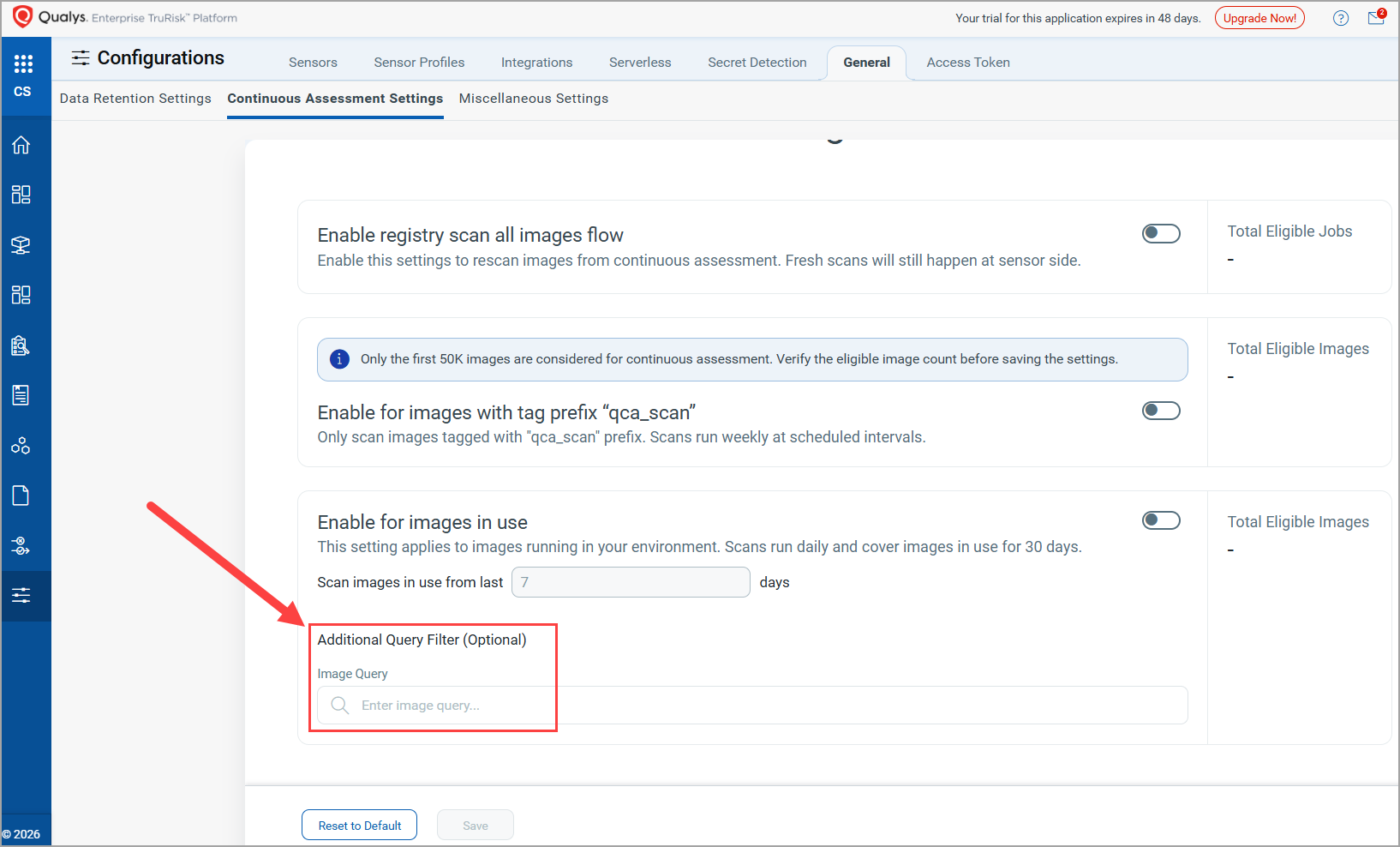
Currently, Container Security supports Continuous Assessment for images under the following conditions.
- Images In Use: - Maximum supported images = 1 Lac
- Images scanned in the last 20 hours will not be considered for CA
- Images with Special tag (Images with tag prefix "qca_scan"): Maximum supported images = 50k.
Update in the 'Images with Special Tag' Schedule
Earlier, a single 24‑hour default schedule was applied to both 'Images in Use' and 'Images with Special Tag'. With this release, the default behavior has changed:
- Images in Use continues to use the default 24‑hour scan schedule.
- Images with Special Tag (Images with tag prefix "qca_scan") now use a default weekly scan schedule.
As a result, you must now create separate schedules for 'Images in Use' and 'Images with Special Tag' to align with these updated default frequencies.
To update the frequency of a default schedule, you need to contact Qualys Support.
Token Standardization for Container Security
Qualys has implemented Qualys Query Language (QQL) token standardization across all Qualys applications. As part of this enhancement, all Container Security tokens are updated with new token names that follow a standard, consistent nomenclature.
The new token format follows the syntax: entity.attribute
For example, in the new token, script.name, script is the entity, and name is the attribute.
Key Enhancements:
- Standardized Token Naming: The tokens, such as assets, scripts, jobs, asset jobs, schedules, library, and activity, now adhere to a standardized naming convention. The tokens common to all Qualys applications have also been updated.
- Search Bar Updates: Only the new tokens are displayed in the auto-suggestion in the search bars within the Qualys Enterprise TruRisk™ Platform. However, if you type the old token name manually, the QQL query still works. The old tokens will not appear in the auto-suggestions on the Qualys Enterprise TruRisk™ Platform.
- Backward Compatibility: The existing Dashboard widgets and Saved Search Queries will continue to support the old tokens in edit mode.
- Improved Interoperability: The standardized tokens make it easier to copy and reuse the search query from one application to another, eliminating the need to remember multiple token names for different applications and similar searches.
For the complete list of old and new token mappings, refer to Container Security Online Help.
Enhancement in Vulnerability Propagation
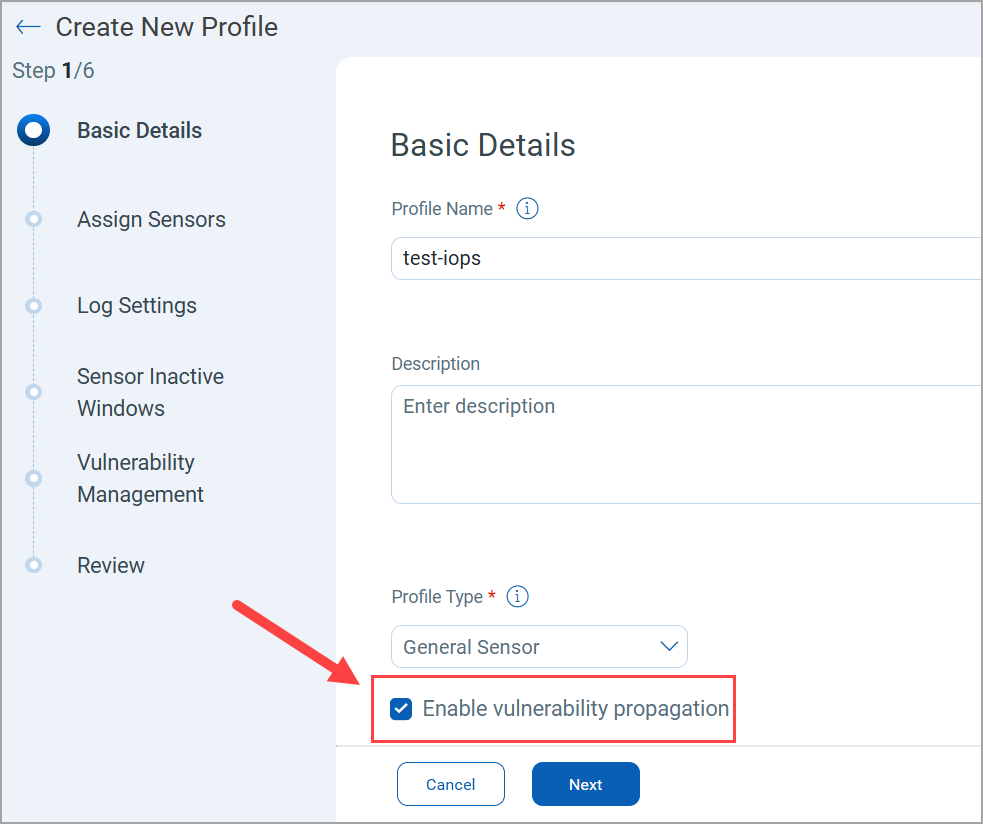
With Vulnerability Propagation, vulnerabilities are passed from images to containers during image scan and container creation events. Earlier, the Vulnerability Propagation support was available only through Qualys TAM or CS Support. With this release, Qualys Enterprise TruRisk™ Platform (Container Security > Sensor Profile > Create New Profile) provides you the option to enable or disable Vulnerability Propagation for your sensor profile. By default, the Vulnerability Propagation is selected for a new sensor profile, and it gets applied to all associated containers.
Vulnerability Propagation applies only to General Sensor and Cluster Sensor profiles.
For all new customers, Vulnerability Propagation will be enabled by default.
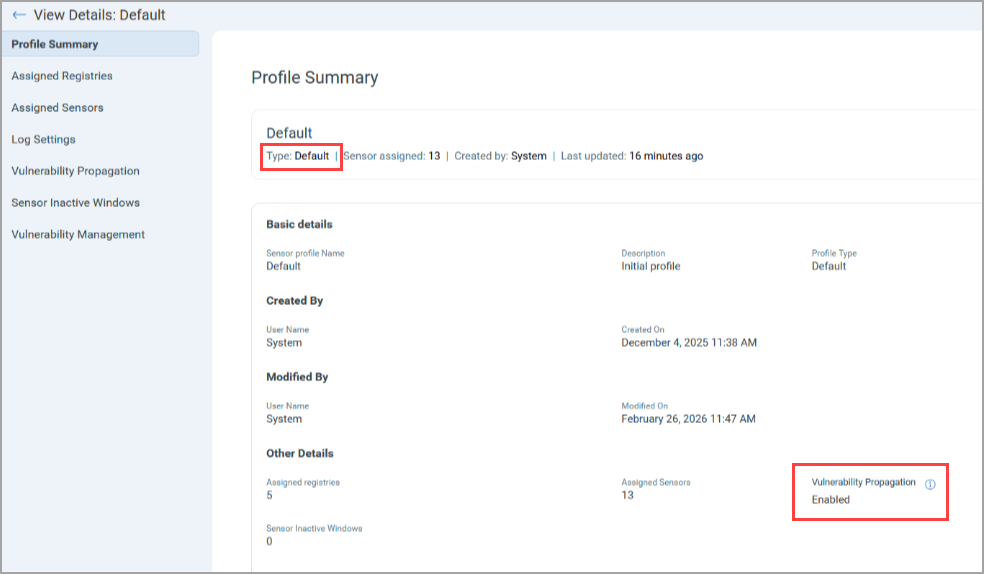
You can find status of Vulnerability Propagation in Profile Summary of the respective sensor profile.
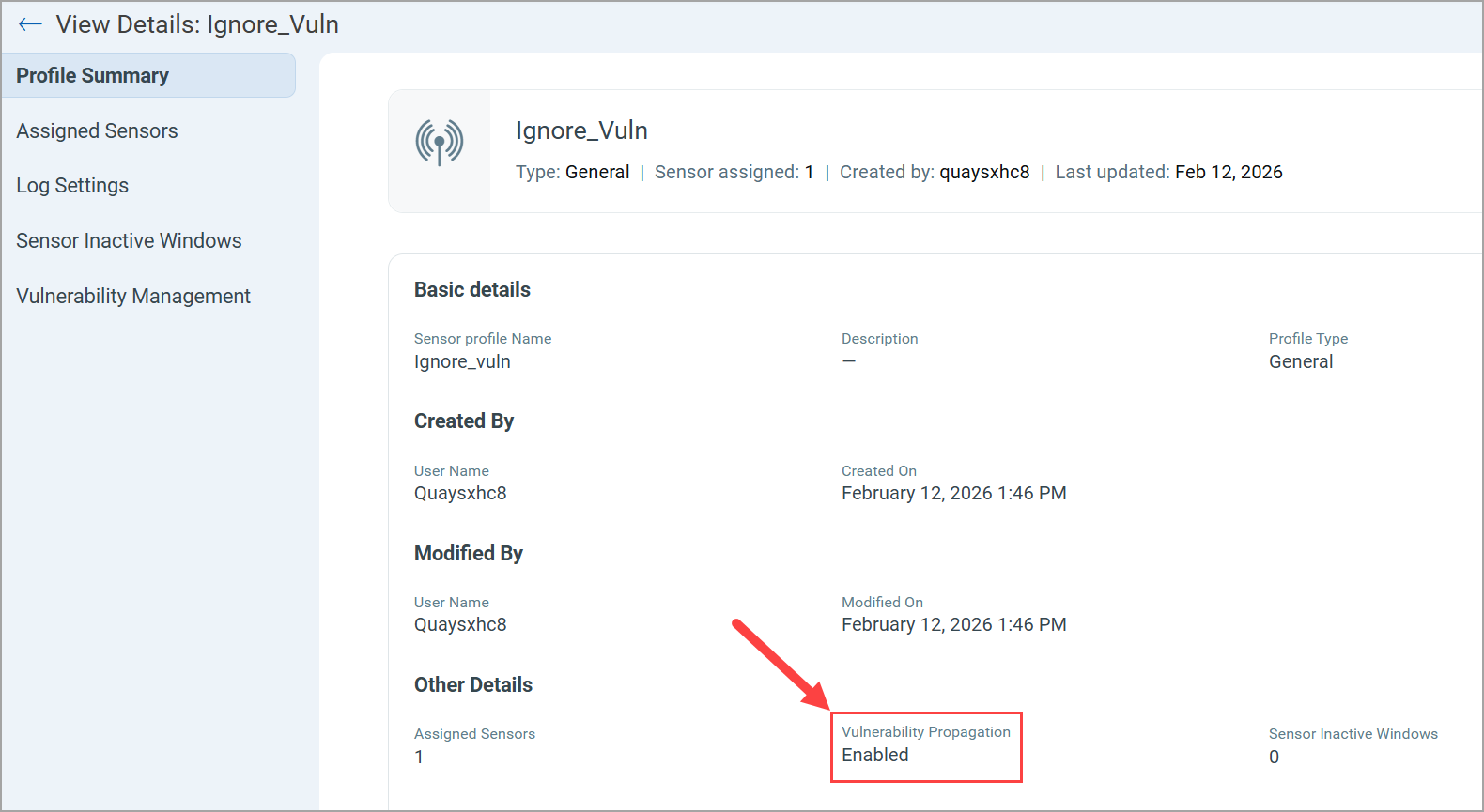
You can also view the Vulnerability Propagation setting of your existing Sensor Profile under the View Details page.
You can edit the Vulnerability Propagation of your Sensor Profiles using CS APIs.
For more information, refer to CS 1.42 API Release Notes.
'User Level' Permissions for Authentication
Currently, QScanner uses an Access Token (Container Security > Configurations > Access Token) to communicate with the Qualys Enterprise TruRisk™ Platform. However, Role-Based Access Control (RBAC) can not be applied to such a token.
Qualys Container Security now provides granular-level user permissions with the help of Auth Id Client Management (My Profile > Auth Id Client Management > User Level > New Client > CS > QScanner Permissions). Previously, the User Level tab was disabled. With this release, Qualys Container Security has enabled this support.
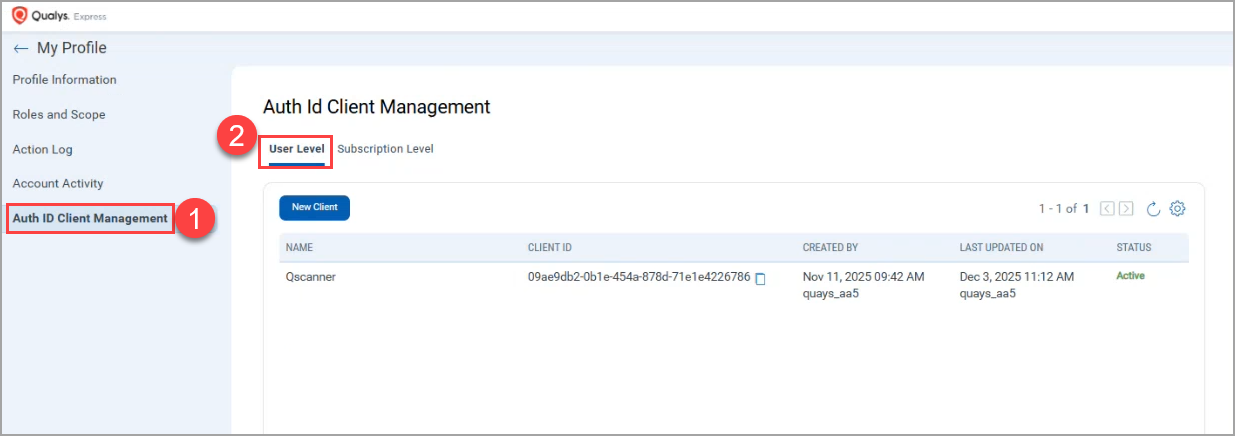
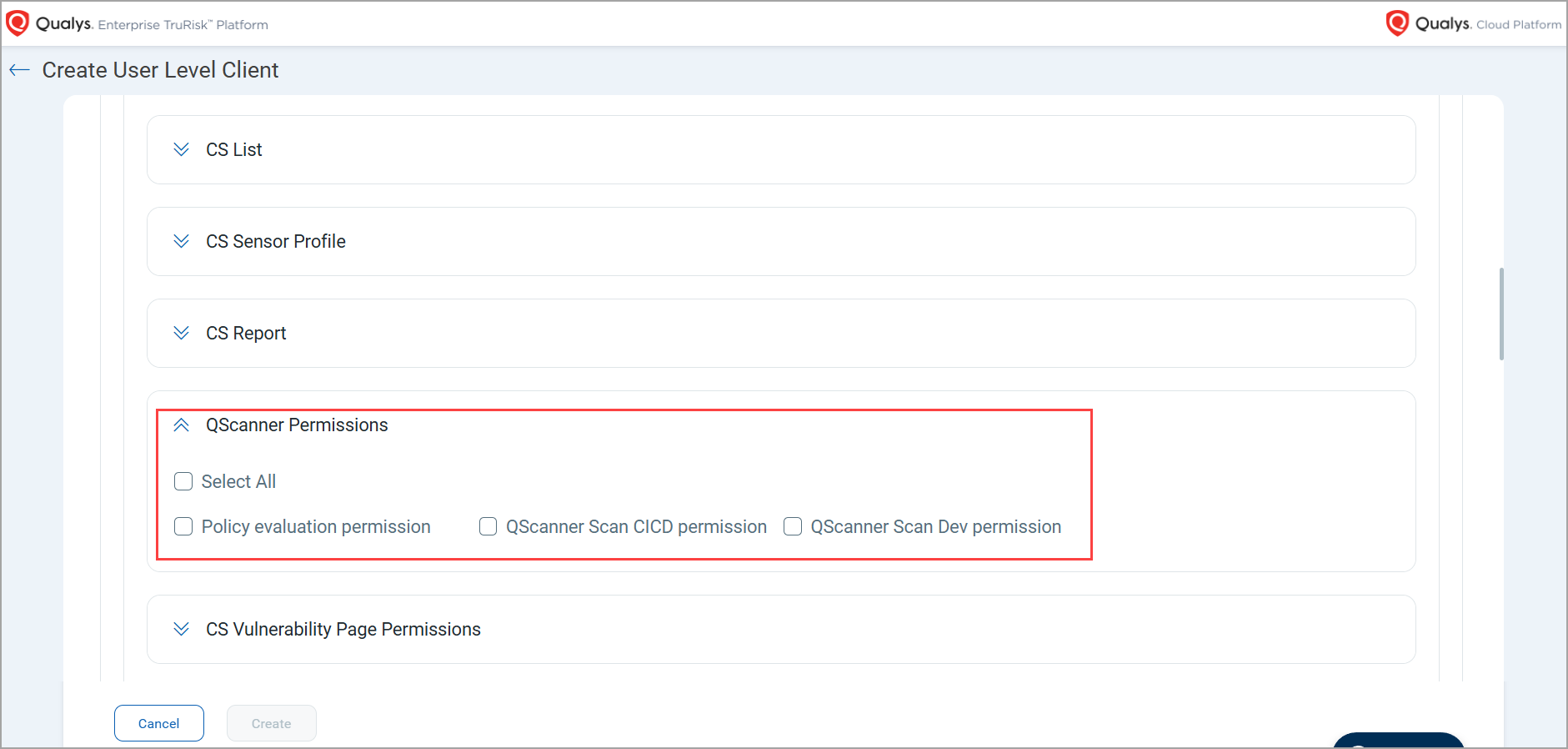
With QScanner version 5.0.0 and above, if you have enabled the OIDC authentication method, you can create a User Level client to get Client ID and Secret ID on the Qualys Enterprise TruRisk™ Platform. Using this Client ID and Secret ID, a non-admin user can launch a QScanner scan.
For previous QScanner versions (older than 5.0.0), a non-admin user needs to generate the Authentication token with the help of Client ID and Secret ID using a tool such as Postman. In this case, the direct command with Client ID and Secret ID will not be supported.
QScanner will support the OIDC authentication with QScanner 5.0.0 release. To know more about QScanner, refer to QScanner Release Notes.
Enhancement in Policy Rules
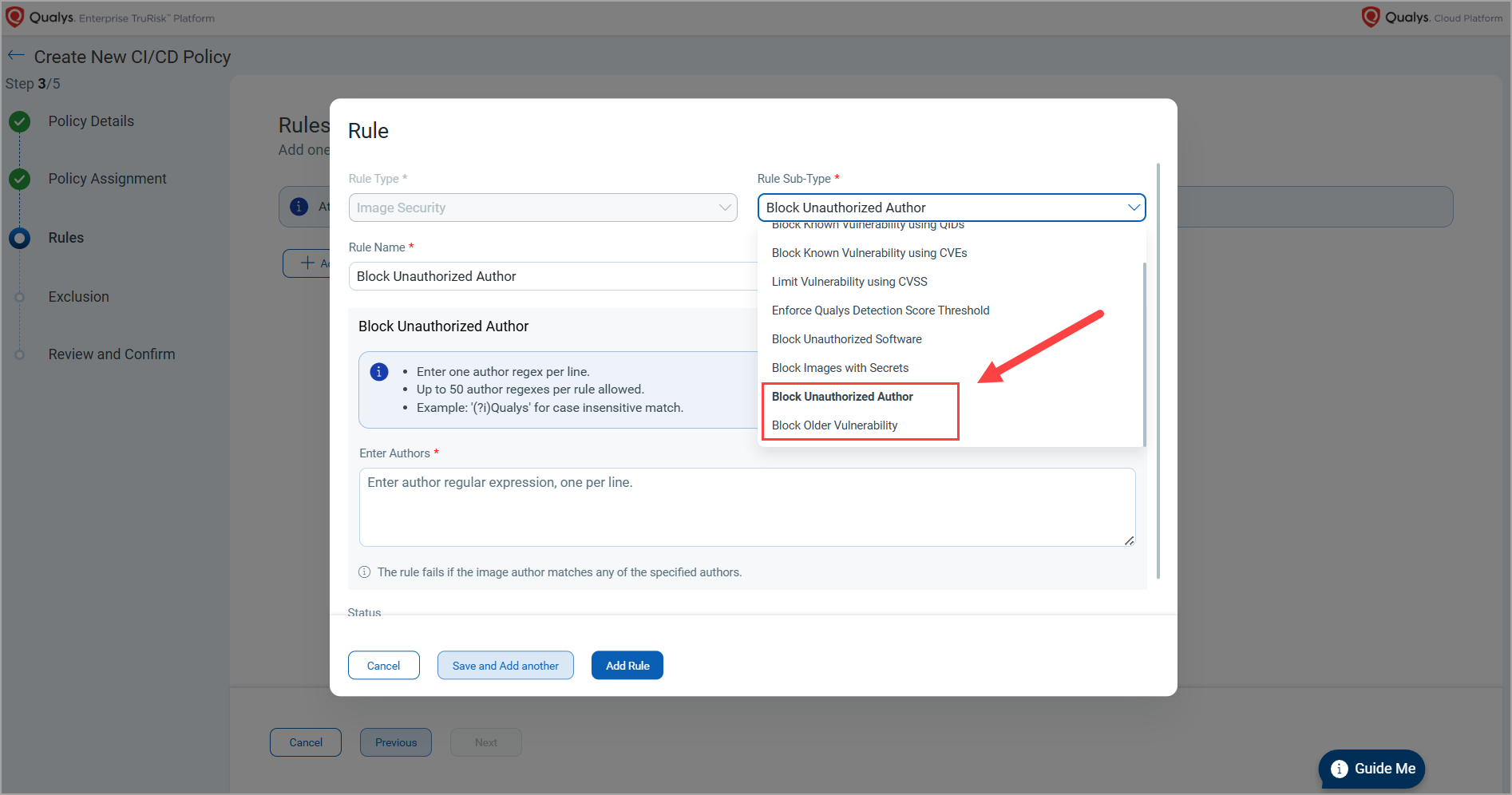
With this release, Qualys Container Security introduces two new rule sub-types for Image Assessment (CI/CD) and Admission Controller policies.
- Block Unauthorised Author - You can use this rule subtype to block images generated by specific authors.
- This ensures only images from approved developers, service accounts, or teams can progress, supporting clear provenance and traceability.
- Early blocking of images from unknown/restricted authors prevents propagation across registries and clusters, reducing rollback and incident response overhead.
- Block Older Vulnerability - You can use this rule subtype to block images having vulnerabilities older than the specified date. The First Found date of the vulnerability is validated for this rule.
- Stops stale, risk‑accumulating images at the earliest gate (build/admission) rather than relying on post‑deployment cleanup.
- At times, even if the total vulnerability count stays flat, the age of unresolved issues is a critical sign of hygiene. This rule prevents aged, neglected findings from leaking to production.
You can apply the new rule sub-types to a policy,
- During policy creation - Container Security > Policies > Image Assessment/Admission Controller > Create Policy > Rules > Rule Sub-Type.
OR - By editing existing policy - Container Security > Policies > Image Assessment/Admission Controller > Quick Actions > Edit > Rules > Rule Sub-Type.
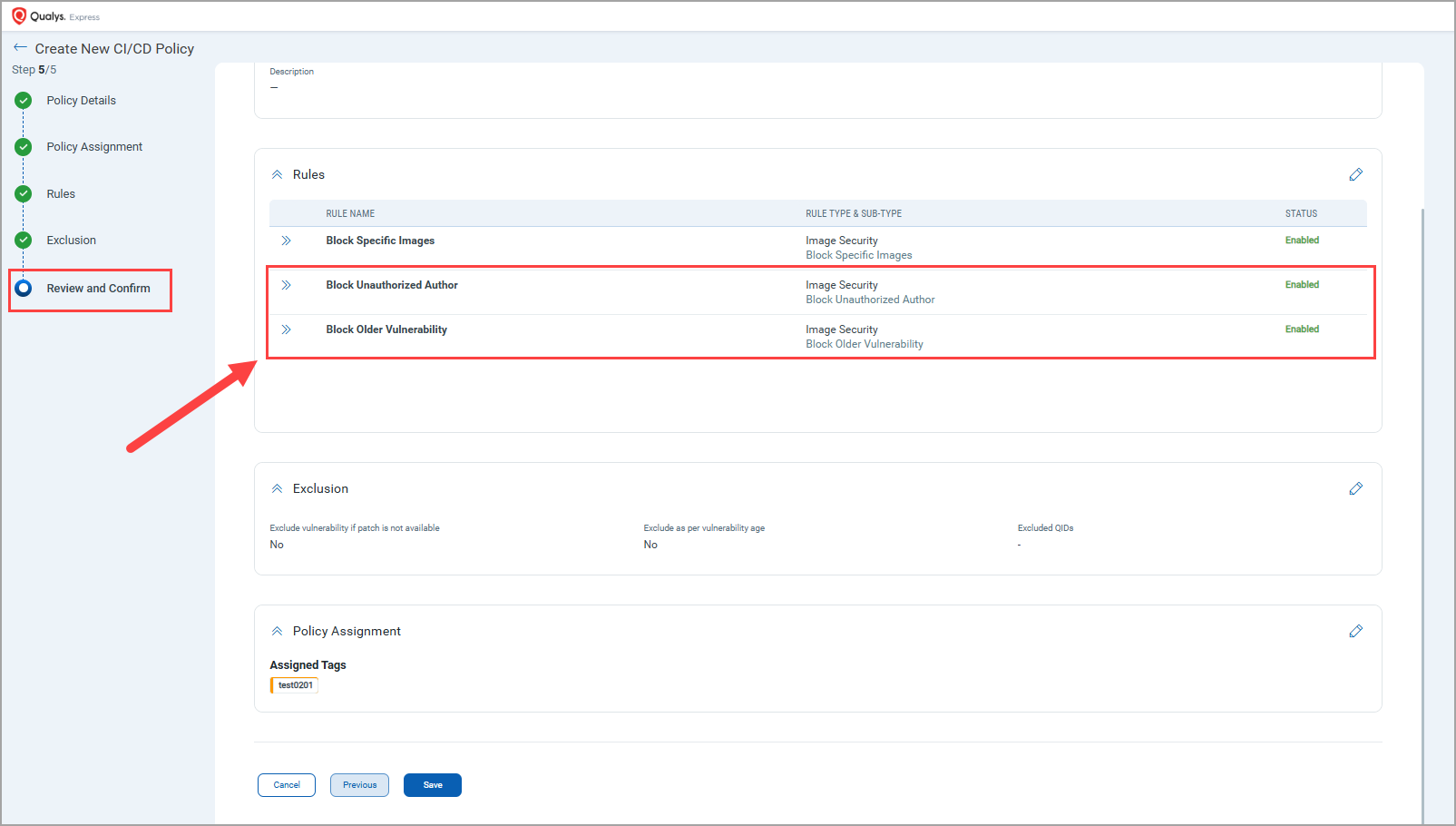
You can confirm the application of the newly added rules in the Review and Confirm step.
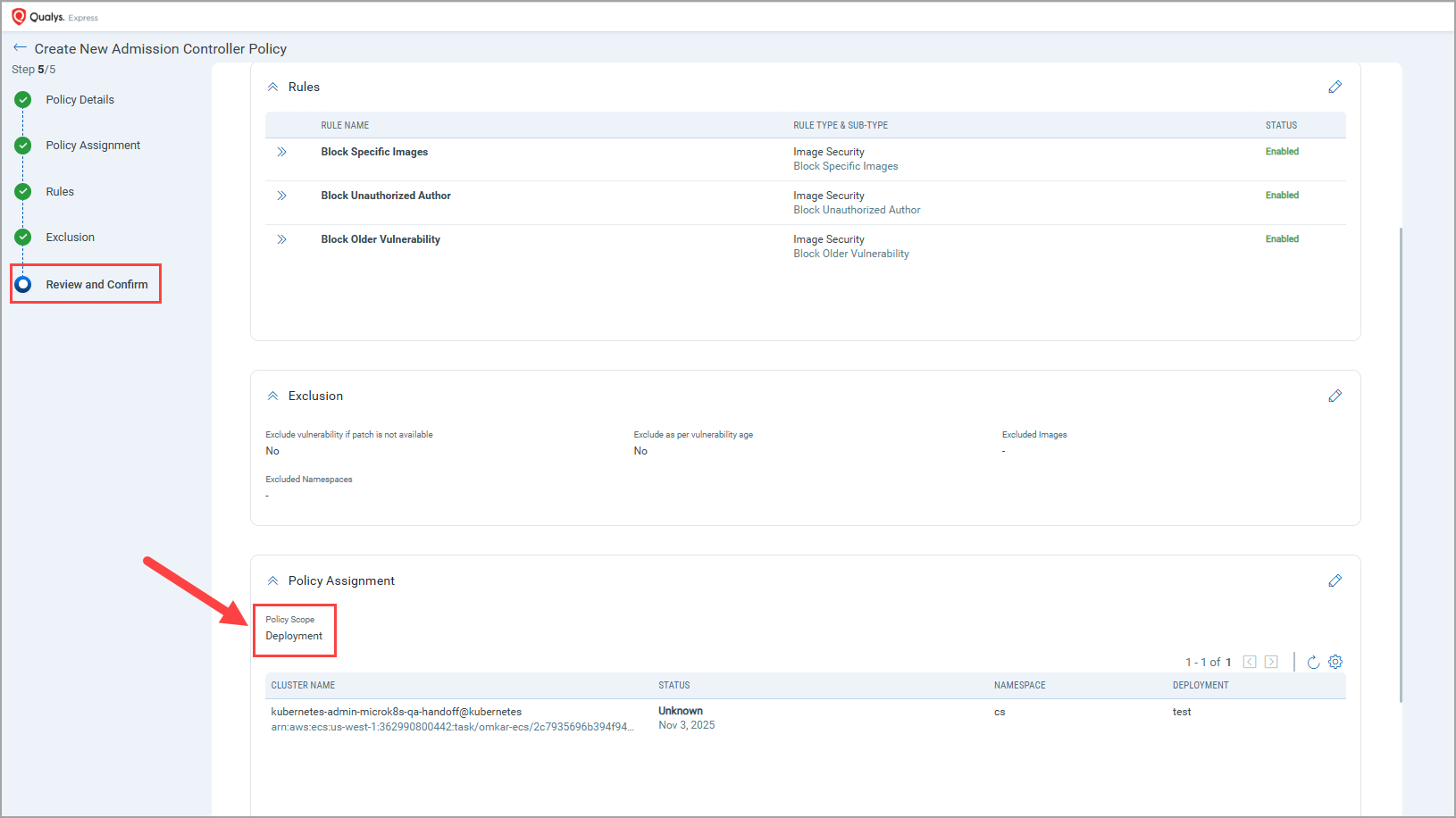
New 'Deployment' Scope in Admission Controller Policy
With this release, Qualys Container Security has introduced a new scope to the Admission Controller policy - Deployment. Admission Controller policies can now be applied at the Deployment level in addition to existing scopes. This enhancement enables security validation and enforcement during the creation or update of Kubernetes Deployments. The following are the key benefits.
- Configuration-aware Validation – Apply policy checks against Deployment specifications, including metadata and workload configuration.
- Improved Compliance Control – Ensure Deployments adhere to organizational and regulatory requirements prior to rollout.
- Reduced Risk Exposure – Prevent non-compliant or vulnerable workloads from being deployed.
You can assign this new scope during an admission controller policy creation or while updating an admission controller policy.
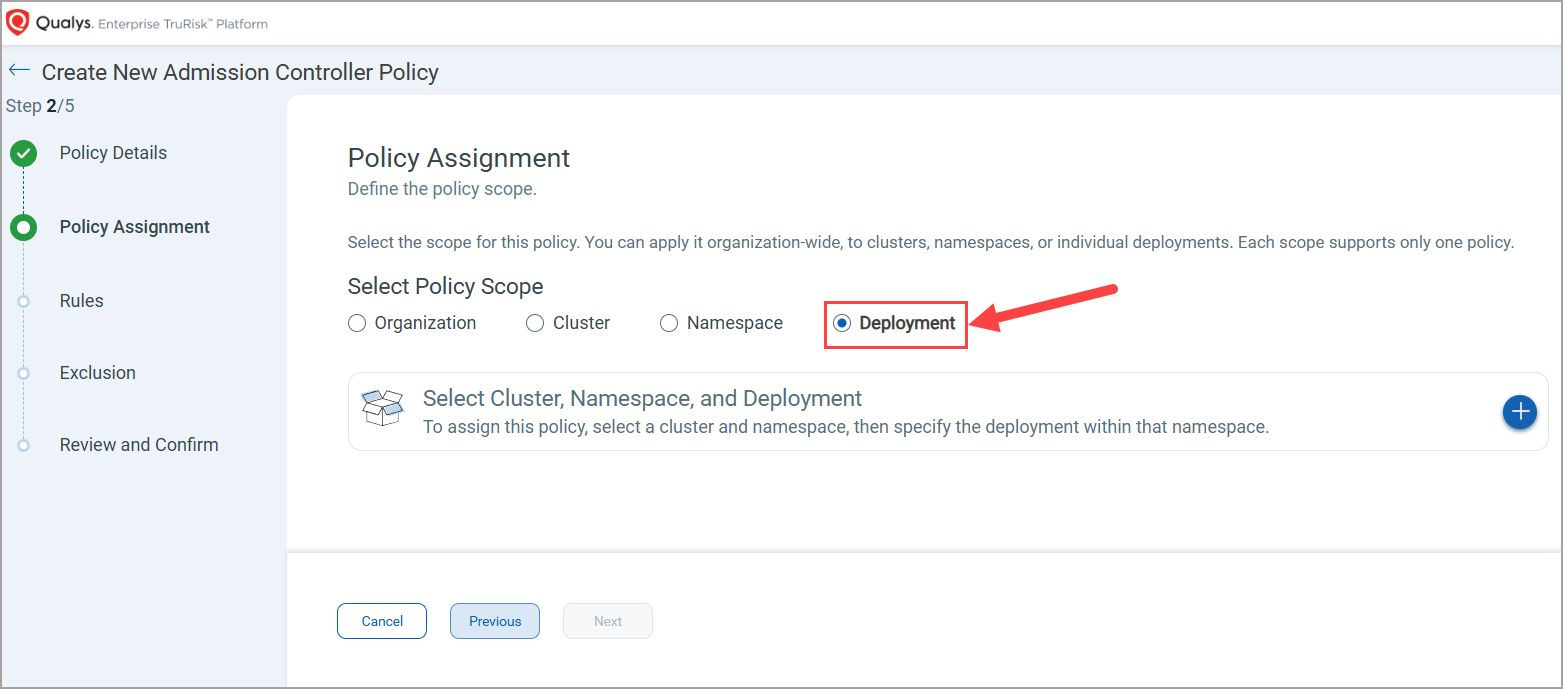
You can confirm the application of the newly added rules in the Review and Confirm step.
Expanded Asset Export Support (5k+ Records)
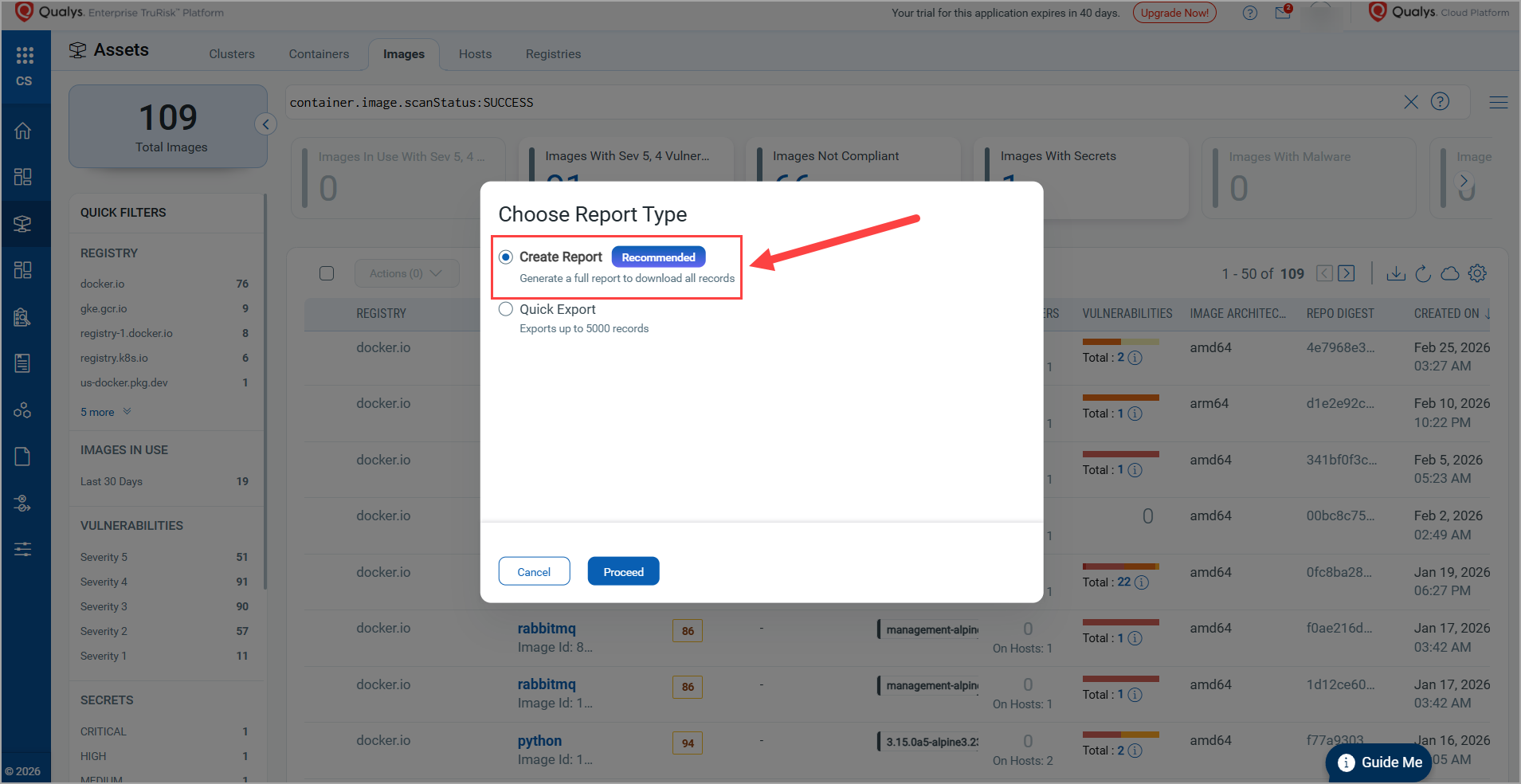
Earlier, you were able to download only 5k asset records. But with this release, you can now download more than 5k records.
To support this, a new option, Create Report, is available when you select Assets > Containers/Images > Download option.
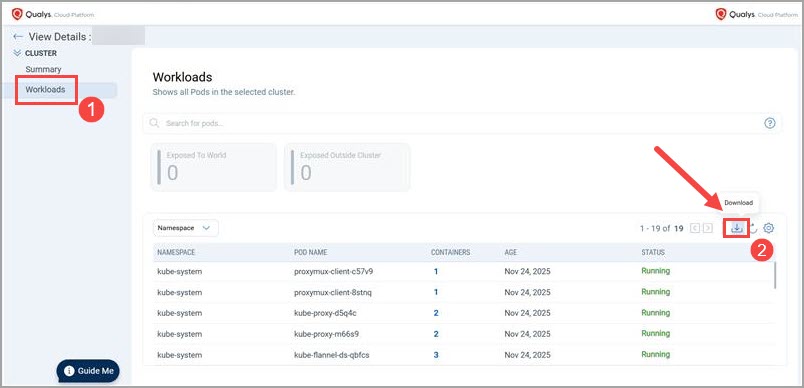
Along with this, you can now download the Cluster Workloads reports under Assets > Clusters > Workloads.
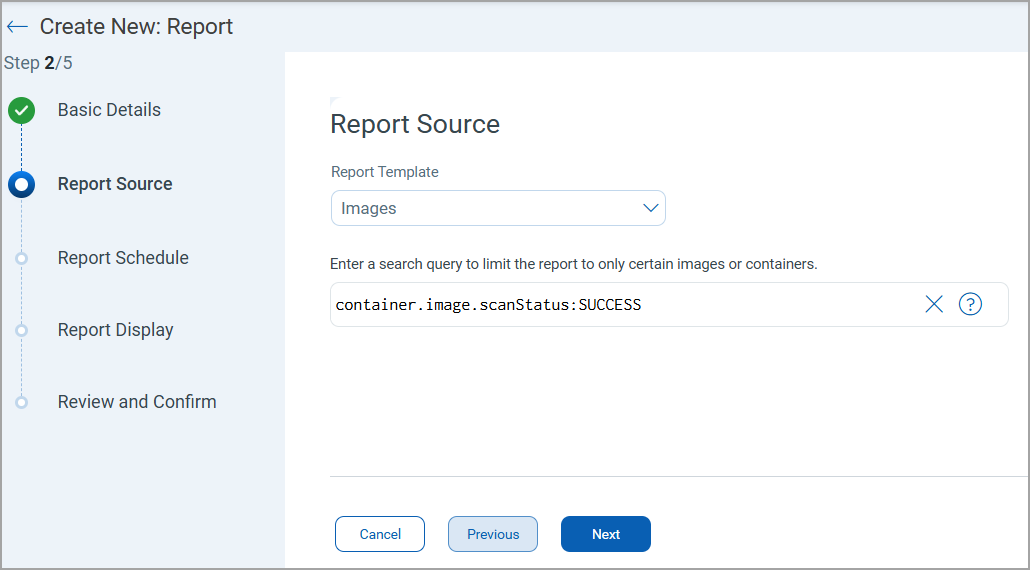
In the downloaded report, Vulnerability Count and Severity Count are shown instead of actual vulnerabilities or severities.
Benefits of asset report enhancement:
- Ability to download 5k+ asset records provides complete visibility for large container environments.
- Larger exports enable more accurate analysis and reporting without missing data due to earlier 5k limits.
- Summarized Vulnerability Count and Severity Count make reports easier to interpret and prioritize.
Issue Addressed
The following issue is addressed in this release.
| Category | Description |
| Container Details (Assets > Containers > Container Details > Network) |
Qualys Enterprise TruRisk™ Platform failed to display network details of a container, such as Container Port, Port IP, Protocol, and so on. Now, these details are visible in the Network page. |