Smart Software Atlas Component Mapping
The Smart Software Atlas Mapping uses our advanced vector-based lexical and semantic analysis. The vector-based model analyzes software details such as component path, component name, software path, and software name to determine the most relevant software to component mapping.
This reduces the number of unmapped components in your environment and provides improved visibility into your software inventory.
View Smart Component Mappings
The components mapped by our vector-based model are indicated by an  icon next to the application name.
You can view mapped components in the following tabs:
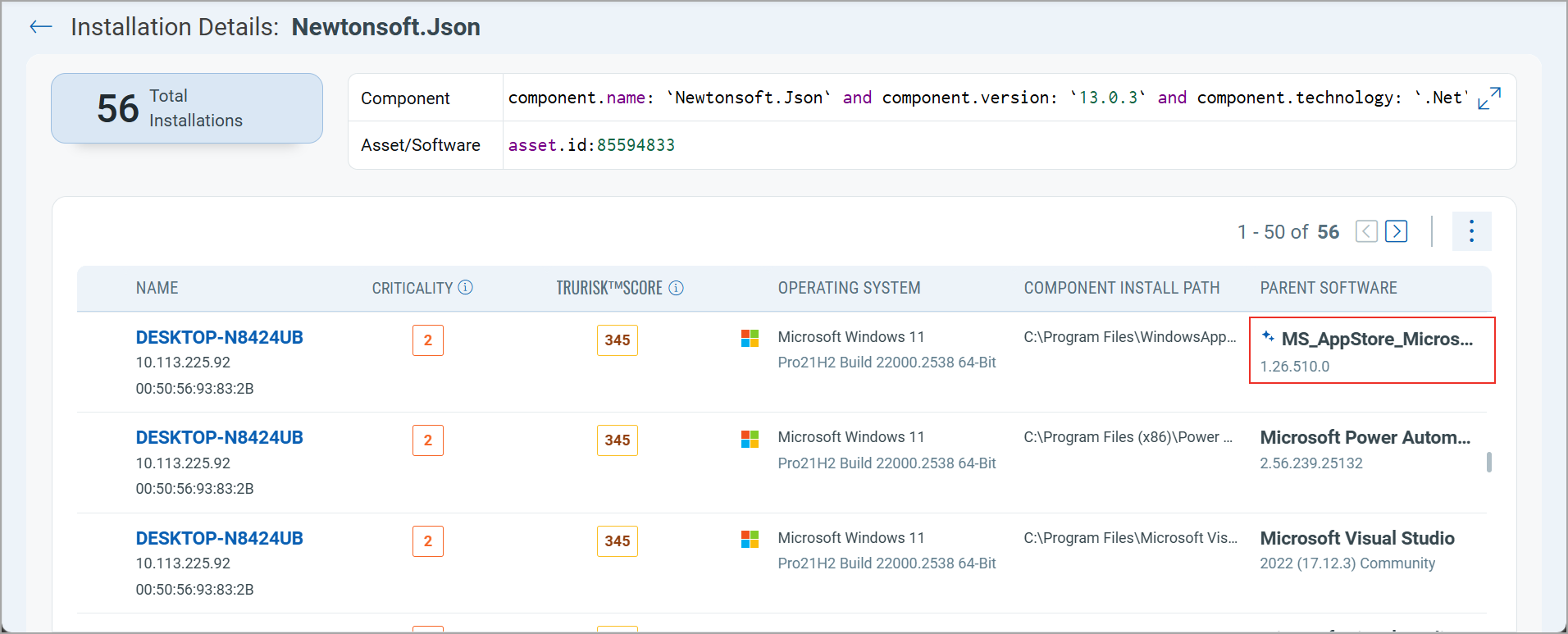
- Software > Components > Installation Details:
On the Software > Component tab, click View Install List from the Quick Actions menu. The Parent Software column displays the component mapped by the Vector-based model.
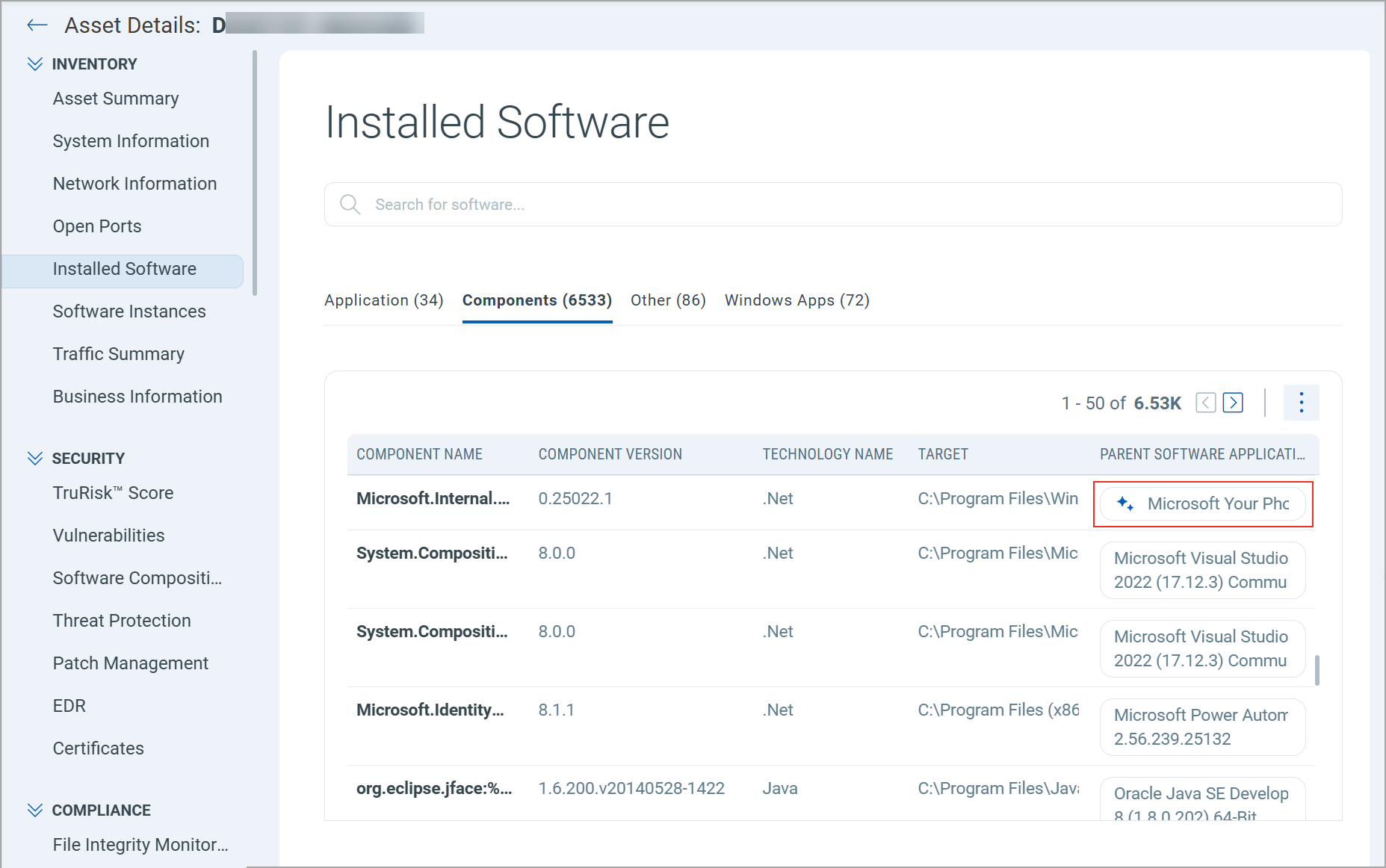
- Asset Details > INVENTORY > Installed Software > Components:
On the Components tab, the Parent Software Application column displays the component mapped by the Vector-based model.
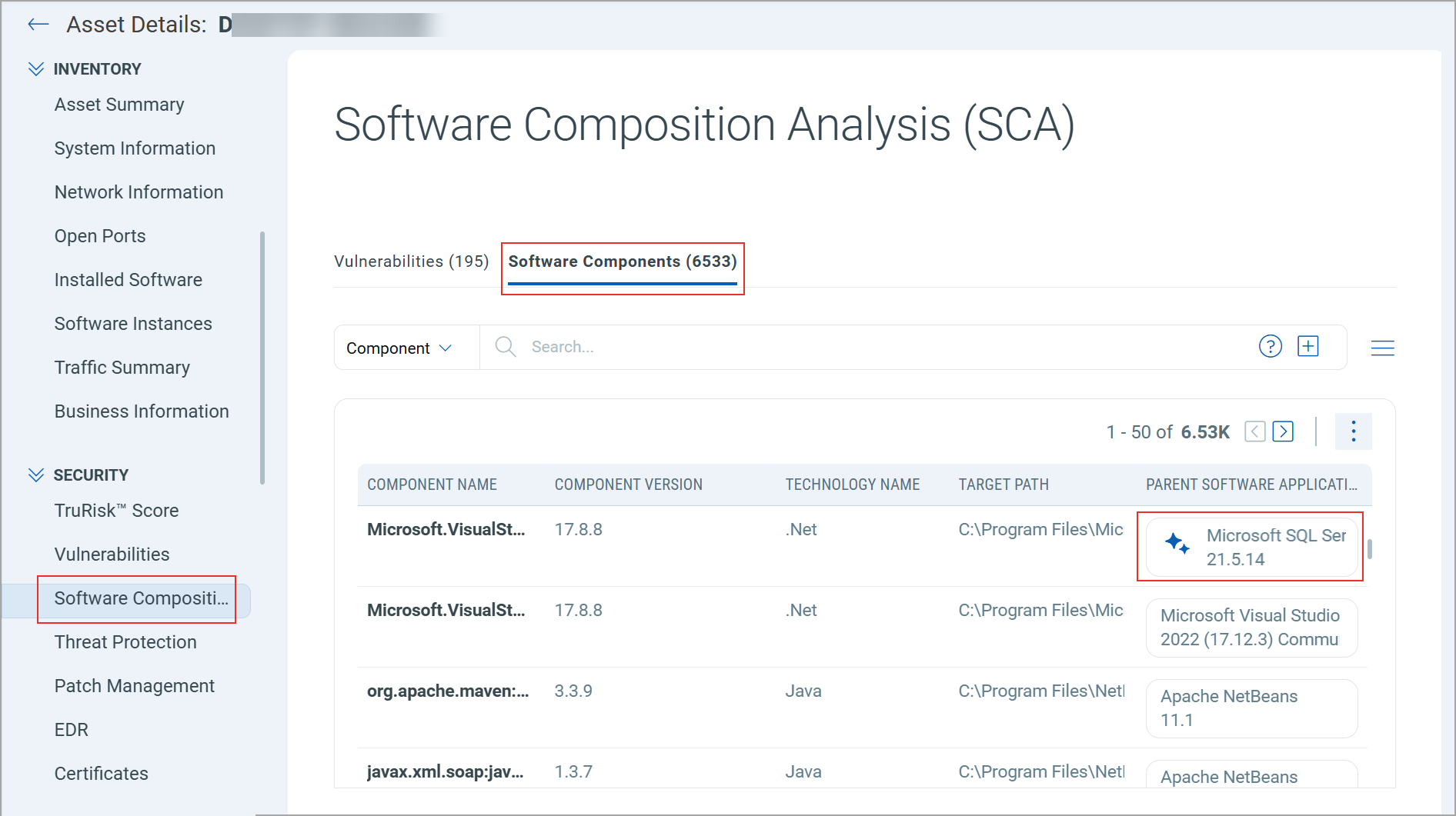
- Asset Details > SECURITY > Software Composition Analysis (SCA) > Software Components:
On the Software Components tab, the Parent Software Application column displays the component mapped by the Vector-based model.
Enable Software Atlas Mapping
You can enable or disable the smart software Atlas mapping in CSAM.
To enable, follow these steps:
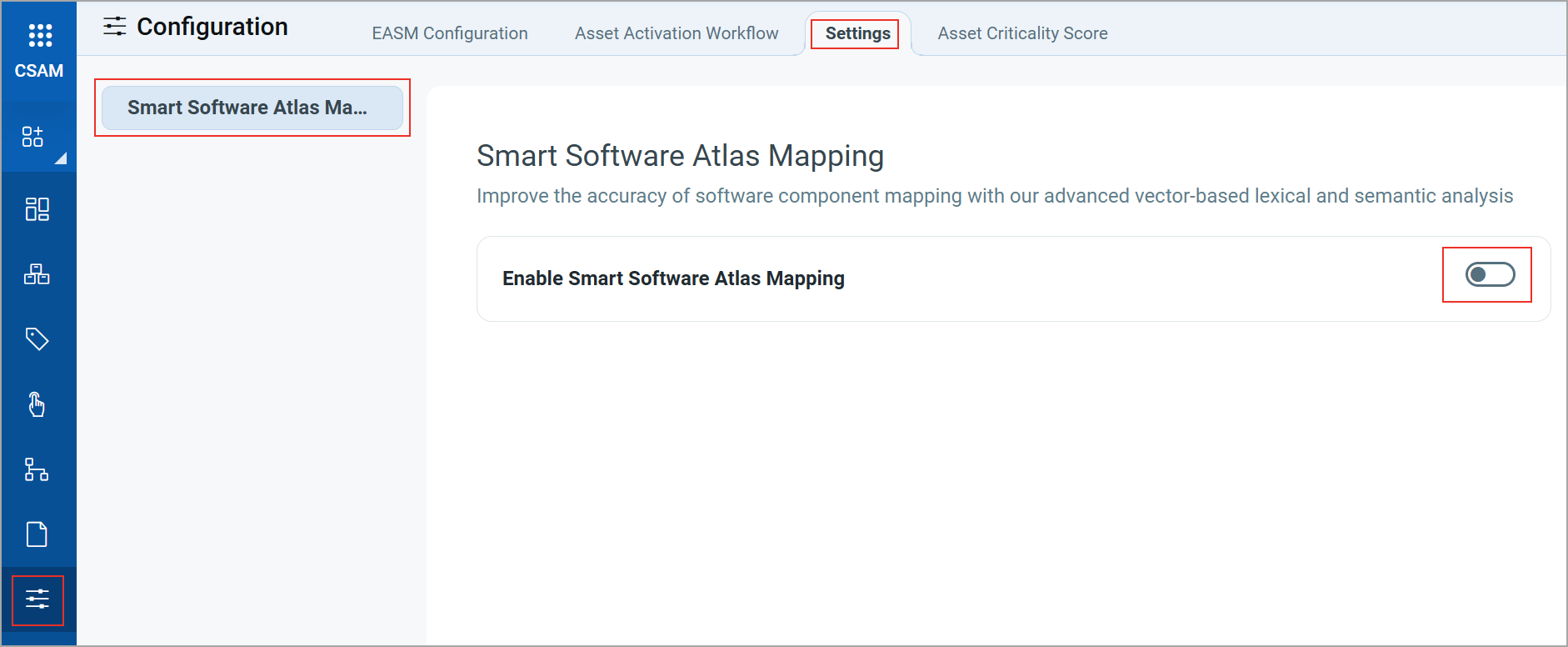
- Navigate to Configuration > Settings > Smart Software Atlas Mapping.
- Turn the Enable Smart Software Atlas Mapping toggle to on.
A Confirmation window displays.
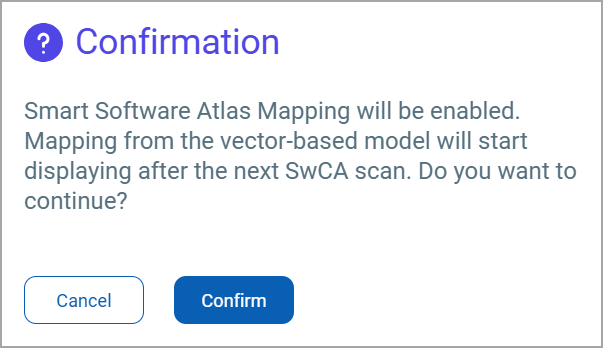
- Click Confirm.
Once enabled, the mapping from the vector-based model displays after the next SwCA scan.
Disable Software Atlas Mapping
To disable, follow these steps:
- Navigate to Configuration > Settings > Smart Software Atlas Mapping.
- Turn the Enable Smart Software Atlas Mapping toggle to off.
A Confirmation window displays.
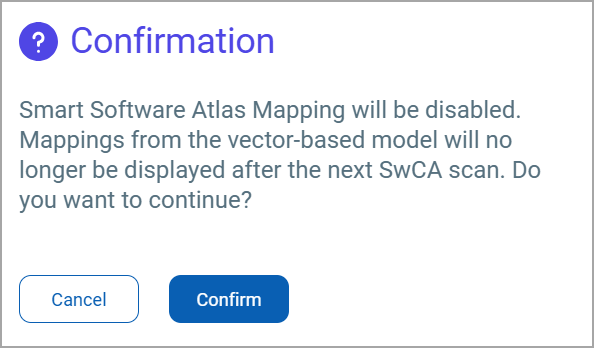
- Click Confirm.