EDR Release 3.8.5
September 28, 2026
Block Threats Directly from Hunting Events
You can now use the Add to Blocklist option to add a SHA256, Appname, URL, or IP to your EDR profile blocklists in one action. Previously, you had to add each entry manually in every profile.
The Add to BlockList option is supported for events from Windows and macOS assets only. Linux assets are not supported.
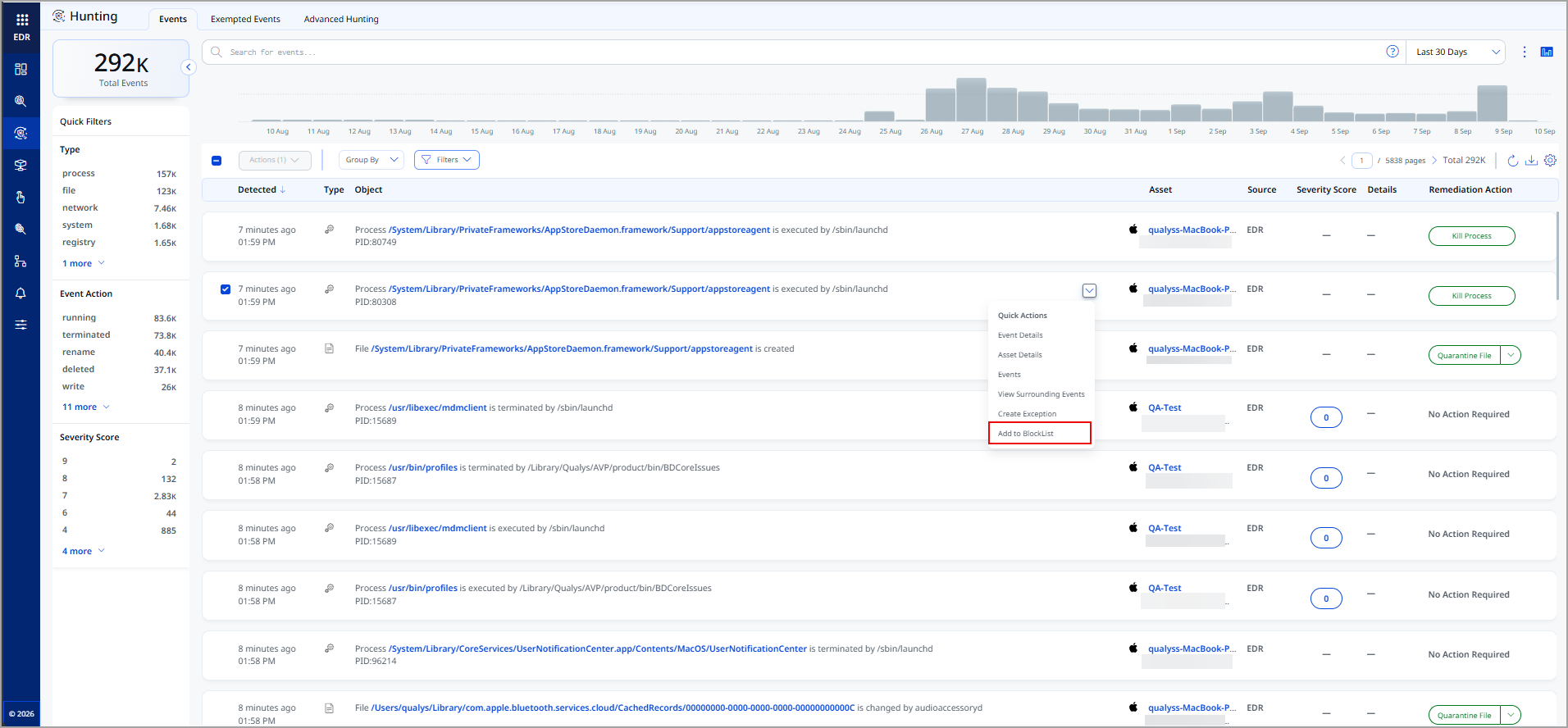
To block an item in an event, click Add to BlockList from Hunting > Events > Quick Actions menu of an event.
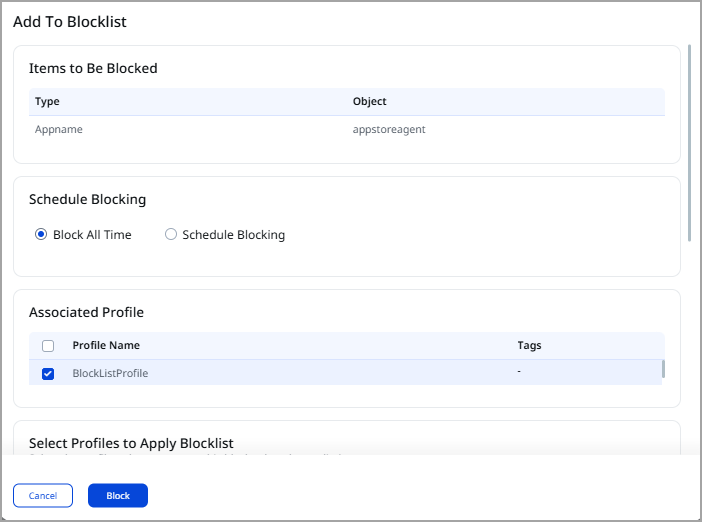
The Add To Blocklist dialog opens and shows two fields for the item you are blocking:
- Type: the kind of item, such as SHA256, Appname, URL, or IP.
- Object: the value to block.
For events from the macOS platform, Add to BlockList supports only the Appname and URL types. The SHA256 and IP types are not supported.
From the Add To Blocklist dialog, you can also:
- Apply the block to one profile, to several profiles, or to all of them at once. The list shows only the profiles that have the matching blocking configuration enabled.
- Choose when EDR blocks an Appname. Block it at all times, or only on the days and hours you select.
Your entries appear in the blocking configuration of each profile you selected. You can review or remove them as before.
For more information, refer to EDR Online Help.