Getting Started with Agent Insta
This topic describes how to enable Agent Insta and save an InstaScan configuration. Agent Insta derives detection from the software inventory already reported for your assets, so the accuracy and completeness of your findings depend directly on the accuracy and freshness of that inventory. Confirm your inventory sources before you configure the scope.
Access Requirements
To use Agent Insta, you need:
- Active Qualys ETM account with UAI subscription.
- The InstaScan feature is enabled for your subscription.
- At least one inventory source - a Qualys sensor or a third-party connector - reporting software inventory for the assets you want covered.
Before You Begin: Software Inventory Dependency
>InstaScan displays vulnerability findings accurately only when the software inventory is kept up to date; outdated inventory may result in incomplete or incorrect findings. For this reason, the Last Seen setting in the configuration is restricted to a maximum of 3 days.
Agent Insta does not probe an asset or run an on-host check. It matches published advisory data against the software inventory already held for the asset. This has three practical consequences for setup:
- An asset with no reported software inventory produces no findings, even when it is inside your configured scope. Scope selects candidate assets; inventory is what makes detection possible.
- Stale inventory produces stale findings. If an asset's inventory still lists software that has since been removed or upgraded, findings may be reported against software no longer present.
- Incomplete inventory produces silent gaps. Software that an inventory source does not report cannot be evaluated, so the absence of a finding is not evidence that the asset is unaffected.
Before you configure InstaScan, verify that the assets you intend to cover are actively reporting software inventory and that the connectors or sensors supplying that inventory are syncing successfully. Assets that have not been reported within the Last Seen window you select will fall out of scope.
First Time Setup
Agent Insta is not hired from the Marketplace. Its role is to configure and make the InstaScan available.
Follow the steps given here:
- Navigate to the ETM application > Cyber Risk Agent.
Agent Insta is listed alongside the other cyber risk agents. - Click the Agent Insta tile to open the agent page.
On first use, the detection summary cards are empty because no InstaScan configuration has been saved yet.
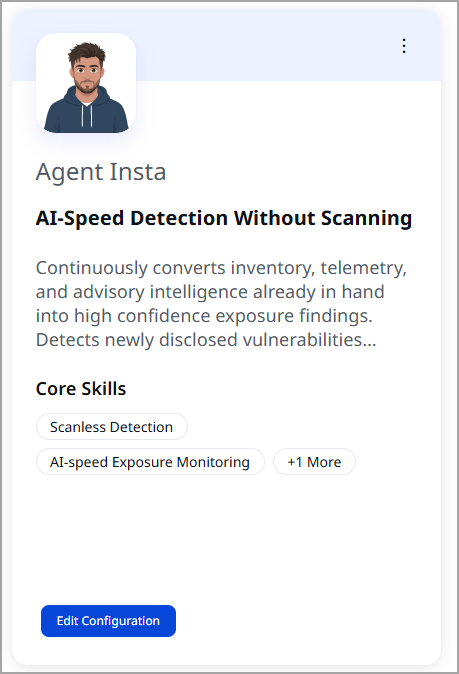
- Click Edit Configuration on the agent tile to go to the InstaScan configuration page.
You can also reach the same page through Configuration > InstaScan.
Configure Agent Insta
Agent Insta does not use tasks. Agent Insta uses a single saved InstaScan configuration that applies continuously. The equivalent first-run activity is completing the two-step InstaScan configuration Window described here.
To configure InstaScan, follow the steps given here:
- Go to Configuration > InstaScan.
The first time you open this page, InstaScan is disabled.
- Turn on the Enable InstaScan toggle.
This enables InstaScan detection for assets within your selected scope.
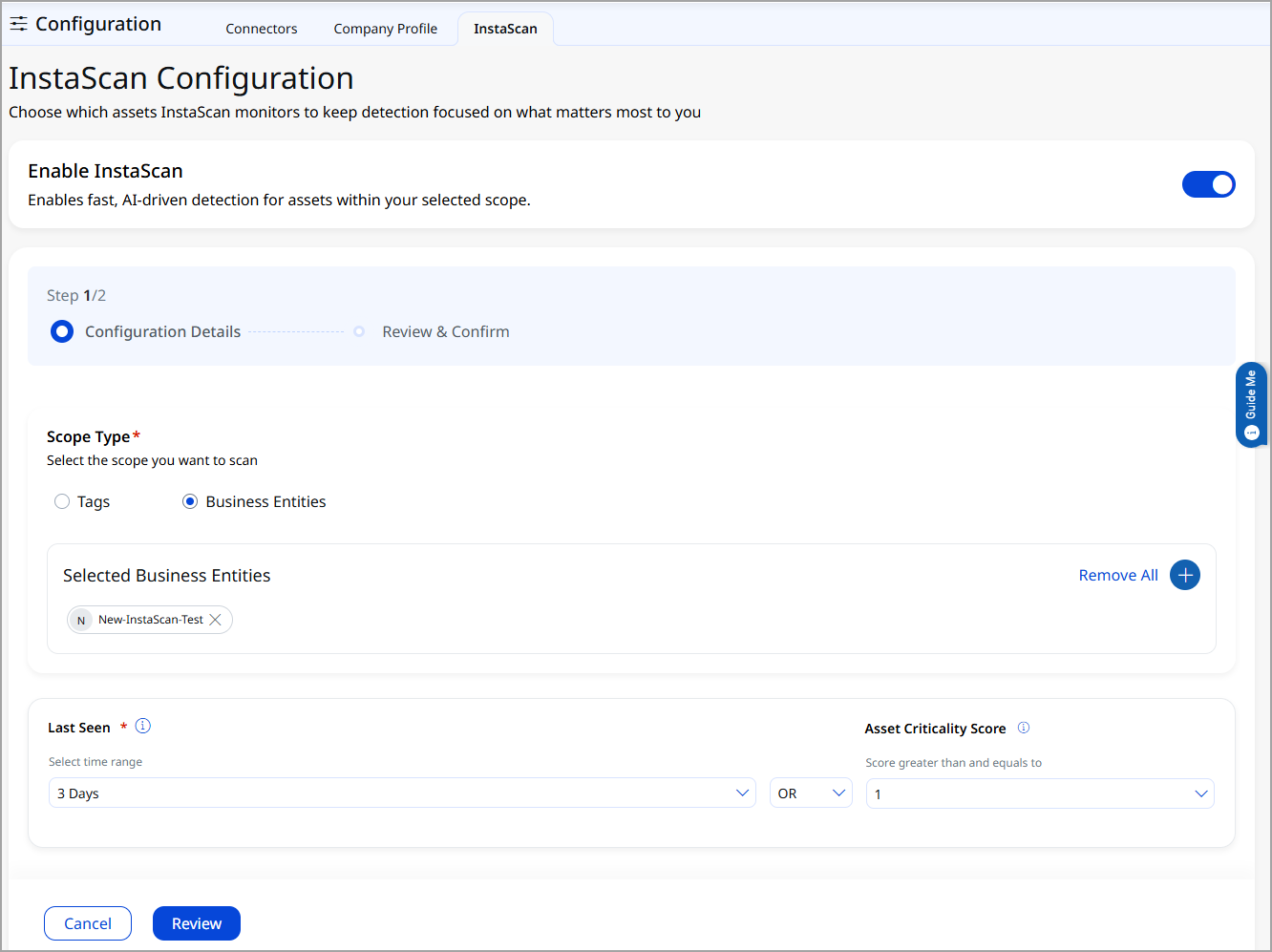
- In step 1, Configuration Details, select the Scope Type as Tags or Business Entities.
When you select Tags, use Include Tags to choose the tags to monitor. The match mode is set with the Any selector next to the field. Tags resolve to the device IDs associated with them.
Select tags that correspond to assets with current software inventory. Assets in scope without reported inventory return no findings.
-
Set Last Seen and Asset Criticality Score.
Last Seen is required and defines the time range in which an asset must have been seen - by sensor type, by a scan, or by a connector refresh - to remain in scope. Asset Criticality Score selects assets with a score greater than or equal to the value you choose.
The maximum Last Seen value is 3 days. This limit exists to keep detection tied to recent inventory. An asset that has not been seen within the window you select is excluded from scope until it reports again.
The two conditions are joined by AND. An asset must satisfy both to be in scope.
-
Click Review to move to Review & Confirm.
The Configuration Summary shows Scope Type, Selected Tags, Last Seen, and Asset Criticality Score.
-
Click Edit to go back and change any value.
-
Click Finish Configuration to save.
InstaScan begins detecting vulnerabilities on in-scope assets in the background. The saved configuration is also shown on the Agent Insta page.
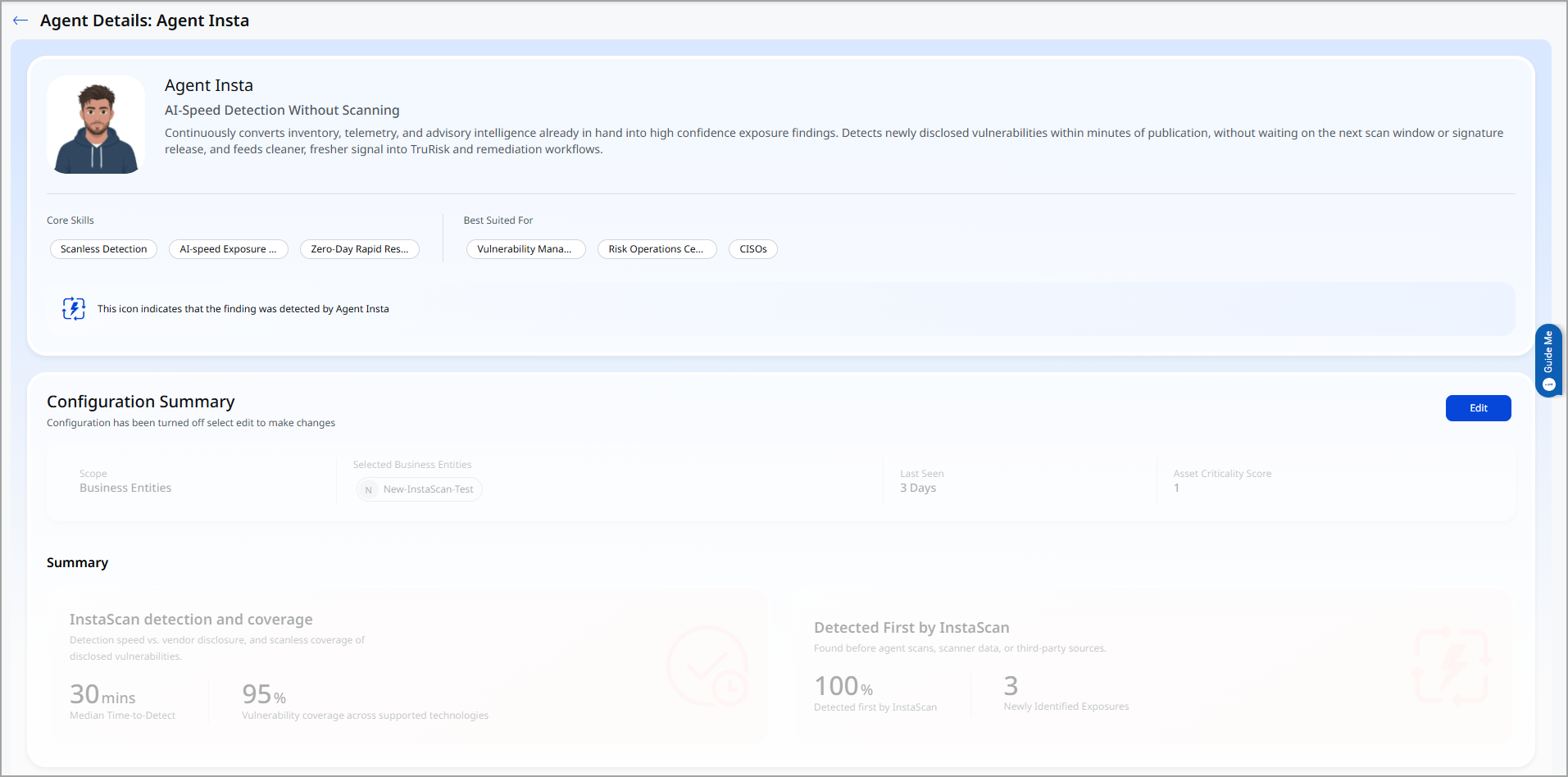
Refer to the following table to know the details of the page.
Sections Information Agent Overview Shows the agent's name, its role (AI-Speed Detection Without Scanning), and a description of what the agent does. Core Skills Lists the capabilities the agent specializes in: Scanless Detection, AI-speed Exposure Monitoring, and Zero-Day Rapid Response. Best Suited For Identifies the user groups that benefit most from the agent: Vulnerability Management, Risk Operations Center, and CISOs. Detection Icon Legend Displays the icon used to mark findings detected by Agent Insta so that you can recognize it on the Findings tab. Configuration Summary Displays the saved InstaScan configuration: Scope, selected tags or business entities, Last Seen, and Asset Criticality Score. Click Edit to change any value. When the configuration is turned off, this section is dimmed, and a message prompts you to select Edit to make changes. Summary: InstaScan Detection and Coverage Reports detection speed against vendor disclosure, and scanless coverage of disclosed vulnerabilities. Shows Median Time-to-Detect and Vulnerability coverage across supported technologies. Summary: Detected First by InstaScan Reports the findings InstaScan surfaced before agent scans, scanner data, or third-party sources. Shows the percentage detected first by InstaScan and the count of Newly Identified Exposures.
Configuration Options
Agent Insta supports the following configuration settings:
Scope: Which Assets to Analyze
Scope determines which assets InstaScan evaluates. Assets outside the scope are not evaluated, and assets inside the scope are evaluated only to the extent that software inventory has been reported for them.
- Tags (by asset tags, for example, Tenable, Generic CSV, Unmanaged, MS Defender, CrowdStrike Spotlight, Passive Sensor, Cloud Agent, Internet Facing Assets)
- Business Entities (as an alternative scope type to tags)
- Last Seen (the time range in which the asset must have been seen, for example, 3 Days)
- Asset Criticality Score (score greater than or equal to the selected value)
Scope Type is either Tags or Business Entities - not both. Last Seen and Asset Criticality Score are then combined with AND to determine the final scope.
Actions: What Agent Insta Should Produce
Agent Insta does not offer selectable output actions. Detection output is fixed and always published the same way:
- Findings on the Findings tab in Risk Management
Agent Insta publishes confirmed findings, with the first found date - Source attribution
Agent Insta attributes each finding with an InstaScan icon and source value on the Sources tab, plus a title-level icon, while InstaScan is the only source - Query and filter support
The IsInstaScan QQL token (for example, IsInstaScan: true) and the InstaScan filter card
Schedule: How Often Agent Insta Runs
There is no schedule to configure. Detection is advisory-driven rather than scheduled:
- Advisory-Driven
Agent Insta checks advisory sources at regular intervals. When a vendor publishes new CVEs, Agent Insta enriches the advisory data using software identification and publishes matching findings directly to the UI.
- Continuous
Once the configuration is saved, InstaScan runs on its own. There is no on-demand run and no schedule interval to set.
- Configuration Changes
Edit and save the configuration at any time to change which assets are in scope. Changes apply to subsequent detection cycles.
Recommended Workflow
Here is how to integrate Agent Insta into your detection and triage cycle. Because detection is continuous rather than scheduled, the workflow is organized around configuration and review rather than around run days.
Initial Setup
Action: Confirm your inventory sources are reporting, then enable InstaScan and save a configuration covering the tags, Last Seen window, and Asset Criticality Score threshold you care about.
Output: Detection begins in the background
Outcome: In-scope assets with current inventory are monitored continuously without a scan
First Review
Action: On the Agent Insta page, click the findings count to open the Findings tab in Risk Management, then filter with IsInstaScan: true.
Output: The full list of InstaScan findings with the first found dates
Outcome: Confirmation that detection is working and an initial view of exposure
Ongoing Triage
Action: Review new InstaScan findings as advisories are published, prioritizing findings on critical assets. Look for the title-level icon that marks findings InstaScan found first.
Output: A working list of exposures not yet confirmed by any other source
Outcome: Exposure is triaged ahead of the next scan cycle
Coverage Expansion
Action: Add connectors for inventory sources not yet onboarded, then revisit the InstaScan configuration to include their tags.
Output: Detection across newly connected inventory
Outcome: Coverage extends to assets whose inventory was previously not reported