Track CISA BOD 26-04 Compliance on Your ETM Dashboard
Add CISA BOD 26-04 widgets to your ETM dashboard to see at a glance which findings to remediate first and whether you are on track to meet your deadlines. ETM checks each finding's asset exposure, CISA KEV status, exploit automation, and technical impact, then calculates a remediation due date and SLA status. For more information about the full calculation, refer to CISA BOD 26-04 Support.
Prerequisite
CISA BOD 26-04 support is available on request. Contact Qualys Support or your Technical Account Manager (TAM) to turn it on for your subscription.
Add the Ready-Made CISA BOD 26-04 Widgets
ETM has two ready-made widgets for CISA BOD 26-04: BOD 26-04 Remediation Timeline and BOD Remediation SLA. Use them together. The timeline widget shows which deadline applies to your findings. The SLA widget shows whether you are meeting that deadline.
To add the widgets, follow these steps:
- Go to Dashboard, and open the widget template library.
- Filter the templates by Enterprise TruRisk Management.
- Click Add to Dashboard. To change the settings first, click Customize Widget.
Like other widgets, you can filter the data with vulnerability and asset queries, and set a Timeframe, such as the last 90 days, to control which findings the widget shows.
BOD 26-04 Remediation Timeline Widget
This widget shows a tree view of the findings in the scope of BOD 26-04. The tree starts with your total active findings and assets. It splits them by one risk factor at a time, in this order: Asset Exposure, CISA KEV, Automatable, and Technical Impact. Each branch ends in the remediation timeline that applies, with its finding and asset counts:
- 3 Days and Forensic Triage: Fix within 3 days, and check whether the vulnerability was already exploited.
- 3 Days, 14 Days, or 60 Days: Fix within the number of days shown.
- Fix on System Upgrade: No fixed deadline. Fix the vulnerability during your next system upgrade.
Red solid lines show the higher-risk answer (Yes or Total). Green dashed lines show the lower-risk answer (No or Partial). For example, a finding that is automatable is a higher risk, because an attacker can exploit it with a script.
Technical Impact can be Total, Partial, or Unknown. ETM shows Unknown when CISA has not assessed the vulnerability.
Hover over a branch to see its finding and asset counts. Click a count to open the matching findings in Risk Management.
The dashboard shows only part of the tree. To see the whole tree, view the widget in full screen.
BOD Remediation SLA Widget
This widget shows SLA compliance in a table, with one row for each remediation timeline: 3 Days, 14 Days, 60 Days, and Fix on System Upgrade. For each timeline, you see:
- SLA Status of Findings: A bar that shows how many findings are Out of SLA (red), Nearing SLA (yellow), or Within SLA (green), and how many are Ignored. Hover over the bar to see the counts.
- Findings and Assets: The number of findings and affected assets. Click a count to open the matching findings.
- TruConfirm Exploitable: The number of findings that TruConfirm confirms as exploitable.
For findings that need forensic triage, start a focused investigation to find out whether the vulnerability was exploited or the asset was compromised. CISA describes forensic triage as a quick investigation that covers scoping, preserving evidence, stabilizing and containing the system, analysis, and escalation.
Build Your Own CISA BOD 26-04 Widgets
On the dashboard, click the plus (+) icon to add a widget, and then use the CISA BOD 26-04 tokens in the widget query. You can use these tokens in every ETM widget type.
Asset Exposure and KEV Widgets
Create a widget that filters on asset exposure to identify publicly exposed assets, or on CISA KEV status to find known exploited vulnerabilities. ETM already has search tokens for these, so you use the same tokens you use today.
- To find publicly exposed assets, search by the tag your organization uses for internet-facing assets, for example,
asset.tag.name: `Internet Facing Assets`. You can also search for assets found by External Attack Surface Management (EASM) scans:asset.inventory.source: EASM - To find vulnerabilities in the CISA KEV Catalog:
finding.riskFactor.isCisaKnownExploit: TRUE
Finding Level Widgets
Add widgets that display the following for your findings:
- Whether the vulnerability is on the CISA KEV Catalog
- Whether it is automatable
- Its technical impact
- Its remediation SLA, SLA status, and remediation due date
Choose the widget type based on how your team uses the data:
| Widget type | Use it to display |
|
Count |
The total number of findings that meet a CISA BOD 26-04 condition, such as out of SLA or total control.
|
|
Table |
Set the table type to Simple List to see the highest-priority findings and their CISA BOD 26-04 values, or to Grouped to see counts grouped by a CISA BOD 26-04 token.
|
|
Bar |
Finding counts grouped by a CISA BOD 26-04 token, such as SLA status.
|
|
Pie |
The share of findings in each value of a CISA BOD 26-04 token, such as Automatable Yes and No.
|
|
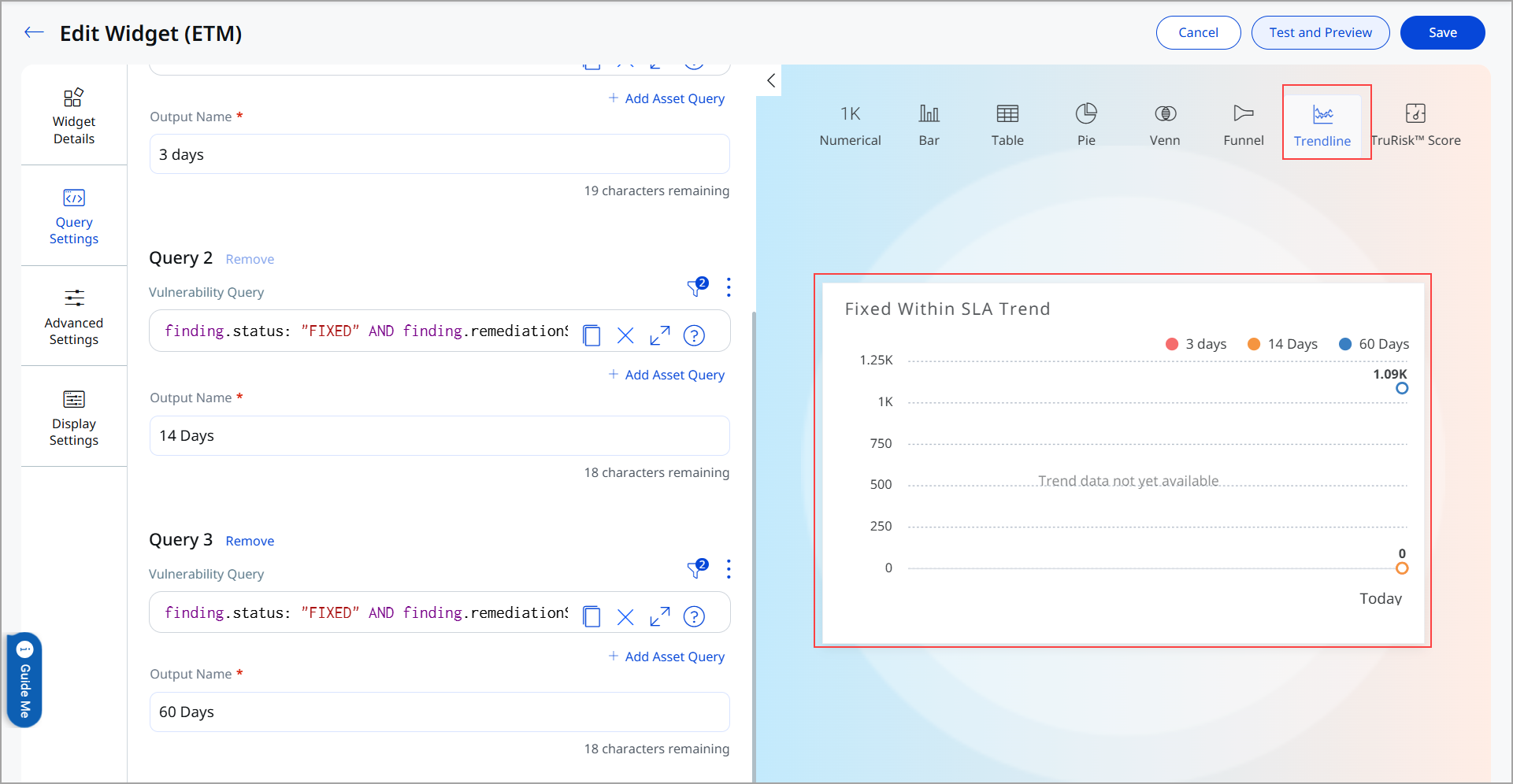
Trend |
How a CISA BOD 26-04 count changes over time.
|
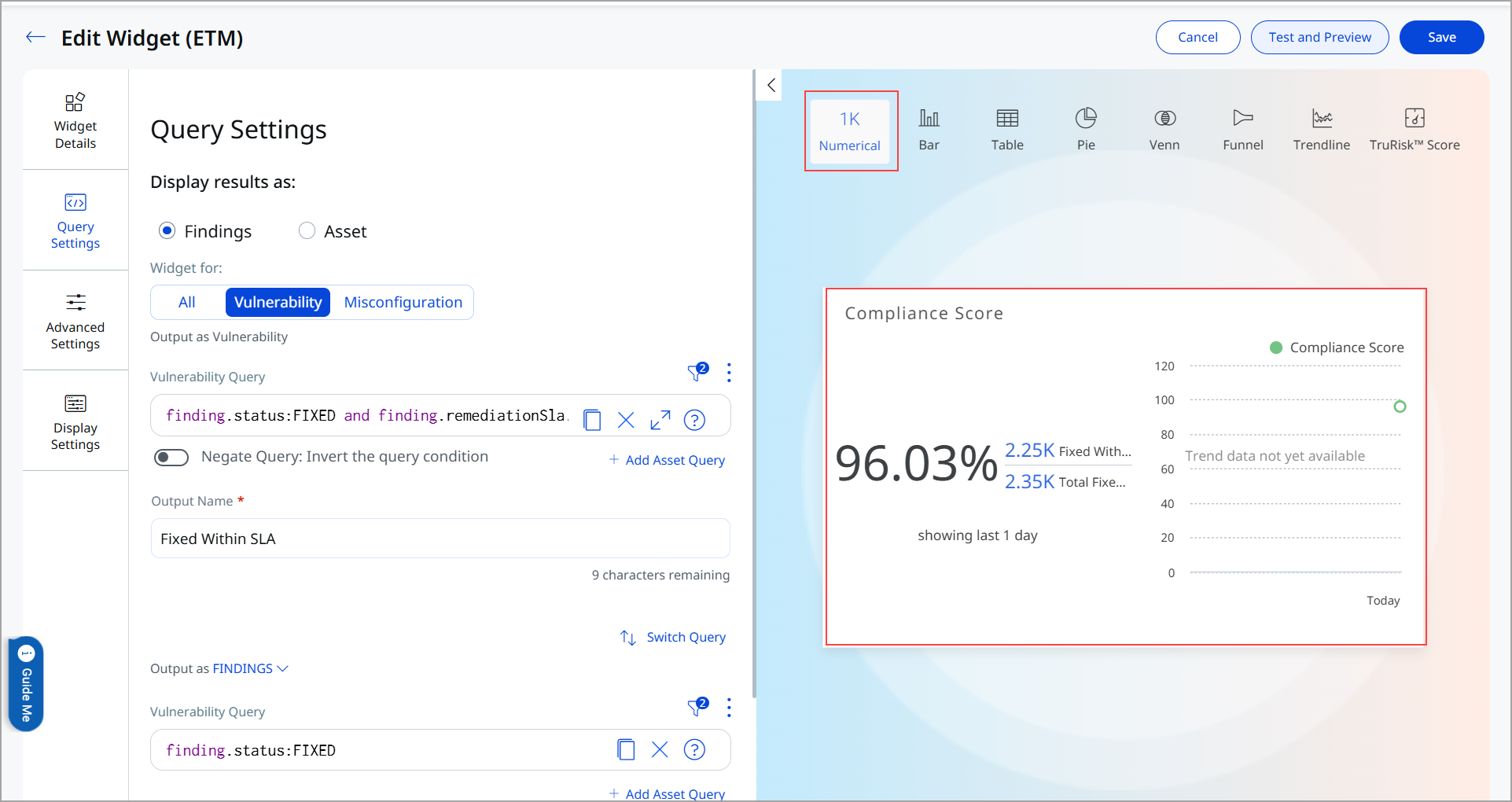
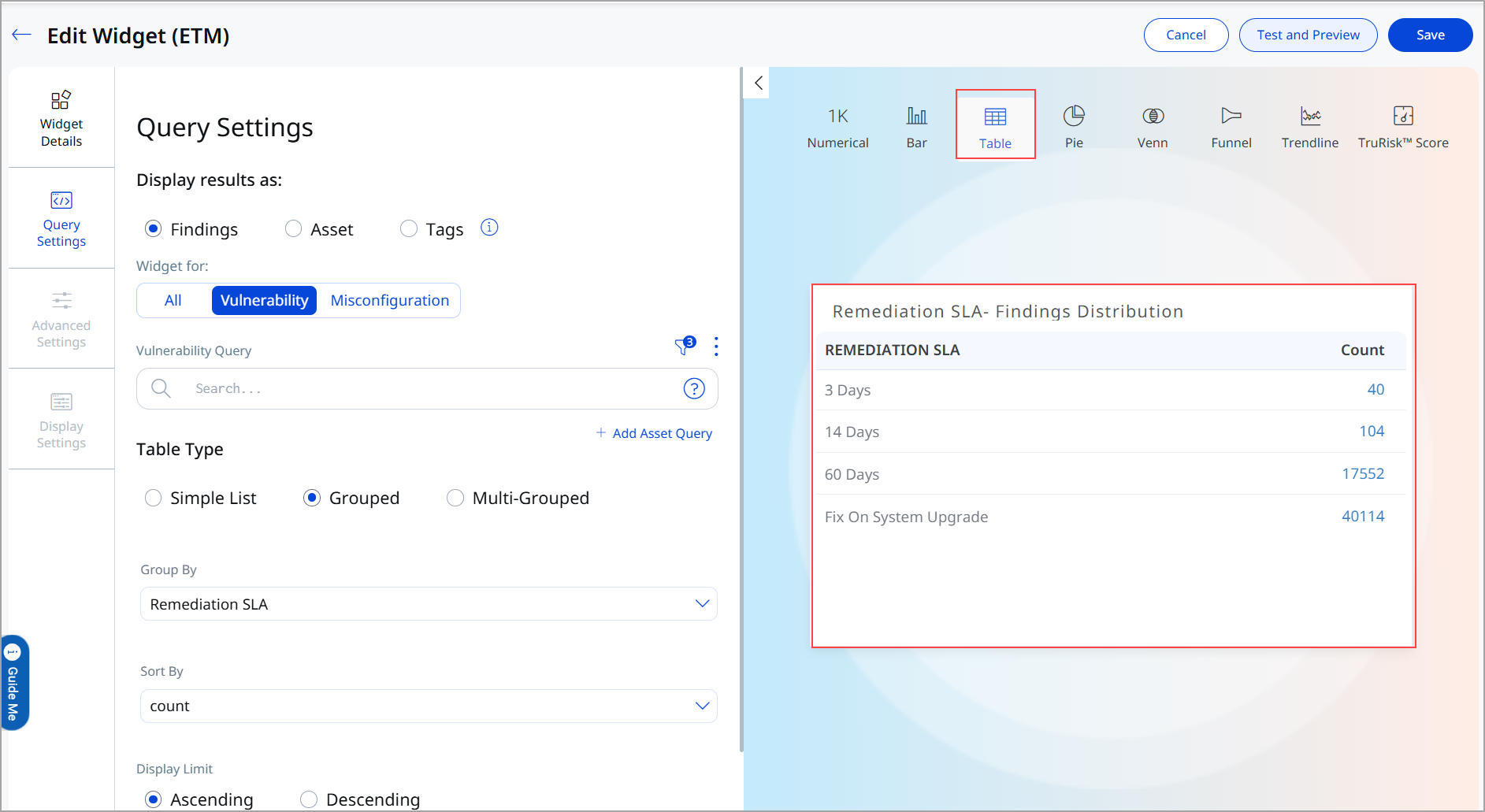
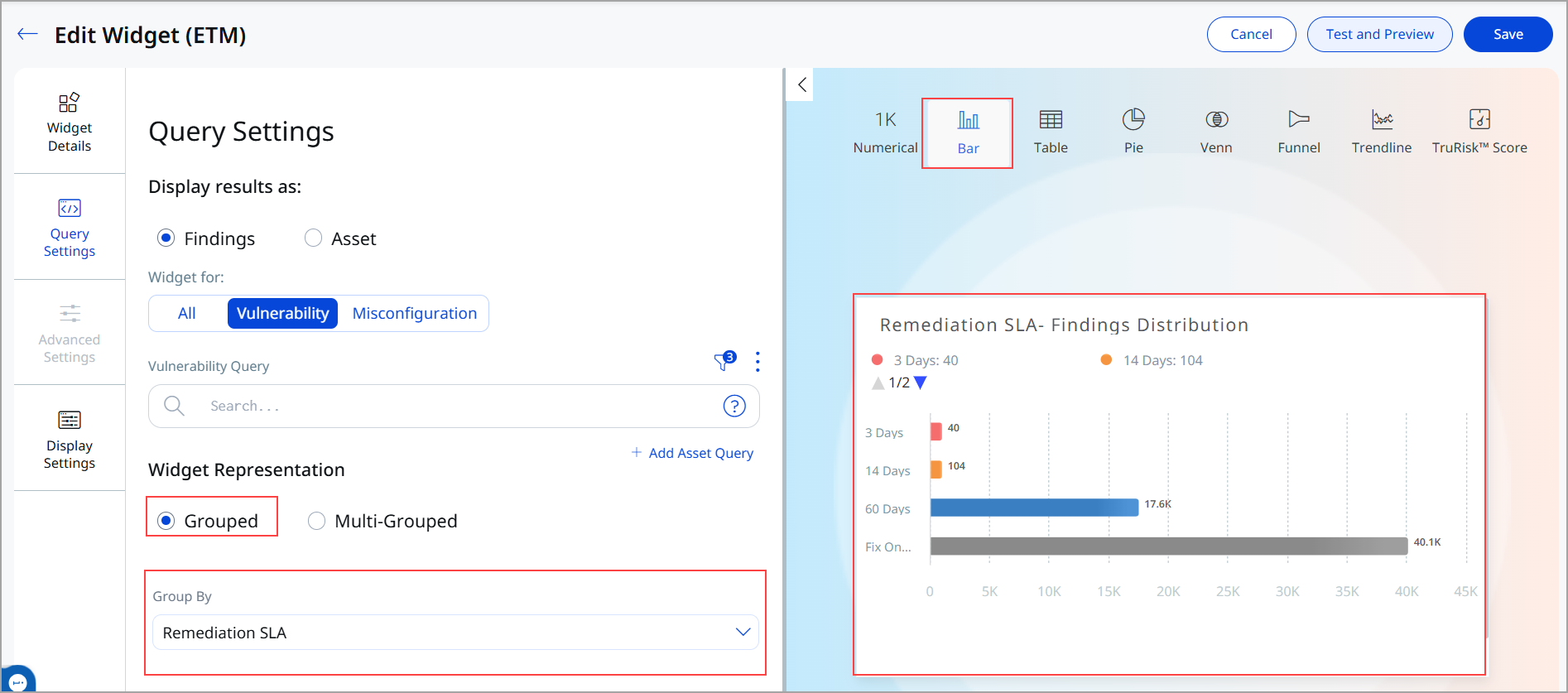
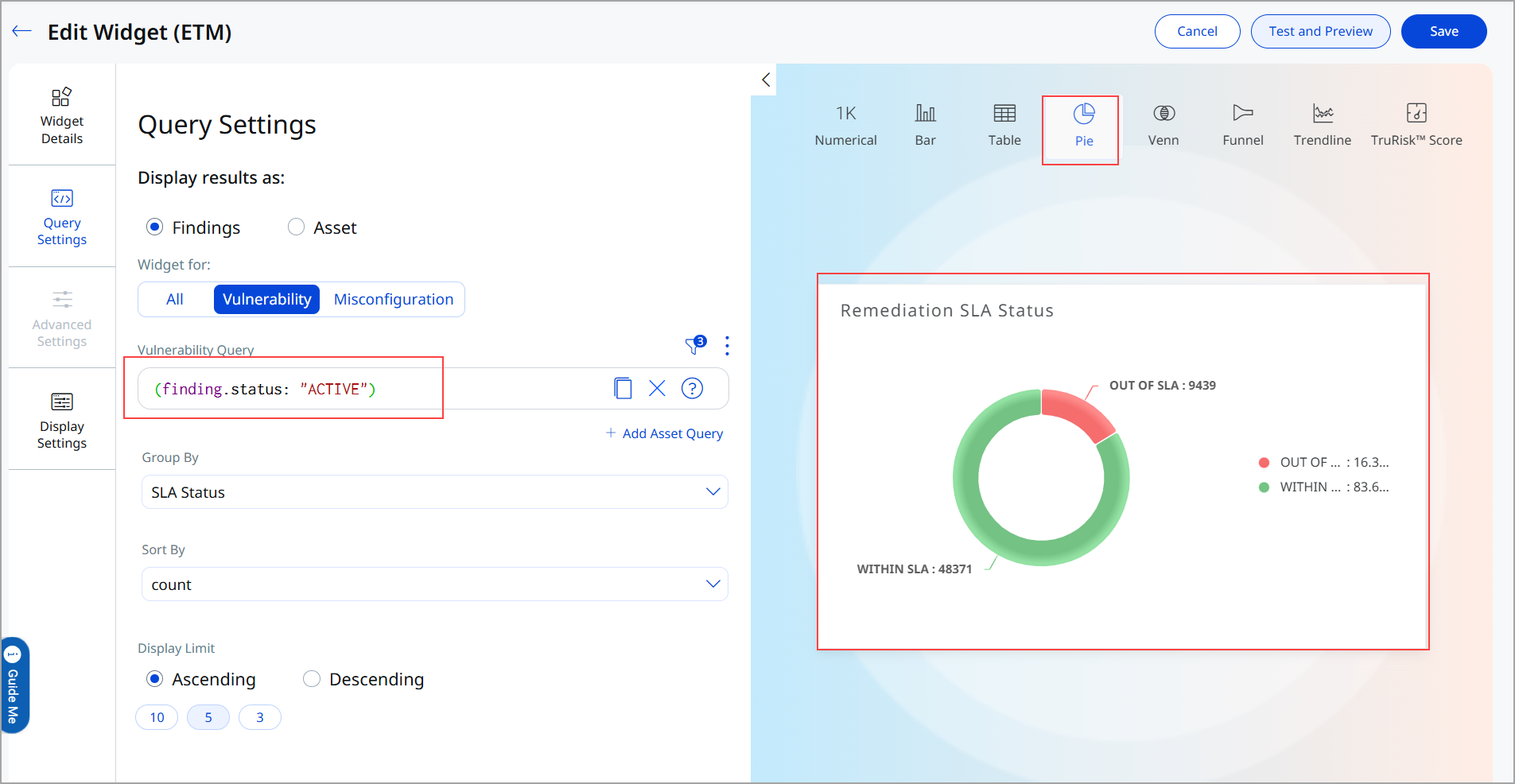
You can group a bar, table, or pie widget by Technical Impact, Automatable, Remediation SLA, or SLA Status.
Select a count in a widget to view its findings. ETM opens the Findings listing with the widget query already applied, so the count on the listing matches the count on the widget.
Track Your Remediation Backlog by SLA
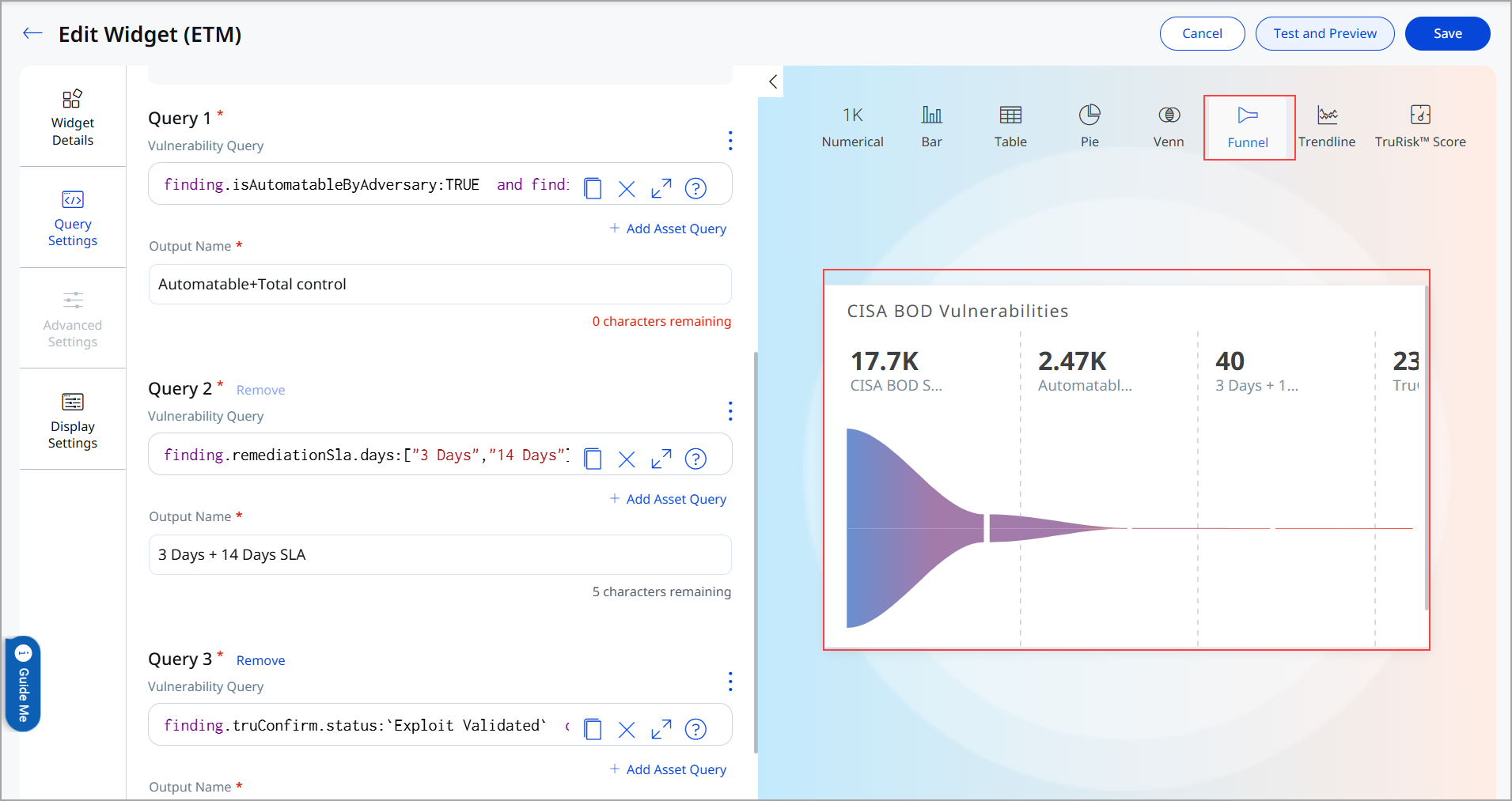
Group a widget by finding.remediationSla.days to see your remediation backlog broken down by SLA bucket: 3 days, 14 days, 60 days, and Fix on System Upgrade. Group by finding.remediationSla.status to see how many findings are within SLA, nearing SLA, or out of SLA. Your team can use these views to work on the most urgent bucket first.
Monitor Trends
Add a trend widget to see whether your publicly exposed attack surface and known exploited vulnerability count are going up or down over time. You can also build trend widgets on the CISA BOD 26-04 tokens, for example, to follow your Out of SLA count over time.
Use Findings Listing Filters
On the Findings listing, search by technical impact, exploit automation, SLA status, and remediation due date to build your own remediation worklists, apart from the dashboard widgets.
SLA Profiles
An SLA profile is a named set of remediation rules. It defines how many days a finding has before remediation is due and the action it needs: Remediate or Forensic Triage. ETM assigns each finding the SLA profile that matches its risk factors. To search findings by profile name, use finding.remediationSla.profile.
This topic is in draft status. ETM dashboard screenshots are pending and will be added before publication.
Good to Know
You can group a widget by only one CISA BOD 26-04 token at a time. The CISA BOD 26-04 tokens are not available in the multi group by section. Support for grouping by more than one of these tokens is planned for a later release.
Related Topics
View, Search, and Filter CISA BOD 26-04 Attributes for Findings