View Attack Paths
The Attack Paths view is your starting point. It lists every attack path detected in your account, so you can quickly see which critical assets are at risk and decide what to investigate first.
Navigate to: Risk Management > Attack Path (Beta) > Attack Paths
Use it to: Spot new and critical attack paths, and narrow the list to what matters.
Before You Begin
Make sure Attack Path is turned on for your account and you have the required permissions. For details, see About Attack Path.
Tour of the Attack Paths Page
When you open the Attack Path (Beta) tab, the Attack Paths view opens by default. The numbers in the screenshot match the list below.
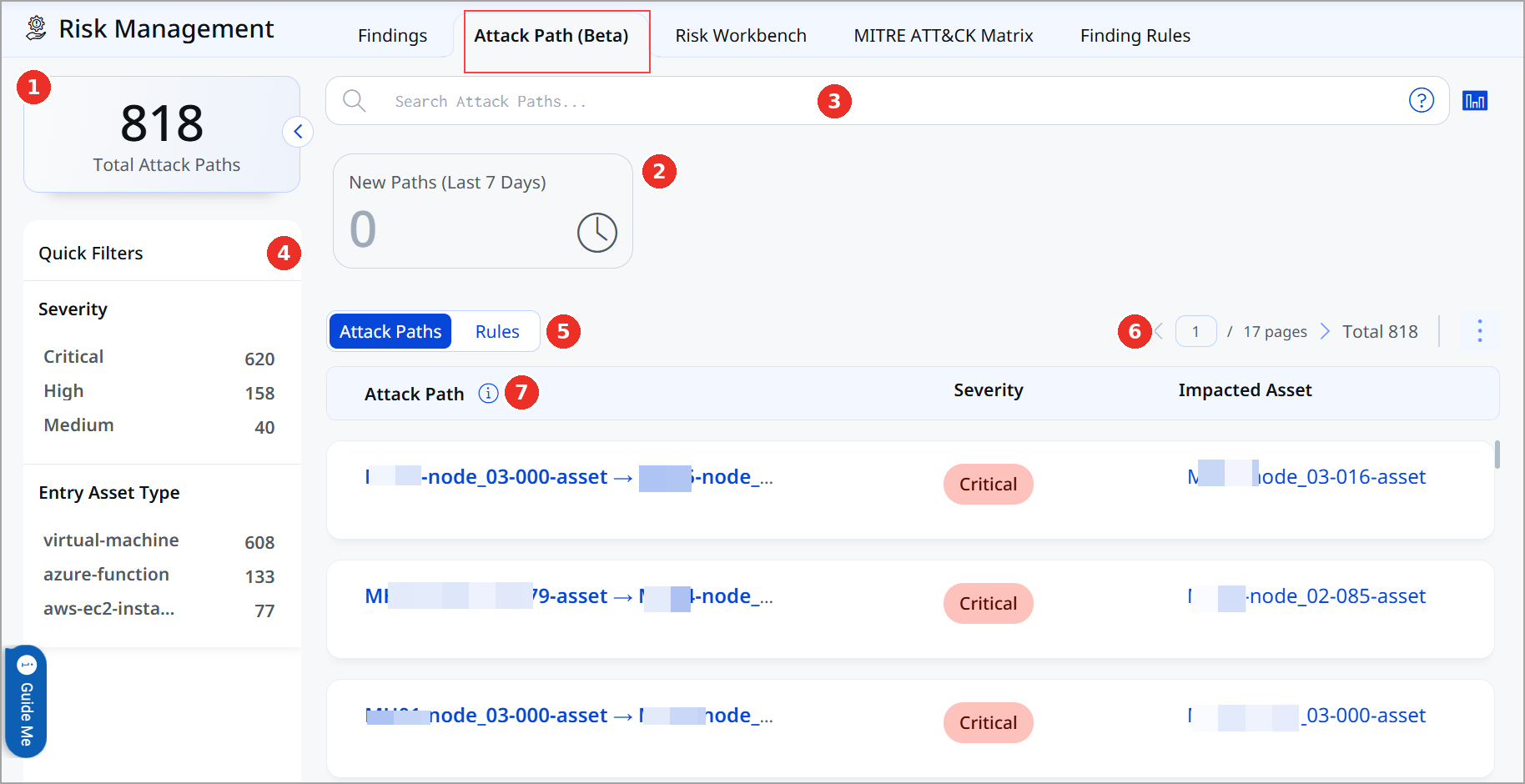
- Total Attack Paths: The total number of attack paths in your account. Click the arrow on this card to hide or show the filters.
- New Paths (Last 7 Days): The number of attack paths detected in the last seven days. Check it often to catch new risk early.
- Search bar: Find attack paths using Qualys Query Language (QQL).
- Quick Filters: Narrow the list by severity, entry asset type, and impact area.
- Attack Paths / Rules: Switch between the list of attack paths and the rules that detected them.
- Page controls: Move between pages and see the total number of attack paths.
- Attack path list: One row for each attack path. See the next section.
Read the Attack Path List
Each row in the list is one attack path, with three columns:
| Column | What it tells you |
|---|---|
| Attack Path | The route from the entry point to the final target, shown as entry asset → target asset. Click it to open the graph. |
| Severity | How serious the attack path is: Critical, High, or Medium. |
| Impacted Asset | The asset the attacker could reach at the end of the path. |
Filter and Search Attack Paths
Each value in Quick Filters shows how many attack paths match it. Click a value to apply the filter.
| Filter | Description |
|---|---|
| Severity | Critical, High, or Medium. |
| Entry Asset Type | The type of asset where the path starts, such as virtual-machine, azure-function, or aws-ec2-instance. |
| Impact Area | What is at risk at the end of the path, such as Crown Jewel. |
You can also use the search bar to find attack paths with QQL, for example, by asset name, asset type, severity, or the date the attack path was detected.
Try It: Find Your Newest Critical Attack Paths
- Go to Risk Management > Attack Path (Beta).
- Check the New Paths (Last 7 Days) card to see if anything new was found.
- Under Quick Filters > Severity, click Critical.
- Click an attack path in the list to open its graph.
If many attack paths start from the same type of asset, filter by Entry Asset Type. Securing that type of asset can close many paths at once.