Viewing Container Based Events
With FIM, you receive real-time updates about anomalous activities that are detected. These updates (events) are sent with detailed information covering all aspects of the changes happening within your monitored area, including the specifics of the individuals involved, the actions taken, the timing, and the locations affected. It is important to note that events can be either anticipated and approved, or unforeseen and malicious.
FIM is also integrated with the Qualys Container Security application to monitor Events in containers. The Container Security application's Event attributes are mapped with FIM Event attributes. Qualys Container Runtime Sensor (CRS) tracks the file events happening in your containers, which are hosted on a cluster.
While FIM receives all event data from Container Security, it only processes and displays specific events. FIM currently supports and displays the following container-related events:
- Create: This event is displayed when a new file created.
- Content: This event is displayed when a file is updated.
- Delete: This event is displayed when a file is deleted.
- Rename: This event is displayed when a file name is changed.
FIM currently does not display the Open events from your container.
FIM on Containers and FIM on network devices is the requirement of PCI DSS 4.0. Container based FIM is available on demand. Contact your Technical Account Manager (TAM) to activate this feature.
Quays Container Security (CS) has a policy for Qualys FIM. This policy is based upon the Qualys FIM OOTB library profile Linux Monitoring Profile for HIPAA and Linux Monitoring Profile for PCI DSS 4.0.
When a user performs an operation such as delete, content edit, or rename on the image path mentioned in the policy, an event is generated. The FIM event service is set to utilize this information and display it to FIM UI, accompanied by important information about the content event.
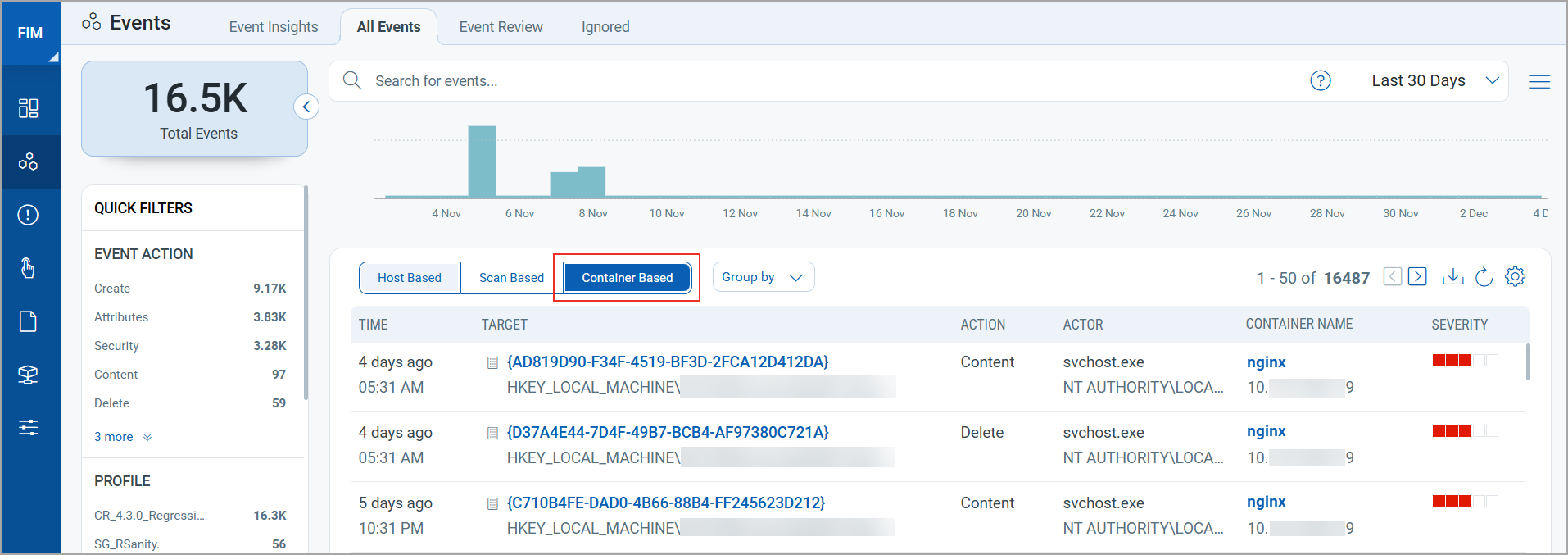
You can sort and view the list of container based events on the All Events tab, Event Review tab, Ignored tab, and Incidents Details page.
Prerequisites
Account with Container Security v1.34 or later, along with the licensed or trial version of FIM.
To monitor container based events, you need to begin with the configuration in the Container Security application. For more information on installing a runtime sensor on a container, refer to Container Runtime Sensor Online Help.
Customized Monitoring Profiles for Container Based Events
Qualys FIM supports customized monitoring profiles for updated Container Security policies. FIM prioritizes imported or customized profiles over default library profiles.
You can import a monitoring profile from the FIM Library. The imported profile becomes fully editable. You can modify its rules to meet your monitoring requirements. You can add, update, delete, and rename monitoring rules within the imported profile. FIM uses these customized profiles to generate events based on the latest policy configurations.
FIM uses the default library profile if the imported profile does not exist.
Follow the steps below to import a profile from the library and customize its monitoring rules.
1. Navigate to Configuration > Library.
2. Select the profile, either Linux Monitoring Profile for PCI DSS 4.0 or Linux Monitoring Profile for HIPAA, and then select Import to Profiles from the Quick Actions menu.
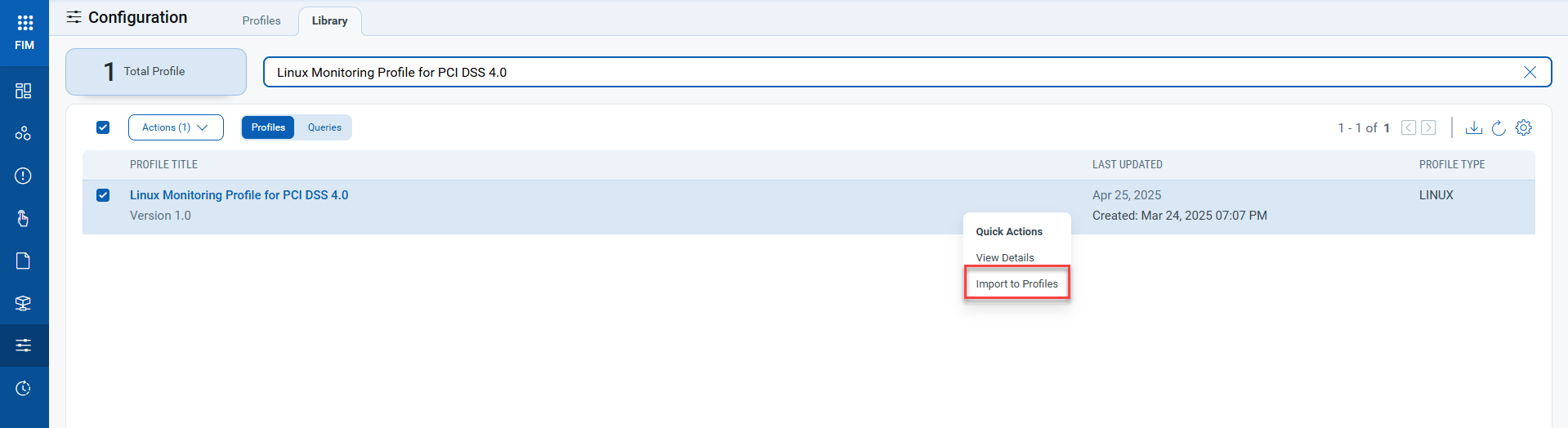
3. Activate the profile.
You can create or edit the rule after clicking on Edit from the Quick Actions menu, in the Profile section.
4. Save the Profile, once edited.
5. Go to Container Node and update the policy with revised rule settings to apply the updated rule configuration.
FIM uses imported profiles to monitor containers. When an event occurs on a container node, FIM captures it and displays it under Events > All Events > Container Based tab.
6. Select the generated event, and click Event Details from the Quick Actions Menu.
You can view the generated event details, the imported profile, and the rule you created.
Viewing Event Details
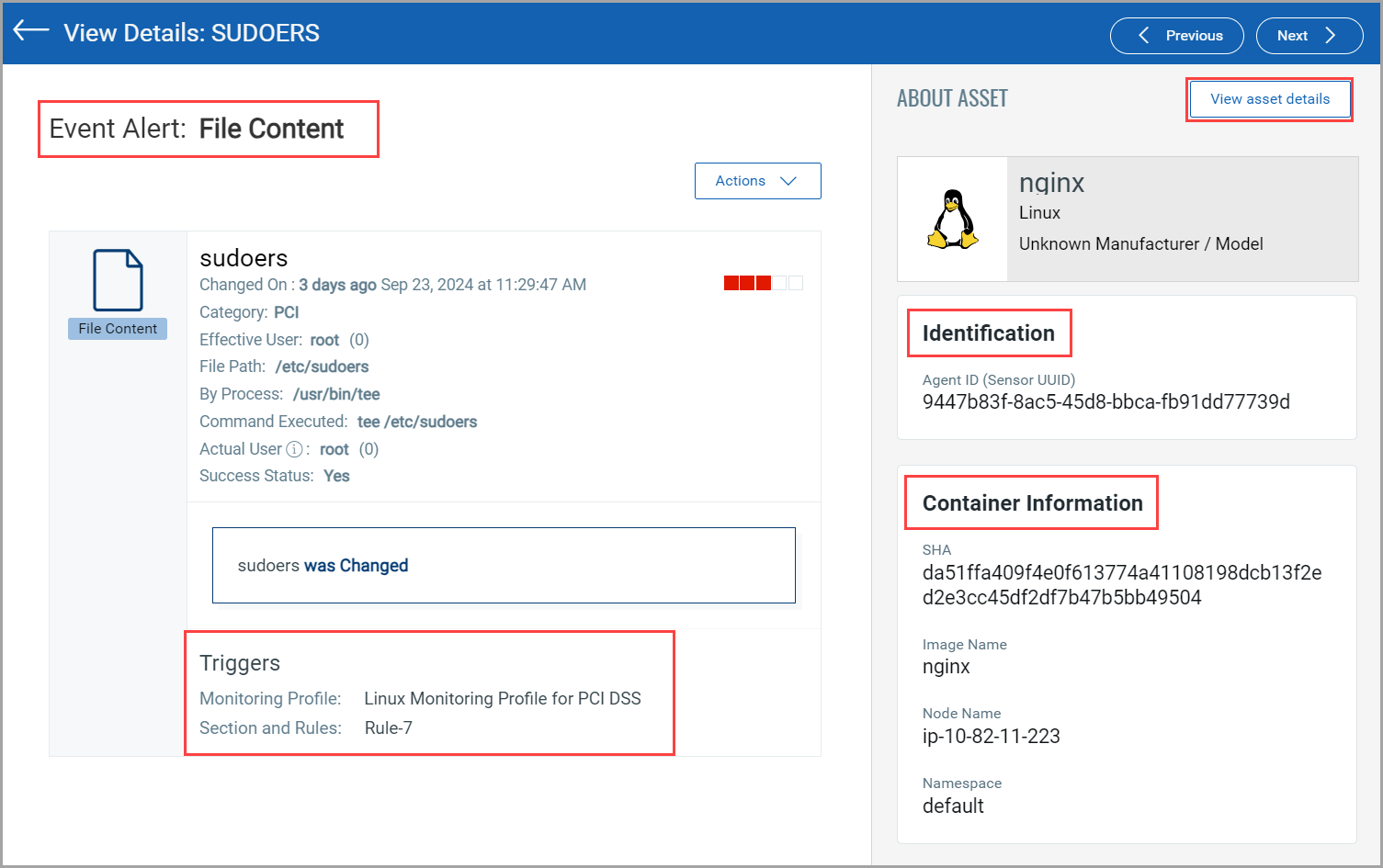
You can view details by clicking Event Details in the Quick Actions for the selected event. This View Details page provides complete information about the FIM event.
You can view the following details.
Event Alert: What has changed, Category, User details, success status, and so on
Triggers: Monitoring Profile, Section and Rules
View asset details: View details of the container in the Container Security application
Identification: Sensor UUID
Container Information: SHA for the container, Image Name, Node Name, Name Space
For more information on Events, refer to the Events section.
You can view the list of containers by navigating to the Container Security application > Assets tab > Containers. The Container Information displayed on the View Details page reflects the state of the container at the time the event was generated. As container attributes may change over time, the displayed information may not match the current container state.