File Integrity Monitoring Release 4.9.2
June 19, 2026
Customize Monitoring Profile for Container Event Detection
FIM now supports customized monitoring profiles for the updated Container Security (CS) policies. You can import monitoring profiles from the library, and add, update, delete, or rename the rules within the imported profile. FIM uses these customized profiles to generate events based on the latest customized policy configurations, providing more accurate monitoring and event visibility.
FIM prioritizes customized monitoring profiles over default library profiles such as the Linux Monitoring Profile for PCI DSS 4.0 and the Linux Monitoring Profile for HIPAA. This enhancement helps ensure that events generated from updated monitoring rules are accurately detected and displayed in FIM.
FIM uses the default library profile if the imported profile does not exist.
To edit the profile rule, go to Configuration > Library, select the profile either Linux Monitoring Profile for PCI DSS 4.0 or Linux Monitoring Profile for HIPAA, and then select Import to Profiles from the Quick Actions menu. Activate the profile. You can create or edit the rule after clicking on Edit from the Quick Actions menu, in the Profile section.
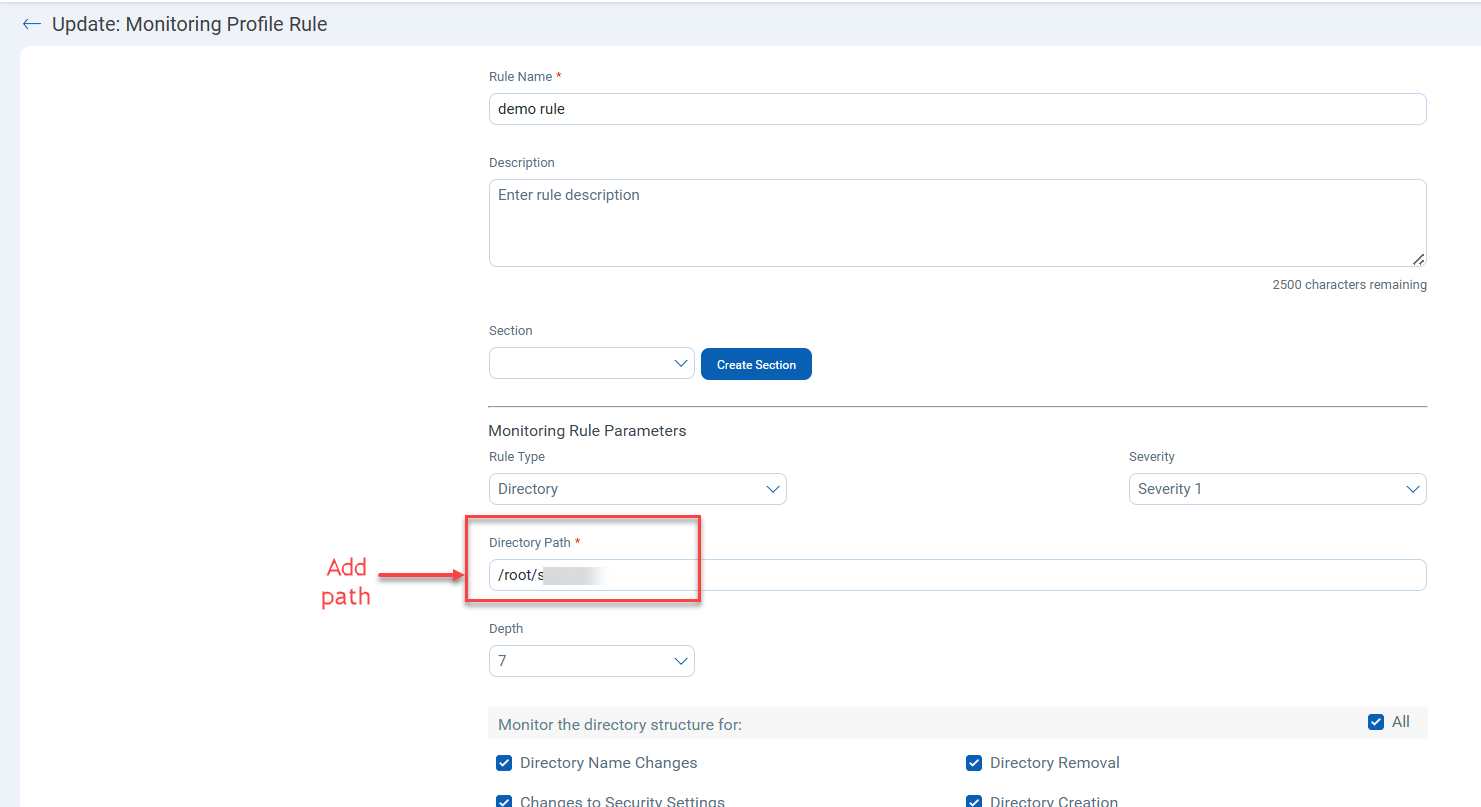
After you save the profile, go to Container node and update the policy with revised rule settings to apply the updated rule configuration. FIM uses the imported profile for monitoring. When file activity matches a rule in the imported profile, FIM generates an event and displays it under the Events > All Events > Container Based tab.
To view the generated event details, select the generated event and click Edit from the Quick Actions Menu. The Events details are displayed.
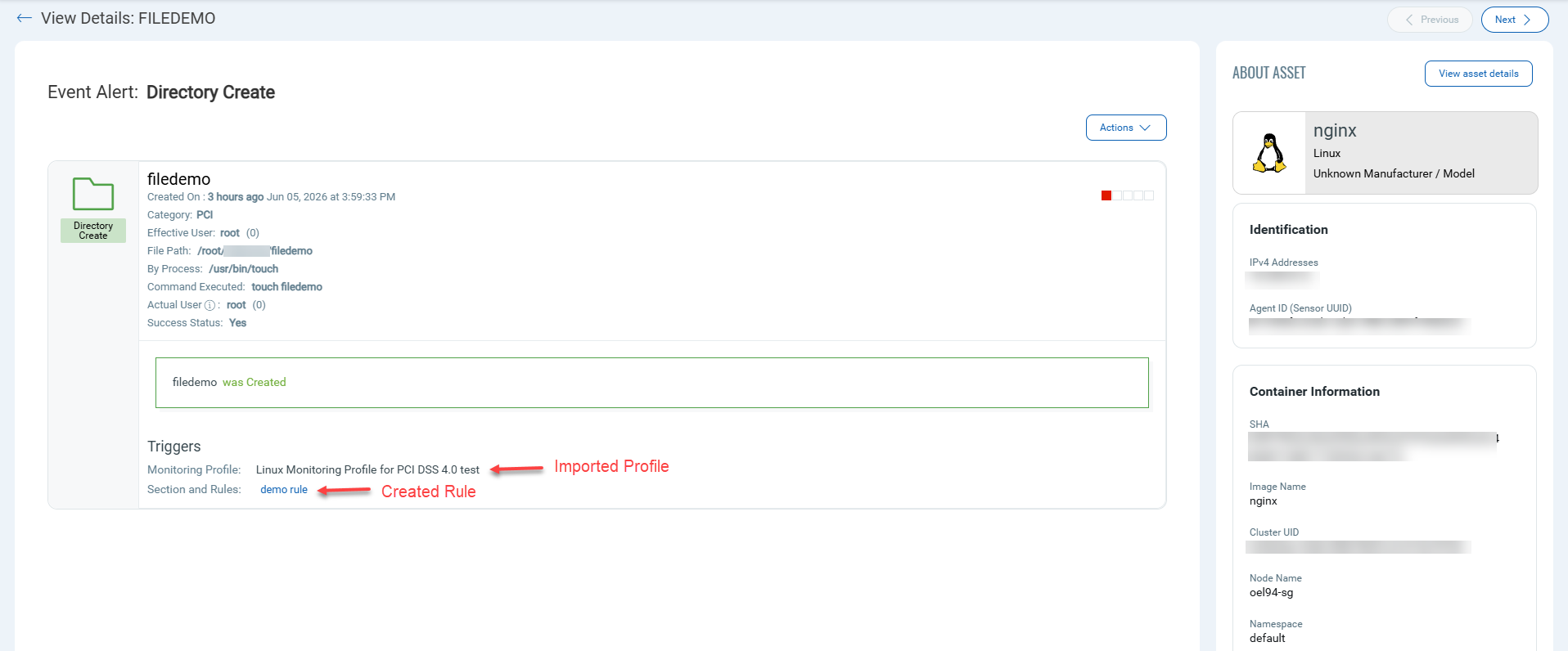
For more information, refer to Container Based Events.
Issues Addressed
The following reported and notable issues are fixed in this release:
| Category/Component | Description |
|---|---|
| FIM Configuration > Profiles > New Profile | Previously, clicking Cancel during new FIM Profile creation still created the profile and placed it in the Inactive state, even without clicking Save.
Profile is now created only when you save the profile during FIM profile creation on FIM Configuration > Profiles > New Profile page. When you click Cancel during new profile creation, the profile creation is canceled, and no longer appears in the Inactive state. |
| FIM Activity Logs | In FIM Activity Logs, some automated actions showed incorrect user information. When a Cloud Agent was deactivated, and the system automatically removed its assets from monitoring profiles, the activity log displayed the name of the last user who edited the profile, even though that user did not perform the removal.
This issue has been fixed. When the system automatically removes an asset from a monitoring profile due to a deactivated Cloud Agent, the activity log now shows System as the actor. This makes it clear which actions were performed automatically by the system and which were performed by users. |
| FIM Report > Report Rules | Previously, a Super User could not edit, delete, or resume paused FIM report rules on the Report > Report Rules page that were created by inactive users, and encountered errors when attempting to perform these actions.
Now, Super User can edit, resume, and delete paused report rules without errors. Super Users with full access can view and manage all report rules, regardless of the rule creator. |
| Schedule Reports | Previously, event data in CSV reports differed from the data displayed in the UI. Additionally, some reports remained in the processing state and were not completed successfully.
Now, event data is consistent between CSV reports and the UI. Reports are also processed successfully in the processing state. |