Import Configurations
Perform the following steps to complete the import configurations
- Go to Data Import > Import Configurations to review the data import configured by default.
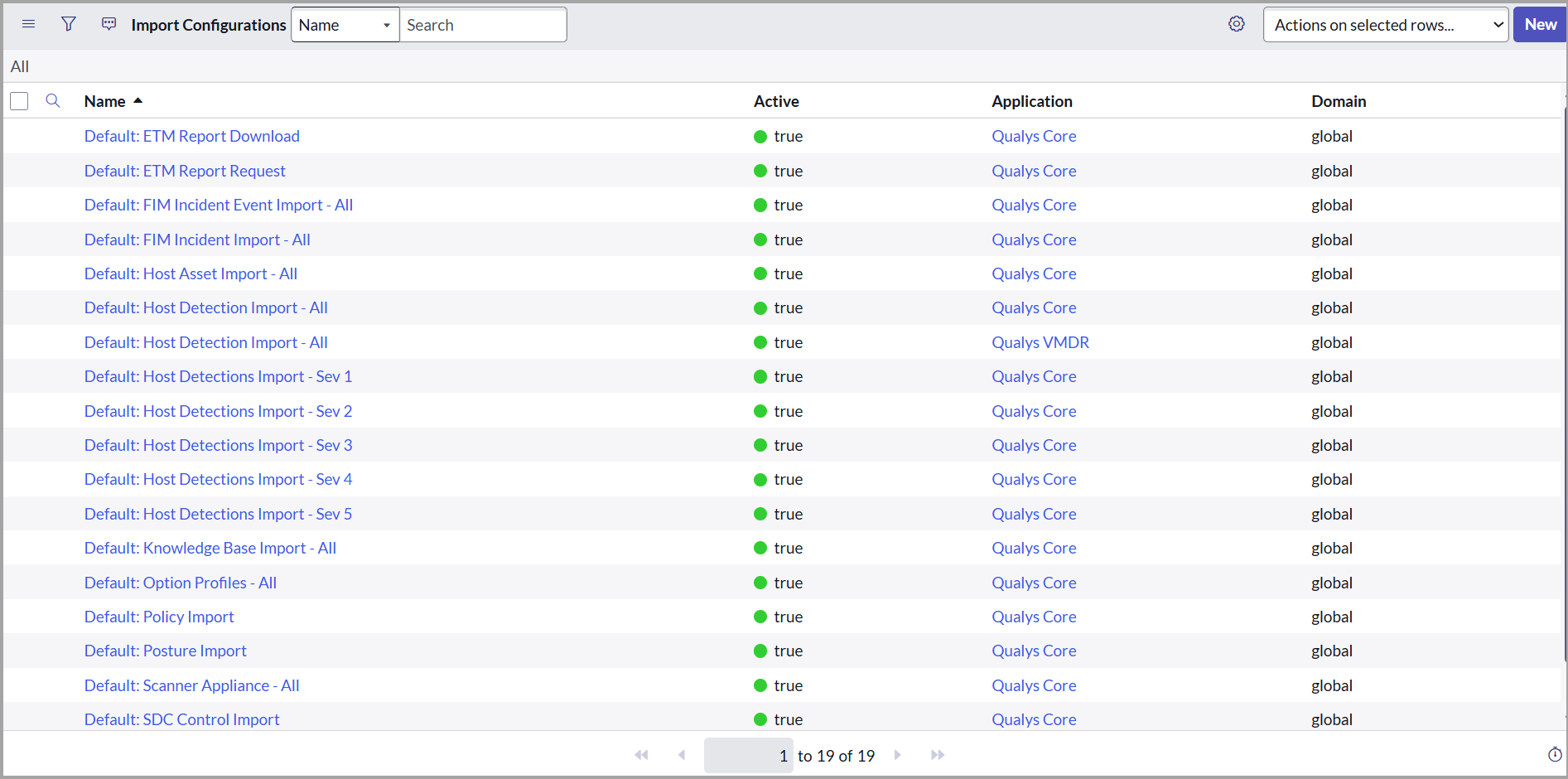
- By default, the following import configurations are available to configure Qualys Core to work with Qualys ETM.
- ETM Report Request
- ETM Report Download
-
Review the import configurations to check what data is being imported.
-
Click Update to update the configuration.
ETM Report Request
This job is to generate the report request to sync the Qualys ETM findings using Qualys ETM APIs.
Perform the following steps to request the ETM Findings Report:
- Navigate to Scheduled Jobs under Qualys ETM Integration.
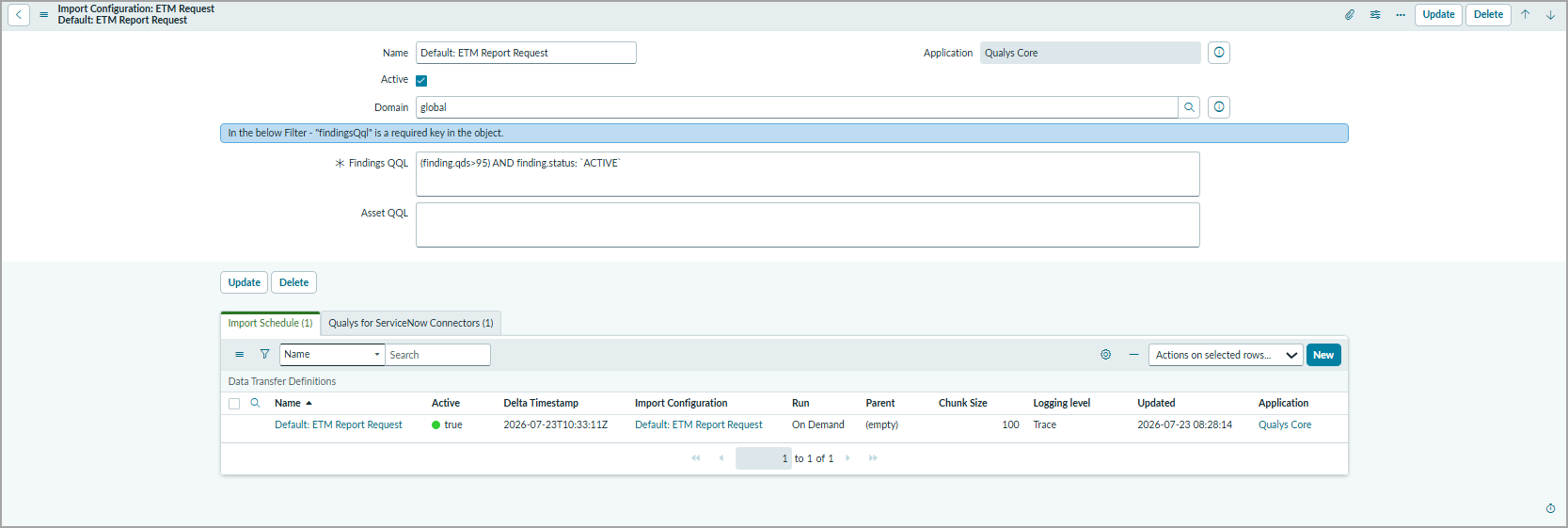
- In the Scheduled Jobs table, open the ETM Findings Report Request.
- Provide the following configuration details and save the job:
Field Description Name Enter the name for the request report. Domain Select the application domain as Global. Filter - Finding QQL
Enter a query to filter the findings.
Use the following sample filter query:
(finding.qds>95) AND finding.status: `ACTIVE`
"findingsQql" is a required key in the object.
Filter - Asset QQL
Enter a query to filter the assets.
Use the following sample filter query:
asset.criticalityScore:5To view all supported tokens, refer to Token Support for Reports APIs section in the Qualys ETM API user guide.
- Click Update.
ETM Report Download
Using this job, you can control the schedule at which it gets executed to process the downloaded report’s JSON files, which are queued under the Report Download Queue.
Perform the following steps to download ETM report:
You can perform the following action in the Import Configuration: