Configure System
Connect your Qualys account with the plugin to run scans. The plugin supports three authentication methods: Basic Authentication, Qualys OAuth Authentication, and Identity Provider (IDP) Authentication.
-
On the Jenkins console, go to Manage Jenkins > Configure System.

-
Scroll down to Qualys IaC Scan plugin and click Add.

-
Configure the authentication using one of the following methods.
Basic Authentication
Use Basic Authentication to connect with your Qualys username and password.
-
Select BASIC as the authentication type.
-
Provide the following details:
- Name - Enter a name for the configuration.
- Qualys Platform URL - Enter your Qualys platform URL.
- Qualys Username - Enter your Qualys username.
- Qualys Password - Enter your Qualys password. Click Change Password to update.
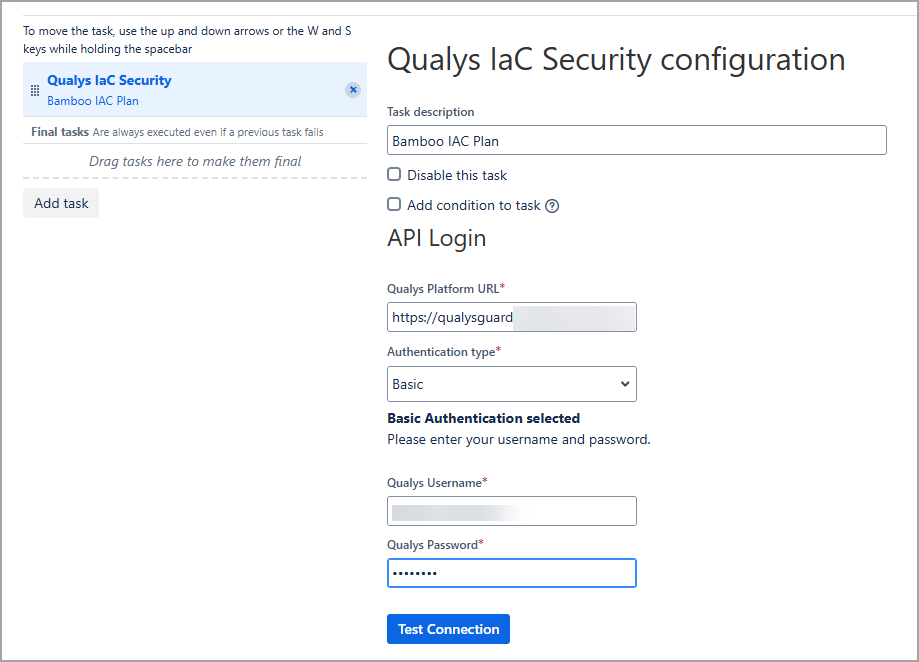
-
Click Test Connection to ensure you are authenticated. The plugin cannot perform scans unless the test connection is successful.
-
Click Save and Apply.
Qualys OAuth Authentication
Use Qualys OAuth (OIDC) Authentication to connect with a client ID and client secret generated from the Qualys platform.
To create a user-level client, see Set up Token-based Authentication from UI.
-
Select OIDC as the authentication type.
-
Provide the following details:
- Name - Enter a name for the configuration.
- Qualys Platform URL - Enter your Qualys platform URL.
- Client ID - Enter the client ID generated from the Qualys platform.
- Client Secret - Enter the client secret generated from the Qualys platform.
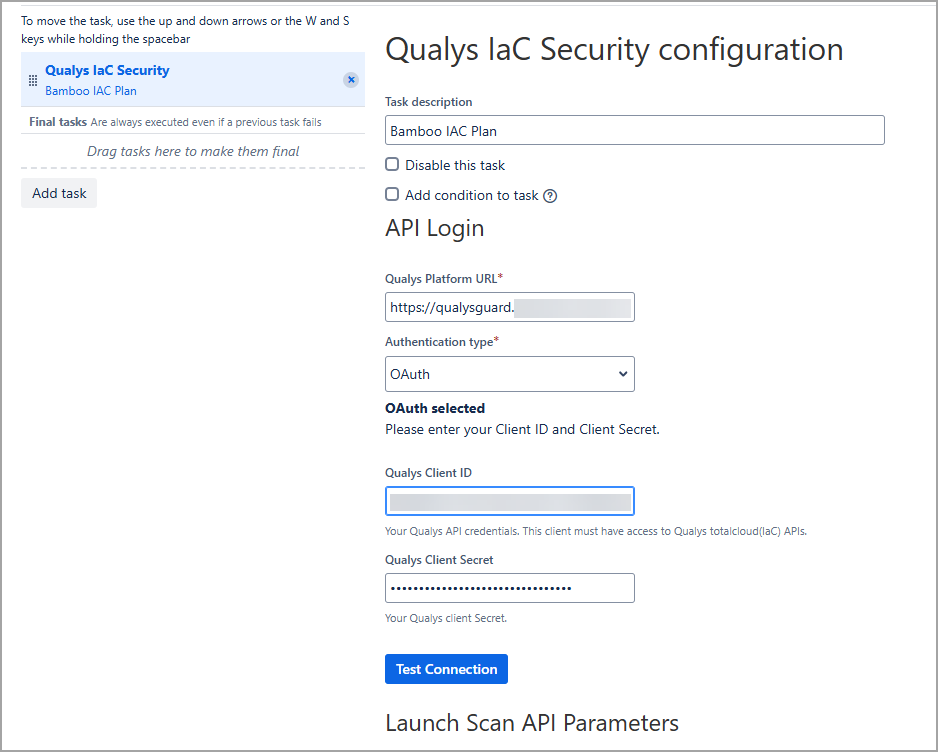
-
Click Test Connection to ensure you are authenticated. The plugin cannot perform scans unless the test connection is successful.
-
Click Save and Apply.
Identity Provider (IDP) Authentication
Use Identity Provider (IDP) Authentication to connect through an external identity provider. This method lets organizations use their existing IDP infrastructure to authenticate with the Qualys platform. For more details, see API Authentication using IdP Provider Tokens.
-
Select IDP as the authentication type.
-
Provide the following details:
- Name - Enter a name for the configuration.
- Qualys Platform URL - Enter your Qualys platform URL.
- Client ID - Enter the client ID configured for your Identity Provider.
- Client Secret - Enter the client secret configured for your Identity Provider.
- Token URL - Enter the URL of your Identity Provider (IDP) token endpoint. The plugin sends an authentication request to this endpoint to obtain an access token.
- Scope - Enter the scope to request from your Identity Provider. This field is optional unless your IDP configuration requires it. If a required scope is missing or invalid, authentication fails.
- Audience - Enter the audience value configured for your Identity Provider. This value must match the audience configured in QAS. If the values do not match, authentication fails.

-
Click Test Connection to ensure you are authenticated. The plugin cannot perform scans unless the test connection is successful.
-
Click Save and Apply.
If authentication fails, review the console output. The plugin displays errors returned by your Identity Provider or QAS, such as missing scope, audience mismatch, or unauthorized access due to an incomplete QAS configuration.