Download and Install Qualys Universal Technology Add-on for Splunk
Install the Qualys Universal Technology Add-on (TA) for Splunk from Splunkbase.
Download Add-on
To download the Qualys Universal Technology Add-on (TA) for Splunk, perform the following steps:
-
Go to the Splunk website.
-
Download the latest version of Qualys Universal Technology Add-on (TA) for Splunk.
The installer file (tar.gz) is downloaded to your local system; you need this file to complete the installation.
Installation Steps
To install the Qualys Universal Technology Add-on (TA) for Splunk, perform the following steps:
-
Log in to Splunk Web.
-
Navigate to Apps > Manage Apps.
-
Click Install app from file.
-
Select the downloaded package.
-
Click Upload.
-
Restart Splunk if prompted.
-
Verify Installation.
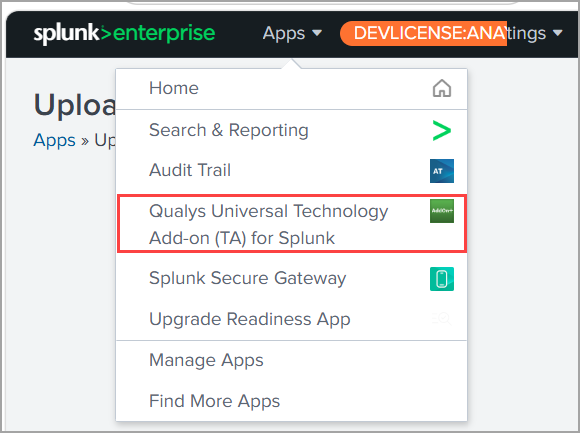
After installation, verify that the Qualys Universal Technology Add-on (TA) for Splunk is displayed in the Applications menu.
Launch Add-on
After installation, launch the add-on from the Splunk Applications menu.
To launch the add-on, perform the following steps:
- Open Splunk Web.
- Navigate to the Applications menu.
- Select Qualys Universal Technology Add-on (TA) for Splunk.
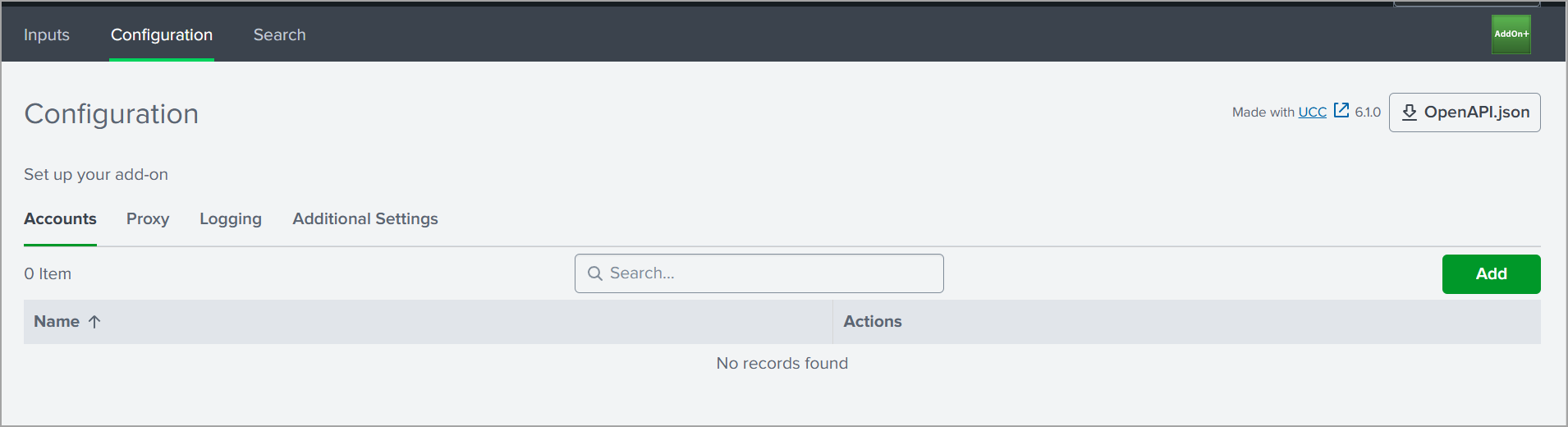
The Configuration page opens automatically.
Next Step