Managed Risk Operations Center (mROC) Release 2.1
June 9, 2026
Multi-Factor Authentication Support for mROC Account
You can now secure partner and super partner accounts with multi-factor authentication (MFA) in the Managed Risk Operations Center (mROC). MFA adds an additional verification step during sign-in to help reduce the risk of unauthorized access caused by compromised passwords.
Partners and super partners with the Manager role can configure MFA.
Benefits
MFA enhances account security and provides the following benefits:
-
Helps reduce unauthorized account access.
-
Improves protection against use of compromised passwords.
Supported Authentication Apps
mROC supports all standard authenticator applications that generate Time-based One-Time Password (TOTP).
What is Impact
To ensure a smooth transition to Multi-Factor Authentication (MFA), it is important to understand what changes to expect during sign-in and account management.
-
MFA is optional by default. When enabled by a partner, MFA becomes mandatory for all accounts during sign-in.
-
After MFA is configured on a mobile device, sign-in requires a verification code from the authenticator application.
-
In case the registered device is lost or unavailable, contact the manager users to deregister MFA, or contact support.
How to Enable MFA
To enable MFA, navigate to Administration > Security Setup > MFA Setup and then select the Enable MFA for all users (except users signed in using SAML SSO) checkbox.
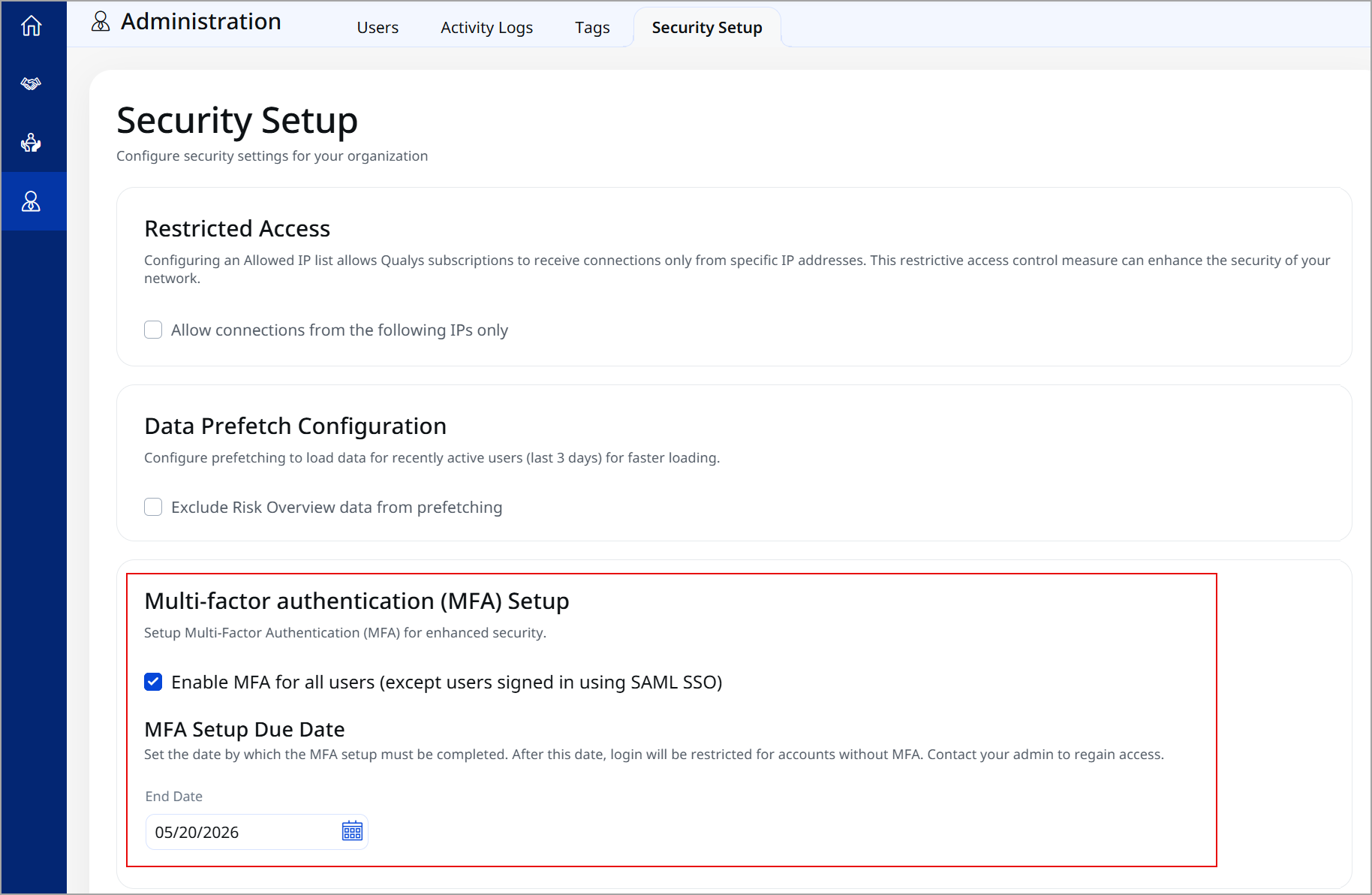
After MFA is enabled, you must register your account with an authenticator application to complete the MFA setup.
MFA setup is not supported when SAML authentication is enabled, as authentication is managed through the configured identity provider (IdP).
For detailed steps to enable MFA, refer to the mROC Online Help.
Issues Addressed
There are no notable issues addressed in this release.