SAML SSO Authentication for PCI Compliance
PCI Compliance supports the Identity Provider (IdP) initiated Security Assertion Markup Language Single Sign-on (SAML SSO) authentication. SAML SSO provides secure and easy access to Qualys PCI Compliance using your corporate credentials. This ensures authorized access to PCI compliance by mapping each user to the specific access token.
Contact Qualys Support to activate SAML SSO for the Point of Contact (POC) user. Only the POC users can enable or disable SAML SSO for sub-users.
How to Enable SAML SSO for PCI Merchant
To enable SAML SSO for a merchant, share your account details with Qualys Support. Qualys support uses these details to enable SAML for merchant users. Qualys Support enables SAML SSO for the merchant once they receive the required details.
Once the SAML SSO is enabled for the Merchant, you can enable it for the individual users. Perform the following steps to enable SAML SSO for the merchant at the user level.
- In the PCI Compliance application, log in to the Merchant for which SAML is enabled.
- Navigate to Account > Users.
- Select the user account for which you want to enable SAML.
- Click Edit and select the Enable SAML checkbox.
- Enter the External ID for the user.
- Click Save.
- Once you enable SAML for a user, contact Qualys Support and provide the following details:
- Merchant user login details
- External ID
- Login URL
- Logout URL
- Base Certificate
How to Use SAML SSO for PCI Merchant Login
Once the SAML SSO is enabled for the Merchant, you need to integrate the merchant user with your Azure or Okta accounts. To learn more about SAML integration, refer to PCI Compliance SAML Integration with Okta and PCI Compliance SAML Authentication with Azure.
If SAML is not enabled for the merchant, you cannot enable it at the user level.
To access the PCI Merchant account, log in to your Okta or Azure account using the login URL and your account credentials. You can directly navigate to PCI Merchant account from the Okta or Azure.
How to Generate SAML SSO Token
When enabling SAML-SSO for a user, select the Generate Token checkbox. It generates a SAML authentication token. You can use this token to set up SSO for the merchant or link a merchant account to VM.
Perform the following steps to generate the SAML SSO token:
- Log in to the SAML-enabled account from your IdP.
- Navigate to the Account > Users > Edit User window.
- In the Edit User window, click Generate Link Token. The Generate VM Linking Token window opens.
- Copy the generated token. This token is required to link the PCI account with the VM user. Once the PCI account is linked to the VM account, you cannot regenerate the token for the same user.
How to Link SAML-enabled PCI Merchants to Qualys VM
PCI Compliance is enhanced to support linking SAML SSO-enabled PCI Merchant users to Qualys Vulnerability Management (VM). Linking PCI Merchants to VM ensures security and compliance by providing the following benefits:
- Delivers verified vulnerability scan evidence
- Prevents audit failures by automated compliance reporting
- Provides a trusted risk remediation view for PCI merchants
Previously, only the PCI merchants using basic authentication were linked to the VM. Now, SAML SSO-enabled users can generate a token to link their accounts to VM, enabling enhanced security, accurate reporting, and efficient remediation.
To link a PCI Merchant user to VM, in the Vulnerability Management UI, navigate to the Scans > Setup > PCI Accounts Links > Add Existing PCI Account > Link to Existing PCI Service window.
Enter the User Login and SAML token in the Link to Existing PCI Service window.
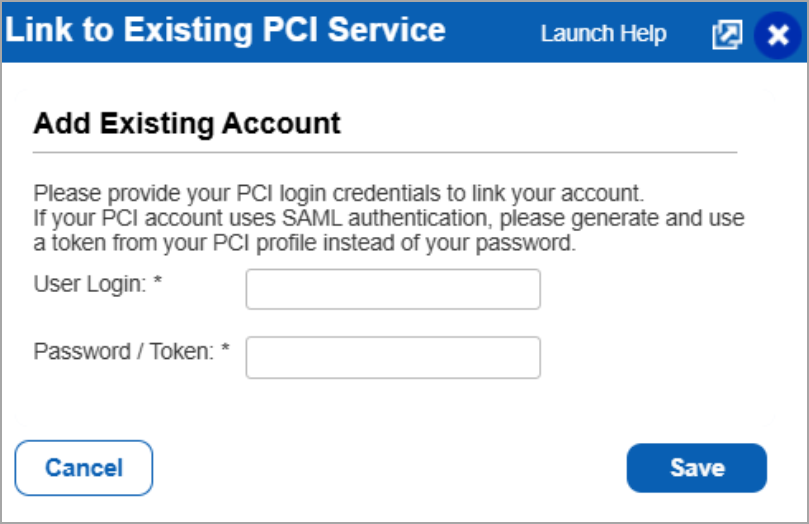
In this window, you can either provide the PCI Merchant password or SAML token for authentication.