Setting Ring Configuration
A patch that installs cleanly in the lab can still break a business-critical server. Ring-based deployment protects you from that risk. It rolls out patches to a small group of assets first, checks the results, and moves to the next group only when the patches succeed. If a patch is faulty, it affects only a few test assets rather than your entire environment. This limits the blast radius.
Using the Ring Configuration tab, you can define your deployment rings once.
For example, Lab Environment, Staging Environment, and Production. TruRisk™ Eliminate uses this configuration every time you create a ring job, so you don’t need to create and link a separate job for each environment.
To open it, navigate to Configuration > Ring Configuration.
How Ring-Based Deployment Works
A ring is a group of assets that receives the patches at the same stage of the rollout. You choose the assets in a ring with asset tags. The rings run in order, one after the other.
- You create a ring job, for example, from an Agent Sara sub-wave. TE creates one deployment job for each ring in your ring configuration and links them in order. All the ring jobs deploy the same patches. For details, see Risk Remediation Using Agent Sara Waves.
- The ring jobs are created in a disabled state. You enable them to start the rollout. If your organization uses the Job Approval Workflow, you send the whole ring group, or individual ring jobs, for approval instead, and each ring job runs only after it’s approved. For details, see Get Ring Jobs Approved Before They Run.
- The first ring job runs on the schedule you select: On Demand, Run Once, or Recurring.
- Each later ring job is scheduled automatically. Its start time is the previous ring's start time plus its wait time.
- When a ring is due to start, TE checks the results of the previous ring against its criteria:
- If the criteria are met, the ring starts.
- If the criteria aren’t met, the ring and all the rings after it are canceled, and the patches don’t move further.
- The last ring deploys the validated patches to your production assets.
Ring Jobs vs Linked Ring Deployment Jobs
TE also lets you link deployment jobs manually so that a job inherits patches from a parent job and starts after the parent’s post-actions succeed. Ring configuration automates this approach. Use the table to choose the method that fits your roll-out.
| Ring jobs (from ring configuration) | Linked Ring Deployment Jobs | |
|---|---|---|
| How do you create them | Create one ring job, and TE creates and links a job for every ring. | Create the parent job and each ring job yourself, and link them with Patch Selection from Another Job. |
| Assets in each stage | Asset tags that you define for each ring in the ring configuration. | Assets that you select in each job. |
| When the next stage starts | After the wait time, if the patch success percentage and the minimum asset threshold are met. | On its schedule, after a percentage of the parent job’s post-actions succeed. |
| Pre-actions and Post-actions | Set in the first ring job and copied automatically to all the later ring jobs. | Set separately in each job. |
| Maintenance Window | Available only in the last ring job (Production by default). | Available in each job. |
| Approval | When the Job Approval Workflow is on, send the whole ring group or individual ring jobs for approval. | When the Job Approval Workflow is on, send each job for approval. |
| Where you find them | Jobs > Ring Jobs tab, grouped together. | Jobs > Regular Jobs tab, as separate jobs. |
For more information on linking jobs manually, see Ring Deployment Jobs.
Before You Begin
- You need the Manage Global Ring Configuration permission to create or edit the ring configuration.
- Create asset tags for the assets in each ring, for example, a tag for your lab assets and a tag for your staging assets. Each ring needs at least one tag.
- Set up the ring configuration before you create your first ring job.
- The assets in each ring must have the Cloud Agent installed and be activated for patch management, the same as for any deployment job.
Know Your Default Rings
TE provides three rings by default. You can rename them and add more rings to match your environments.
| Default Rings | Use |
|---|---|
| Lab Environment (first ring) | A small group of test assets. It’s the first ring to receive the patches, so issues show up here first. |
| Staging Environment | A larger group of assets that represent your production setup, such as the same operating systems and applications. |
| Production Environment (last ring) | Your business assets. It receives the patches only after the earlier rings meet their criteria. |
- You can have a maximum of 10 rings.
- You can rename the first and last rings, but you can’t move them. The first ring always runs first, and the last ring always runs last.
- You can reorder the rings between the first and last rings.
- You cannot remove the last ring.
Set Up Your Deployment Rings
Set up the rings once. Every new ring job starts with these settings.
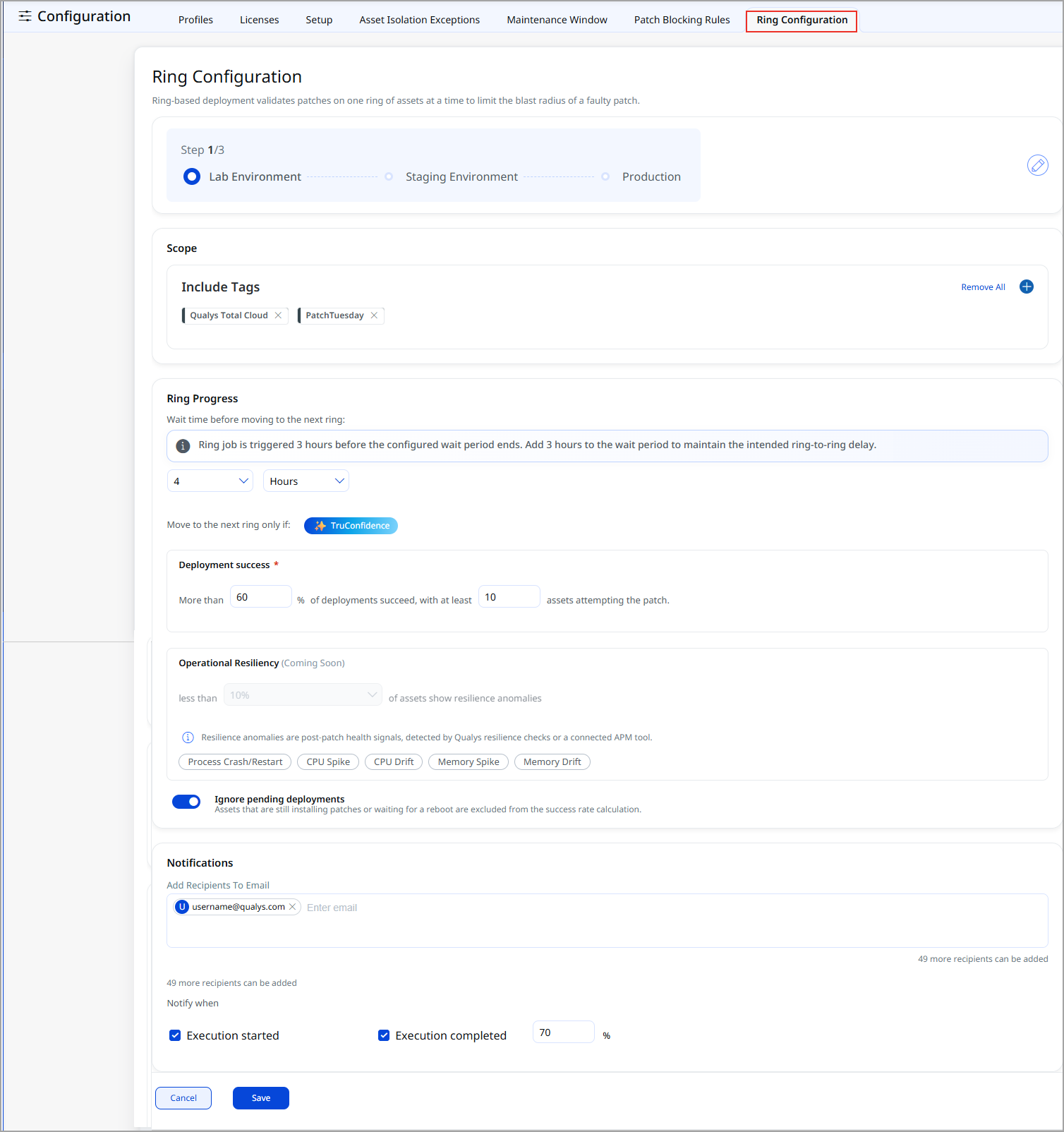
- Navigate to Configuration > Ring Configuration. The rings are shown as steps at the top of the page, for example, Step 1/4, with the first ring selected.
- (Optional) To add, rename, reorder, or remove rings, click Edit. For details, see Add, Rename, Reorder or Remove Rings.
- In the Scope section, select the assets for the ring. Click
 next to Include Tags, select the asset tags for this ring, and click Add Tag.
 - In the Ring Progress section, under Wait time before moving to next ring, enter the wait time and select the unit, for example, 4 Hours.
The wait time is the time between the start of this ring and the start of the next ring. Enter a number and select the unit. For example, the Lab Environment ring starts at 10:00 AM and has a 4-hour wait time. The Staging Environment ring is scheduled to start at 2:00 PM. Choose a wait time that gives the assets enough time to install the patches, restart if required, and report their results.
- Under Move to the next ring only if, enter:
- The minimum asset that should attempt the patch: Enter the minimum number of assets that must match this ring’s asset tags. If fewer assets match, the ring does not run.
- Success criteria: Enter the percentage for success criteria. The minimum percentage of patch installations that must succeed in this ring before the next ring can start. For example, with 30%, the next ring starts only if at least 30% of the patch installations in this ring succeed.
- Turn the Ignore pending deployments toggle on or off.
Yes: TE checks the success criteria using only the assets that completed the deployment. Assets that are still installing patches are ignored.
No: TE Assets whose deployment is still in progress are included in the success evaluation. The success rate is calculated across all targeted assets, whatever their deployment status. - (Optional) To receive email updates for the ring jobs:
- Enter the email addresses of the recipients.
- Select the Execution started checkbox to receive an email when a ring job starts.
- Select the Execution Completed checkbox and enter the job completion percentage at which you want to receive an email.
If you set up notifications, select at least one of the two events.
- Click on the name of the next ring at the top to move to it, and repeat steps 3 to 7.
- For the last ring, define the scope. The last ring has no Ring Progress settings because no ring follows it.
- Click Save.
Add, Rename, Reorder, or Remove Rings
- On the Ring Configuration tab, click
 on the right of the ring steps. The Ring Configuration window opens.
 - Do any of the following:
- Add a ring: Click + Add Ring, enter the ring name, and confirm it.
- Rename a ring: Click next to the ring, and enter the new name.
- Reorder a ring: Drag the ring by its handle to a new position. Only the rings between the first and last rings have a handle.
- Remove a ring: Click the
 next to the ring. The last ring cannot be removed.
- Click Save.
- Define the scope and ring progress settings for each new ring. A new ring has no tags until you add them.
Understand When the Next Ring Starts
When a ring is due to start, TE checks the previous ring in this order:
- Minimum asset threshold: Did enough assets in the previous ring attempt the patches and report results? If not, TE does not calculate the success percentage, and the ring is canceled.
- Success criteria: Did enough patch installations succeed on the assets that reported results? If not, the ring is canceled.
When a ring is canceled, all the rings after it are also canceled, so the patches do not reach your production assets.
Example
The Lab Environment ring has these settings: its tag includes 4 assets, the wait time is 4 hours, the success criteria is 30%, and the minimum asset threshold is 2. Here’s what happens to the Staging Environment ring 4 hours after the Lab Environment ring starts:
| Lab Environment ring starts | Staging Environment ring |
|---|---|
| 3 assets reported results, and 45% of the patch installations succeeded. | Starts. Both criteria are met. |
| 3 assets reported results, and 20% of the patch installations succeeded. | Canceled. The success criteria are not met. The Production ring is also canceled. |
| Only 1 asset resolved via tag. | Canceled. The minimum asset threshold is not met. The Production ring is also canceled. |
Customize the Rings for a Single Ring Job
The ring configuration is the starting point for every ring job. When one roll out needs something different, such as an extra ring or different tags, you can change the rings for that job only. Your global ring configuration does not change.
When you create a ring job, the Create Ring Job window shows the ring configuration that the job will use. Click Edit config to change the rings, tags, wait time, or criteria for this job. For example, you can add a Staging 3 ring to one job while keeping your global ring configuration unchanged. For the steps, see Roll Out High-Impact Updates in Stages with a Ring Job.
Important to Know
- The ring configuration is global. It’s shared by all the users in your subscription.
- You can edit the ring configuration, but you cannot delete it.
- Ring jobs are supported for Windows assets.
- If an asset belongs to the tags of more than one ring, it can receive the patches in each of those rings. Use separate tags for each ring.
- For monthly schedules based on Patch Tuesday, each ring must start within 27 days before or after Patch Tuesday. A long wait time can push a later ring outside this range, and the ring job can’t be created.
- Pre-actions, post-actions, and maintenance windows aren’t part of the ring configuration. After you create the ring jobs, set the pre-actions and post-actions in the first ring job; TE copies them to the later ring jobs. A maintenance window can be set only in the last ring job (Production by default). For details, see
- The Job Approval Workflow is turned off by default. When a user with the Eliminate Manage Job Approval permission turns it on in Configuration > Setup, ring jobs stay disabled in the Pending Approval state until another user approves them.
Related Topics
Risk Remediation Using Agent Sara Waves