Risk Remediation Using Agent Sara Waves
An elimination plan can hold thousands of findings across many assets. Deciding what to fix first, and how to deploy each fix without disrupting the business, takes time and increases your Mean Time to Remediate (MTTR).
Agent Sara, the AI-powered remediation assistant in Enterprise TruRisk Management (ETM), does this triage for you. When a plan created with Agent Sara reaches TruRisk™ Eliminate (TE), Agent Sara organizes its findings into remediation waves. Think of a wave as a deployment stage; it tells you what to deploy, how to deploy it, and what business impact to expect. You then create the right job for each group of findings: a zero-touch patch job, a ring job, or a mitigation job.
Key Benefits
- Know what to fix first: Findings are grouped by operational impact, so you can start with quick, low-risk fixes and plan the riskier ones.
- Deploy each fix the right way: Each wave comes with a recommended deployment method, from zero-touch automation for low-risk updates to staged ring roll outs for updates that need reboots or affect critical assets.
- Work in focused batches: Sub-waves split each wave by asset type, operating system, and application category, so each job targets a manageable set of findings.
- Reduce risk when no patch exists: A dedicated wave groups the findings that have no patch, so you can mitigate them.
- Reduce MTTR: Spend less time triaging findings and building jobs, and more time eliminating risk.
How Agent Sara Organizes Your Plan
- In ETM, a security analyst creates an elimination plan with Agent Sara, scoped by business entities or asset tags, and hands it off to IT Ops.
- In ETM, the plan appears on the Eliminations > Risk Elimination Plan tab. The plan details page shows an Agent Sara banner.
- From the banner, you view the remediation waves for the plan. Each wave groups findings that have a similar operational impact.
- Each wave is split into sub-waves.
- You create jobs from the sub-waves. You can not create a job for a whole wave.
Understanding the Wave Categories
Agent Sara sorts the findings in your plan into three waves. The labels on each wave card describe the kind of updates and assets the wave contains.
| Wave | What it includes | Recommended Job |
|---|---|---|
| Wave 1 Low Operational Impact |
Low-risk updates that need no reboot and don’t cause outages, on non-critical assets. Browsers, Standalone Utilities, Low-risk apps, Non-critical assets, No reboots, No outages, High Reliability Patches. |
Zero-touch patch job, so the updates are deployed automatically. You can also use a ring job. |
| Wave 2 High Operational Impact |
Updates that may need a reboot, have application dependencies, or affect critical assets. Shared Runtimes, Dependencies, Reboots Expected, Critical Assets, High Reliability Patches. |
Ring job, so the patches are validated on test assets before they reach production. |
| Wave 3 Mitigations for No Patch Findings |
Findings that have no vendor patch, including findings on end-of-life or end-of-support applications. No Patch Available, Permanent Fixes, EOL/EOS Apps. |
Mitigation job, to reduce the risk without a patch. |
Each wave card also shows:
- Addresses __% Findings: The share of the plan’s findings that the wave covers.
- Assets and Findings: The number of affected assets and findings in the wave.
Understand Sub-Waves
A sub-wave breaks a wave into a smaller group based on the asset type (workstation or server), the operating system, and the application category. For example, Wave 1 can have one sub-wave for browser updates on workstations and another for browser updates on servers. This lets you deploy each group with the right job and schedule.
Each sub-wave card shows its name, the number of Findings and Assets, and an arrow to open it. The finding counts of all the sub-waves in a wave add up to the finding count of the wave. Only the waves and sub-waves that contain findings from your plan are shown.
Examples of sub-waves
| Wave | Example sub-waves |
|---|---|
| Wave 1 |
|
| Wave 2 |
|
| Wave 3 |
|
Before You Begin
- The ETM and TE integration is enabled on your subscription, and the plan was handed off to you as the Remediation Owner. For details, see Prioritize and Remediate Risks from ETM.
- You have the Create Job permission.
- For ring jobs: Your rings are set up on the Configuration > Ring Configuration tab. For details, see Setting Ring Configuration.
- For mitigation jobs: The assets are activated for the Mitigation application, and you have permission to create mitigation jobs.
- If your organization uses the Job Approval Workflow: Another user with the Eliminate Job Approver permission must approve your ring jobs before they run. For details, see Get Ring Jobs Approved Before They Run.
View the Remediation Waves for a Plan
- Navigate to Eliminations > Risk Elimination Plan. To list only the plans from ETM, filter the list by Source.
- Click the name of the plan. The plan details page opens. The Agent Sara banner at the top recommends creating remediation waves. To learn more, click What are Waves?
- Click View Remediation Waves for Overall Plan. The Risk Elimination Plans page lists the plan's waves.
- Expand a wave to see its sub-waves. If a wave has many sub-waves, scroll to the right to see all the cards.
- To open a sub-wave, click the arrow on its card. The sub-wave page shows only the findings, assets, and eliminations of that sub-wave. The page title shows the plan name followed by the sub-wave name, for example, Plan: <plan name> - Browser updates on Workstations.
Choose the Right Job for a Sub-Wave
On the page of a Wave 1 or Wave 2 sub-wave, the Create Job menu offers two ways to patch the findings. For Wave 3, you create a mitigation job instead.
| Option | What it does | Best for |
|---|---|---|
| Create ZTP Job | Creates a zero-touch patch job that deploys the sub-wave’s patches automatically. | Low-risk updates, such as Wave 1 sub-waves. |
| Create Ring Job | Creates ring jobs that deploy the sub-wave’s patches in stages, for example, to lab assets first, then staging, and then production. | Updates that need reboots or affect critical assets, such as Wave 2 sub-waves. |
A job that you create from a sub-wave includes all the findings in that sub-wave. You don’t select individual findings.
Patch Low-Impact Updates Automatically with a Zero-Touch Patch Job
Agent Sara recommends a zero-touch patch (ZTP) job for Wave 1, because these updates are low risk and need no reboot.
- Open a Wave 1 sub-wave. For more information, see View the Remediation Waves for a Plan.
- Click Create Job > Create ZTP Job.
- Complete the job. For more information, see Creating Patch Job for Windows Assets.
If you want to validate the updates on test assets first, create a ring job instead.
Roll Out High-Impact Updates in Stages with a Ring Job
A ring job protects your critical systems from a faulty patch. It deploys the sub-wave’s patches to one ring of assets at a time, and moves to the next ring only when the previous ring meets your success criteria. Agent Sara recommends ring jobs for Wave 2.
- Open the sub-wave. For details, see View the Remediation Waves for a Plan.
- Click Create Job > Create Ring Based Job. The Create Ring Job window opens. The message at the top tells you which ring configuration the job will use.
- (Optional) To change the rings for this job only, click Edit config. You can add or remove rings and tags, and change the wait time and criteria. Click Save. Your changes apply only to this job. Your global ring configuration doesn’t change. For details on each setting, see Setting Ring Configuration.
- Select when the first ring runs:
- On Demand: The first ring runs immediately after you enable the job.
- Run Once: The first ring runs once, at the Start Date and Start Time that you select.
- Recurring: The first ring runs repeatedly. In Repeats, select Daily, Weekly, or Monthly, and select the Start Date and Start Time.
Note: By default, the job uses the agent timezone. To use a specific timezone, click Set timezone. The Summary line describes the schedule you selected, for example, Runs daily starting 30 Sept 2026 at 04:06 PM (Agent Timezone).
- Click Schedule and Create Job. The Ring job scheduled successfully message is displayed.
TE creates one install job for each ring and links them in order. The jobs are created in a disabled state. To start the roll out, enable the jobs or send them for approval if your organization uses the Job Approval Workflow. The schedule that you selected applies to the first ring. TE schedules each later ring automatically, based on the wait time of the ring before it. If the first ring runs on demand, each later ring runs once, at its calculated time.
This automates the staged roll out that you can also build manually by linking jobs. For more information, see Ring Deployment Jobs.
Find and Enable Your Ring Jobs
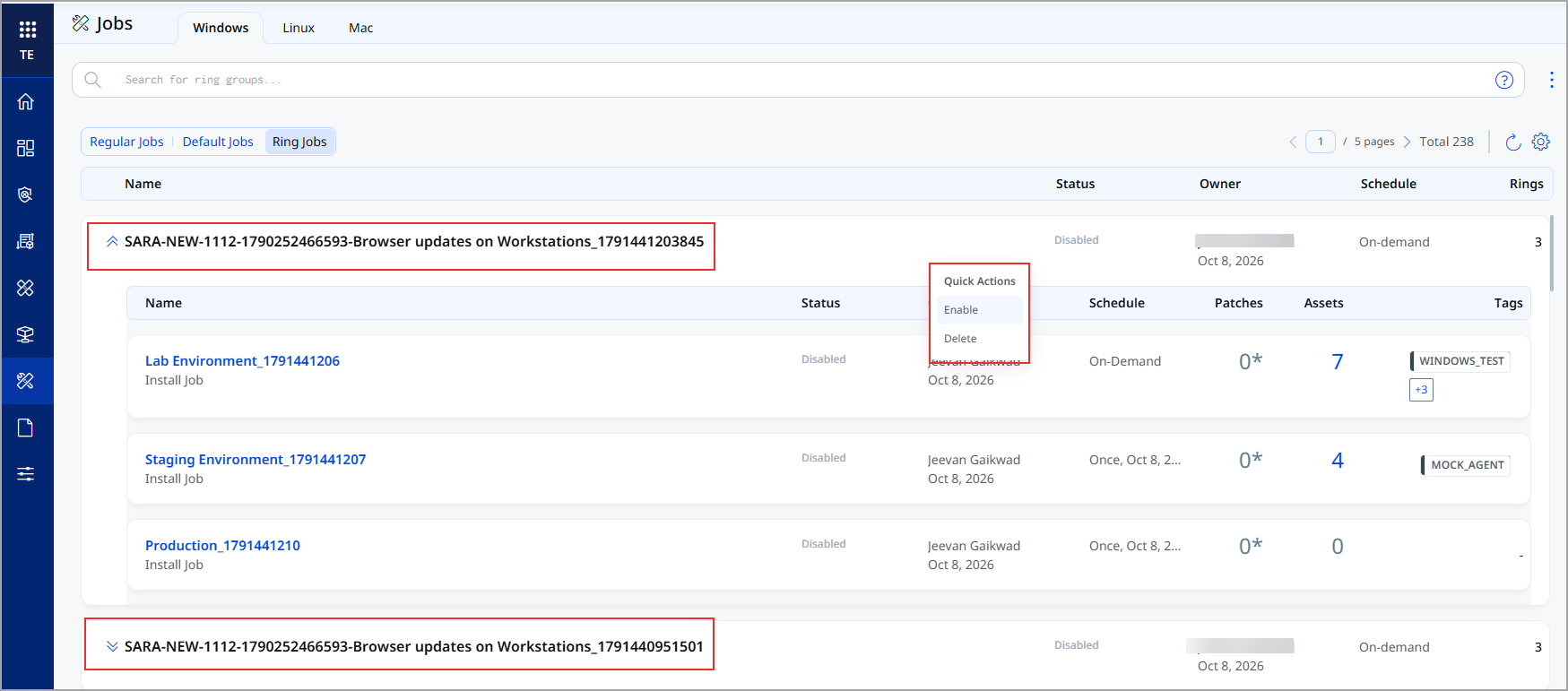
- Navigate to Jobs, select the platform tab, for example, Windows, and click Ring Jobs.
- Find your ring job group. Its name combines the plan name, the sub-wave name, and a timestamp, for example, <plan name>-Browser updates on Workstations_<timestamp>. The group row shows the Status, the number of Rings, and the Owner.
- Expand the group to see a job for each ring, for example, Lab Environment_<timestamp>. For each ring job, you can see the Status, Owner, Schedule, Patches, Assets, and Tags.
- To enable all the ring jobs in the group, from the group’s Quick Actions menu, click Enable. To enable a one-ring job at a time, use the Quick Actions menu of that ring job.
If the Job Approval Workflow is turned on, send the ring jobs for approval instead. When a ring job is approved, it’s enabled automatically. For details, see Get Ring Jobs Approved Before They Run.
When only some ring jobs in a group are enabled, the group status is Partially Enabled. To delete the group and all its ring jobs, from the group’s Quick Actions menu, click Delete.
Get Ring Jobs Approved Before They Run
If your organization uses the Job Approval Workflow, a second person reviews your ring jobs before they can run. This adds a change-control check to your staged roll out, so no ring deploys patches without approval.
The Job Approval Workflow is turned off by default. A user with the Eliminate Manage Job Approval permission can turn it on or off in Configuration > Setup, using the Job Approval Workflow toggle. When the workflow is off, you enable ring jobs yourself, as described in Find and Enable Your Ring Jobs.
Who Can Do What
| Task | Who can do it |
|---|---|
| Turn the Job Approval Workflow on or off | Users with the Eliminate Manage Job Approval permission. |
| Send a ring group or a ring job for approval | The job owner or a co-author. |
| Approve or reject a ring group or a ring job | Users with the Eliminate Job Approver permission and the View Any Job permission for deployment jobs. The user who created the ring jobs can’t approve them, even with the Eliminate Job Approver permission. |
Send Ring Jobs for Approval
You can send the whole ring group for approval at once, or send individual ring jobs.
- Navigate to Jobs, select the platform tab, and click Ring Jobs.
- Do one of the following:
- To send all the ring jobs in a group: From the group’s Quick Actions menu, click Send for Approval.
- To send one ring job: Expand the group, and from that ring job’s Quick Actions menu, click Send for Approval.
The ring jobs move to the Pending Approval state. A ring job in Pending Approval stays disabled and doesn’t run until it’s approved. This also applies to a ring job that you edit: the edited job needs approval again before it runs.
Review and Approve or Reject Ring Jobs
- Navigate to Jobs > Ring Jobs, and find the ring group or ring job that’s pending approval.
- Open it and review the job details, such as the assets, patches, pre-actions, post-actions, and schedule.
- Approve or reject the whole ring group, or an individual ring job. Add a comment to explain your decision, for example, what the owner needs to fix.
| Decision | What Happens Next |
|---|---|
| Approved | The ring job moves to the Enabled state and runs on its configured schedule. Each later ring still starts only after the wait time, and only if the previous ring meets its success criteria. |
| Rejected | The ring job stays disabled. The owner or a co-author can edit the job and resend it for approval. |
Every approval, rejection, and comment is recorded in the Job Approval History, with the user and timestamp. For more information, View Job Approval History. To know more about job approval, see Job Approval Overview.
Edit Ring Jobs
Ring jobs work like regular deployment jobs. Because they’re linked, some settings are managed in one ring job for the whole group. To edit a ring job, expand its group on the Ring Jobs tab, and from the ring job’s Quick Actions menu, click Edit.
You can edit an On-Demand and Run Once ring jobs only when the job is disabled, and a Recurring job when it is enabled or disabled.
To edit an enabled On-Demand or Run Once ring job, disable it first.
Pre-Actions and Post-Actions
You set the pre-actions and post-actions in the first ring job (Lab Environment by default). TE copies them to all the later ring jobs, including Production, so every ring runs the same actions.
- Edit the first ring job.
- Add, change, or remove the pre-actions and post-actions.
- Save the job.
Your changes are applied automatically to all the later ring jobs. You can’t change the pre-actions and post-actions in the later ring jobs.
Maintenance Window
Use a maintenance window to ensure patches reach your production assets only during the hours you allow.
- The Maintenance Window option is available only when you edit the last ring job (Production by default). It isn’t available when you edit the Lab Environment or Staging Environment ring jobs, or when you create the ring jobs.
- To add, change, or remove the maintenance window, edit the Production ring job, update the maintenance window, and save the job.
- The maintenance window applies only to the Production ring job. It doesn’t affect the Lab Environment or Staging Environment ring jobs.
Important to Know
- Patches are view-only. The patches come from the findings in the sub-wave, so you can’t add or remove them. On the Select Patches step, click Preview to see the patches that the job deploys.
- The schedules of later rings are calculated. You cannot change the schedule of a later ring job because TE calculates it based on the wait times.
- Editing the first ring job disables the group. After you save changes to the first ring job, all the ring jobs in the group are disabled. Enable them again, or send them for approval if the Job Approval Workflow is on, to resume the rollout.
Mitigate Findings That Have No Patch
Wave 3 groups findings with no vendor patch. You can reduce the risk from these findings with a mitigation job, for example, by stopping a vulnerable service until a permanent fix is available.
- Expand Wave 3 – Mitigations for No Patch Findings, and click the arrow on a sub-wave card, for example, Vulnerability with No Patch on Linux. The sub-wave opens with its findings.
- Create the mitigation job:
- For one finding, click Mitigate Now.
- For multiple findings, select them, and from the Actions menu, click Create Mitigation Job.
- Complete the mitigation job workflow. For more information, see Create Mitigation Job.
- Only the assets that are activated for the Mitigation application are added to the job.
- A mitigation job runs once, either on demand or at a scheduled date and time. You can’t create a recurring mitigation job.
For more on mitigating ETM findings, see Prioritize and Remediate Risks from ETM.
Fix Findings That Are Not in Any Wave
The waves might not cover all the findings in your plan. The Addresses __% Findings value on each wave card shows how much of the plan each wave covers. To fix the remaining findings, go back to the plan details page and create a remediation or mitigation job from the Findings tab, as you do for any ETM plan. For more information, see Prioritize and Remediate Risks from ETM.
Important to Know
- You can create jobs from sub-waves only, not from a whole wave.
- Ring jobs are supported for Windows and Linux sub-waves.
- Ring jobs are created in a disabled state. They do not run until you enable them, or until they are approved if the Job Approval Workflow is on.
- A ring job group can not be renamed, cloned, or stopped while it is running.
- You can not change a recurring ring job to a one-time schedule.
Related Topics
Prioritize and Remediate Risks from ETM