Automate Asset Isolation
You can automate asset isolation using rule-based triggers in Vulnerability Management, Detection, and Response (VMDR). This feature enables automatic isolation of high-risk assets when certain vulnerabilities are identified. To automate isolation, create an external action, associate it with a rule, and define the trigger criteria. The trigger is dependent on the VM scan. If the VM scan identifies an at-risk asset that matches the criteria, the rule is executed. The rule applies to the assets in your Isolation subscription.
If certain applications, IP addresses, or domains must remain accessible from the isolated asset, add them to the global Asset Isolation Exceptions settings within the Isolation application before creating and triggering the rule. For more information, see Asset Isolation Exception Settings.
Prerequisites
- Create an external action in the VMDR application before creating the rule.
- You must have a Super User or Manager role to create, edit, and delete actions and rules.
Create an Action
- Follow steps 1-2 in the Create an Action workflow.
- From the Select Action drop-down, select External Actions.
- From the Select Connector Type drop-down list, select Isolate Asset with TruRisk Eliminate.
- Click Save.
The action is created successfully to be used in the rule.
Create a Rule
- Follow steps 1-2 in the Create a New Rule workflow.
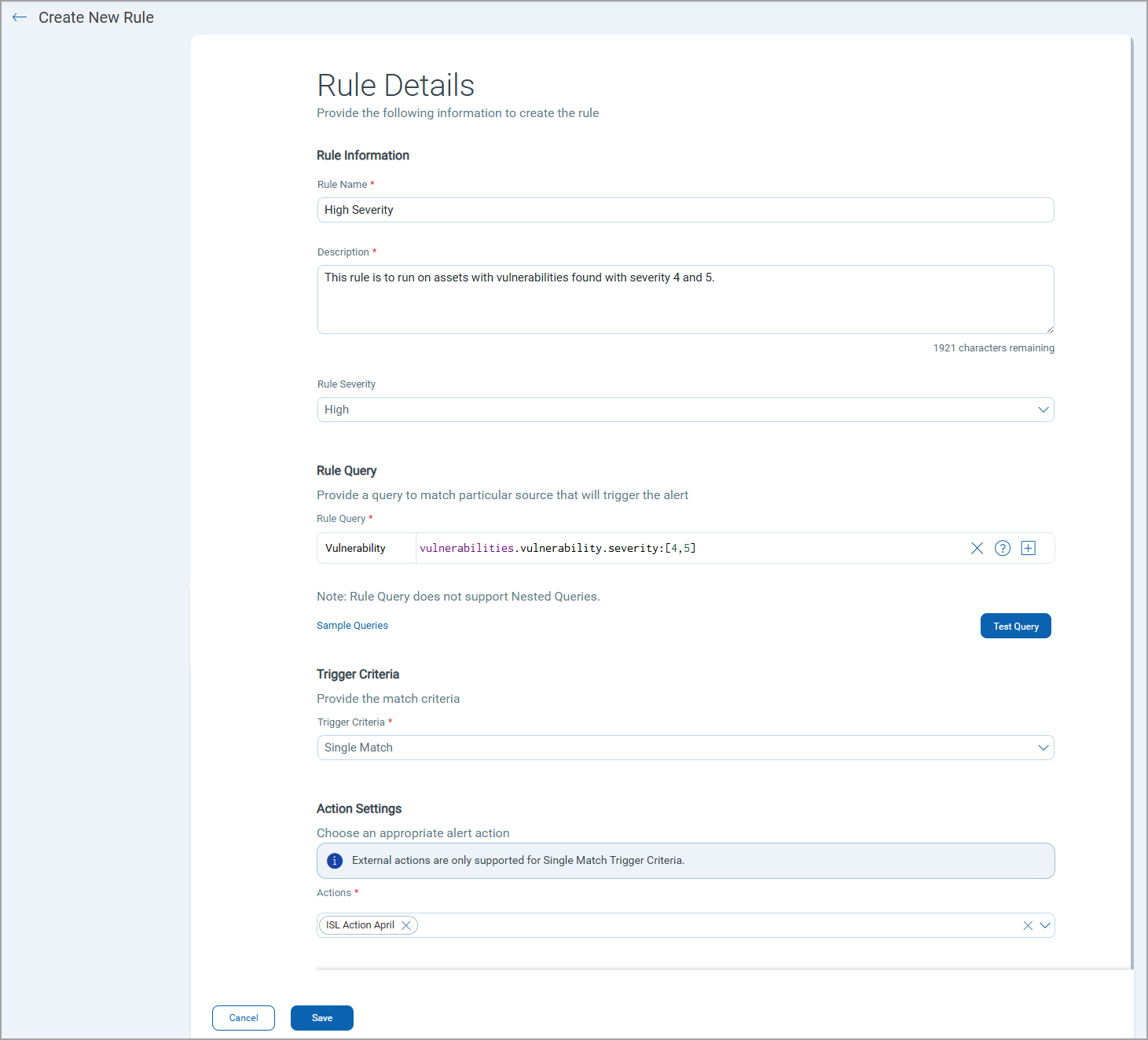
- In the Rule Severity field, select the value from: High, Medium, or Low.
- Under the Rule Query section, perform the following:
- In the Vulnerability search bar, enter a required QQL query for the rule and click Test Query to validate and preview the query results. The system uses this query to identify matching events. If the QQL is invalid, an error message is displayed.
Alternatively, you can click Sample Queries to select from the predefined queries.
- In the Vulnerability search bar, enter a required QQL query for the rule and click Test Query to validate and preview the query results. The system uses this query to identify matching events. If the QQL is invalid, an error message is displayed.
- In the Trigger Criteria field, select the Single Match option. The system generates an alert each time it detects an event matching your search query.
To use the external action, you must select only the Single Match criteria.
- In the Action Settings, select the action that the system will perform when an alert is triggered.
- Click Save.
The rule is successfully created and is displayed on the Rule Manager tab. After the rule is created, if assets that match the rule criteria are found in the VM scan, the rule is triggered, and assets are automatically isolated. The isolated asset is then displayed on the Patch Management, Assets listing page as isolated asset.
Activity Logs for Tracking
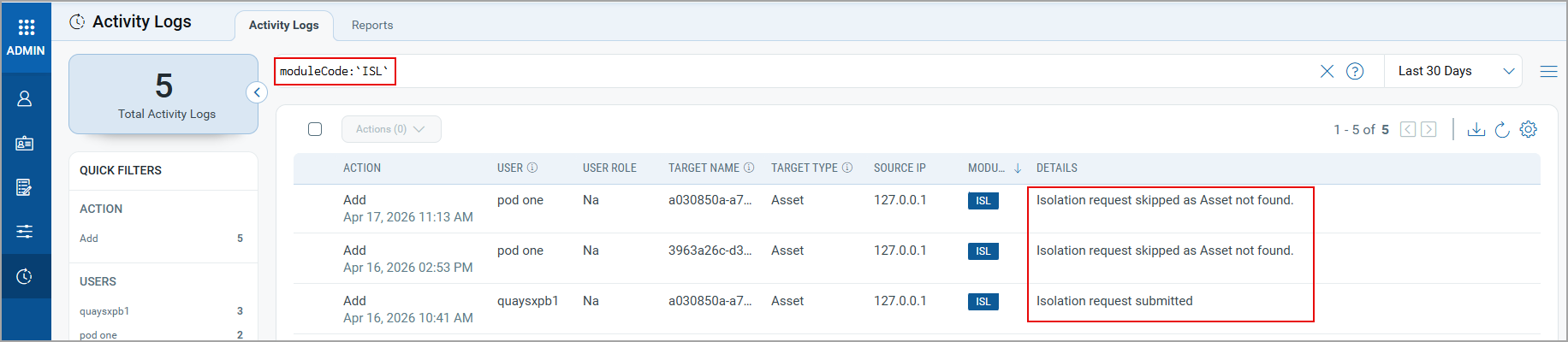
The following types of activity logs are generated in the Administration > Activity Logs tab. You can filter the logs by ISL module.
- ISL request submitted: This log is generated when the targeted asset is isolated.
- Isolation request skipped as Asset not found: This log is generated when the asset for which the rule is triggered is not eligible for isolation.
Rollback Isolation
To roll back the assets, use one of the following ways:
- Create an Isolation rollback job from the Isolation application. For more information, see Create Isolation Rollback Job.
- Use the Unisolate Asset API. For more information, see Isolate and Unisolate an Asset.