Patch Blocking Rules Overview
A patch blocking rule stops specific patches from being installed on your assets, no matter which deployment job tries to install them. You define the patches you want to hold back using a patch QQL query, and optionally limit the rule to certain assets using tags. Once the rule is in place, any deployment job that includes a blocked patch simply skips that patch – you do not have to find and edit every job that might contain it.
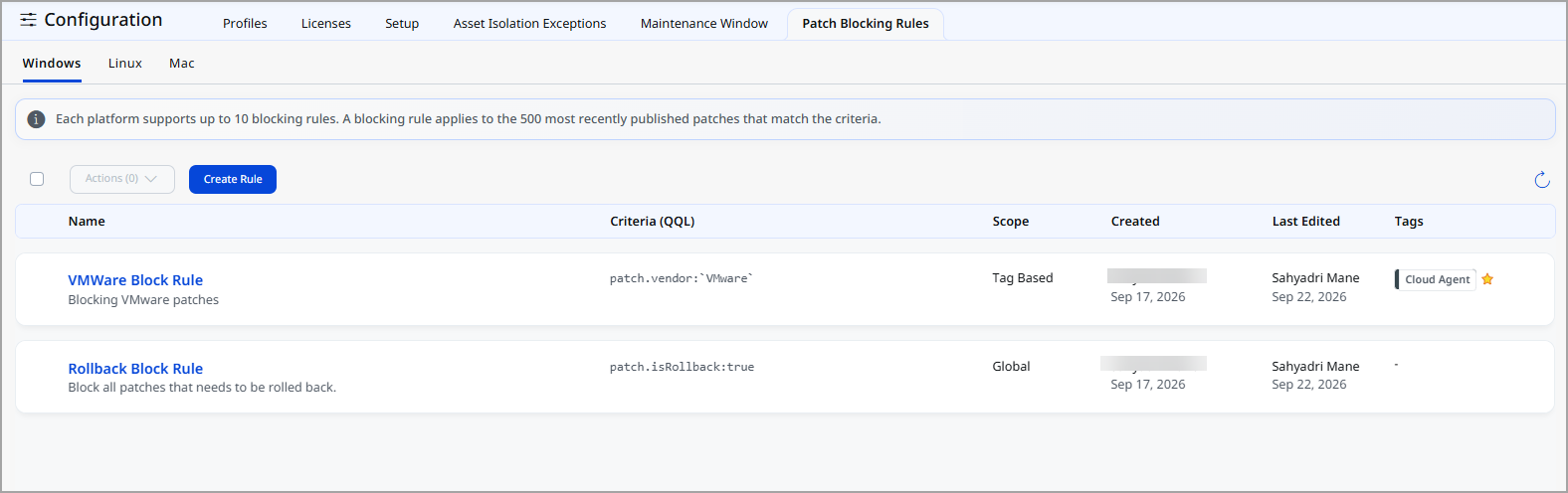
Patch blocking rules are created under TE > Configuration > Patch Blocking Rules, and are maintained separately for the Windows, Linux, and Mac platforms.
Why use a patch blocking rule
- Hold back a known-bad patch across the whole organization: When a vendor ships an update that causes problems, one rule prevents it from reaching your assets through any job, including automated ones.
- Keep automated jobs under control: A job built on a patch QQL automatically picks up new patches as soon as they become available and tries to deploy them. A blocking rule lets you decide which of those newly available patches are actually allowed to install.
- Pilot a patch before a wide rollout: Block a patch for your production and executive assets while you validate it on a test group. When you are satisfied it is safe, remove the rule and let it roll out everywhere.
- Target precisely without editing jobs: Block by application family, vendor, feature update, or any other patch attribute your QQL can express, and preview exactly which patches the rule will catch before you save it.
- Record why a patch was blocked: Every rule carries a mandatory blocking reason, so anyone reviewing the configuration later can see the justification.
- Explain skipped patches in job results: Blocked patches appear as Skipped in the job's results, with the name of the rule that blocked them.
How a patch blocking rule works
- You create a rule on the platform tab (Windows, Linux, or Mac) and give it a name, a blocking reason, a patch QQL, and a scope. For more information, see Creating Patch Block Rule.
- The patch QQL determines which patches the rule blocks. The scope determines which assets the block applies to.
- When a deployment job runs against an asset that is in the rule's scope, any patch in that job that matches the rule is not installed.
- The job result marks that patch as Skipped and shows the reason, including the name of the rule responsible.
- When you no longer need the block, delete the rule (or narrow its criteria or scope). The patches become eligible for deployment again from the next job run.
A blocking rule does not change your jobs and does not cause them to fail. The job still runs; only the blocked patches within it are skipped, and the remaining patches install as usual.
Global scope vs. Tag Based scope
| Scope | When it applies | What it does |
|---|---|---|
| Global | You save the rule without selecting any tags. | The rule blocks the matching patches on all assets in the subscription. |
| Tag Based | You select one or more asset tags (up to five). | The rule blocks the matching patches only on assets that carry any one of the selected tags. All other assets can still receive those patches. |
The Scope column on the Patch Blocking Rules list shows which of the two applies to each rule, and the Tags column lists the tags used by tag-based rules.
Limitations
- Maximum 10 rules per platform: Windows, Linux, and Mac are counted separately, so you can have up to 10 rules on each. When a platform reaches 10 rules, the Create Rule button is disabled until you delete an existing rule.
- Maximum 500 patches per rule: A rule blocks at most the 500 most recently published patches that match its criteria, based on the patch published date.
- Patch QQL is limited to 2048 characters for a single blocking rule.
- Maximum five tags per rule: To cover more assets than five tags allow, use a global rule or create additional rules.
- Blocking applies to deployment: A blocked patch is skipped at deployment time; it is not removed from the job definition, and the job itself is not blocked or failed.