TruRisk™ Eliminate Release 4.2
September 22, 2026
This release introduces patch-blocking rules that prevent specific patches from being deployed and a built-in job-approval workflow that requires review before jobs run.
New Feature
Stop Specific Patches from Deployment with Patch Blocking Rules
What's New for You
You can now create patch blocking rules to prevent specific patches from being installed by your deployment jobs.
When a job includes a blocked patch, the patch is not deployed on the assets covered by the rule. This feature prevents faulty patches from being deployed and lets you validate patches before they reach production.
Patch blocking rules are supported on Windows, Linux, and Mac, and are managed separately for each platform.
To create, edit, and delete a patch blocking rule, the user must have the Manage Patch Blocking Rules permissions. A new Manage Patch Blocking Rules permission is introduced that allows you to create, edit, and delete patch blocking rules. This permission is by default assigned to the Patch Manager role. For more information, see Patch Blocking Rules Overview.
Key Benefits
- Stop known faulty or high-risk patches from being deployed across your environment.
- Maintain deployment continuity without modifying or pausing existing patch jobs.
- Improve governance with a record of why each patch was blocked and who blocked it.
- Reduce troubleshooting effort with clear visibility into blocked patches and the rules affecting them.
- Save patch controls to specific asset tags or all assets, as per platforms, as required.
- Record a reason for every blocking rule to support auditability and future review.
- Validate patches on pilot systems before broader production rollout.
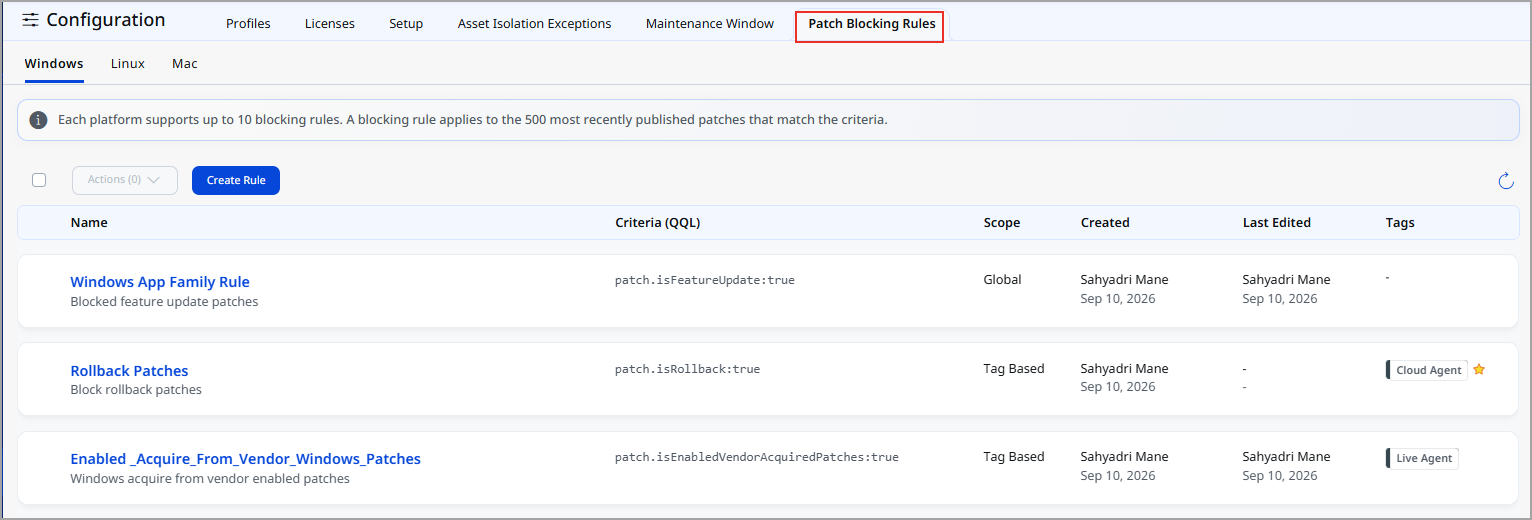
Navigate to Configuration > Patch Blocking Rules to create a blocking rule.
Improved Visibility into Blocked Patches
Blocked patches are now clearly identified in your deployment job results, so you always know which patches were held back and why. On the Patches tab, you can filter the blocked patches using the search filters.
In the patch list for a deployment job, a blocked patch is reported with the status Skipped and the following reason: Blocked by patch blocking rule "Feature update block rule". The patch applies to this asset but was not installed. Here, Feature update block rule is the name of the patch blocking rule.
Because the reason includes the rule name, you can identify which rule blocked the patch and review or update that rule directly.
The following are the benefits of the visibility of the job progress:
- Understand why a patch was skipped, without investigating the job configuration.
- Identify the specific rule responsible for blocking a patch.
- Review all blocked patches in one place and release them when they are ready for deployment.
Patch Blocking Rule Limits
- You can create a maximum of 10 blocking rules for each platform: Windows, Linux, and Mac. When the limit is reached, the Create Rule option is not available until you delete an existing rule.
- A rule blocks a maximum of 500 most recently published patches that match your criteria.
- You can select a maximum of five tags for each rule.
New Feature
Control Deployments with Built-In Approvals
What's New for You
You can now add an approval step to your job process.
Reviewers can verify job details before deployment, helping you reduce mistakes and maintain change control. The job owner cannot execute the job without verification and approval from the job approver.
Key Benefits
-
Reduce Deployment Risk
Require a second reviewer to validate assets, patches, schedules, and deployment actions before jobs run. Help reduce deployment errors and strengthen patch governance.
-
Strengthen Change Control
Ensure critical deployment actions are reviewed and approved before reaching production.
-
Track Every Decision
View a complete approval history for each job, including approvals, rejections, comments, users, and time stamps. This helps to maintain a clear audit trail for compliance and operational reviews.
-
Increase Accountability
Clearly identify who requested, approved, rejected, or modified deployment actions.
Turn On the Job Approval Workflow
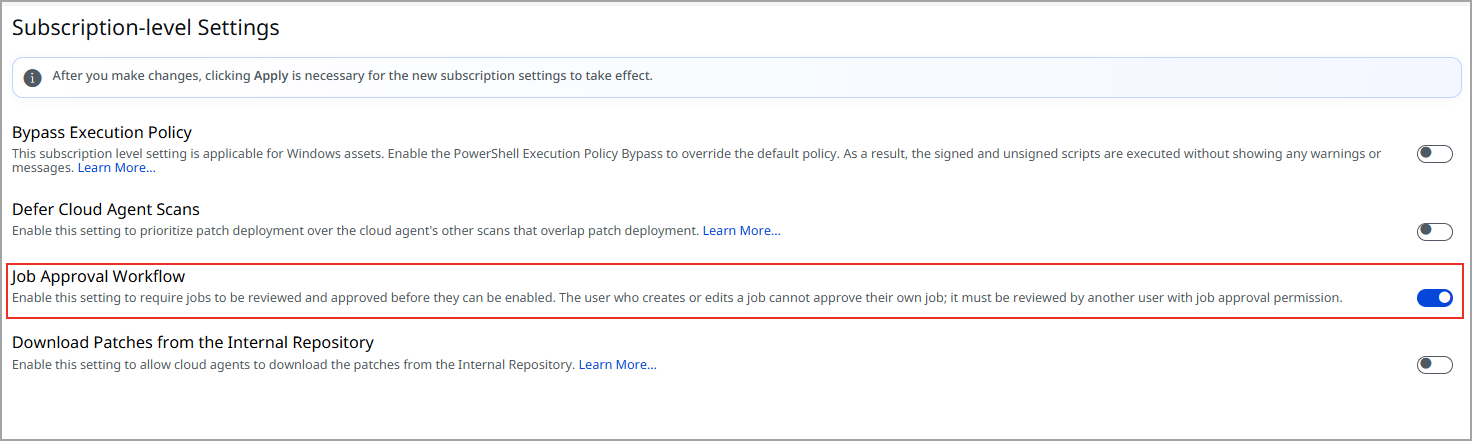
The Job Approval Workflow is optional and disabled by default. A Super Admin can enable or disable it in Configuration > Setup using the Job Approval Workflow toggle.
- Off (default): Jobs run through the existing process with no changes.
- On: All new jobs must be approved before they can be enabled and run.
Two roles and respective permissions control the workflow. You must have the Eliminate Job Approver role to approve or reject the job, and the Eliminate Manage Job Approval Config role to enable or disable the Job Approval Workflow.
- Enable Job Approval Workflow: The Eliminate Manage Job Approval permissions allow Super Admins or authorized users to turn the workflow on or off.
- Job Approval Permission: The Eliminate Job Approver permission allows designated reviewers to approve or reject submitted jobs.
The existing permissions are required to use this feature. For example, Approvers must also have View Any Job permission for the corresponding job type. A user cannot approve a mitigation job unless they can view mitigation jobs.
Submit, Review, and Track Job Approvals
Gain controlled job approvals, clear review feedback, and a complete audit trail for every deployment decision.
- Save & Enable submits the job for approval and sets its status to Pending Approval. Save creates the job in a disabled state and lets you submit it later.
- Job owners and co-authors can submit, withdraw, edit, and resubmit approval requests.
- Approvers can review complete job details before choosing to Approve or Reject.
- The Job Approval History tab records all approval actions, comments, and status changes for audit purposes.
- Approvers can quickly find pending requests using the Approval Status filter.
Fix
Issues Addressed
The following reported and notable customer issues are fixed in this release.
| Component/Category | Description |
|---|---|
| PM - UI | An issue occurred in which Mitigation and Isolation options did not consistently appear in the Elimination Job Type filter on the Jobs page for some users.
This issue is now fixed, and the filters appear correctly. |
| PM - UI | An issue occurred where scrolling the asset list on the Windows, Linux, and Mac tabs could display unexpected blank space on the page.
This issue is now fixed, and all assets now load and display properly without missing records. |
| PM - UI | An issue occurred in which Patch Reliability information was not visible on the Patches tab for some sub-users, even when the customer had an active TruRisk™ Eliminate license.
The issue is now fixed, and the Patch Reliability data is now displayed correctly for entitled customers regardless of individual application assignments. |
| PM - UI | An issue occurred in which assets did not appear in the job progress after the job was triggered.
This issue is now fixed, and the assets appear correctly in the job progress. |
| PM - UI | An issue occurred in which the mitigation indicator on the VMDR page was displayed inconsistently.
This issue is now fixed, and the indicator is consistently displayed for all mitigable QIDs. |
API Release Updates
For more details on the API updates for this release, see Patch Management API Release 4.2.