Deploy Scanner Instance
From qVSA-4.2+ images support UEFI boot. You can use the VMDK image to deploy the scanner in either BIOS mode or UEFI mode.
If you have an OVA package, extract the VMDK file from the OVA package before deployment. If you deploy the scanner directly from the OVA image, it boots only in BIOS mode.
Steps to Extract VMDK Image From OVA File
Using the Command Line on Linux, macOS
tar -xvf qVSA.x86_64-4.2.XX-1.ova
Using 7-ZIP on Windows
- Right-click the OVA file.
- Select 7-Zip and then select Open Archive.
- Extract the VMDK file.
Steps to Deploy Scanner Instance
To deploy the Scanner instances, perform the following steps:
- From the File menu, select Import.
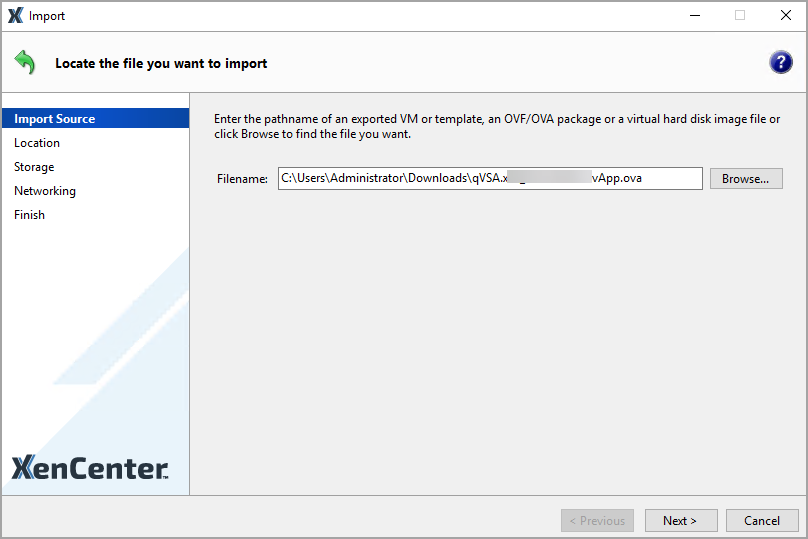
- On the Import Source tab, locate the qVSA image you have already downloaded, and then click Next to continue.
-
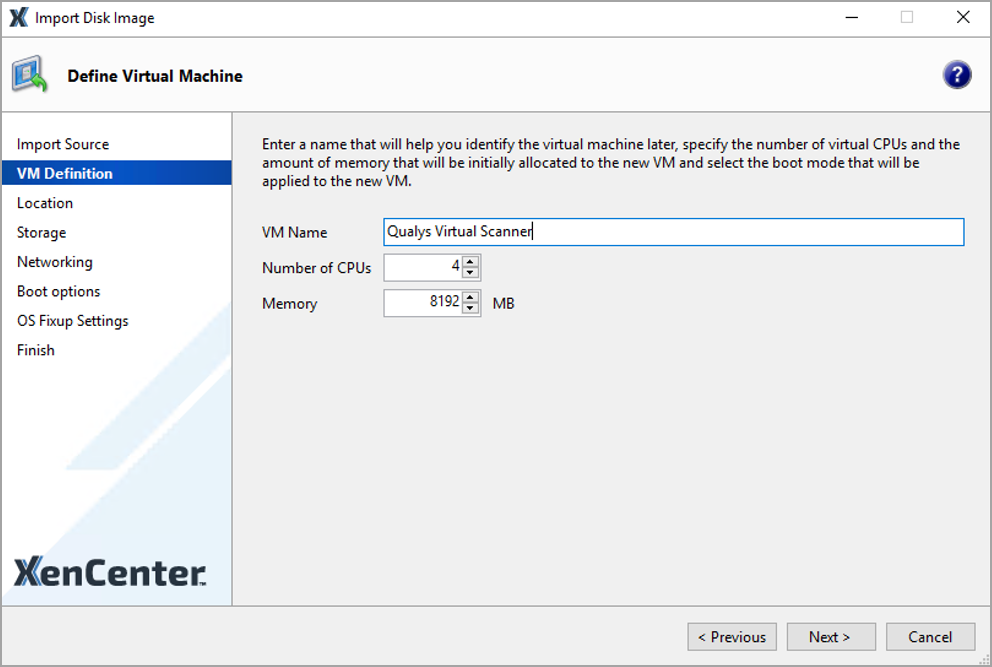
Enter the VM name, CPU, and Memory.
-
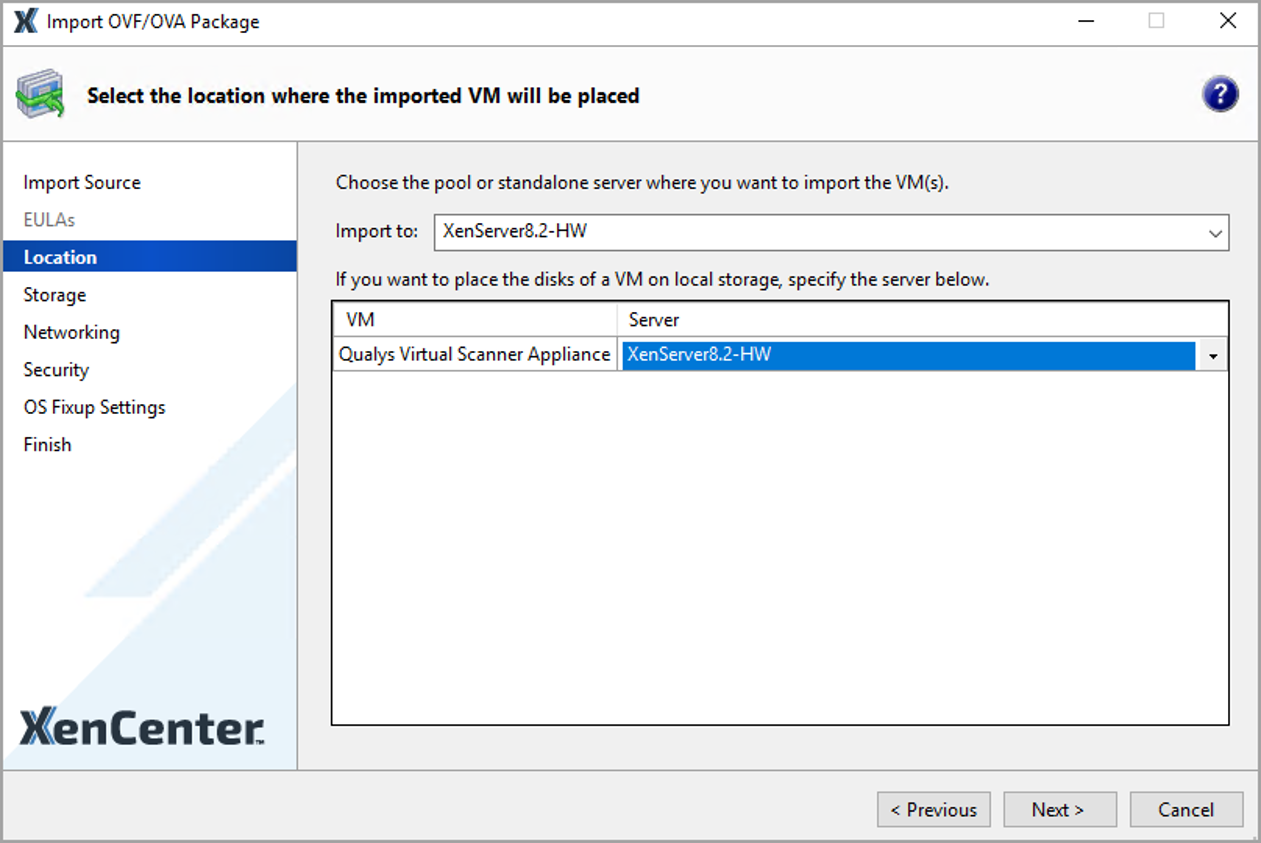
Specify the pool or host to which you want to import the VM, and then click Next to continue.
-
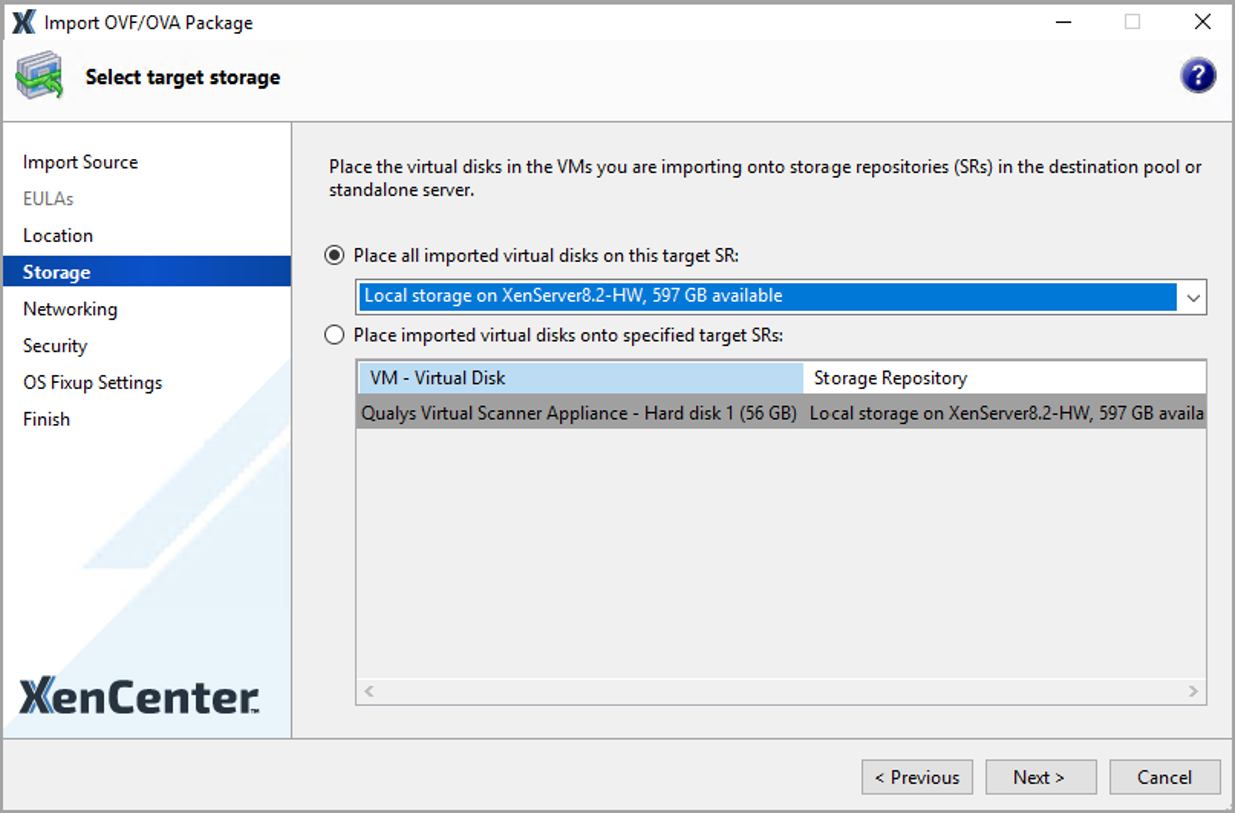
Configure Storage for the imported VMs, and then click Next to continue.
- Configure Networking for the imported VMs.
Map the virtual network interfaces in the VMs you are importing to target networks in the destination pool. - Click Next to continue.
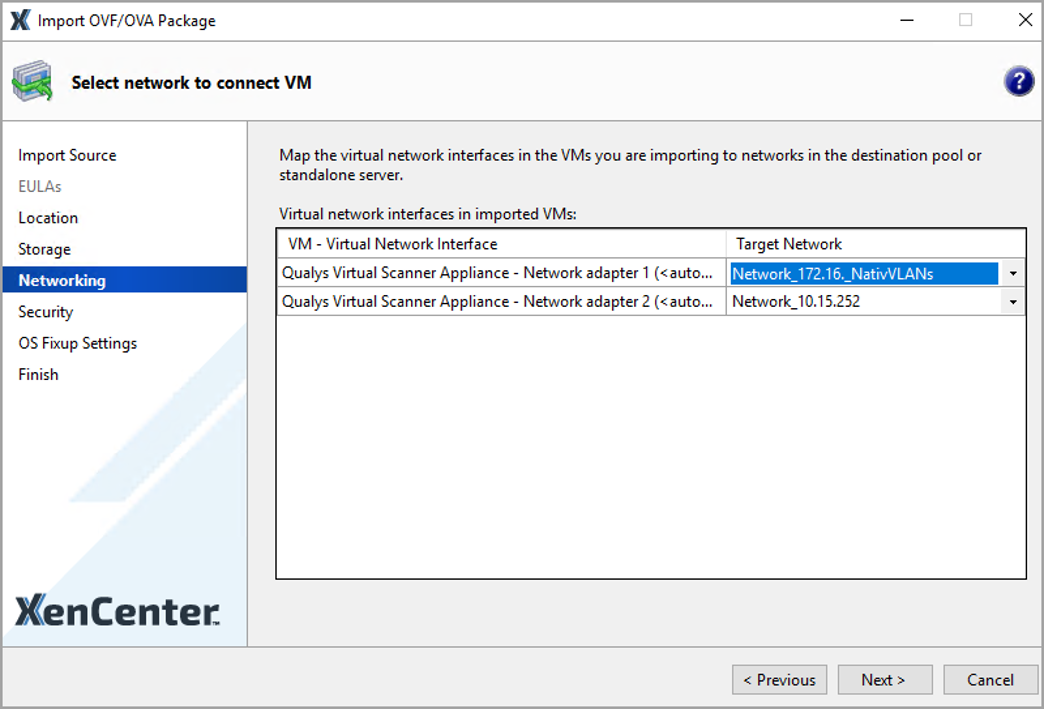
- For a Scanner in Split Network mode, make sure Network Adapter 1(LAN interface) and Network Adapter 2(WAN interface) are mapped to networks in different subnets.
- After the VM is deployed, enable the WAN interface from the Scanner Console menu if you plan to use the scanner in Split Network Mode
-
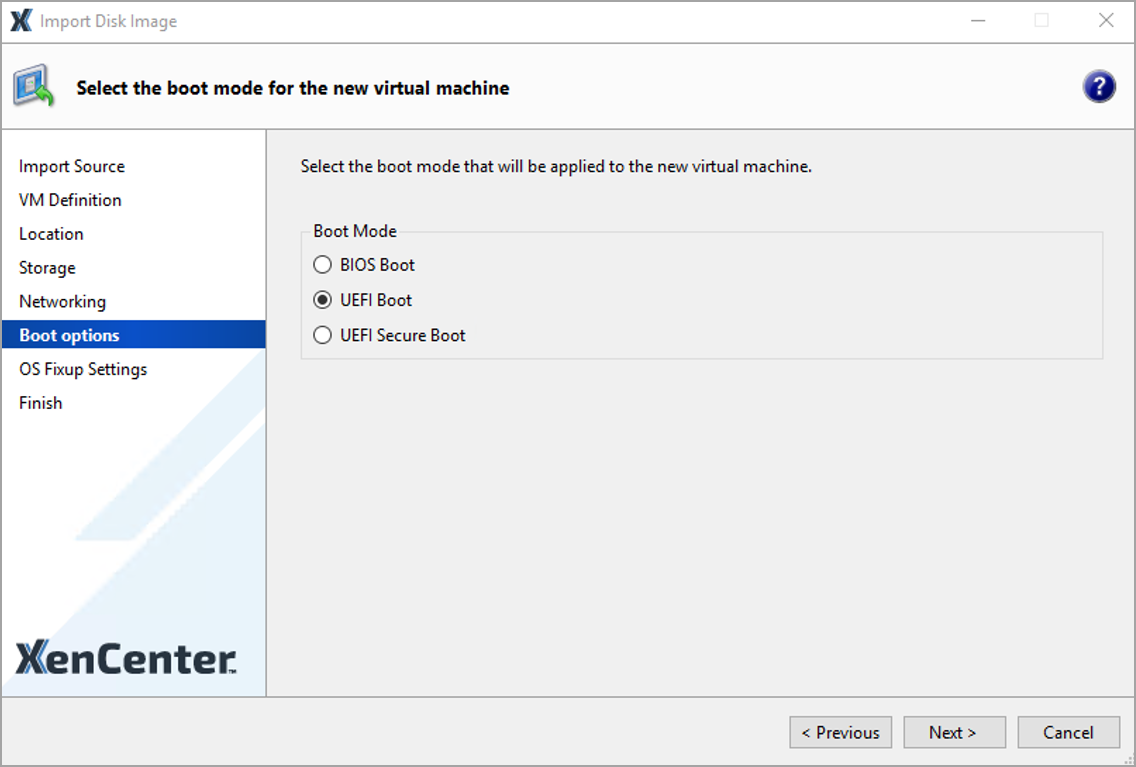
On the Boot Options tab, select the required boot mode:
-
BIOS: Select BIOS to boot the scanner in BIOS mode.
-
UEFI: Select UEFI to boot the scanner in UEFI mode.
-
-
On the OS Fixup Settings tab, select Don't Use Operating System Fixup.
-
Review the import settings, and then click Finish to begin the import process and close the wizard.
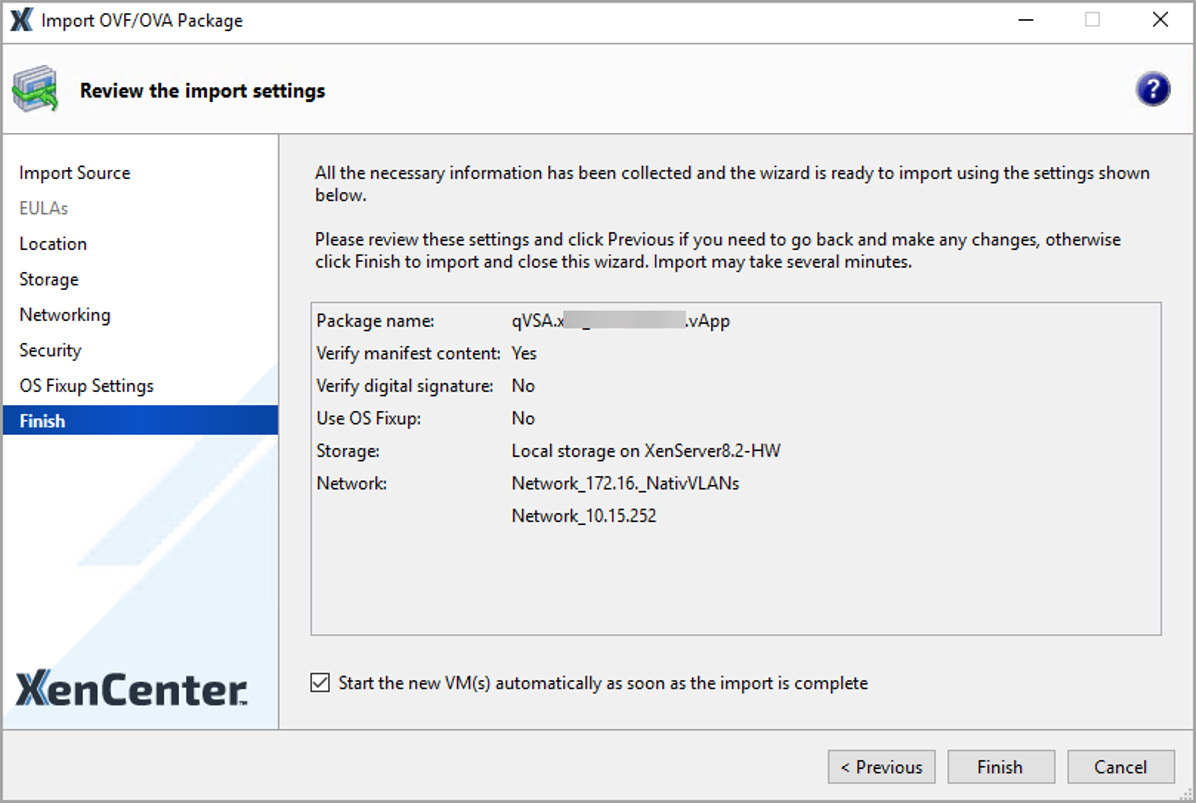
The import may take some time. The import progress is displayed in the status bar at the bottom of the XenCenter window.
After the initial boot-up messages, the Scanner console is displayed, where you need to enter the Personalization Code received in Step 1: Add your Virtual Scanner.
To activate the scanner, follow the steps mentioned in Step 4: Personalize the Scanner.