Get Started with Qualys offline Scanner
Welcome to Qualys Enterprise TruRisk™ Platform! This guide helps you to configure and use Qualys Offline Scanner Appliance.
Qualys Offline Scanner Appliance lets you scan for vulnerabilities in secure air gap networks that do not have Internet access.
This is distributed as a virtual appliance for VMware Workstation.
Overview
First use the Console Interface for the initial Personalization workflow.
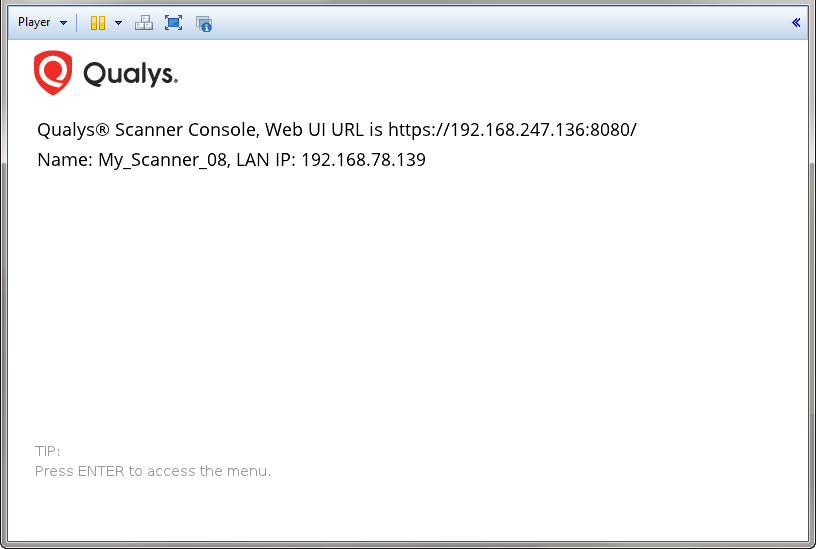
This workflow completes the registration of the appliance within your account. Later you can use this interface for low-level administration (which means, reboot, shutdown).
How does it Work?
This is similar to connecting a keyboard, mouse, or monitor to a hardware appliance, which cannot be accessed directly over a network. It can only be viewed through console access provided by the virtualization software.
Then use the Web User Interface for scanning.
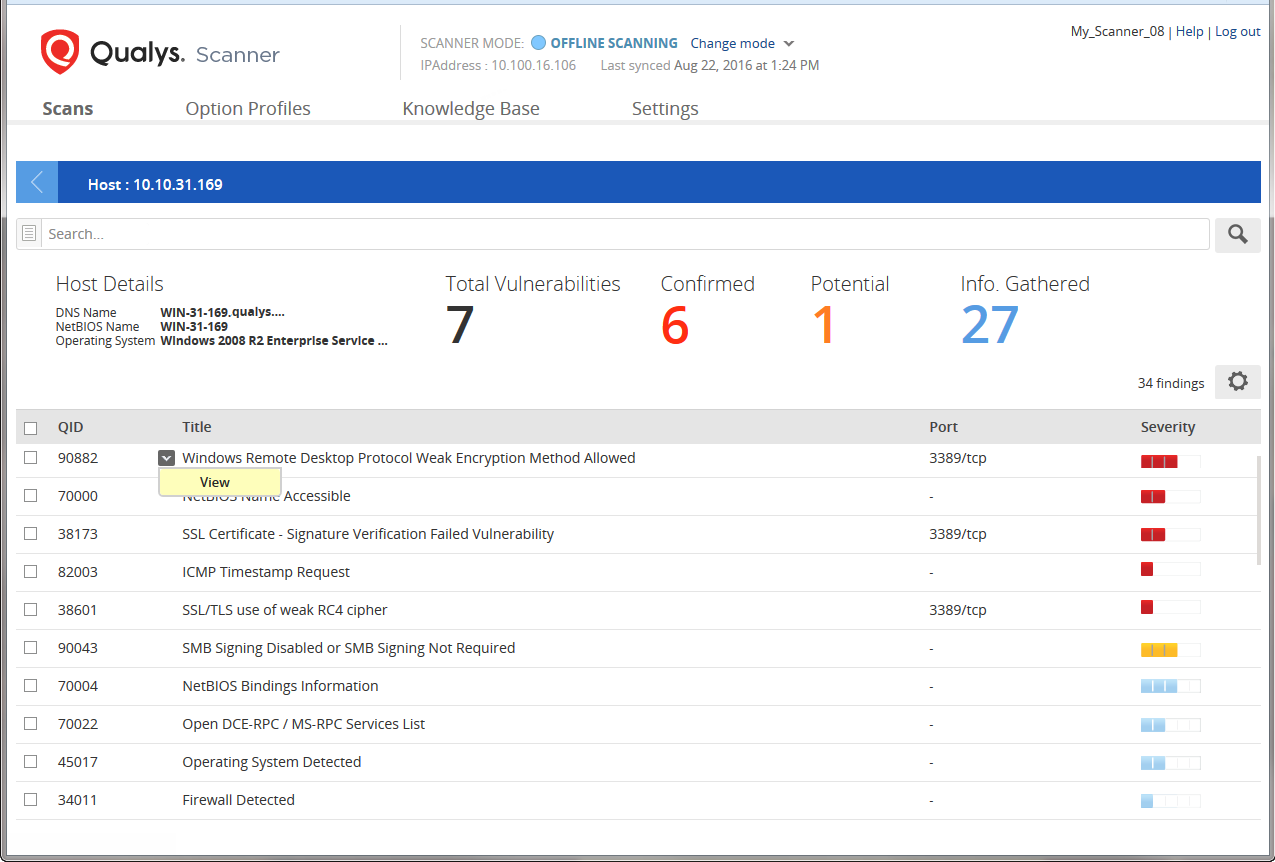
This is where you launch scans and manage your account data (option profiles, scan results). The web user interface can be accessed using any standard web browser (for example, Internet Explorer, Chrome, Firefox) running on the host OS. The virtual NIC for the web interface should be deployed on a host-only network between the host (for example, Windows) and the appliance virtual machine.
Prerequisites
To configure Offline Scanner, following prerequisites must be met:
- You must have VMware Workstation, VMware Workstation Player or VMware Fusion.
- Steps to configure offline scanner is same for all the three VMs. In the guide, we have provided configuration steps for VMware. If you are using VMware Workstation Player or VMware Fusion, see VMware Configuration.
- We do not support Oracle VM VirtualBox. - Check network access to scanners to ensure you can connect to the Qualys Enterprise TruRisk™ Platform (this is required for successfull activation).
- Ensure to review your network settings in VMware before you switch modes. Bridged mode is required for scanning.
Your offline virtual scanner appliance has 2 modes: CLOUD SYNC and OFFLINE SCANNING. You are in CLOUD SYNC mode to start. You can switch to OFFLINE SCANNING mode when you are ready to scan.
About Managing Instances
While managing the instance, you are not allowed to do the following actions:
Instance Snapshots/Cloning Not Allowed
Using a snapshot or clone of a scanner instance to create a new instance is strictly prohibited. The new instance does not function as a scanner. All configuration settings and platform registration information can be lost. This could also lead to scans failing and errors for the original scanner.
Moving/Exporting Instance Not Allowed
Moving or exporting a registered scanner instance from a virtualization platform (HyperV, VMware, XenServer) in any file format to a cloud platform (AWS, Azure, GCE, OpenStack) is strictly prohibited. This breaks the scanner functionality and the scanner permanently loses all of its settings.
Quick Start Steps
- Add Offline Scanner
- Configure Offline Scanner