TotalAppSec Release 2.8 | Web Application Scanning Release 1.28
May 17, 2026
The enhanced scheduling and reporting features for Qualys Web Application Scanning (WAS) and TotalAppSec are now available to all customers. For the rollout schedule, see the New Scheduling and Reporting Services for WAS and TotalAppSec notification. For platform-specific availability dates, see the Qualys Status Page.
 TotalAppSec
Green Window Scheduling for Vulnerability Scans
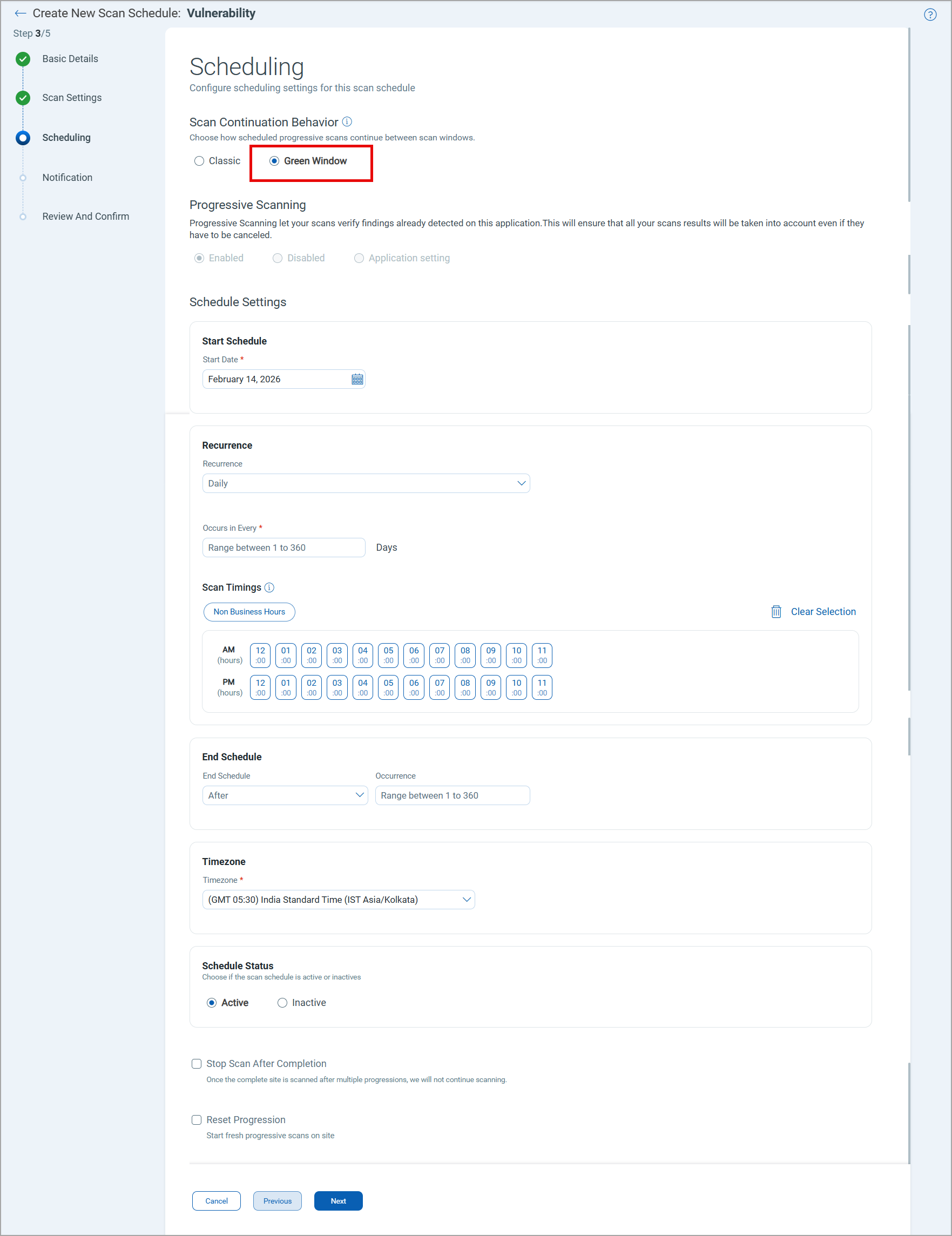
You can schedule vulnerability scans to run progressively within defined hourly time windows - Daily, Weekly, or Monthly. Scans execute only during approved windows and progress across multiple cycles until full application coverage is achieved, eliminating continuous scanning and manual intervention.
This feature helps you scan large or complex web applications end-to-end without continuous scanning or manual intervention. It minimizes operational impact by running scans only during approved maintenance windows while ensuring full coverage on a monthly or bi-monthly basis.
Prerequisites
- You must have permission to create a scan schedule.
- Enhanced Qualys scheduling must be enabled for your account.
This applies only to the new vulnerability scan schedules. The existing scan schedules are not automatically updated.
To use the Green Window scheduling, in the create vulnerability schedule workflow > Scheduling page, select the Green Window option.
 TotalAppSec and Web Application Scanning
Enhancements to Authenticated Scans
We are introducing the following enhancements to the authenticated scan workflow:
- Dedicated authentication records for web application and API asset type
- Expanded authenticated API scan coverage with Bearer Token, API Key, and enhanced OAuth 2.0 with new grant types
These enhancements help prevent misconfiguration, accelerate authentication record selection with asset-type filtering, and ensure only relevant records are available for API scan configuration.
Prerequisite
The authentication enhancements are supported with Web Application Engine version 10.16 or later.
For the scheduled authenticated scans, Qualys Scheduling Service must be enabled on your account.
Dedicated Authentication Records for Web Applications and APIs
Two separate options are now available to create authentication records for web applications and APIs. Previously, authentication records were shared across both Web Application and API asset types, with all configuration options, Form, Server, and OAuth 2.0, available in a single record.
To create an authentication record, navigate to Configuration > Authentication, click New Authentication Record > Web Application or API.
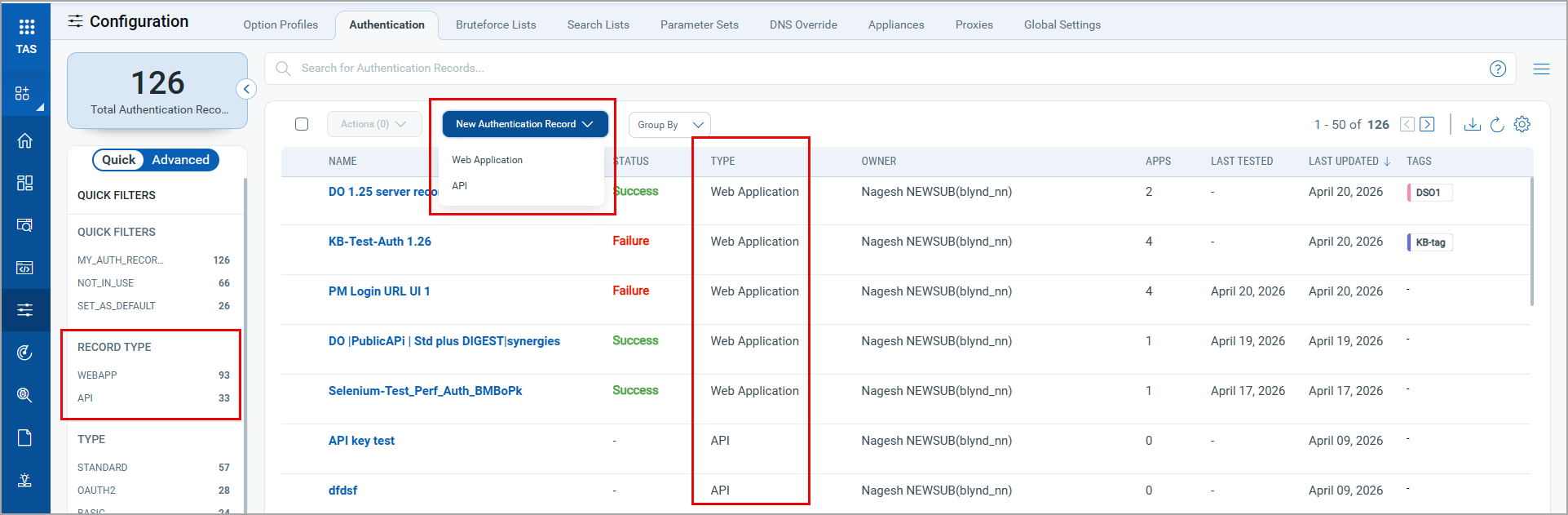
The Type column is available in the authentication record datalist, which displays authentication records for web applications and APIs.
You can filter the authentication records using the Record Type filter in Quick Filters.
This update does not affect existing web application authentication workflows that use OAuth 2.0. Your current authentication records, configurations, and scan schedules remain intact and continue to function as expected.
API Authentication Record Workflow
The API authentication record workflow now covers Bearer Token, API Key, and OAuth 2.0 methods. These options are distinct from those used in the web application authentication workflow.
Authenticated API scanning now supports OAuth 2.0, so you can scan APIs protected by any identity provider, including Okta, Microsoft Entra ID, Auth0, or a custom OAuth server. The Authentication Record workflow for API guides you through Token Exchange, Token Usage, and Token Refresh as individual steps that reflect the actual OAuth flow.
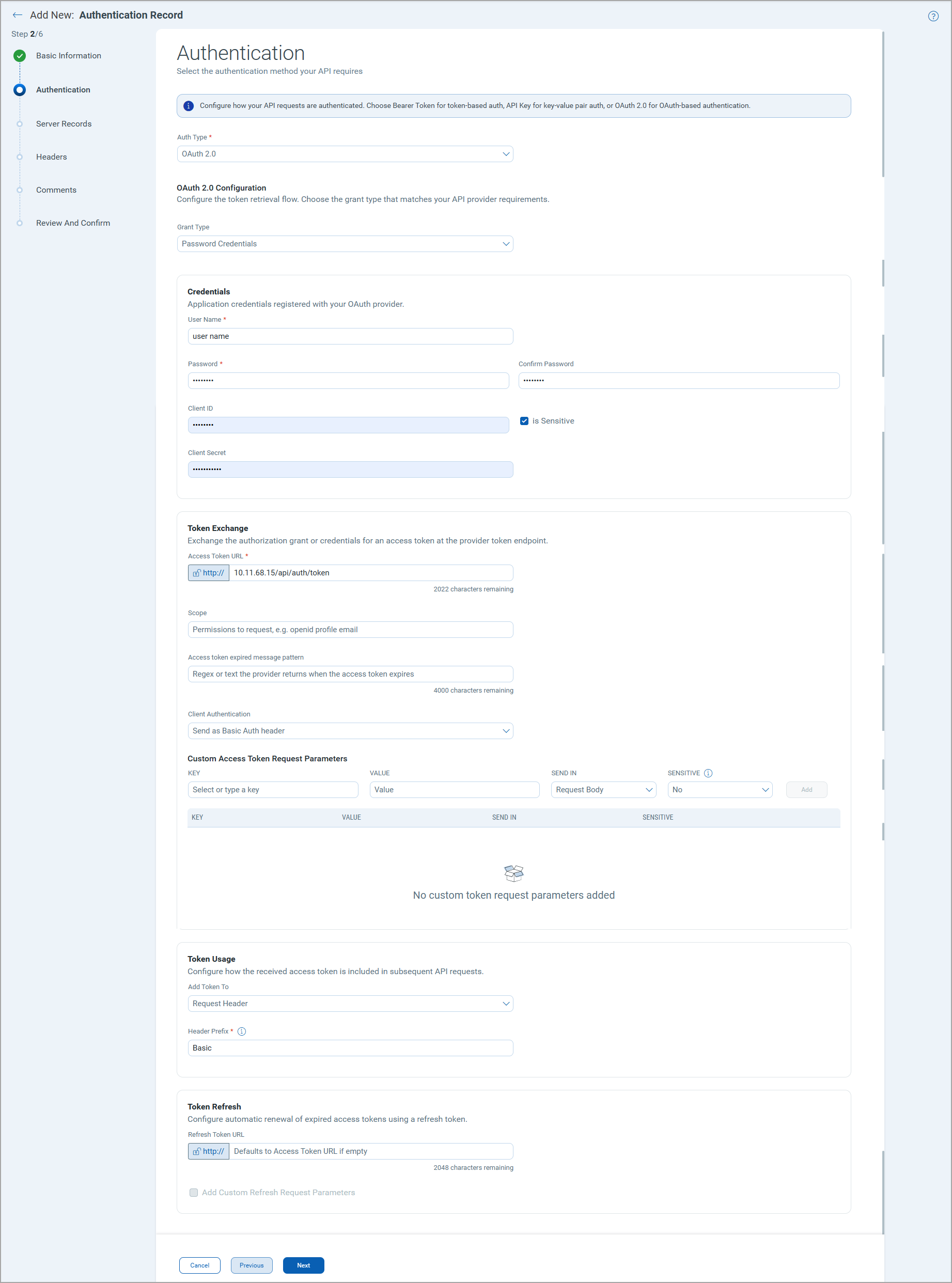
API authentication records can be configured using the following options:
- Bearer Token - Provide the token value and a prefix.
- API Key - Provide a key–value pair and select where it is sent to the Request Header or Query Parameters.
- OAuth 2.0 - Select the grant types from Authorization Code, Implicit, Client Credentials, and Password Credentials. Authenticate using OAuth 2.0 against any identity provider, including Okta, Microsoft Entra ID, Auth0, or a custom OAuth server. The grant type: Resource Owner Password Credentials is renamed to Password Credentials. Additional fields are available for the OAuth 2.0 grant types.
What's new in OAuth 2.0 support for authenticated API scanning?
Select your OAuth grant type - You can select grant type from Authorization Code, Implicit, Client Credentials, or Password Credentials using a single Grant Type selector. The fields update based on your selection, showing only the fields relevant to the chosen flow.
Browser-based authentication using Selenium - For login flows that require interactive sign-in, you can drive the identity provider using a Selenium script and verify success using a regular expression. This ensures scans complete successfully even when the provider does not accept scripted token requests.
Mask sensitive credential fields - Mask Client ID, Client Secret, or any custom parameter as Sensitive. The value is masked so that the credentials are not exposed in configuration views.
Choose how credentials are sent - With the Client Authentication selector, you can send the client ID and secret either as a Basic Auth header or in the request body, matching the format your OAuth server expects.
Add custom OAuth request parameters - Use a Key, Value, Send In, Sensitive table to add provider-specific parameters such as audience, resource, scope variants, or any custom fields. You can send them in the request body, URL, or headers.
Control how the access token is sent to the API - You can specify whether the access token is sent as a request header, in the URL, or in the request body. You can also set the token prefix, Bearer, Basic, or a custom value, to match what the target API expects.
Automatic token refresh during long scans - You can configure a Refresh Token URL to automatically renew short-lived access tokens during a scan. If you leave the field empty, it defaults to the access token URL. You can also add Custom Refresh Request Parameters when the refresh call requires parameters different from those in the initial token request. This ensures scans of large API surfaces remain authenticated from start to finish, without manual token renewal.
The Custom Header field is replaced by the Custom Access Token Request Parameters section. Existing values are migrated automatically, with each header key–value pair represented as a structured row with the delivery location set to Request Header.
Web Application Authentication Record Workflow
In the web application authentication record creation workflow, OAuth 2.0 is not available; it is now available only in the API authentication record workflow. OAuth 2.0 is separated from Form and Server options and is used exclusively for API authentication.
All FORM authentication options and related fields remain in web application authentication records. Records with Form or Server configuration are automatically classified as Web Application Authentication Records in the data list.
Update in Existing Authentication Records
No changes are required for authenticated web application or API scans. However, reviewing existing API authentication records is recommended to leverage the new capabilities.
Filter Authentication Records
In the API creation workflow, under Additional Configuration > Authentication Records, only API authentication records are available. The list does not display the authentication records created for web applications.
No filtering restrictions are available in the web application creation workflow under Additional Configuration > Authentication Records to maintain compatibility with the existing authentication records.
QQL Tokens Changes
The following new tokens are available in the Authentication tab to reflect the changes in the authentication records.
| Tab | QQL Token Name | Description |
|---|---|---|
| Authentication | authenticationRecord.authType | Use the options, Web Application or API, to search for the authentication records created for web applications or APIs. |
| Authentication | authenticationRecord.oauth2.grantType | Use the options to filter the authentication records with the selected grant types. Available values: AUTH_CODE, CLIENT_CREDS, IMPLICIT, and PASSWORD. |
The following token is updated to reflect changes in the authentication records.
| Tab | QQL Token Name | Description |
|---|---|---|
| Authentication | authenticationRecord.type | Use the options to filter the authentication records with the selected types: AUTH_CODE, BASIC, CERTIFICATE, CLIENT_CREDS, CUSTOM, DIGEST, IMPLICIT, NTLM, PASSWORD, SELENIUM, STANDARD. |
Scan and Report Schedule Enhancements
The following enhancements provide information on new scheduling capabilities that give you more control over when scans run, how they progress, and how reports are generated and distributed.
Enhancements in Progressive Scanning
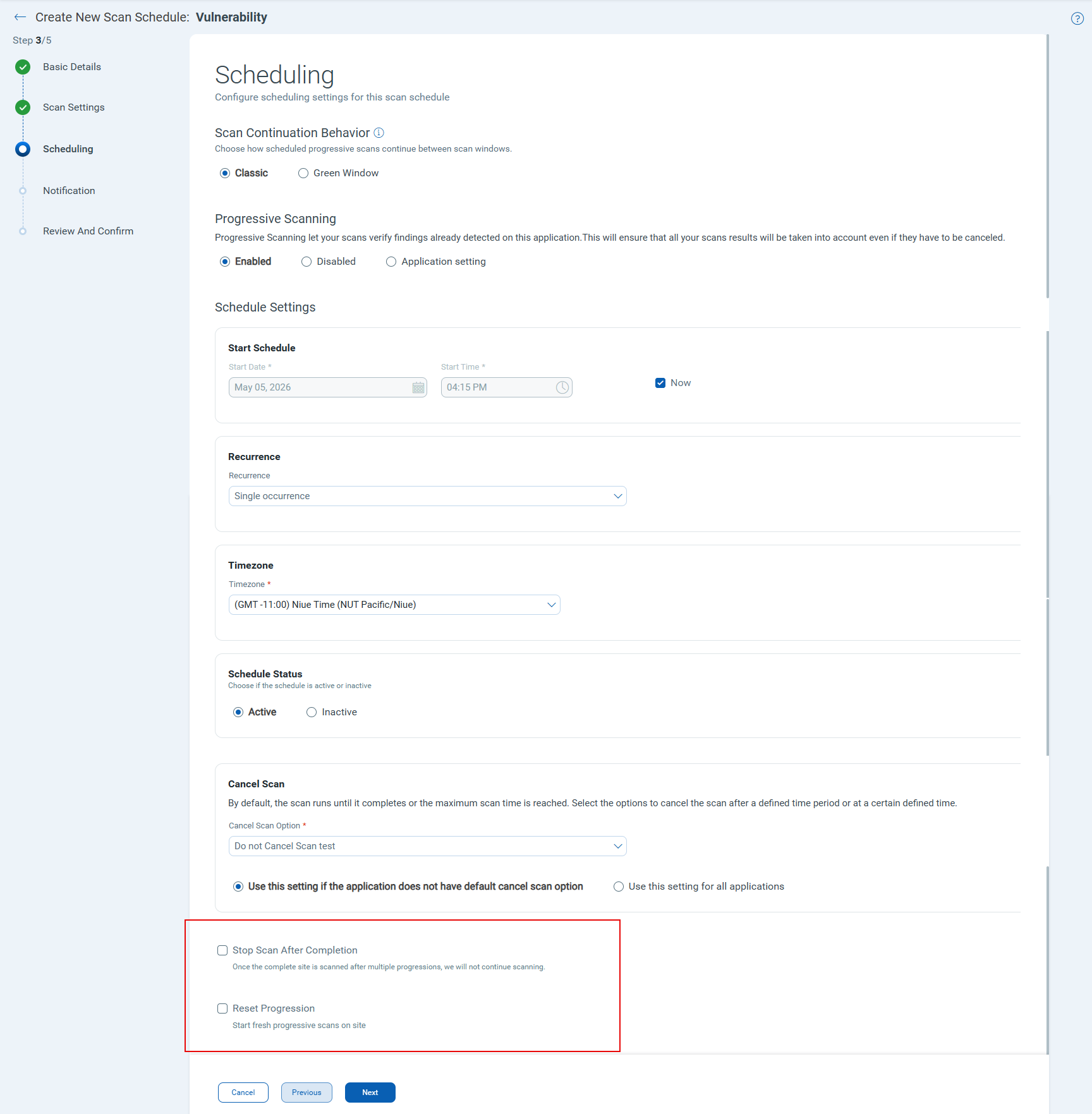
Two new options are now available in the Schedule Scan workflow to help you manage progressive vulnerability scans more effectively.
- Reset Progression - Select this option to restart a progressive vulnerability scan from the beginning. This option is useful when vulnerabilities are fixed mid-cycle and a fresh scan is needed before all progressions are complete.
- Stop Scan After Completion - Select this option to automatically end the scan schedule once progressive scanning is complete, preventing unnecessary re-runs.
To view the new options, in the vulnerability schedule workflow > Scheduling page, in the Progressive Scanning section, select the Enabled option.
Scheduling Support for Compliance and Retest scans
You can now create schedules for Compliance Scans and Web Application Retest, in addition to Discovery and Vulnerability scans. Retest scheduling is also accessible directly from the Web Applications tab.
To create a schedule, go to Scans > Schedules and select New Schedule. The scan type selector now includes Compliance Scan and Web Application Retest as options.
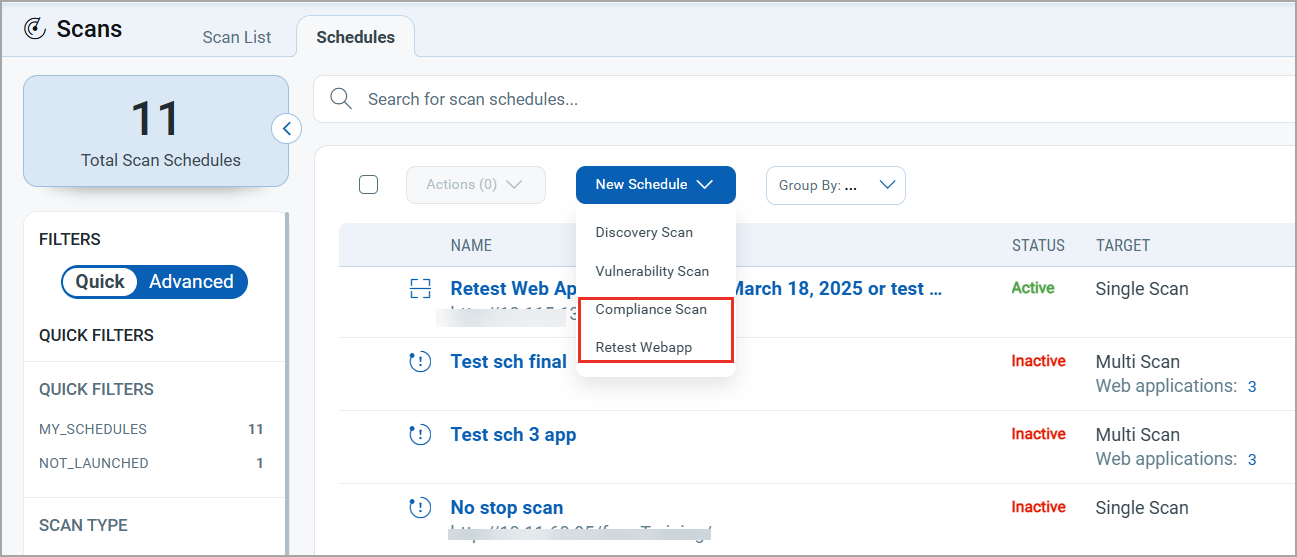
The Compliance Scan option is available only with the TotalAppSec subscription.
On-Demand Vulnerability Scan Launch
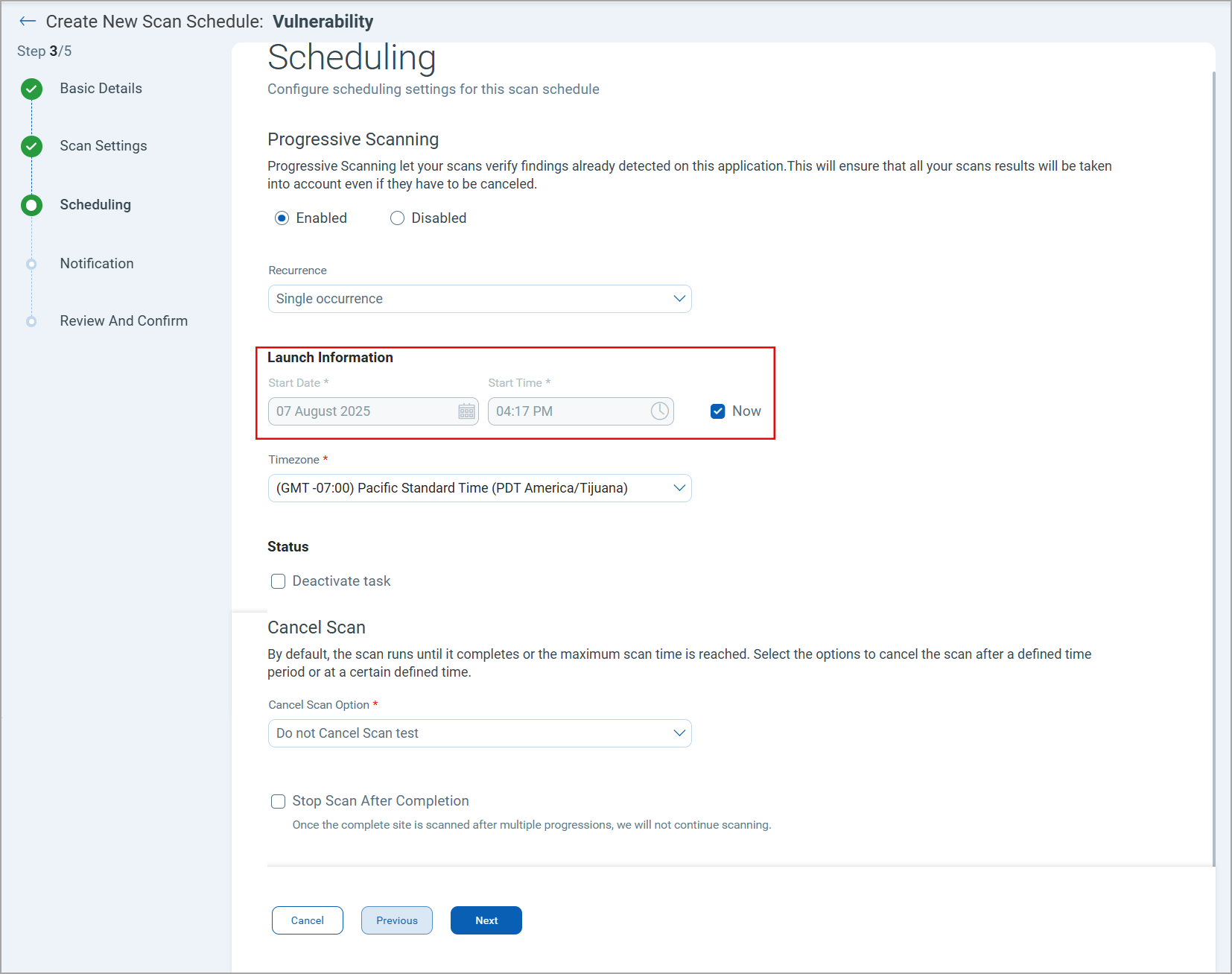
A new option to launch an on-demand vulnerability scan is available while creating or editing the scan schedule. This enhancement simplifies scan schedules. and prevents scan failure caused by an inaccurate scan start time.
In the scan scheduling workflow > Scheduling tab, under the Launch Information section, select the Now checkbox. Once you save the schedule, the vulnerability scan starts immediately.
Distribution Groups in Scan Schedules
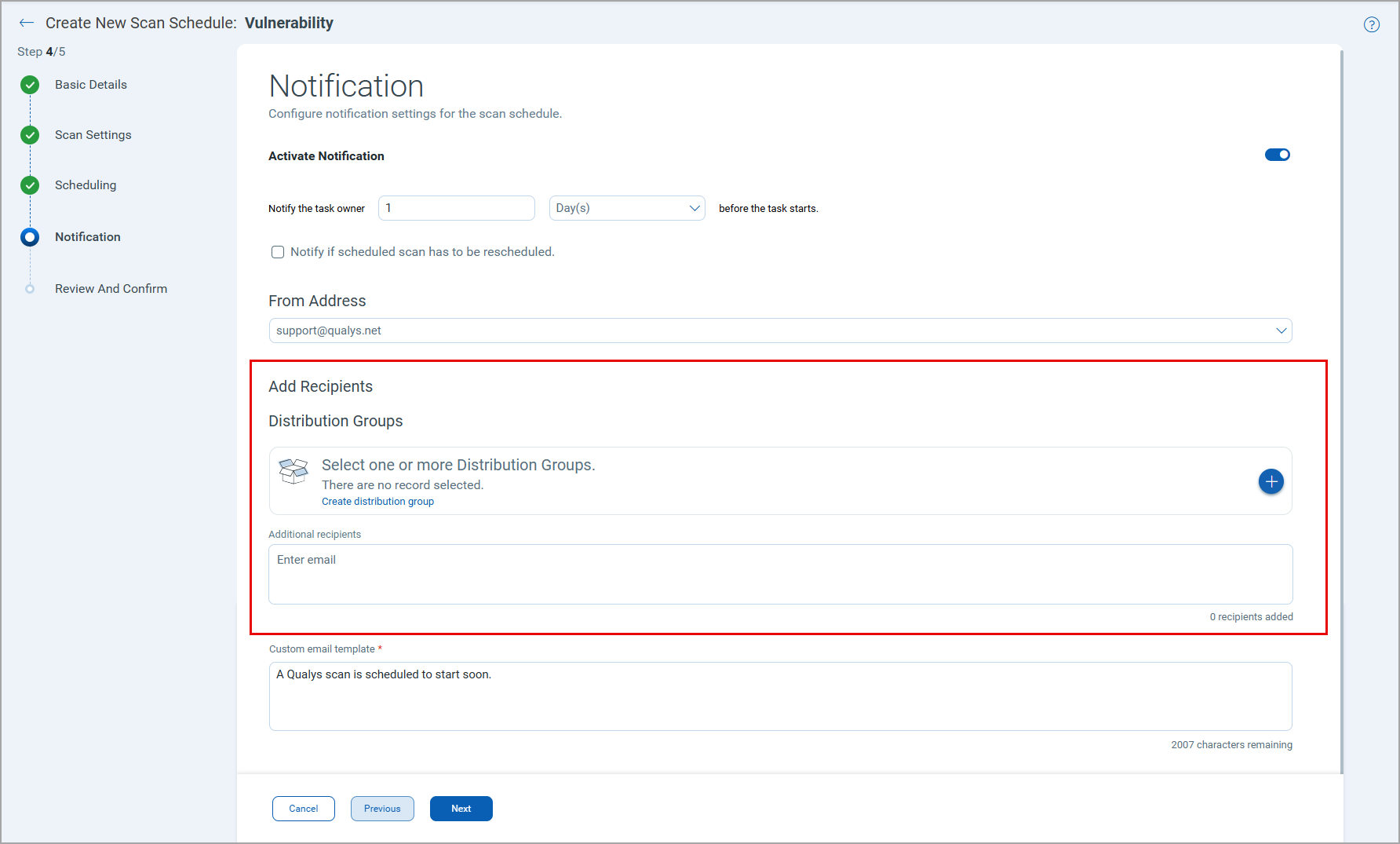
You can create and assign distribution groups directly within the Scan Schedule workflow. Recipients in a distribution group are notified when a scheduled scan runs, replacing the earlier behavior where the notifications were sent to all account users.
To add a distribution group, navigate to the Notification section in the New Scan Schedule workflow. Under the Distribution Groups section, you can add the available distribution groups to send the scan notifications. You can also create a distribution group using the Create distribution group option.
On-Demand Report Generation
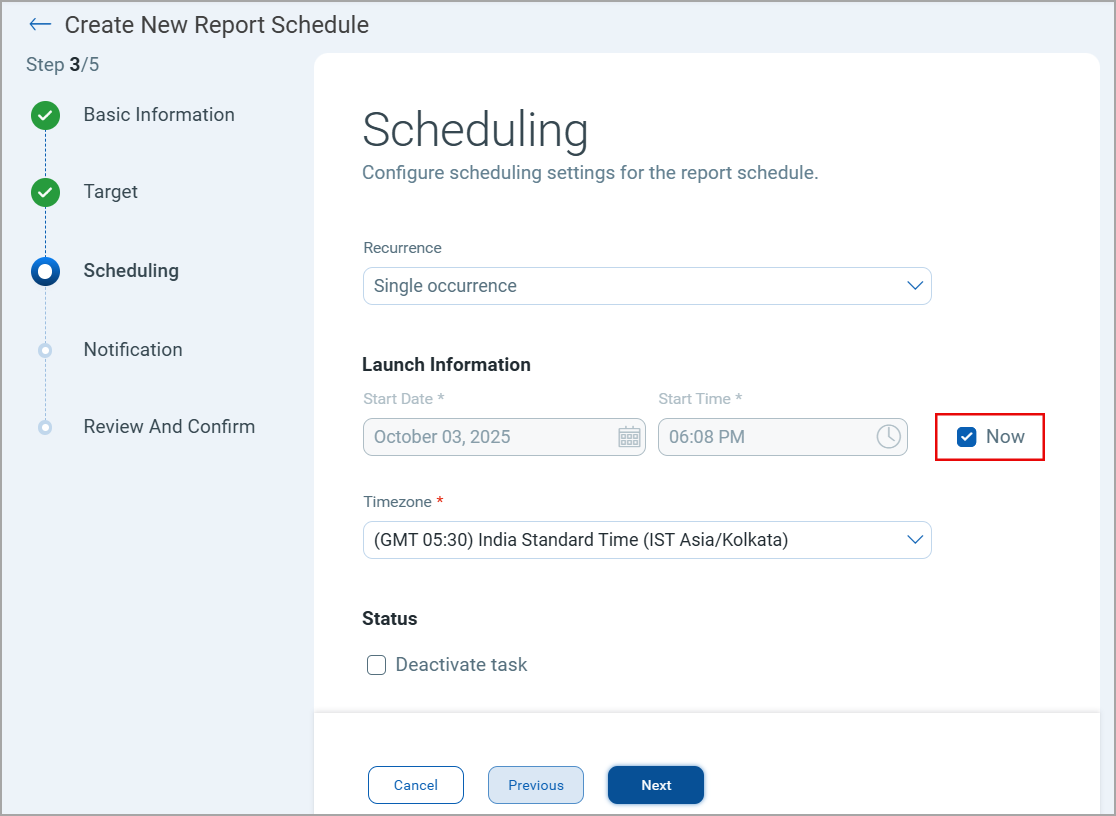
A new option to generate a report immediately upon saving the report schedule to streamline ad hoc reporting without requiring a future scheduled time.
In the report scheduling workflow > Scheduling tab, under the Launch Information section, select the Now checkbox. When the Now option is selected, the report generation is launched immediately after the report schedule is created.
Support for API Report Scheduling
You can create schedules for API reports in addition to Web Application, Scan, Scorecard, and Catalog reports.
The Web Application Report type is renamed to Application Report. This report type covers both web application and API reports.
You can download them in all supported formats except CSV and XML.
New and Updated QQL Search Tokens
The following tokens are added to the Applications > APIs tab.
| Tab Name | Token Name | Description |
|---|---|---|
| Applications > API | application.scanScheduledType | Use this token to search APIs for which the selected type of scan is scheduled: VULNERABILITY, COMPLIANCE |
| Applications > API | application.scanScheduled | Use this token to search APIs for which the scan is scheduled. |
The following tokens are updated to reflect the new scheduling changes.
| Tab Name | Token Name | Description |
|---|---|---|
| Scans > Schedules | scan.scheduled.type | A new value - Compliance is added to search the scheduled compliance scans. |
| Applications > Web Applications | application.scanScheduledType | A new value - Compliance is added to search the web applications for which a compliance scan is scheduled. |
Reporting Enhancements
This release enhances Web Application, Scan, and Scorecard Reports with richer vulnerability data, improved formatting, and new usability options.
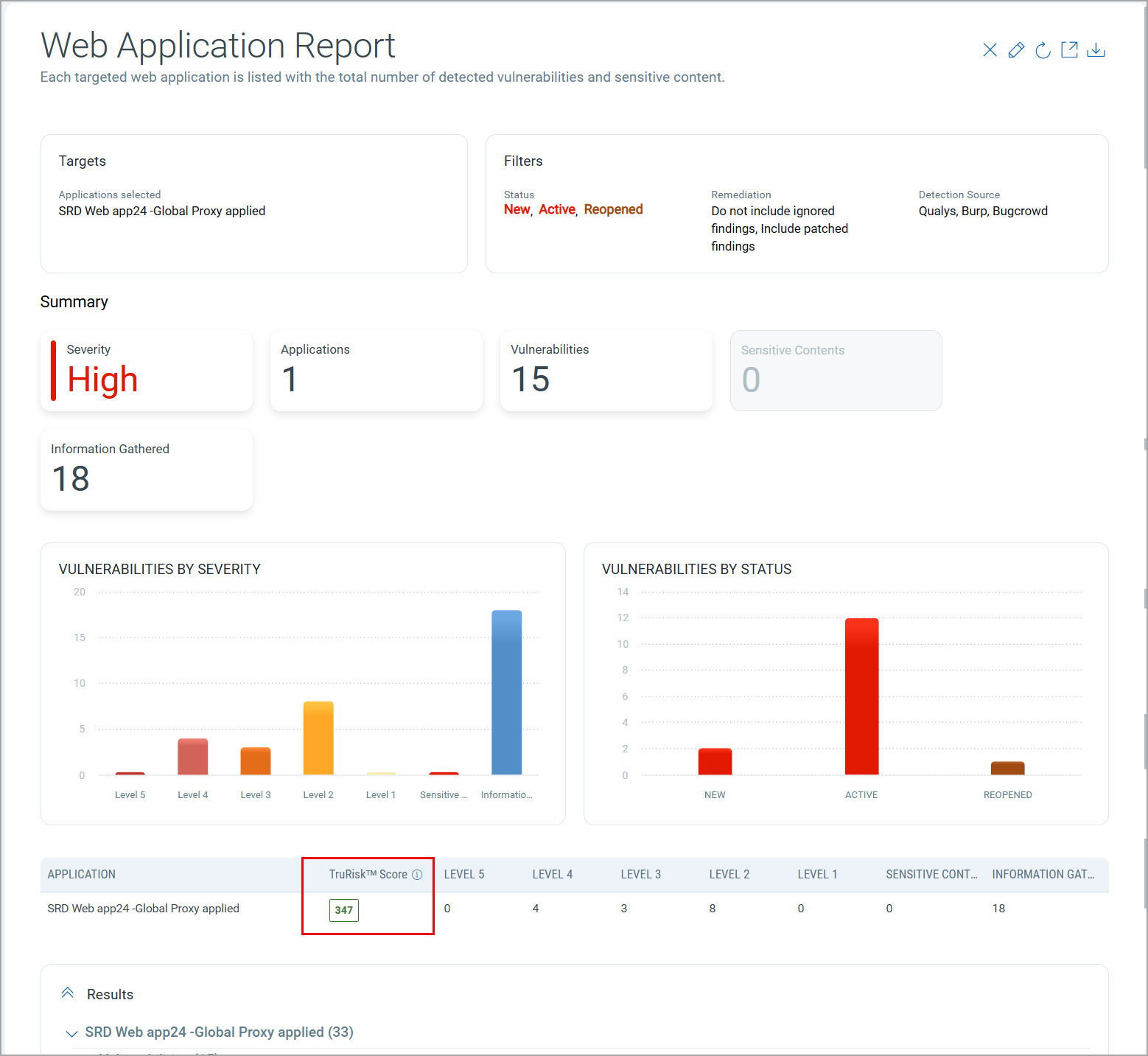
TruRisk™ Score in Web Application Reports
You can now view the TruRisk™ score for each web application directly in the Web Application Report, giving you a clear picture of the asset's security posture alongside existing vulnerability data.
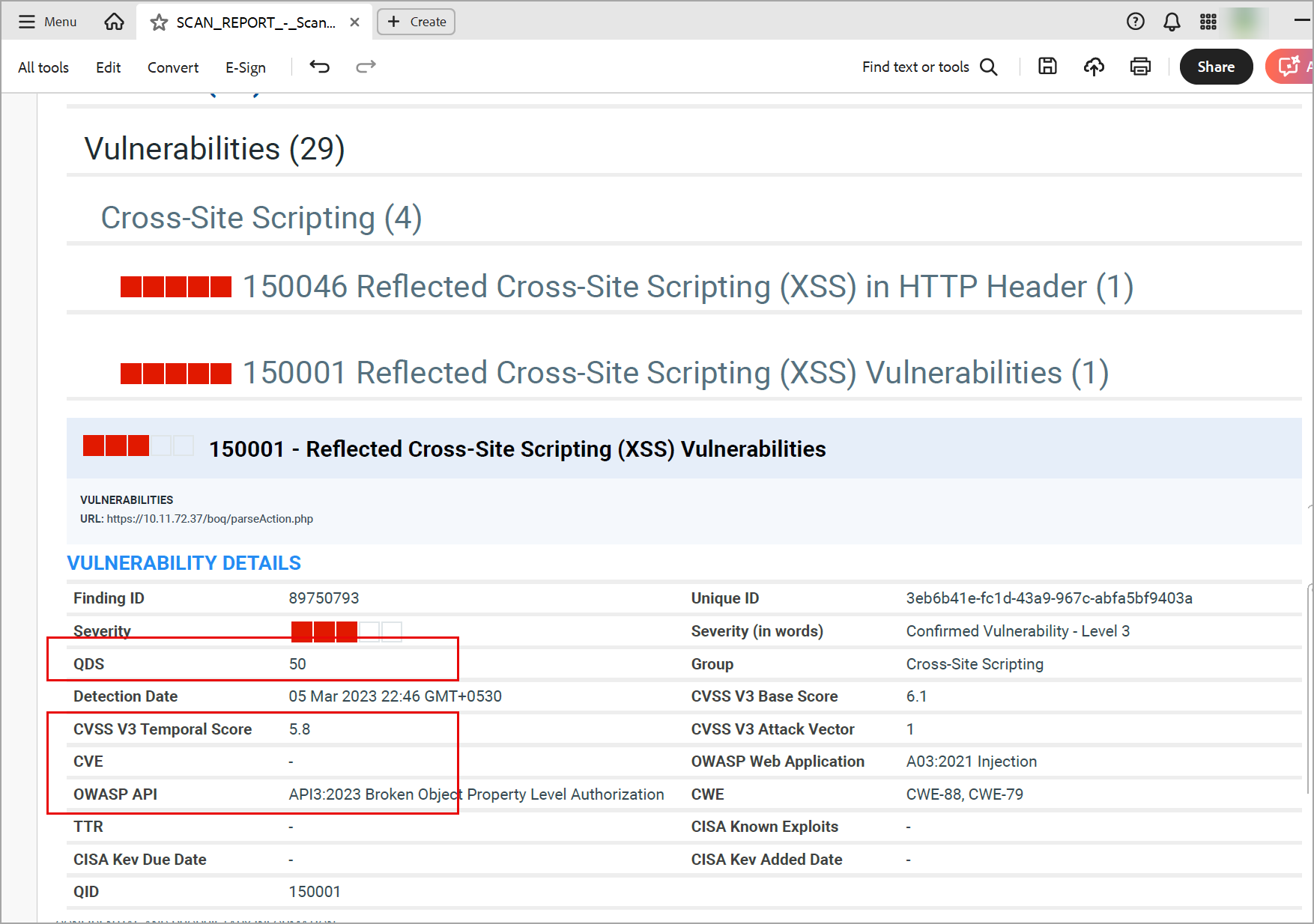
Expanded Vulnerability Details in Scan Reports
Each finding in the Scan Report now shows richer vulnerability details: QDS score, CVE IDs, CWE, CVSS values, and OWASP data. This additional context helps teams prioritize remediation without leaving the report.
Proxy Usage Details in Scan Reports
The Appendix | Scan Details section of the Scan Report now shows a Proxy Host field that identifies the proxy used during the scan. The field is populated when a proxy is used and remains empty when no proxy is configured.
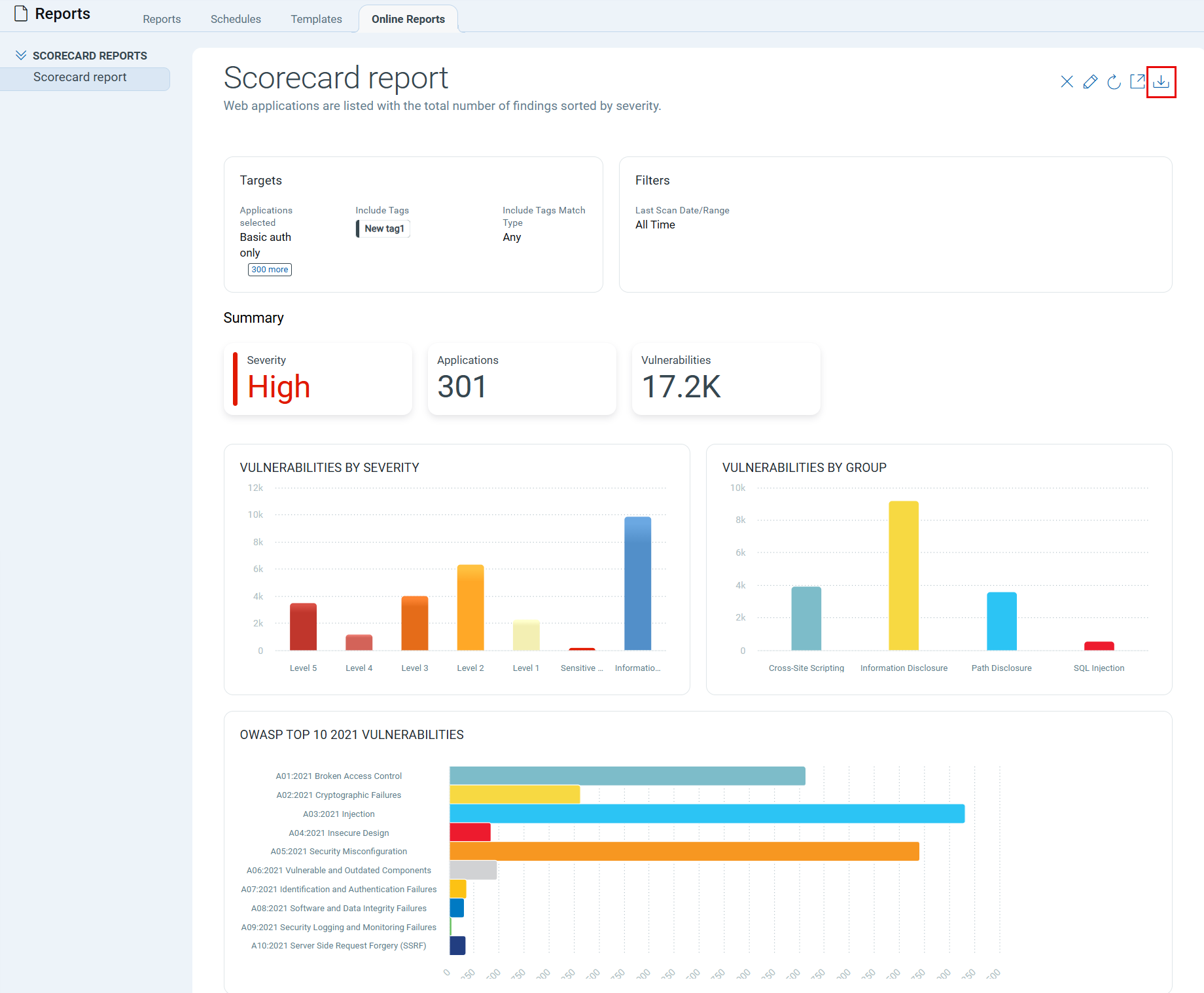
Enhanced Scorecard Report Display
The Scorecard Report now has an enhanced layout with clearer section structure and improved formatting, making it easier to read and share with stakeholders. You can download it in all supported formats.
Enhanced Report Formats
The enhanced report layout is available in the following download formats: Web Archive (HTML), Compressed HTML (ZIP), PDF, and Encrypted PDF. If you download reports in other formats, they will not include the enhanced layout.
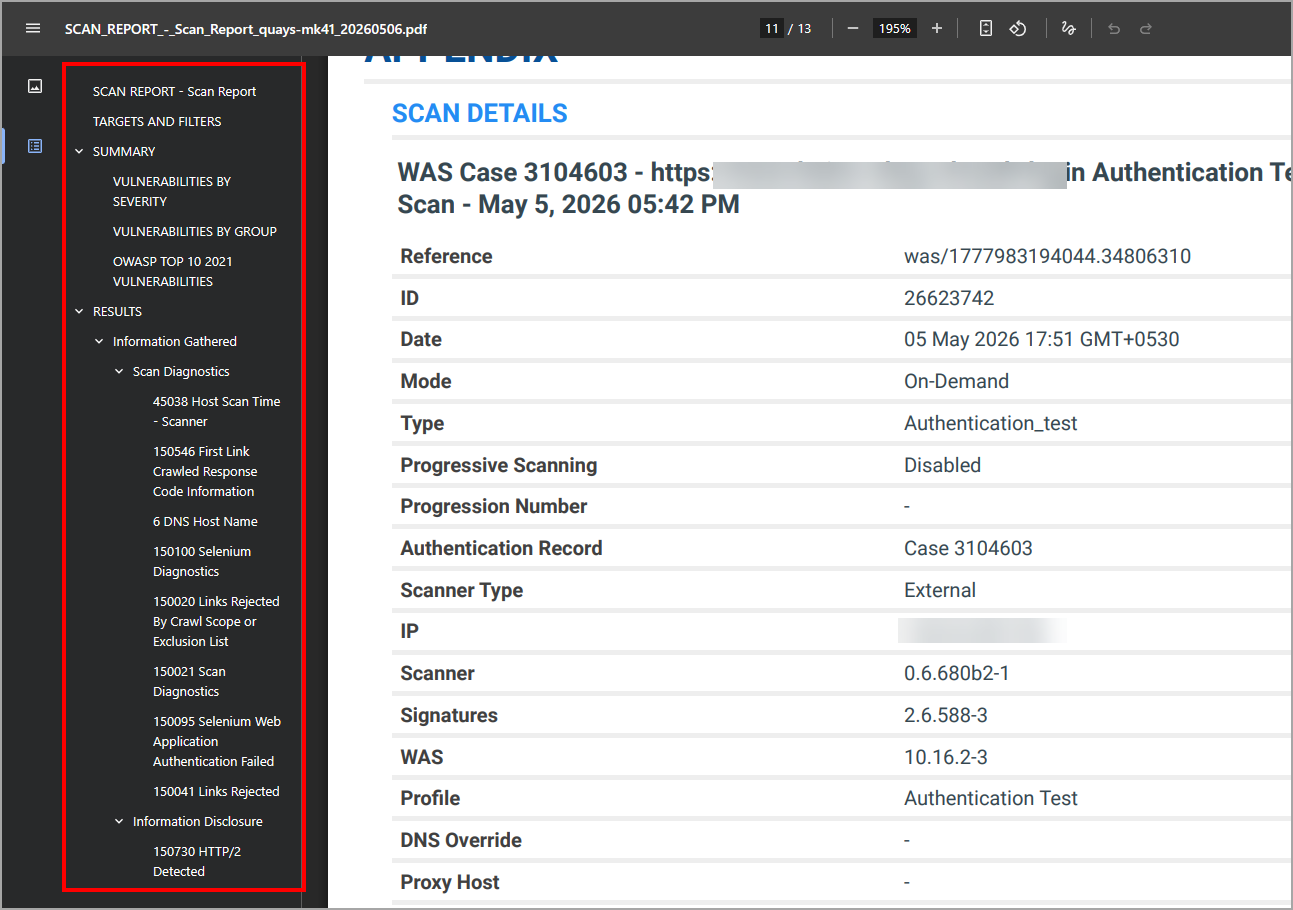
Bookmarks in PDF Reports
PDF reports now include auto-generated bookmarks supporting up to six levels of hierarchy, enabling faster navigation within large documents using the PDF navigation pane.
Refresh option for Online Reports
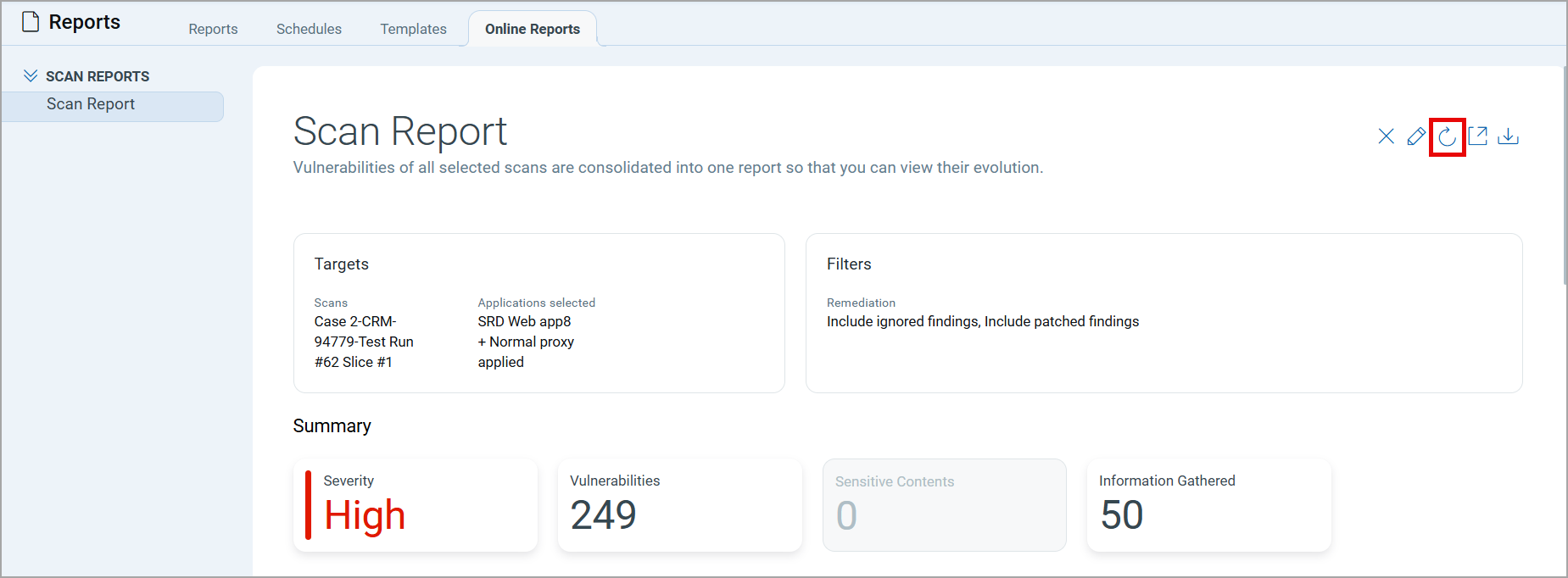
A Refresh option is now available in the Online Reports tab. You can reload a report when underlying data has changed, for example, when a detection severity has been updated, or a finding is ignored, without navigating back to the Scans tab to locate the scan.
Japanese language support for reports
Web Application, API Application, and Scan Reports — including the Results section — are now available in Japanese. When you set Japanese as the locale in your user profile, reports appear in Japanese in both the Online Reports tab and in downloaded files.
Currently, Japanese language support is available for the Web Application and Scan Reports.
Supported formats: PDF, Encrypted PDF (EPDF), HTML, and Compressed HTML (ZIP).
The reports in PPT, CSV, and XML formats do not have Japanese language support.
OWASP Top 10 2025 Support
Qualys WAS and TotalAppSec now support the OWASP Top 10: 2025 version, which includes updates based on the latest data and security trends. With this release, support for the OWASP Top 10 2021 is discontinued and replaced by the OWASP Top 10 2025 across option profiles, scan reports, and web application reports.
- Option Profile > Search Criteria > Detection Categories: Detection categories are updated to align with the OWASP Top 10 2025. Existing option profiles configured with OWASP 2021 categories are automatically updated to the corresponding 2025 categories.
- Scan Report: Vulnerability findings are now mapped to OWASP Top 10 2025 categories.
- Web Application Report: Detected vulnerabilities now reflect OWASP Top 10 2025 categorization.
The reports generated before this change remain unchanged.
QQL Token Update
The following tokens are updated to reflect the values in the OWASP Top 10: 2025:
| Tab | QQL Token Name | Description |
|---|---|---|
| Detections and Web Applications | finding.owaspTopTen.id | Mapped to the OWASP Top 10: 2025 categories. |
| Detections and Web Applications | finding.owaspTopTen.name | Mapped to the OWASP Top 10: 2025 categories. |
| Scans | scan.finding.owaspTopTen.id | Mapped to the OWASP Top 10: 2025 categories. |
| Scans | scan.finding.owaspTopTen.name | Mapped to the OWASP Top 10: 2025 categories. |
| OWASP Top 10:2021 | OWASP Top 10: 2025 |
|---|---|
| A01:2021-Broken Access Control | A01:2025-Broken Access Control |
| A02:2021-Cryptographic Failures | A02: 202 5- Security Misconfiguration |
| A03:2021-Injection | A03:2025-Software Supply Chain Failures |
| A04:2021-Insecure Design | A04:2025-Cryptographic Failures |
| A05:2021 Security Misconfiguration | A05:2025-Injection |
| A06:2021-Vulnerable and Outdated Components | A06:2025-Insecure Design |
| A07:2021-ldentification and Authentication Failures | A07:2025 Authentication Failures |
| A08:2021-Software and Data Integrity Failures | A08:2025-Software and Data Integrity Failures |
| A09:2021 Security Logging and Monitoring Failures | A09:2025-logging & Alerting Failures |
| A10:2021-Server-Side Request Forgery (SSRF) | (New) A10:2025-Mishandling of Exceptional Conditions |
For details, see OWASP Top 10:2025.
View Authentication Scan Network Activity with HAR Capture
TotalAppSec now captures an HTTP Archive (HAR) file during authentication when you perform Selenium-based Test Authentication scans. The HAR data is included in the Selenium diagnostic output under QID 150100. The captured data includes request URLs and methods, HTTP headers, status codes, timing details, and redirect chains.
HAR file capture provides visibility into network activity during authentication, enabling faster analysis and troubleshooting of Selenium authentication issues by reviewing complete HTTP request and response flows.
To enable HAR file capture, in the test authentication scan launch, select the Enable HAR capture check box in the Scan Settings page.
To download the HAR file, navigate to the Detections tab, click QID 150100. In the Detection Details page, in Detection Details > HAR File section, click Download File.har.
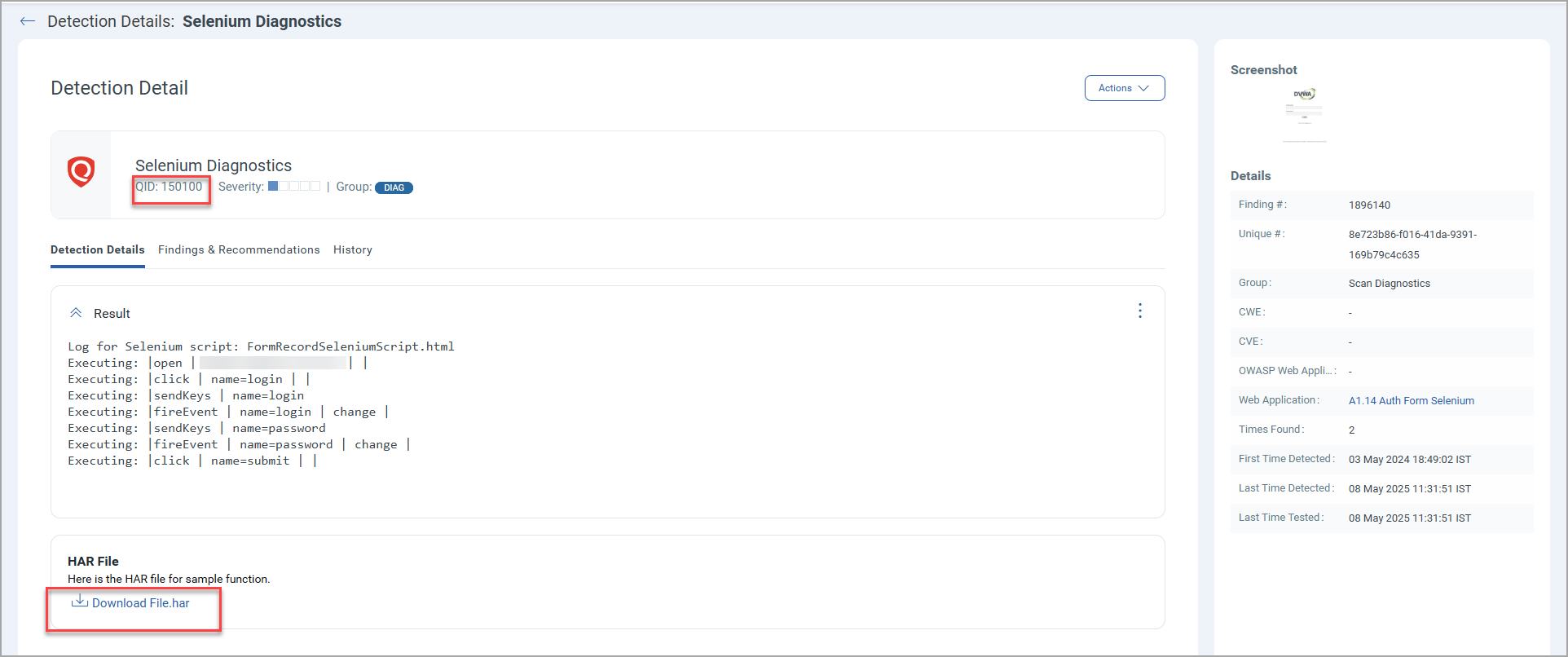
The HAR file is stored with other diagnostic artifacts, including Selenium execution logs, screenshots, console output, and browser events. You can use these artifacts to analyze redirects, failed requests, and external dependencies, and troubleshoot authentication issues without using a separate debug mode.
Access Request and Response Payloads in Detection History
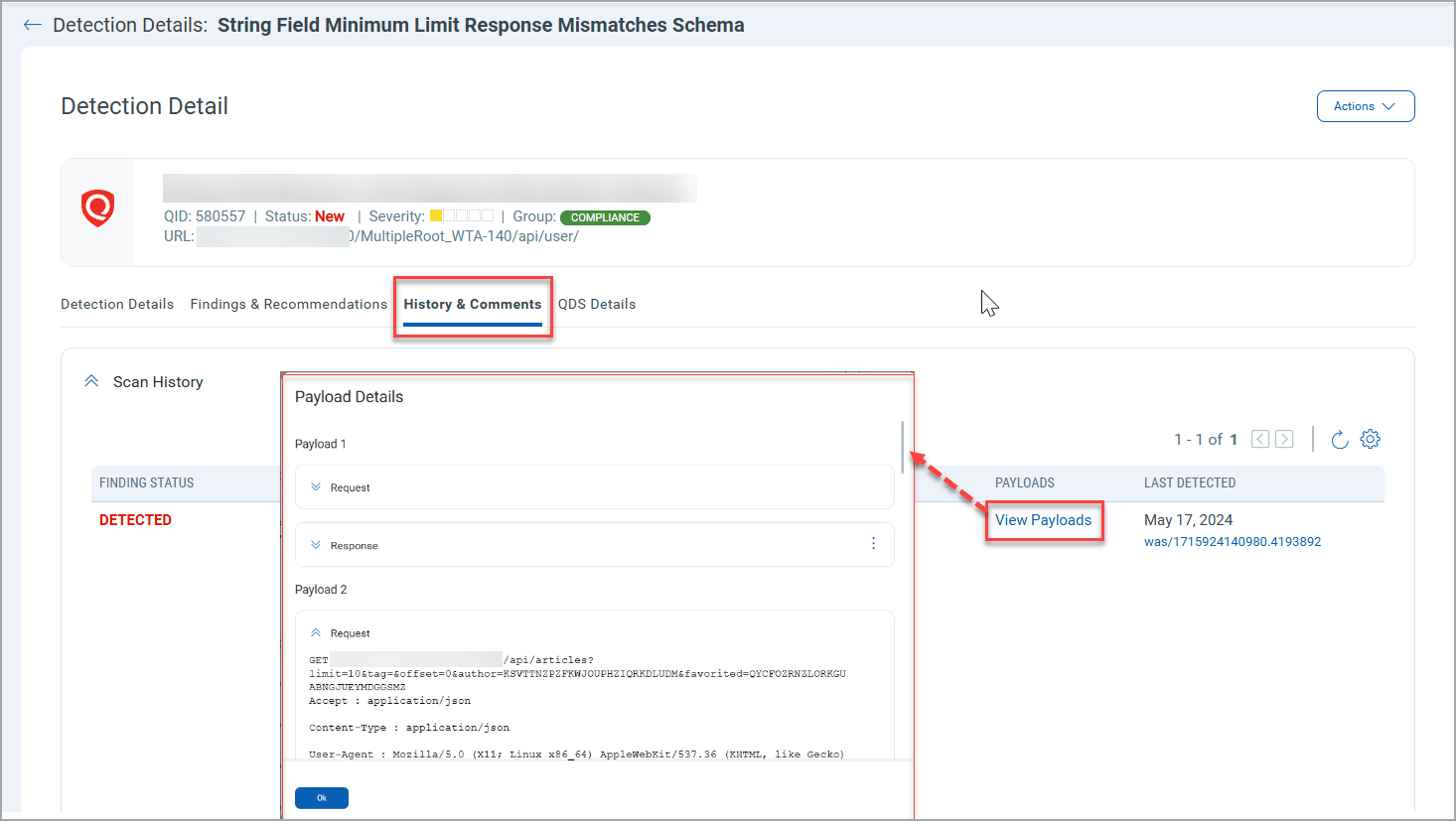
You can now view request and response payloads in the Detection Details > History & Comments page for current and historical detection records. When payload data is not available, the Payloads column displays the - indicator.
With this enhancement, you can analyze current and past detection behavior faster, improving troubleshooting and audit efficiency.
To view the request and response payloads, navigate to the Detections tab, click any detection record. In the Detection Details page, click History & Comments > View Payloads.
Enhanced Dynamic Search List
You can now build search criteria in dynamic search lists using QQL (Qualys Query Language) tokens. This gives you more granular control over search conditions and helps you create a precise, customized dynamic search list.
Previously, the dynamic search list creation flow had limited search criteria options, making it difficult to define granular conditions. With this enhancement, you can enter QQL tokens directly in the search criteria to define precise conditions in a single search list.
Example of QQL Tokens in Dynamic Search List
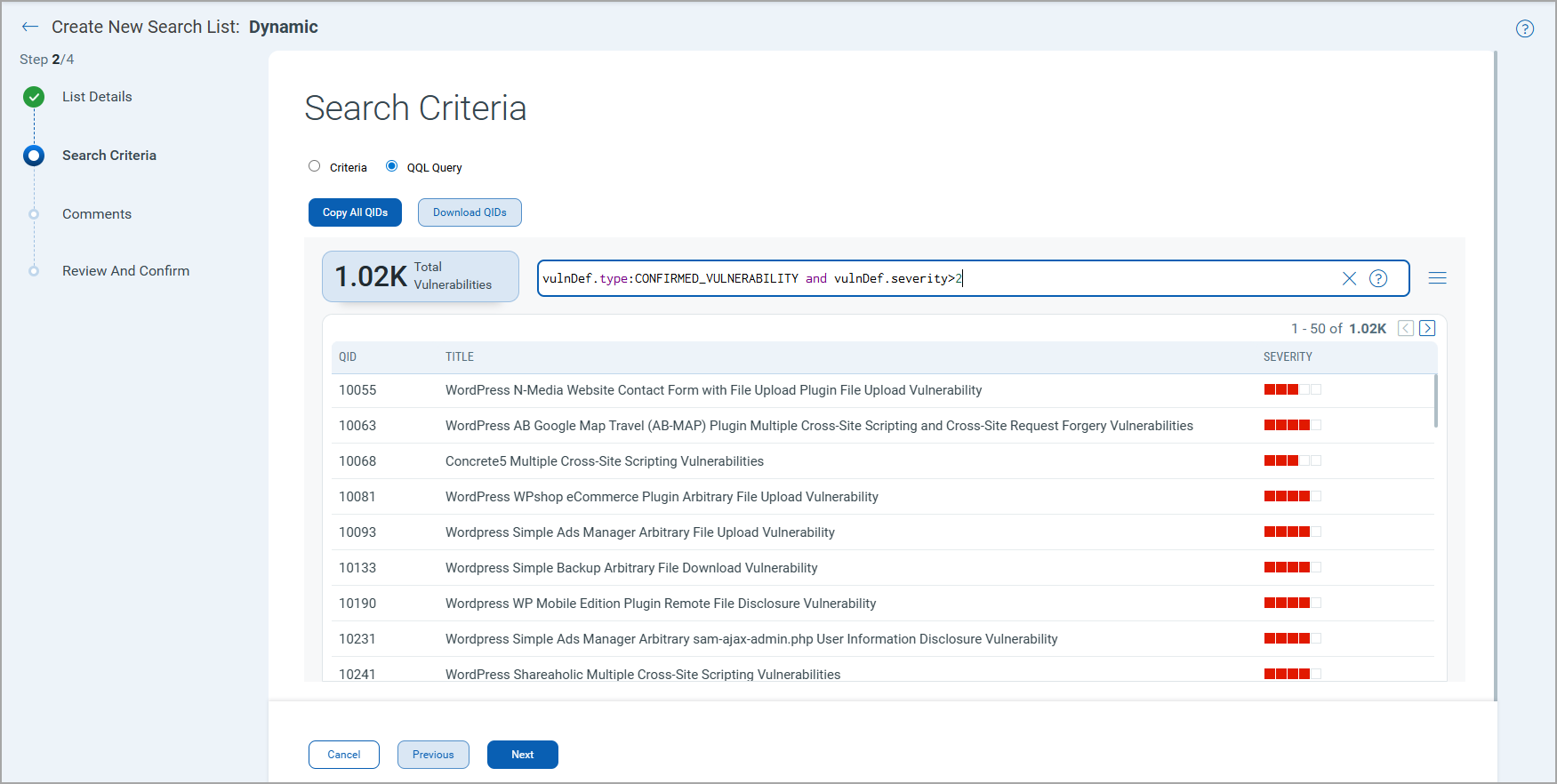
In this example, the QIDs with the following criteria get added to the search criteria in the dynamic search list, as displayed in the following image:
The search criteria contains QIDs for confirmed Vulnerabilities (vulnDef.type:CONFIRMED_VULNERABILITY) with severity greater than 2 (vulnDef.severity>2).
Options to Copy and Download QIDs
The following options are available while defining the search criteria using the Criteria or QQL Query option:
- Copy All QIDs - All QIDs are copied. You can paste the list into a Notepad file.
- Download QIDs - The file containing the QIDs is downloaded.
Issues Addressed
The following reported and notable customer issues are fixed in this release.
| Application | Category/Component | Description |
|---|---|---|
|
WAS |
New subscription provisioning |
We fixed an issue where the default option profile, Initial WAS Options, was missing for new subscriptions. The Initial WAS Options option profile is now available for all new subscriptions and for the existing subscriptions impacted by this issue. |
|
TAS and WAS |
QQL Token |
An error was encountered while using the finding.url token search for detections when the URL contained payloads. The issue is fixed. Now, the user can search for the detections for a specific URL using the finding.url token. |
|
TAS |
MuleSoft API Discovery Connectors |
When discovering APIs from the Mulesoft Anypoint Exchange, RAML-based APIs were not imported into TAS, resulting in a "File not found" error, even though a valid RAML file was available. The issue is fixed, and the RAML-based Mulesoft APIs are successfully discovered and imported into TAS. |
|
TAS and WAS |
Detections |
We fixed an issue where the incorrect count was displayed for the list of QID categories in the Detection Scope in the option profile. The count displayed in the Detection Scope > Category List, and the list of QIDs in the specific categories is consistent. |
|
WAS |
Report creation API |
We fixed an issue where the report creation API returned an error when the report name contained special characters. The report name now supports the following special characters: Impacted APIs: /qps/rest/3.0/create/was/report |
|
TAS and WAS |
Scans |
We fixed an issue where the scans were stuck in the Processing state. The scans are now processed and completed successfully. |
|
TAS and WAS |
Detection details |
We fixed an issue where the QID history in the Detection Details displayed the message "Finding could not be tested within the scan time limit" for all findings with a NOT_TESTED status. The message in the QID history is now updated to display the possible reasons for the NOT_TESTED status. |
|
TAS
|
Google Apigee API Discovery Connectors |
When discovering APIs in Apigee (GCP), the connector processed only the default.xml file in the proxy directory. API paths defined in additional ProxyEndpoint XML files were not discovered, resulting in incomplete API coverage. It was also observed that the customer-configured Google credentials were not applied. The issue is resolved. The connector now reads all XML files in the proxy directory and builds a unified API specification, and customer-configured Google credentials are used during discovery. |
|
TAS and WAS |
Reports |
We fixed an issue where manually-triggered report emails were sent from the Qualys user's email address instead of the standard Qualys email address, causing the emails to be marked as spam or blocked by recipient mail servers. The issue is resolved. Now, manually triggered report emails are consistently sent from the Qualys standard email address, consistent with scheduled reports. |