TotalAppSec Release 2.9 | Web Application Scanning Release 1.29
July 05, 2026
 TotalAppSec
Access Control Testing for API Assets
You can now validate authorization controls for API assets directly within the platform, without additional tools or manual coordination.
With Access Control Testing, you can:
- Test user access against authorized resources and detect privilege escalation.
- Validate role-based and user-specific access restrictions across endpoints.
- Configure Broken User Authentication (BUA), Broken Function Level Authorization (BFLA), and Broken Object Level Authorization (BOLA) test criteria on individual API assets, targeting the OWASP API Security Top 10.
- Retrieve structured results for access violations, permission issues, and misconfigurations, and incorporate findings into your reporting.
Configure Access Control Test Criteria
To configure Access Control Test criteria:
- Navigate to Applications > APIs tab.
- Select an API asset, and click Access Control Testing.
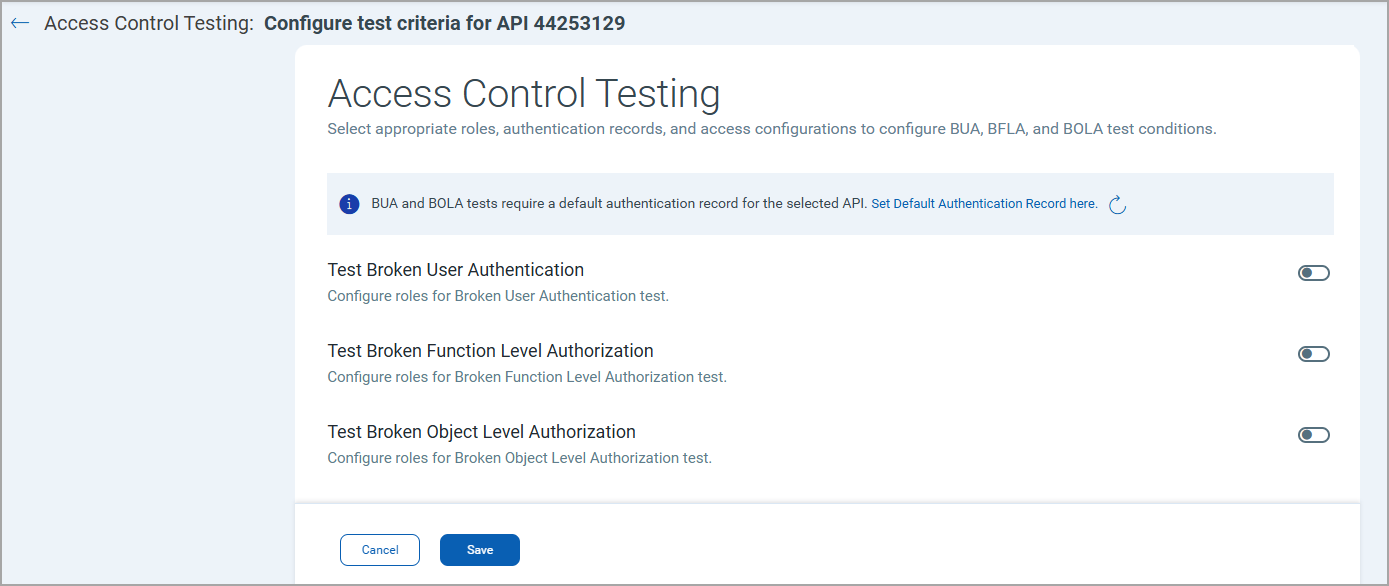
The following table describes the three criteria and their configuration options.
| Criterion | What it tests | Endpoint Selection | Authentication Record Restriction |
|---|---|---|---|
| Broken User Authentication (BUA) | Whether disabled/locked or logged-out account credentials can reach API endpoints | All endpoints (automatic selection) | API Key or Bearer Token |
| Broken Function Level Authorization (BFLA) | Whether a lower-privilege role can access endpoints restricted to higher-privilege roles | All Endpoints, Pick from List, or Match by Query | Any API authentication record type |
| Broken Object Level Authorization (BOLA) | Whether a user can access object-level data belonging to another user or role | All Endpoints, Pick from List, or Match by Query | Any API authentication record type |
Integrate Access Control Testing in Scans and Schedules
To include BUA, BFLA, or BOLA testing in a scan, select the corresponding checkboxes under API Security Testing in the on-demand vulnerability scan or vulnerability scan schedule configuration.
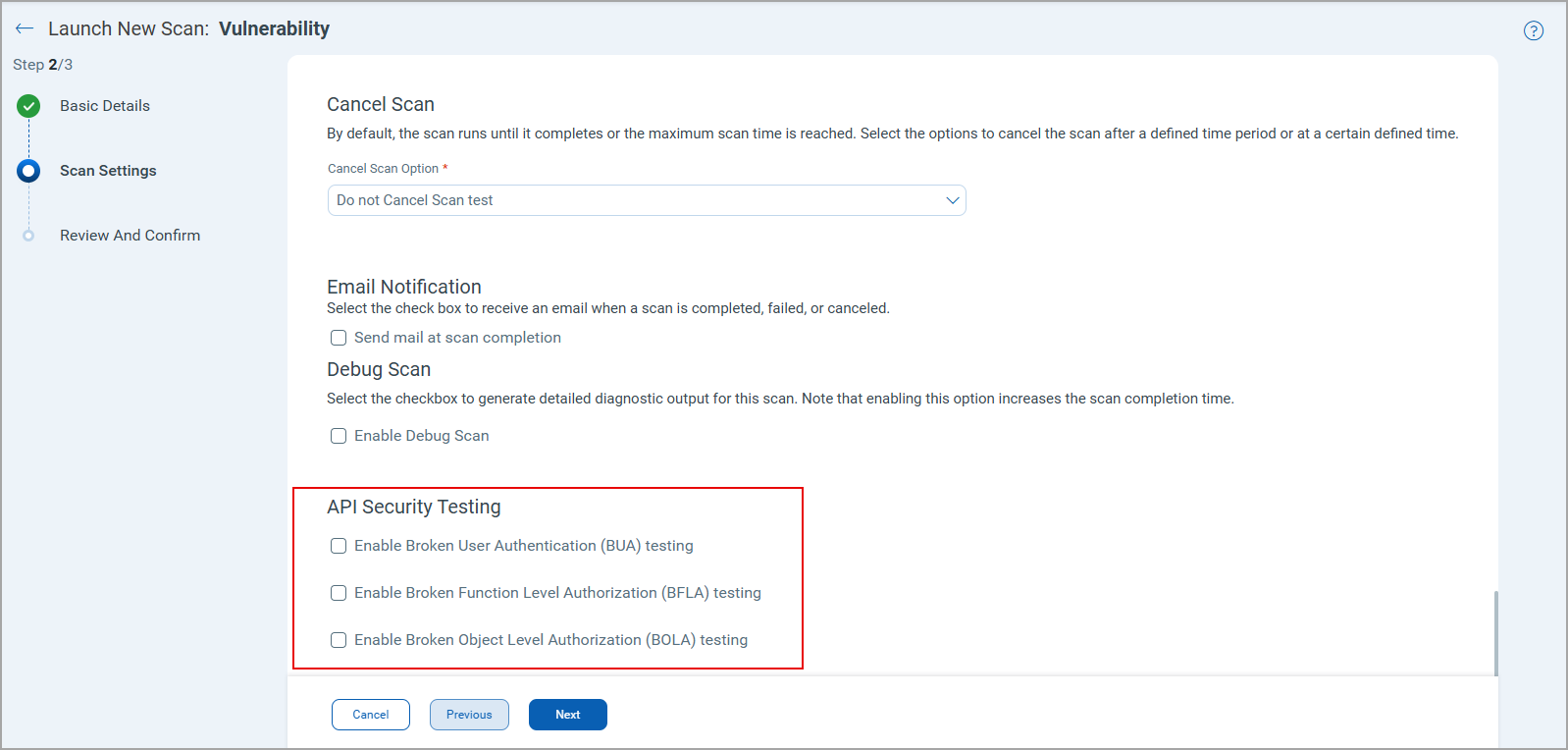
If you clear a checkbox, that test type is excluded from the scan. These controls apply only to API assets in the scan target.
New QQL Tokens for Asset Discovery using Access Control Testing
The following new QQL tokens are available in the APIs tab.
| Tab | QQL Token Name | Description |
|---|---|---|
| APIs | application.endpointCount | Use this token to find API assets by number of configured endpoints. |
| application.hasAccessControlConfig | Use this token to find API assets with at least one access control test criterion configured. | |
| application.accessControlConfig | Use this token to find API assets which have the access control config defined: Broken Function Level Authorization, Broken Object Level Authorization, Broken User Authentication. |
Enhancements for Green Window Scheduling
The following enhancements are available for green window scheduling.
Information Messages for Progressive Scans with Insufficient Maximum Crawl Links
Vulnerability scan schedule creation
When creating a vulnerability scan schedule, an information message is displayed if the selected Option Profile has Maximum Links To Crawl set to a value lower than 150. For optimal progressive scanning, use an Option Profile with Maximum Links To Crawl set to 150 or higher. You can select a different Option Profile or create a new one before proceeding.
This check helps ensure that progressive scans continue discovering new application content. The WAS scan engine crawls the first 150 links during each scan progression. When the crawl limit is set below 150, the same links are re-crawled at each progression, reducing scan coverage and preventing the scan from advancing to new areas of the application.
Option profile creation
An informational message is displayed for the Max Links field on the Option Profile creation or edit screen when progressive scanning is enabled for your account, recommending a value above 150.
This message appears regardless of the scan type currently associated with the profile, as a single Option Profile can be reused across multiple schedules.
Green Window Duration Validation
While configuring a Green Window on the scan schedule flow, if the configured window length is less than three hours, an inline warning message is displayed recommending a longer duration.
The scan engine reserves 15% of the Green Window for crawling, so a short window leaves very little time to crawl past the first 100 links, causing progressive scans to stall without explanation. This message helps you set a Green Window long enough for scans to progress as expected.
The message is advisory and does not block scheduling.
Authorization Code with PKCE Support for OAuth 2.0 Authentication
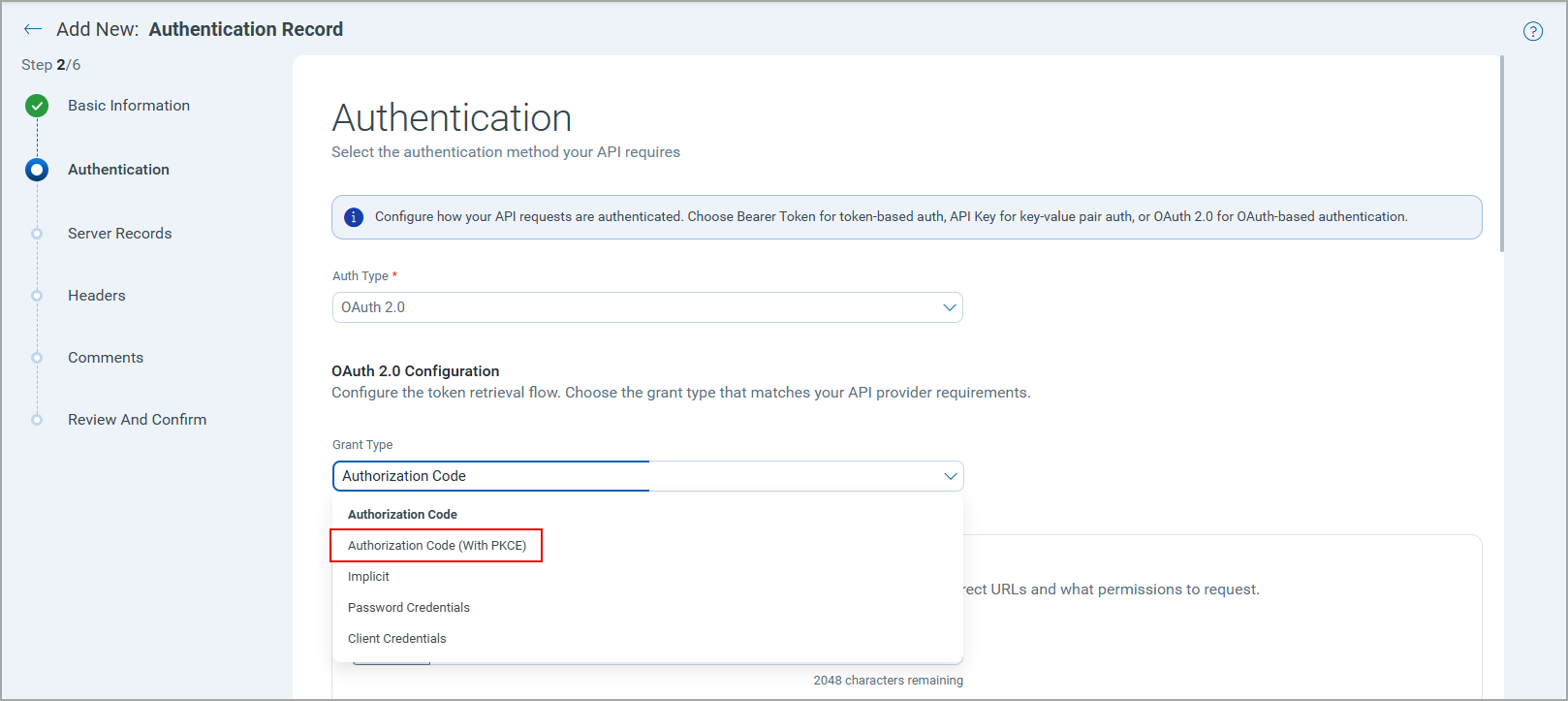
A new grant type, Authorization Code (with PKCE), is available for OAuth 2.0 authentication. You can configure PKCE-based authentication flows directly in TotalAppSec for scanning APIs used by mobile apps and single-page applications (SPAs), covering a broader range of modern API authentication configurations without workarounds.
To set up the OAuth 2.0 authentication with the new grant type:
- Navigate to the Authentication tab, and click New Authentication Record > API.
- In the create authentication record workflow, for Auth Type - OAuth 2.0, in the Grant Type list, select Authorization Code (With PKCE).
Discover Potential Web Applications in Microsoft Azure Cloud using TotalCloud
TotalAppSec now extends its TotalCloud (TC) integration to discover potential web applications from Azure Cloud, in addition to the existing AWS Cloud support. This expansion strengthens your organization's web application security posture by automatically identifying and cataloging public-facing web applications across your cloud environments using the Microsoft Azure connector.
To enable this feature, contact your Technical Account Manager or Qualys Support representative.
Prerequisites
Before you begin, ensure the following product versions are installed and active:
- Qualys TotalCloud
- Qualys Connector
Workflow
Once the connection with TotalCloud is activated, the Discovery > Sources tab displays Microsoft Azure connectors available under your subscription. Once the Connector runs a scan, it retrieves potential web applications discovered on your publicly exposed Microsoft Azure cloud assets. The number of discovered web applications is displayed in the Sources tab.
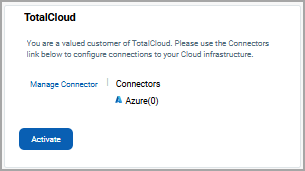
You can click the web application number to view the list of potential web applications in the Discovered Web Applications tab.
You can add the discovered web applications to your subscription and perform scans to assess the vulnerabilities. The Web Applications tab displays these web applications with the prefix Discovered Web Application.
DNS Override for API Assets
DNS override configuration is now available for API assets, extending the support previously available for Web assets. This brings consistent network configuration across both asset types. This is especially useful when the same hostname resolves to different servers across environments, or when your API is behind a load balancer. DNS override ensures scan traffic reaches the intended server, for example, your staging or internal endpoint, rather than a production instance.
If you scan APIs running in staging or internal environments, you can now direct scan traffic to the correct server without waiting for DNS record changes or involving your infrastructure team.
DNS override supports both Swagger and Postman API configurations.
You can select a DNS override record while creating or editing an API asset.
To add a DNS override record:
- In the APIs tab, click New API to create a new API asset or edit an existing API asset.
- In the Additional Configurations page, switch the Default DNS Override toggle ON.
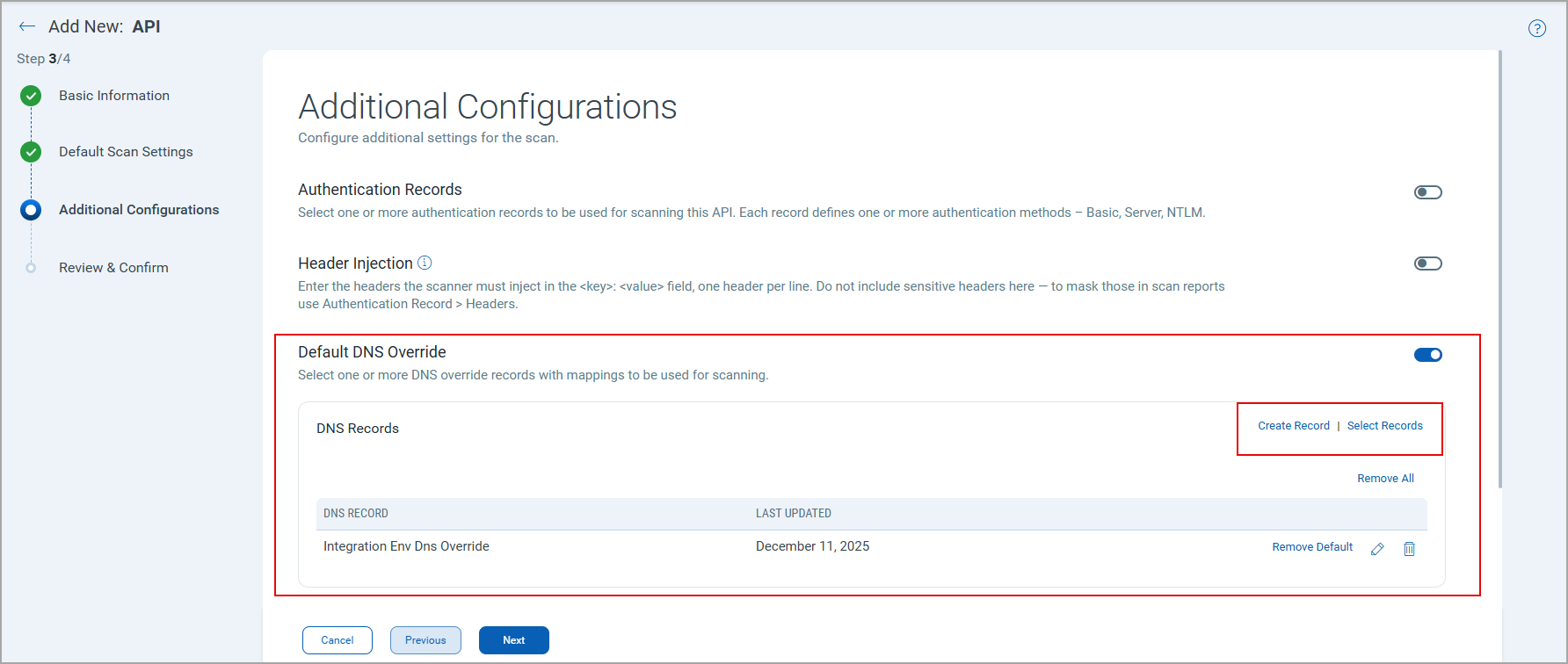
You can select a DNS override record from the available records or click Create Record to add a new record. Each record maps a hostname to a specific IP address or internal endpoint.
 TotalAppSec and Web Application Scanning
Debug Scan Support for Test Authentication
We have extended the debug scan support to Authentication Test scans, which were previously available only for vulnerability scans. You can now enable a debug option in the Authentication Test scan settings to obtain detailed diagnostic output when a scan fails or produces unexpected results. This reduces time spent investigating authentication configuration issues without requiring a separate tool or mode.
The API asset must have a test authentication record configuration defined.
To enable the debug scan, select a web application and click Test Authentication in the Quick Actions menu. In the Launch New Scan: Authentication Test > Scan Settings, select the Enable Debug Scan checkbox.
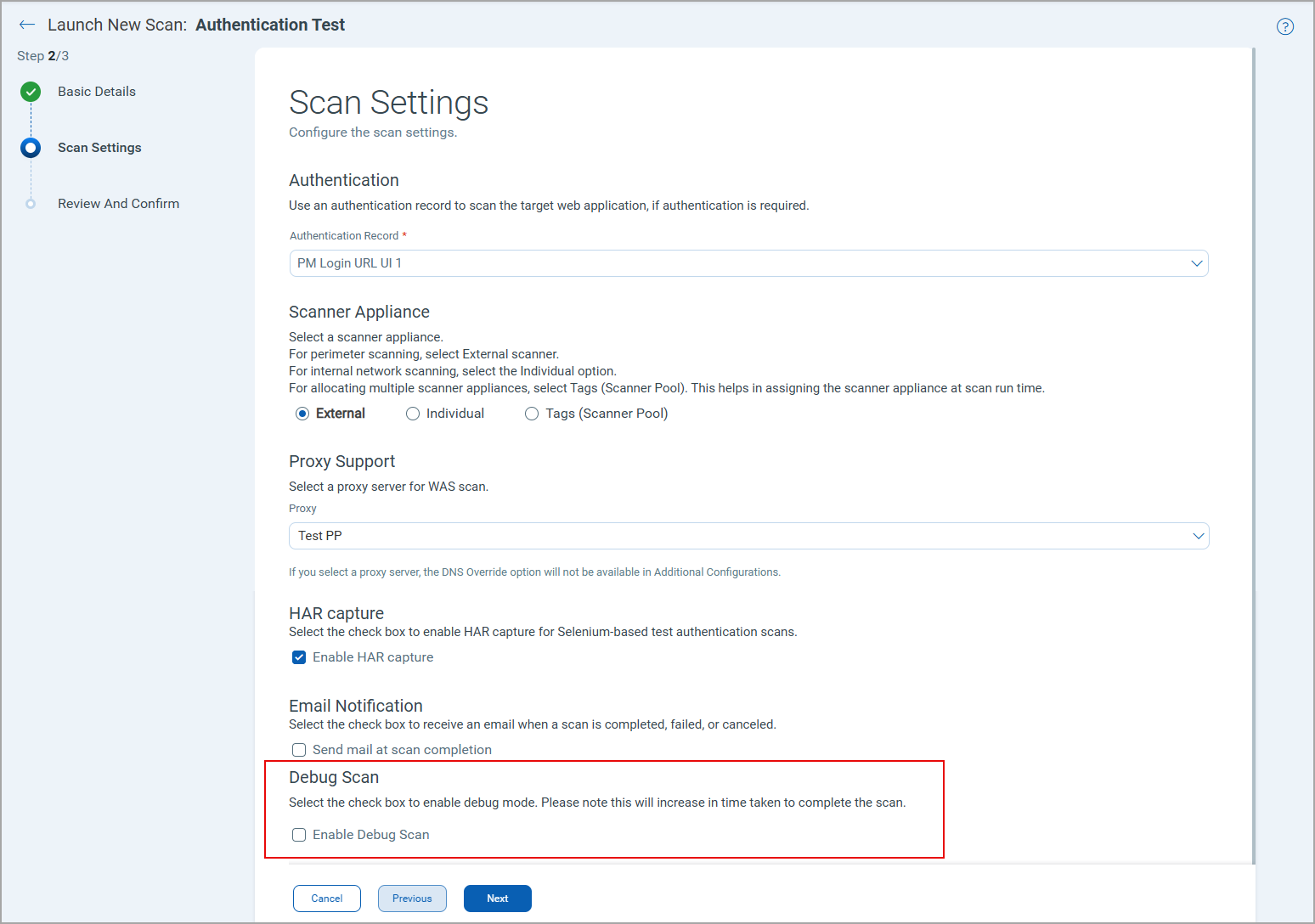
Debug scan for Authentication Test is supported only for single-test authentication runs. Multi-scan and scheduled scan configurations do not include this option.
CSV and XML Report Enhancements for Web Application and Scan Reports
Web application and scan reports downloaded in Comma-Separated Value CSV V2, or Extensible Markup Language (XML) formats now include new fields, and deliver faster download performance. The new fields provide security teams with richer vulnerability context to prioritize and remediate findings and focus on the prioritized risks.
New Fields in Web Application Report and Scan Report
The following new columns are now available after the existing columns in both the web application and scan reports:
- CVE - A comma-separated list of Common Vulnerabilities and Exposures (CVEs) associated with the QID.
- QDS - The Qualys Detection Score assigned to the QID.
- TTR - The Time to Remediation, the estimated time to remediate the QID.
- CVSS V3 Base - The intrinsic severity of a vulnerability on a scale of 0.0–10.0.
- CVSS V3 Temporal - The Base Score of a vulnerability based on factors that change over time, specifically measuring the current risk level.
- CVSS V3 Attack Vector - The metric indicates the context by which a vulnerability can be exploited.
The following new field is available only in the web application report:
TruRisk™ Score - The TruRisk™ score associated with the web application, giving you a risk-based view of your security posture.
Obsolete Column Values in Web Application Report and Scan Reports
The CVSS Base and CVSS Temporal columns in both web application and scan reports display NA, as these fields are not used.
The report structure and sequence remain unchanged, ensuring that existing automation and integrations continue to work without modification.
Enhanced Time Zone Configuration
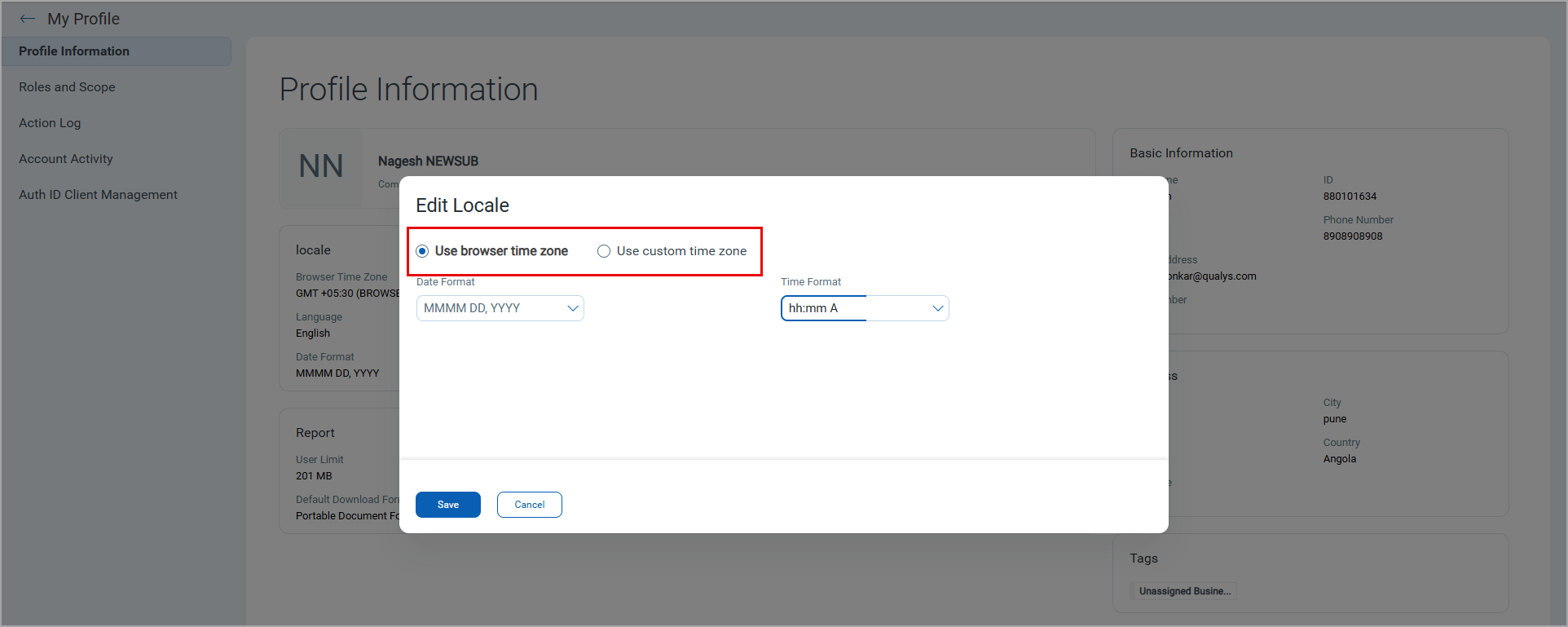
You can now define a preferred time zone in the profile, either the browser time zone or a custom user-defined time zone. The defined time zone applies across all scheduled scans and reports.
Previously, this option was unavailable, causing scheduling inconsistencies for users in different time zones.
Enhanced Scan Status Display
The Scans tab displays a dedicated UI status for the error code -5001 as ERROR directly within the interface.

Previously, this condition was not represented with a distinct status, requiring manual investigation of scan outcomes. This enhancement helps you to quickly identify the cause of a scan failure and proceed directly to remediation, minimizing the need for additional investigation.
The Action Logs now displays the specific reason for the failure, such as interrupted due to timeout, rather than a generic message.

Enhanced Application Report Download Limits
The report download limit is increased to 100,000 records per report for CSV, XML, and CSV V2 formats. This limit applies to application reports for web applications and APIs.
Issues Addressed
The following reported and notable customer issues are fixed in this release.
| Application | Category/Component | Description |
|---|---|---|
|
TAS and WAS |
Asset Purging |
We fixed an issue where deleted or purged web applications were not visible in audit logs, preventing users from identifying who performed deletion actions. The audit logging mechanism is updated to record deletion events with relevant asset details. Users can now view accurate deletion history, including the user and timestamp, in the Audit Log, improving traceability and investigative capabilities. |
|
TAS and WAS |
Scan launch |
The user experienced delays of 4–5 minutes before scan initiation while launching scans using scanner pools. The underlying database query is now optimized, and scans are now launched as expected. |
|
TAS and WAS |
Scheduled scan |
We resolved an issue where users could not open or edit existing scan schedules due to a 500 Internal Server Error in the Web Application Scanning UI. The issue occurred when schedules contained duplicate email addresses in the notification recipients list. Now, the duplicate email entries are removed during processing, and the user can open, view, and edit the schedules without errors. |
|
TAS and WAS |
Option profile |
We fixed an issue where tag-based scheduled scans targeting a single web application did not use the option profile assigned to that web application. Scans now correctly use the web application's assigned option profile. |
|
TAS and WAS |
Scan status |
We fixed an issue where timed-out scans displayed an incorrect status of Scanner Not Available, causing confusion. The status mapping is corrected, and scan statuses now accurately reflect timeout and interrupted behavior in the user interface and logs. |
|
TAS and WAS |
Authentication record |
We fixed an issue that prevented non-super users with WAS Manager permission from updating credentials in Selenium-based authentication records. The validation logic is now updated, and users can now update credentials successfully. |
|
TAS and WAS |
Scans |
We fixed an issue where the scans were not deleted even when global delete settings were configured. The issue has been resolved, and scans are now deleted as expected. |
|
TAS and WAS |
Scans |
We fixed an issue where users observed findings stuck in the Canceling state after a scan was canceled, while the scan itself reflected the correct "Canceled" status. The findings now correctly transition to the final status when a scan is canceled. |
|
TAS and WAS |
QQL search |
We fixed an issue where searching with the QQL token The issue is resolved. Query performance is optimized, reducing execution time and delivering faster, more efficient search results. |
|
TAS and WAS |
Scans |
We fixed an issue where users observed scans remaining stuck in a running state after being canceled by the system, with no status update reflected in the user interface. The issue is resolved, and the scan statuses now update correctly when a scan is canceled. |
|
TAS and WAS |
Option profile |
We fixed an issue where system-defined option profiles displayed with incorrect ownership and were incorrectly available for editing and deletion. The issue is resolved. The option profiles, Authentication Test, API Compliance Options, API Initial Options, and SSL TLS, cannot be edited or deleted. The following option profiles, Log4Shell Options, Initial WAS Options, and user-created option profiles remain editable. |
|
TAS and WAS |
Web application |
We fixed an issue where attempting to view a web application with no owner assigned resulted in an error, blocking access to the application. The issue is resolved, and the users can now view and manage such web applications without errors. |