Unified Dashboard FAQs
How can I rename Dashboard?How can I rename Dashboard?
On the Dashboard page, click the Tools  menu and select the Edit Dashboard option. You can rename the dashboard name and edit the dashboard description.
On the Dashboard page, click theTools menu and select Create Template from this Dashboard option. Provide a name and description, and the dashboard is available as a template for you to use. This way, you can duplicate dashboards and then edit them as needed.
Can I download the dashboard as a PDF?Can I download the dashboard as a PDF?
You can download the dashboard in PDF report format. You could also add pre-defined or custom stamp classification as a header to the PDF report.
Select the dashboard to be downloaded and click the  icon. Select pre-defined or custom stamp classification (optional) to add as a PDF report format header. Alternatively, click Add new to create custom header text, then click Download Dashboard.
The Dashboard description is not included in the PDF report.
If the widgets in the dashboard have a widget-level time filter configured, the widget-level time filter takes precedence over the dashboard-level time filter. In such cases, the dashboard-level time filter does not apply to widgets. For information on configuring widget-level time filters, refer to Configure Widget-level Time Filter.
We provide a pre-defined role named Unified Dashboard User to provide access to the Unified Dashboard application. Once this role is assigned to a user, the Unified Dashboard application is listed in the application selector, and the user can access the application.
To provide access, you can assign the predefined role or change the permissions associated with the existing role. If you have users with existing roles, you can edit the permissions associated with the role and assign "Unified Dashboard Application Access" permission to an existing role.
The Scanner, Reader, and Unit Manager users are assigned access to the Unified Dashboard application by default.
How to switch from one widget type to another?How to switch from one widget type to another?
Click the Widget menu and select Edit from the menu options. Click the required widget type and click Save. Depending on the widget type you select, you may have to provide the required information.
Editing widget option is available only if the widget is editable and if you have adequate permissions to edit the widget.
Click the Widget menu and select Create Template from this Widget option. Provide a name and description for the widget template you want to create and click Save. The widget template is saved and available in the User-defined widgets tab of the widget builder.
To view the template, click the Add Widget  button on the dashboard, select the module/application from where the widget data was picked and then click User-defined Widgets tab. This way you can duplicate widgets and then edit them as per your need.
How to change widget size?How to change widget size?
Resize any widget vertically or horizontally, drag & drop widgets on the page to change the layout.
1) Click the Tools icon on your dashboard.
2) Select Edit Dashboard Layout.
3) Adjust the width for any widget or drag the widget to a new location.
4) Click OK to save your changes.
Want to add a table in widgets?Want to add a table in widgets?
You have multiple ways to configure a table in a widget to help you visualize your assets and their security. Create tables with multiple columns sort by any column you like or set the sort order (ascending or descending)
Can I set up trending data?Can I set up trending data?
Yes, you can configure dashboard numerical widgets to display trend data. Enable the Collect trend data option in the dynamic widget wizard. Once enabled, the widget trend data is collected daily and stored for up to 90 days. This is used to plot a line graph in the numerical widget.
Can new users view the trending data?Can new users view the trending data?
A new user with the Manager role has all permissions and can view the trending widget's current and historical data for any existing widget already added on the dashboard. However, a new sub-user can view the trending data for the tags within their user scope. The sub-users cannot view the historical data for the trending widgets, and the trend lines will start showing from the time the sub-user is created.
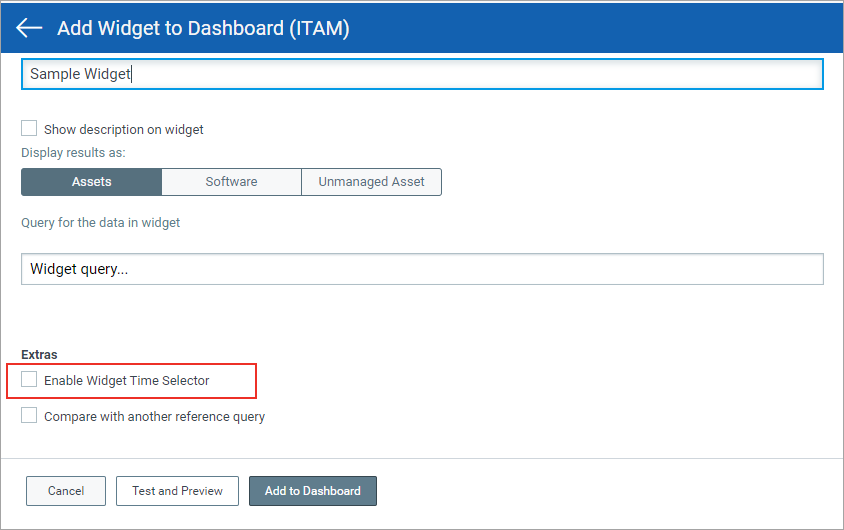
Yes, you can configure time filter at a widget-level when you create a new widget or edit an existing widget. Select the Enable Widget Time Selector check box and select the required time filter from the drop-down. Once saved, the time filter is applicable for the widget.
The widget-level time filter settings takes precedence over the dashboard time filter settings. Also, the widget-level time filter settings is available only for certain modules (CloudView, Container Security, Endpoint Detection and Response, File Integrity Monitoring, and Global IT Asset Inventory).
Can I add filters to my widget?Can I add filters to my widget?
Yes, you can add advanced filters for Table, Bar, and Pie widget types. You can use one or more tokens to filter data displayed on a widget. If you add multiple token filters, the latest filter gets the precedence.
Yes for a Numerical widget type, you can simply click  on the widget card to expand and view the trend lines clearly.
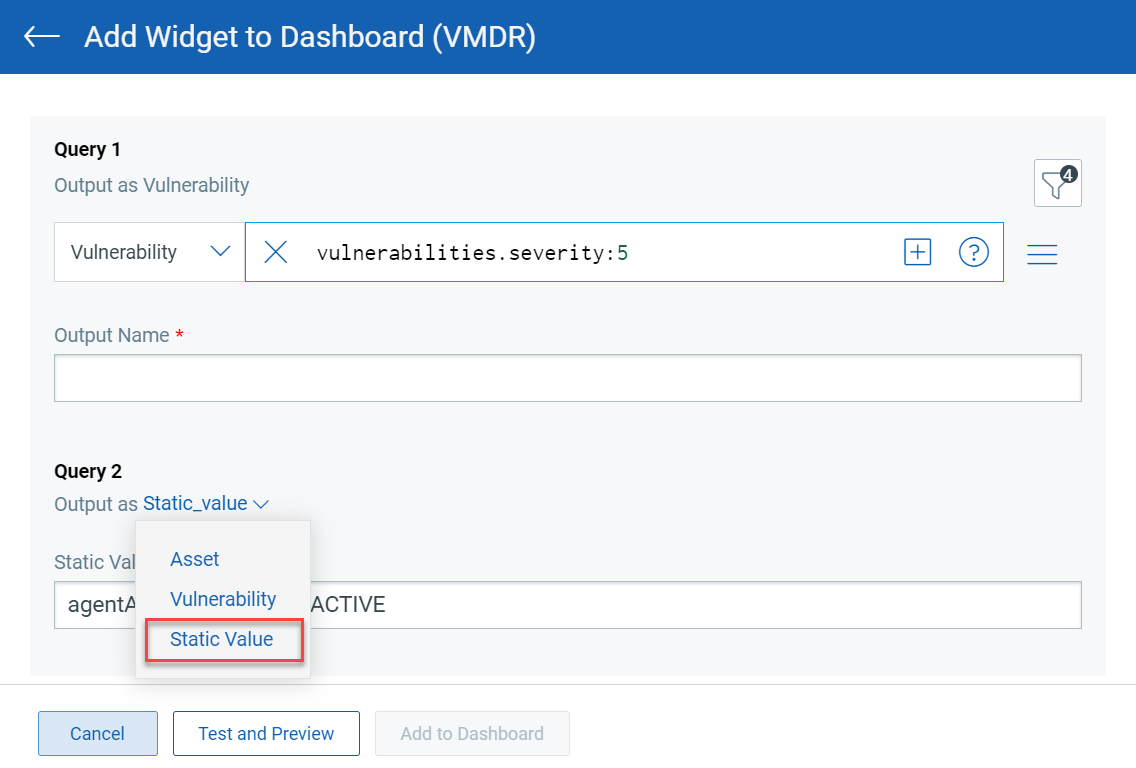
Yes, while comparing queries for Numerical Ratio widget, you can use a static value.
For Column and Pie type of widgets, you use the color library to assign custom color schemes for the data.
While creating a VMDR widget, if you select any of the following tokens from the Group By menu, you can customize the color mapping for the predefined values of these tokens.
| Vulnerability | Assets |
|---|---|
|
|
Alternatively, you can customize the color mapping even after you have saved the widget.
How to filter favorite widgets?How to filter favorite widgets?
On the dashboard, click the Add Widget button. The widget template library is displayed. Click the  icon to filter and view your favorite widget templates. To know how to add widgets to the favorite template list, refer to Marking Favorite Widgets.
The Qualys Unified Dashboard (UD) module calculates dashboard counts based on subscription and account activity:
- Total Created shows the total number of dashboards created for a subscription.
- All Dashboards show the number of dashboards that are within the currently logged‑in user’s access scope, including dashboards created by others and shared with the user.
- 300 represents the default limit for dashboard creation per customer across the entire POD. A Technical Account Manager (TAM) can increase this limit if needed.
When a dashboard is deleted, the system reduces both the Total Created and All Dashboards counts by one. This behavior is expected and does not indicate a discrepancy. To confirm dashboard deletions, the system allows verification through Administration → Activity Logs using the query moduleCode: UD.
How is the default dashboard selected? How is the default dashboard selected?
The system automatically selects a default dashboard when a module or the Unified Dashboard page opens. It uses the following priority order to determine which dashboard to load:
- User default dashboard
The system gives priority to the dashboard that you set as the default. You can select any dashboard that you own or have access to and set it as the default. When a user default dashboard is set, it overrides all other default selection rules. This ensures a personalized dashboard experience every time you access Unified Dashboard or a module.
- System default dashboard
- The system provisions this dashboard automatically during setup.
- The system makes the dashboard available by default.
- The system looks for a dashboard whose name matches the module’s default dashboard template.
- If the system finds a matching dashboard, it assigns it as the default.
- Fallback option
If the system does not find a system default or a matching template, the system assigns the first dashboard in the dashboard list as the default. This approach ensures a relevant dashboard always loads, even when no explicit configuration exists.