Unified Dashboard Release 2.15.1
August 24, 2026
Introducing the User Scope Filter: See What Your Sub-Users See
You can now scope your dashboard data to a specific sub-user under your account, so you can view the dashboard exactly as that sub-user sees it without creating a separate dashboard for each user.
When you select a sub-user, the dashboard resolves the tags assigned to that sub-user and applies them as a tag filter to the widget data. Both the parent tags and their child tags associated with the selected sub-user are applied. Previously, you could scope dashboard data only by Business Entities or by Tags, with no way to view the data through another user's tag visibility.
Only Super users and Manager users can view the User Scope option, and you can select one sub-user at a time.
The User Scope option is now visible in the Select Filters window on the Dashboard tab under the Tags icon, alongside the existing Business Entities and Tags options. The list displays each sub-user's Username, First Name, Last Name, and associated Tags.
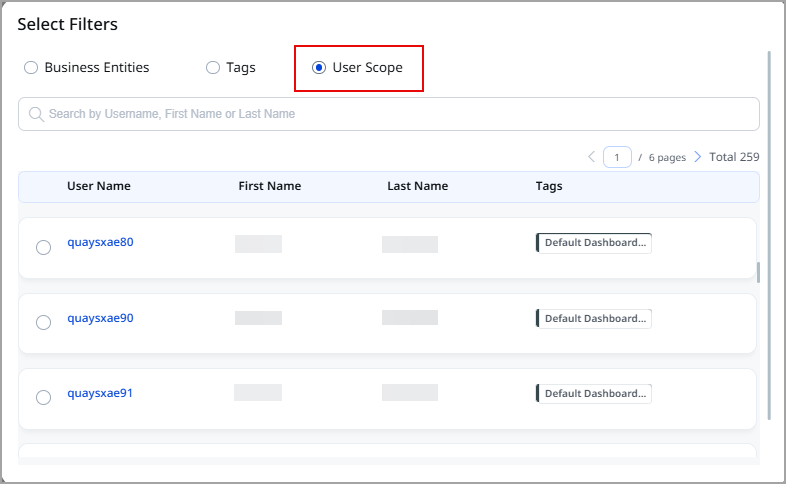
The User Scope filter is available on the ETM and VMDR modules only. It applies to all non-trend widgets and ETM trend widgets currently.
For more information, refer to UD Online Help.
Asset Tag Column Support in Vulnerability Simple List Widgets
You can now add an Asset Tags column to Simple List table widgets built on vulnerability data, so you can see which asset tags a detection belongs to directly in the widget, without opening each asset. Previously, the Asset Tags option was available only when the Display Results As option was set to Asset. When you displayed results as vulnerabilities, there was no option to view the asset tags.
The Asset Tags option is now available in the Columns to Display list when Table Type widget is set to Simple List on the Query Settings tab of the Add Widget to Dashboard page.
This feature is currently supported only for the ETM and VMDR modules.
The below screenshot displays the Asset Tag option in VMDR, where the Display results as option is set to Vulnerability.
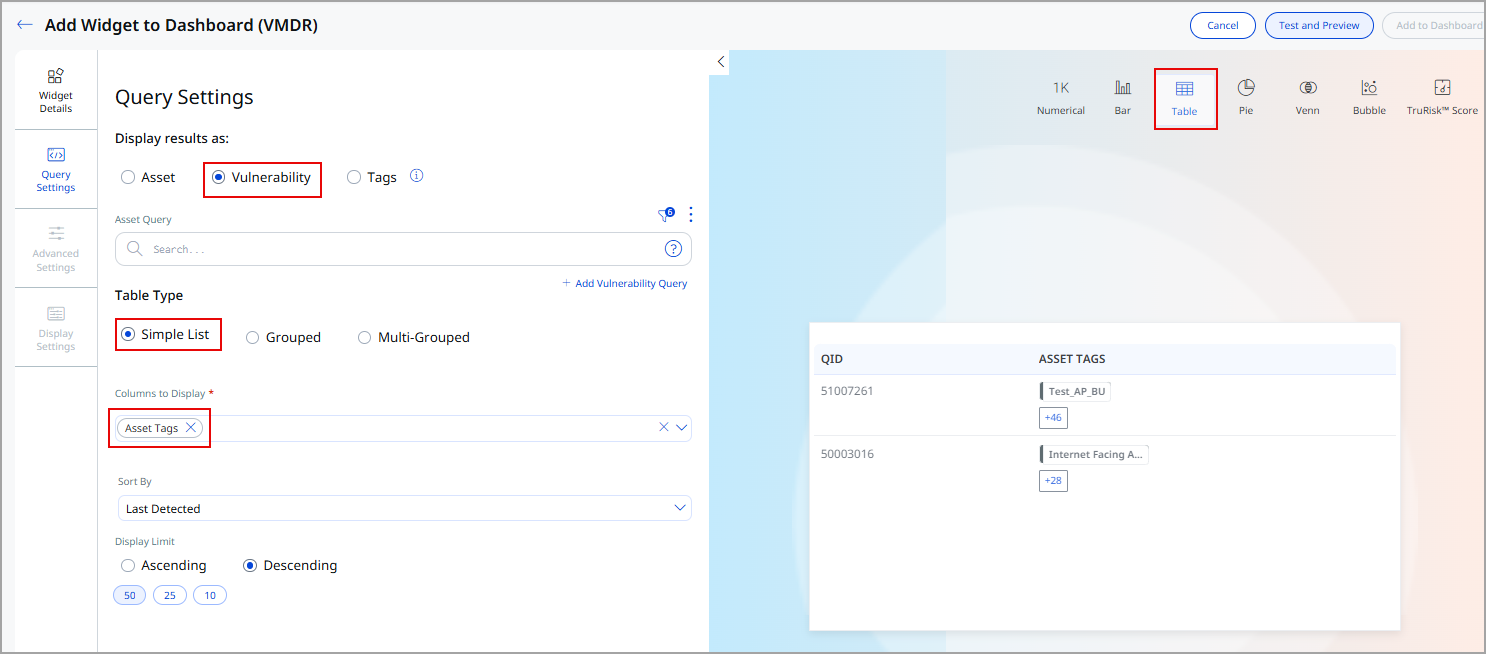
Similarly, in ETM, the Asset Tag option applies to widgets where Display results as is set to Findings and Widget for option set to Vulnerability.
For more information, refer to UD Online Help.
Year to Date and This Year Options in the Dashboard Time Filter
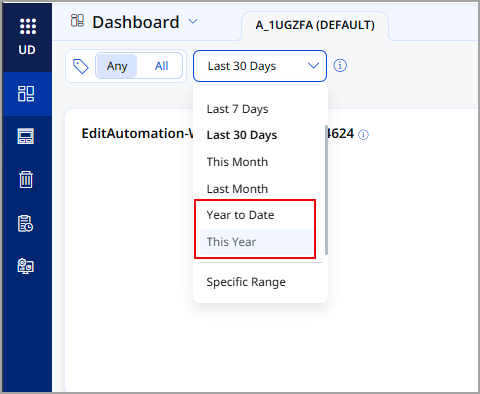
You can now filter dashboard data by Year to Date or This Year, so you can report on a full year of activity, such as an annual audit, without defining a custom date range each time. Previously, the time filter offered only week-level and month-level options, such as Last 7 Days, Last 30 Days, This Month, and Last Month. To view data for the current year, you had to select Specific Range and set the start and end dates manually.
The Year to Date and This Year options are available in the time filter at the top of the dashboard, alongside the existing options. Year to Date covers January 1 of the current year through the current date. This Year covers the current calendar year.
The selected timeframe applies to all widgets on the dashboard that support the time filter, and is retained with the dashboard when you save it.
Sorting and Display Limit for Tags in Table Widgets
You can now sort the results of a table widget that displays tags, so you can order tags by the value that matters to you, such as the highest TruRisk™ Score or the largest asset count, instead of reading through them in the order they were added.
The Sort By and Display Limit options are now available in Query Settings when Display results as is set to Tags. Sort By lists every column you select in Columns to Display, so you can sort the widget on any of them. As you add or remove columns, the Sort By list updates to match. By default, the widget sorts in ascending order on Tags Name, the first column in Columns to Display. Previously, when the Display results as was set to Tags, the Sort By and Display Limit options were not available.
Now, the Display Limit shows two options, Ascending and Descending, which set the order in which the tags appear.
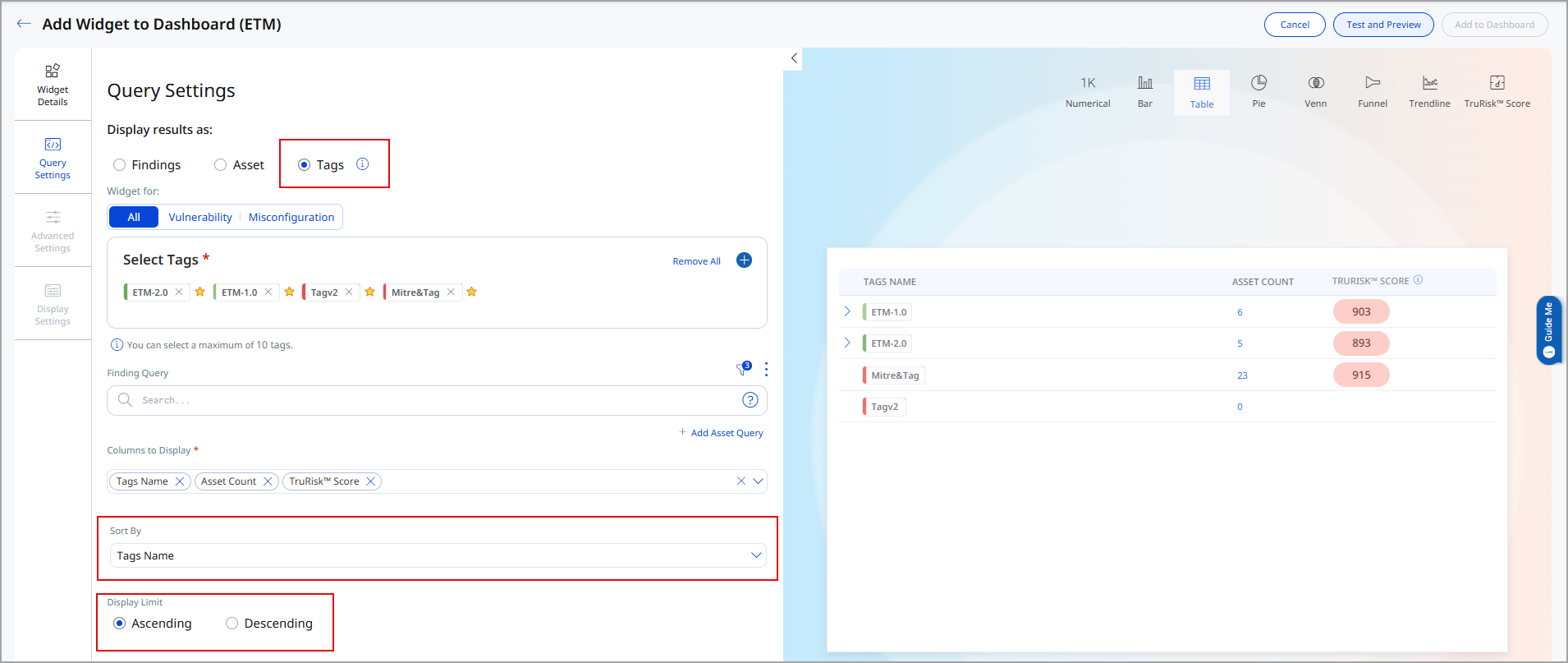
The Sort By option is available currently for Table widgets in VMDR and ETM modules only.
For more information, refer to UD Online Help.