Hosts with Cloud Agents
Agent hosts in your account
As a Manager, you can see private IPs for hosts with an agent installed in your host assets list (Assets > Host Assets). Agent hosts are automatically assigned the Cloud Agent (or AGENT) tracking method. You can select to include agent hosts in your reports.
If Asset Group Management Service (AGMS) is enabled for your subscription, you can see the Address Management tab instead of Host Assets. To understand the changes that happen when AGMS is enabled for your subscription, refer to Introducing AGMS.
Agent host permissions
Only Managers and Auditors can access agent hosts with the AGENT tracking method in the subscription. Hosts with the tracking method AGENT cannot be assigned to asset groups unless the host IP is in your VM and/or PA license.
How to add Cloud Agent asset data for Unit Manager?
To give access to cloud agent hosts to sub users, you must add an IP tracked entry for cloud agent hosts in your subscription. You should add those IPs to an Asset Group and give access of that Asset Group to the concerned sub users.
The following is an example for a Unit Manager user user who wants to assign Cloud Agent's asset group to a Business Unit Manager's business unit (BU).
To assign Cloud Agent's asset group to a Business Unit Manager's BU:
- Sign in to the VMDR module as a Manager user.
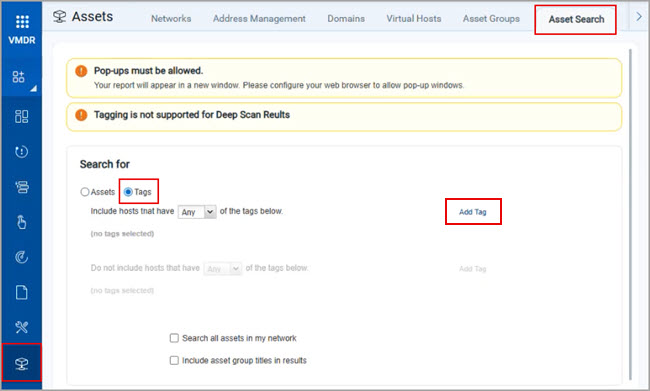
- Navigate to Asset > Asset Search > Search for: Tags > Add Tag.
- In the Add tags to Include dialog box, type Cloud, and then click Cloud AgentCloud Agent
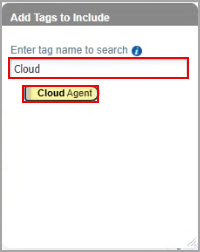 .
.
The Cloud Agent tag is added under Search for. - In the Asset Search page, click Search.
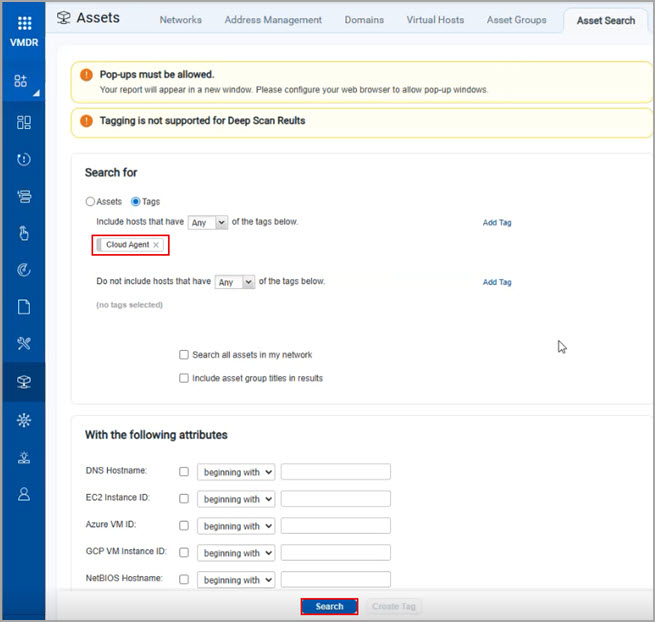
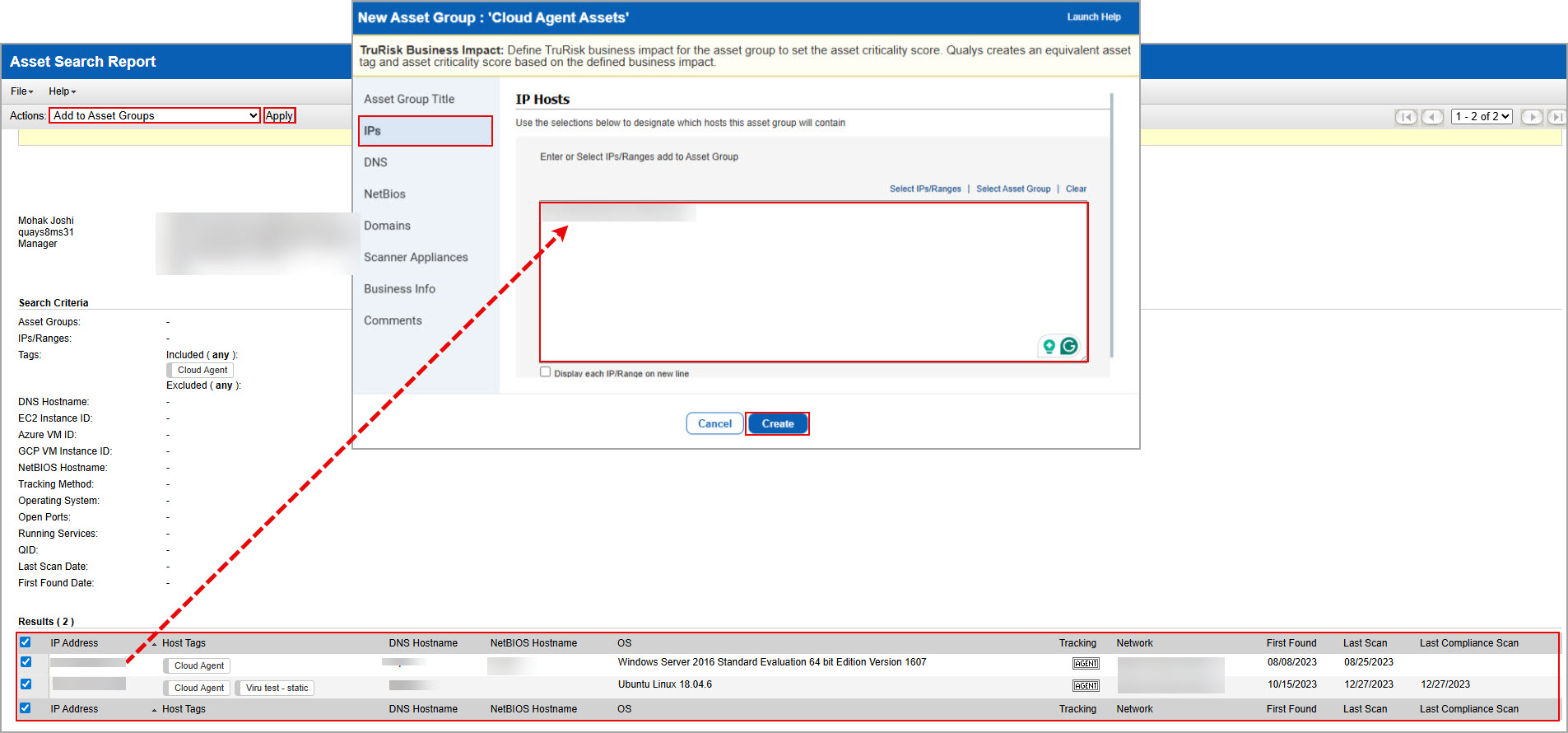
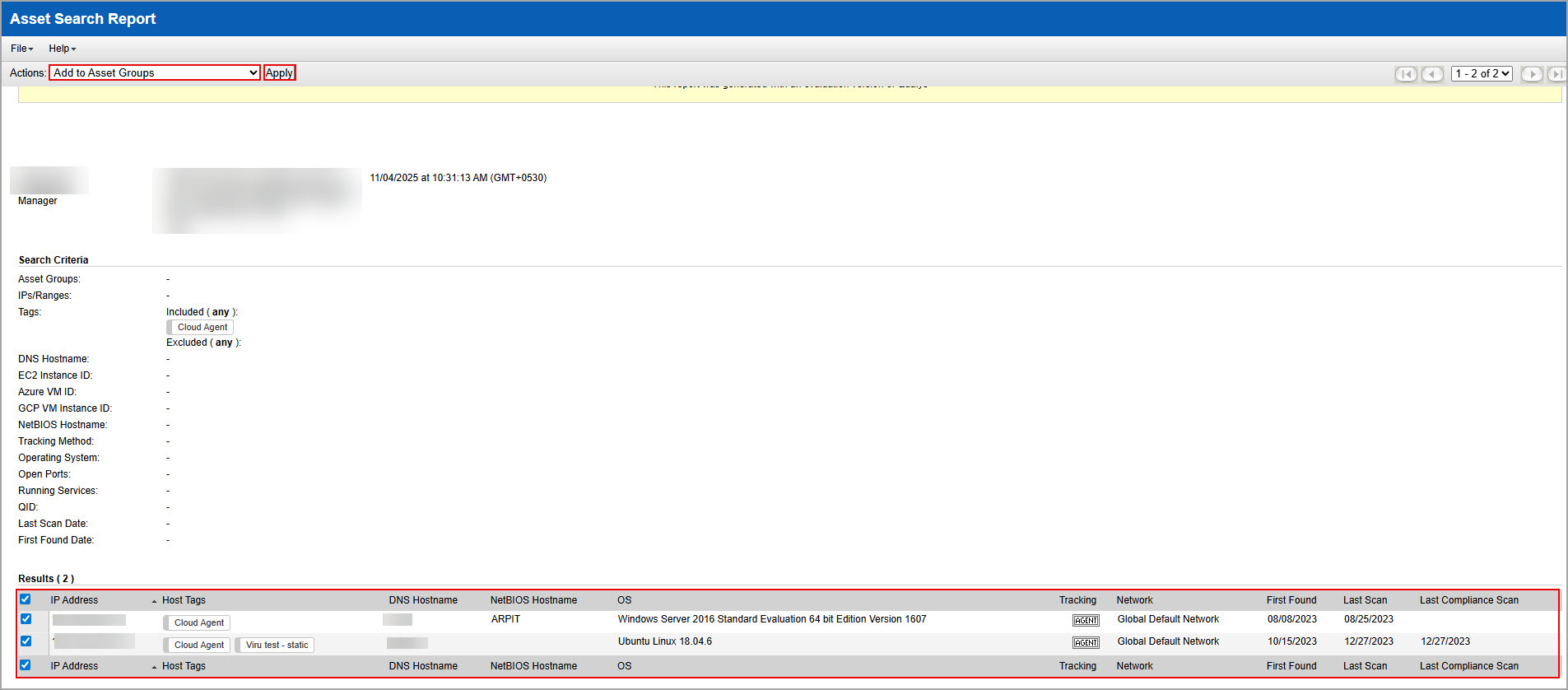
The Asset Search Report opens. - In the Asset Search Report, create a new asset group for all listed agent hosts.
- Create an asset group for selected assets in the VMDR module.
- Switch to the VMDR module> Assets > Asset Groups > New > Asset Group.
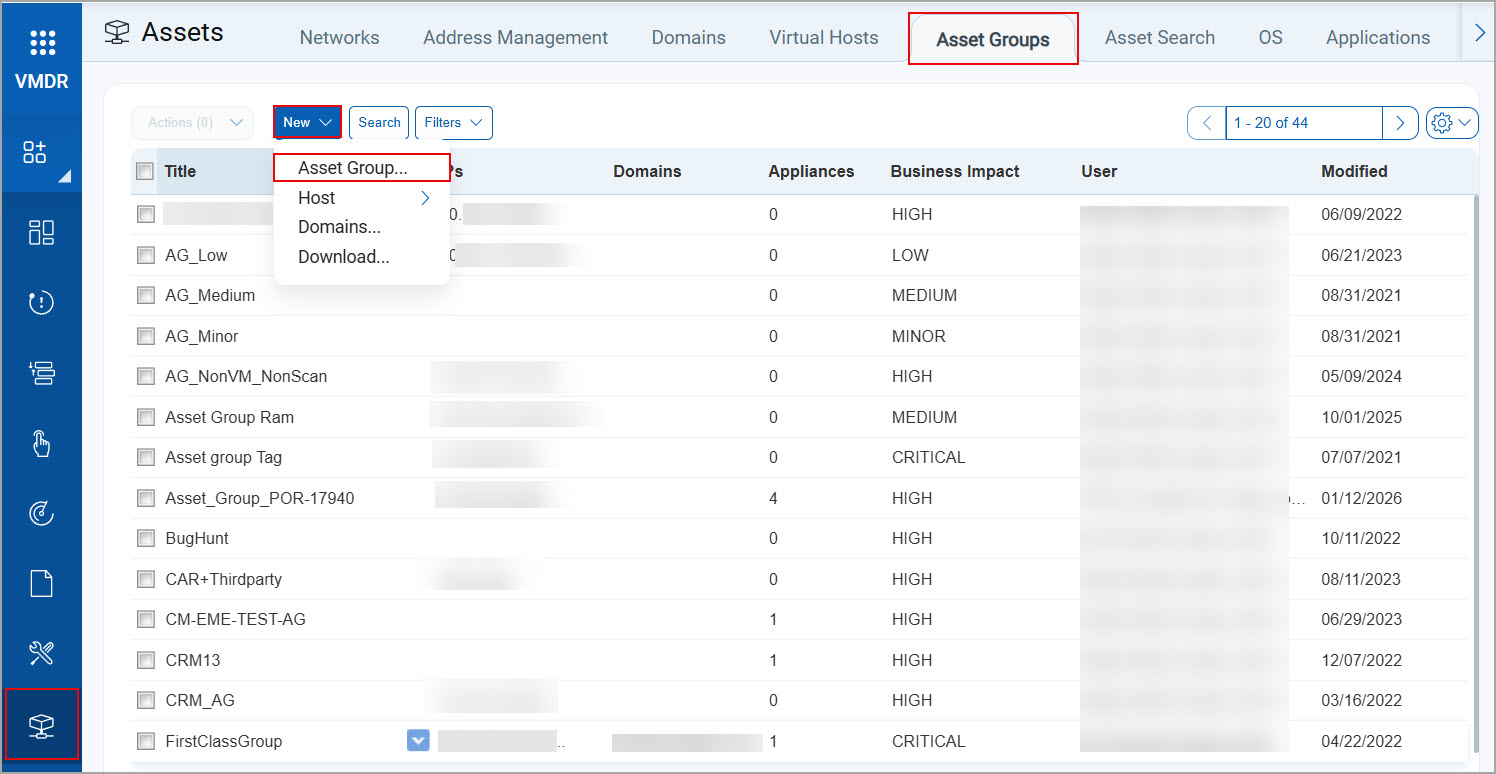
- In the New Asset Group dialog box, in the Title box, type a name of a new asset group.
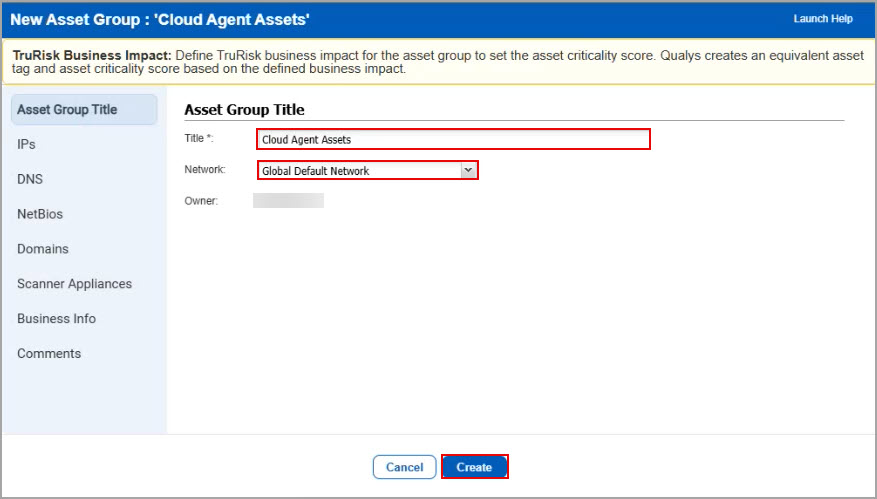
- In the left pane, click IPs, in the Enter or Select IPs/Ranges add to Asset Group box, type the selected IPs from the Asset Search Report (Step 6-a in this section), and then click Create.
Ensure that an IP address is added to the VMDR > Assets > Asset Management > New > Add IPs to Subscription > Subscription IPs Subscription IPs
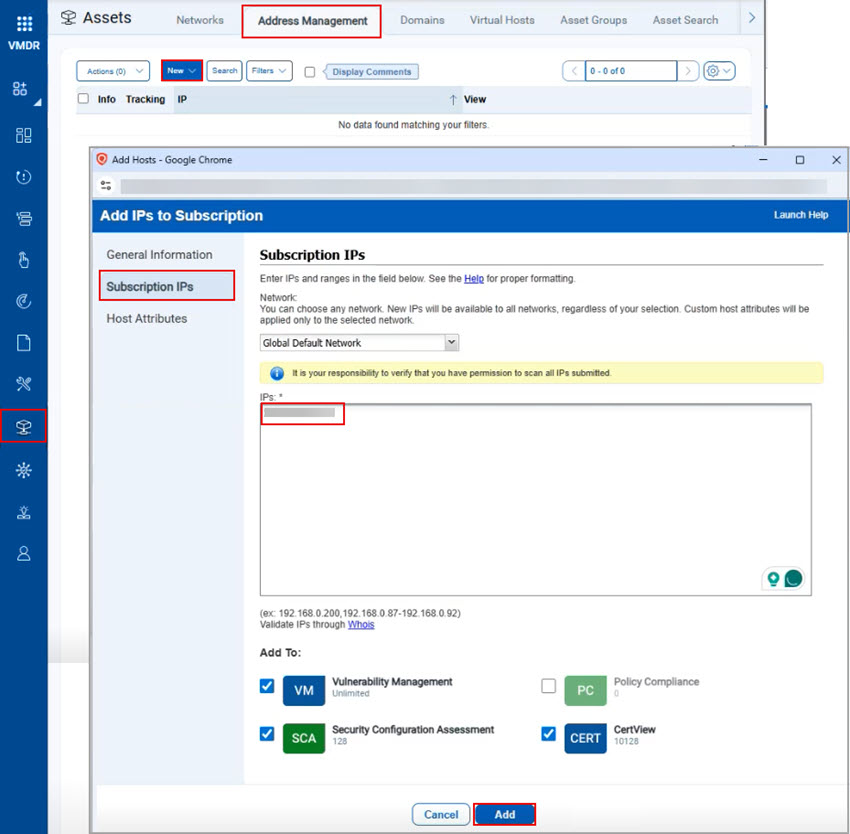 for an error-free addition of an IP to an asset group.
- Switch to the VMDR module> Assets > Asset Groups > New > Asset Group.
- Add the newly created asset group to a BU, assigned to a required Unit Manager user.
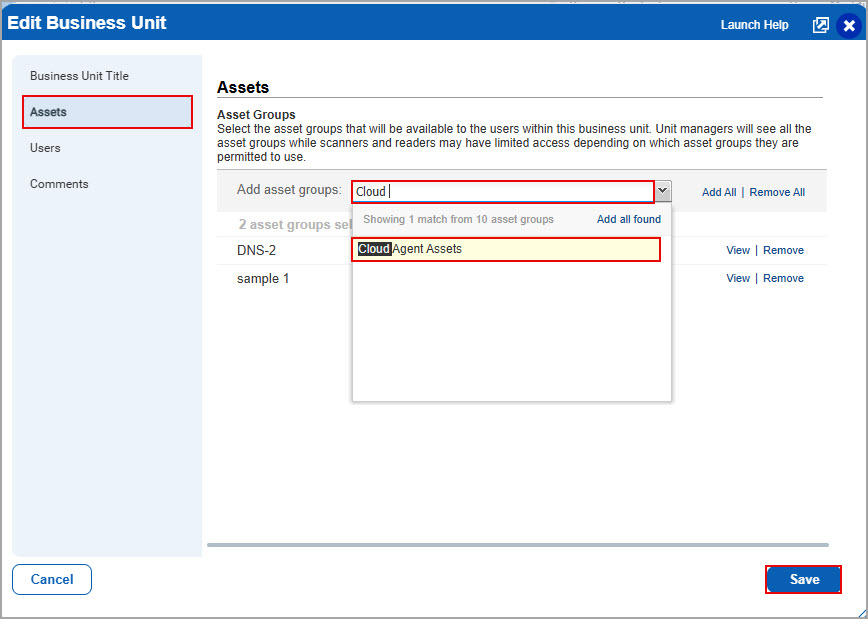
- In the VMDR module > Users > Business Unit > click the required BU's drop-down list > Edit.
- In the Edit Business Unit dialog box, Assets > Add Assets Group > select the name of an asset group > Save.
- In the VMDR module, sign in as a Unit Manager user > Assets > Asset Search to view the newly added asset group.
- Search for: Assets > Asset groups: All > Search.
An Asset Search Report opens and displays IPs added to a new assets group in the Results table.
This indicates that a current Unit Manager user can view Cloud Agent Hosts related to a newly added assets group in VMDR.
You can perform similar steps using the Host or Detection API to verify whether the Cloud Agent host data is available in the API XML for a sub-user. For more information about the Host Detection List, see the Qualys VM and PA APIs guide.
Agent hosts and your license
Host IPs are licensed separately for VM, PA and Cloud Agent (CA). Agent host IPs may not be included in your VM/PA license. If not, the agent host IPs will appear in your account but you cannot assign them to sub-users.
Can I scan agent hosts?
Yes. When launching or scheduling your scan, make these settings: 1) choose a scanner appliance for your scan, 2) enter your scan target including agent hosts, and 3) select the "Temporarily add agent addresses" option.
You need to select this option if your scan target includes agents that may have acquired IPs not in your subscription. Without this option the scan will not execute and will generate an error due to the addresses not being in your subscription. This option temporarily adds the IP addresses of any agents in your target to your subscription for this scan only. Cannot be used with the External scanner option.
Can I purge agent hosts?
Yes if you purge agent hosts from within the VM/PA apps, we'll delete the scan data from them. Learn more
Tell me about reporting
When you include a private IP for an agent host in your report, we'll report the latest host data from Cloud Agent assessments. You can include agent hosts in your scan reports, patch reports and asset search reports.
Cloud Agent collects only those software that are installed using a standard package manager (RPM and DEB).
How to merge agent data
You notice host results from your vulnerability scans and agents are displayed separately in reports and asset views by default. You can choose to merge host results to get unified views of your assets. Learn more
How to report on agent host compliance
Managers and Auditors can report on agent host compliance by adding agent host IPs to compliance policies. Open your policy in the Policy Editor, edit the assets for the policy and select the check box Include all hosts with PC agents. All hosts in your PC Agent license will be included.
This option only appears in accounts with PA Agent.
How to identify agent hosts in compliance reports
Look for the tracking method AGENT. You see this for your agents hosts in the Policy Summary, Control View, Policy Reports, Interactive Reports and Exceptions List.
For the Policy Report, you must select Report Source > All assets in policy to include agent hosts in your report.
Want to remove agent hosts from VM/PA?
Go to the CA app and uninstall the agents associated with the hosts you want to remove. We will then purge the hosts and remove them from VM/PA.